Build each location's week on the web under Scheduling → Schedule. Everything you add is a draft that only managers see until you publish it.
The page shows the location picked at the bottom of the sidebar. Each person is a row, each day a column, and unassigned shifts sit in the Open shifts row at the top.
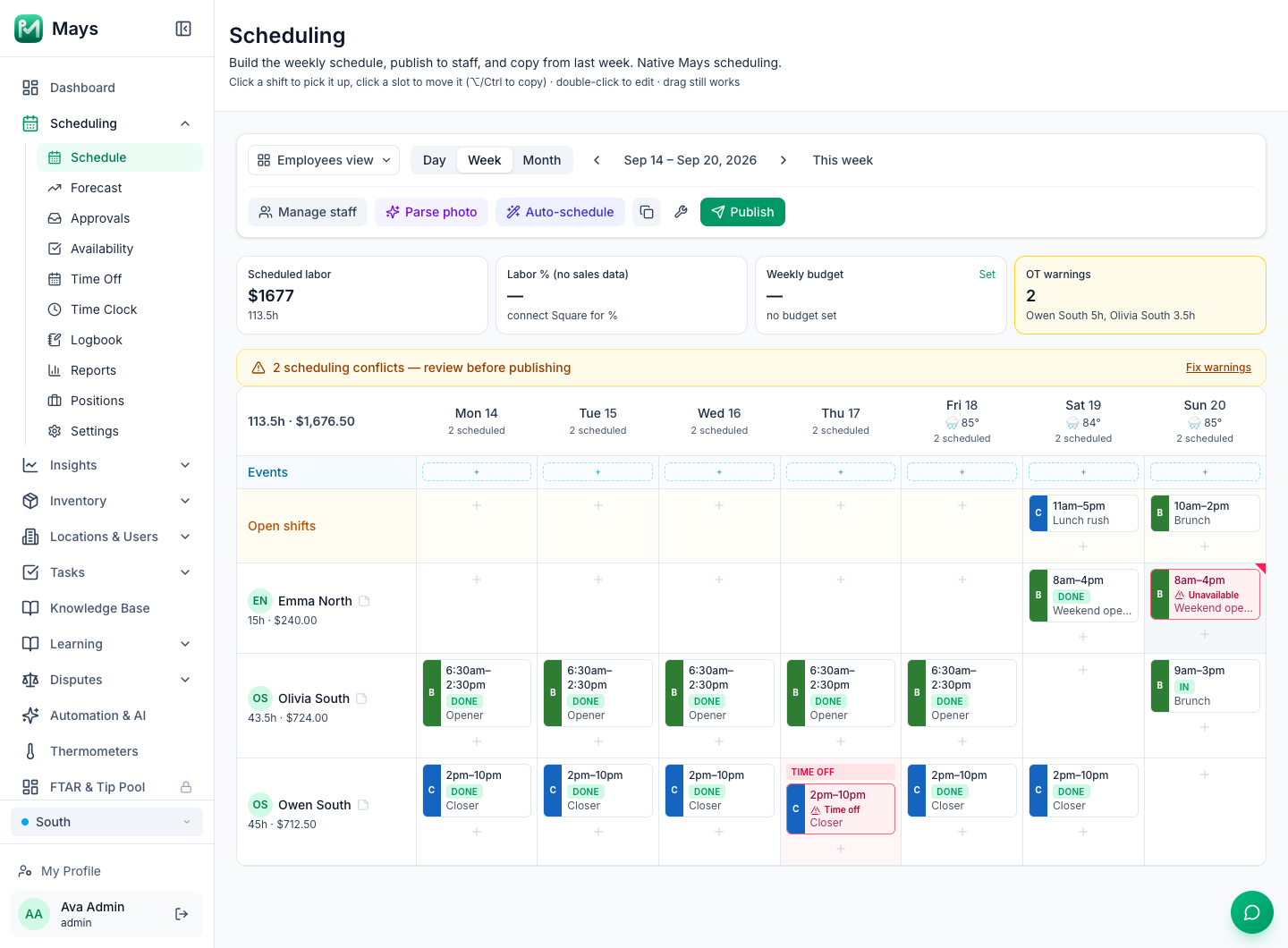
Find your way around the page
- Employees view / Roles view — one row per person, or grouped by position.
- Day / Week / Month — the week grid; one day as a timeline; or a month calendar with the number of shifts, staff, open shifts and people off each day. Click a day header to open that day.
- The arrows move between weeks, and This week jumps back.
- A department filter (All departments) appears when the location's positions belong to departments.
- Manage staff picks who has a row — see Setting up scheduling.
The week starts on the location's Schedule week start day.
Add a shift
- Hover over the cell for the person and day, and click the + that appears (Add shift). Use the Open shifts row for a shift nobody has yet.
- In New shift, check the Employee and Date, and set Start and End. The length shows underneath; an end time before the start means the shift ends the next day.
- Pick the Position and enter the unpaid Break (min).
- Optionally add a Label (such as Opener), a Station, a Late grace (min) and Notes. The employee sees the label and the notes in the app.
- Click Add shift.
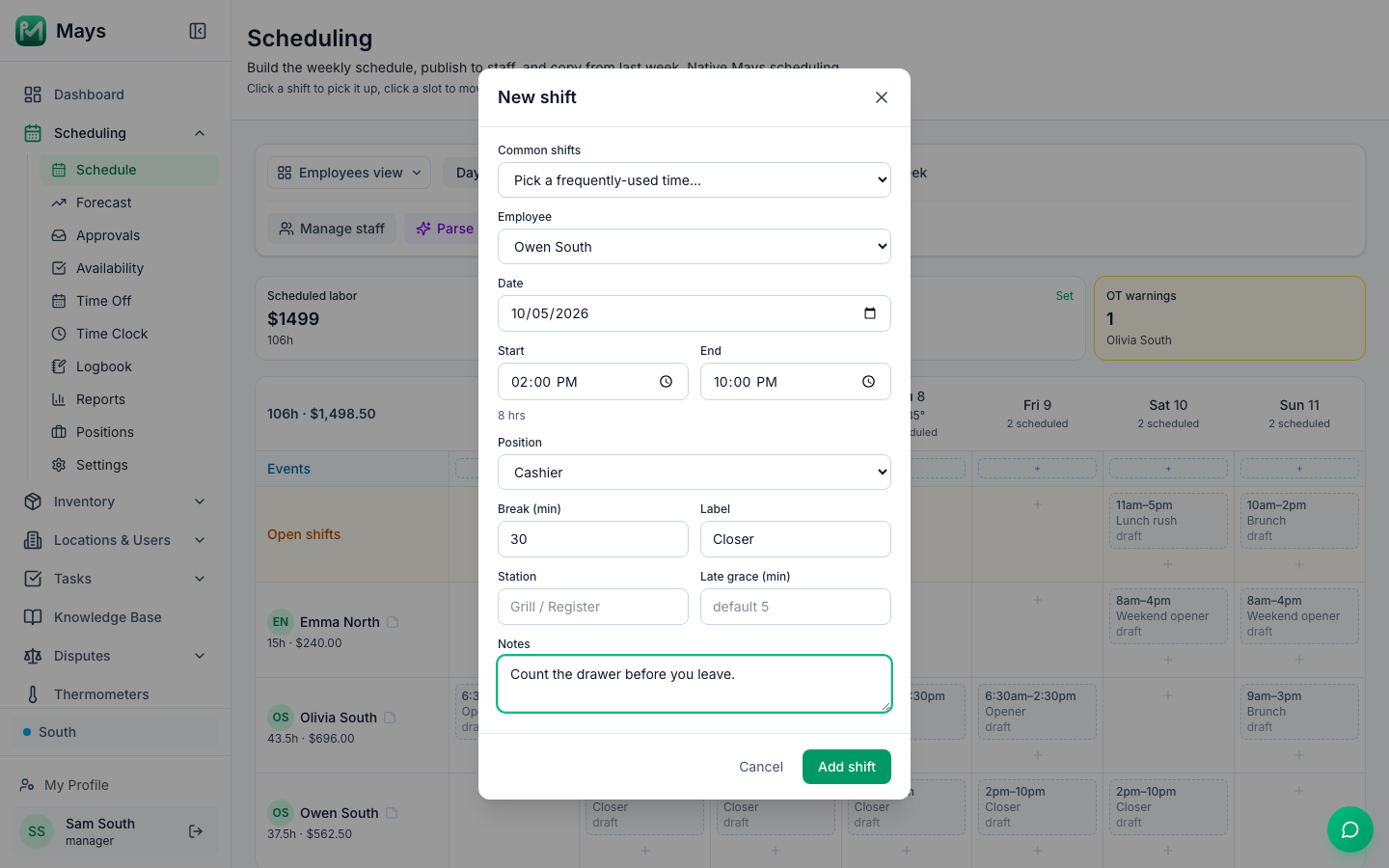
Common shifts at the top offers start and end times you've used often at this location — pick one to fill in the times and break.
A new shift is a draft: it has a dashed outline and the word draft, and nobody on your team sees it until you publish. See Publishing the schedule and notifying staff.
Move, copy and edit shifts
- Edit: double-click a shift (or press Enter on it). Change it and click Save.
- Move: click a shift once to pick it up, then click another cell. It keeps its times. Press Esc to put it down.
- Copy: hold Option (Mac) or Ctrl while you click the new cell.
- Drag and drop works too — hold ⌘, Ctrl or Option as you start dragging to copy instead of move.
- Delete: open the shift and click Delete. There's no confirmation.
Dragging a shift onto the Open shifts row unassigns it; dragging an open shift onto a person assigns it.
Changes to a shift that's already published don't reach your team straight away: the shift gets an amber edited mark, a deleted one stays on the grid struck through as removed, and both go live when you publish.
Open shifts
An open shift has no one on it yet. Once published, everyone at the location can see it in the app and claim it, and you approve the claim — see Open shifts and dropping a shift. To make one, click + in the Open shifts row, or pick Open shift (unassigned) as the Employee.
Time off, availability and double-booking
Mays warns you; it never stops you.
- A shift on a day the person has approved time off is outlined in red with Time off, and the cell is marked TIME OFF.
- A shift that clashes with their availability shows Unavailable, Not available or Outside hours. A small triangle in the corner of a cell means the person has limited or no availability that day — hover to see it.
- These also appear in the warnings banner before you publish. So does a PREMIUM row, where Labor law compliance's Premiums is on, when someone's day creates a spread of hours or a split shift under your location's premium rules, with what it costs, for example "Ava Chen's day on Tue, Sep 22 spans 11 h (9am–8pm): New York's spread-of-hours rule adds 1 hour at the $17.00 minimum wage (+$17.00)." The Scheduled labor card doesn't include premiums.
Mays doesn't stop you from giving someone two overlapping shifts — staffing is your call — but it warns you: the shift is outlined in red with Overlaps (hover it to see who and when), and the warnings banner lists the clash, naming the other location when the second shift is somewhere else. Overlaps are also flagged when you approve a claim or a trade — see The approvals inbox.
At a location with Labor law compliance's Minors (under 18) on, a shift that breaks a minor's limits is outlined in red with Minor rule, and the row of anyone under 18 shows their age and the week's hours against their weekly limit, for example Minor · 15 and 16.5 / 15 h. See Scheduling minors.
Labor, budget and overtime
The four cards above the grid:
Card | What it shows |
|---|---|
Scheduled labor | The week's labor cost and hours, from people's wages plus the overtime the shifts carry — see Positions and wages. |
Labor % | Labor as a share of the week's Square sales. Without Square it reads Labor % (no sales data), and a future week shows —. |
Weekly budget | Click Set to enter a budget for this week. The card turns amber when you're over. |
OT warnings | Everyone whose shifts that week run into overtime, with their overtime hours: weekly overtime (past 40 hours unless an admin changed it in Scheduling → Settings), and daily, double-time or 7th-day overtime where your overtime settings have it or, with Labor law compliance's Overtime law on, the law at the location's address does (see Labor & compliance). If an admin unticks Overtime warnings enabled there, the card stays empty — overtime pay isn't affected. |
The cards refresh when you change weeks or reload the page; the totals above the grid and next to each name update as you work; they include overtime, so a 45-hour week at $11.00 shows $522.50. Admins and managers see the money; your team never sees wages.
Where Labor law compliance's Minimum wage is on, a line under the cards says how many wages are below the legal minimum at the location and when the next increase is — see Positions and wages.
More tools
- Notes for managers: the note icon next to a name (Add a scheduling note) keeps a reminder like no car — mornings hard. Only managers see it.
- Events: the + in the Events row adds something happening that day, like a catering order. That day's scheduled staff get a reminder that morning.
- Print and Download are in the wrench menu (Schedule tools). Print only scheduled employees leaves out empty rows; Download saves the week as a spreadsheet (CSV).
- Copy week (the copy icon) copies Last week, or A specific week from the last ten, into this week as drafts.
Good to know
- Shifts copied from 7shifts show a 7shifts badge when you open them. Editing one in Mays stops 7shifts from updating it.
- Managers can also add and edit shifts from the app — Manage schedule on iPhone, Manager Schedule on Android — but the grid, labor cards, warnings and copy tools are web only.
- Only Scheduled people can be picked for a shift here; tick someone in Manage staff if they're missing.