The auto-scheduler builds a week from last week's shifts, working around time off, availability, your notes on each person and weekly hours. Everything it makes is a draft you review.
Where: Scheduling → Schedule → Auto-schedule in the toolbar, on the web. It works on the location picked at the bottom of the sidebar and the week on screen.
Generate a schedule
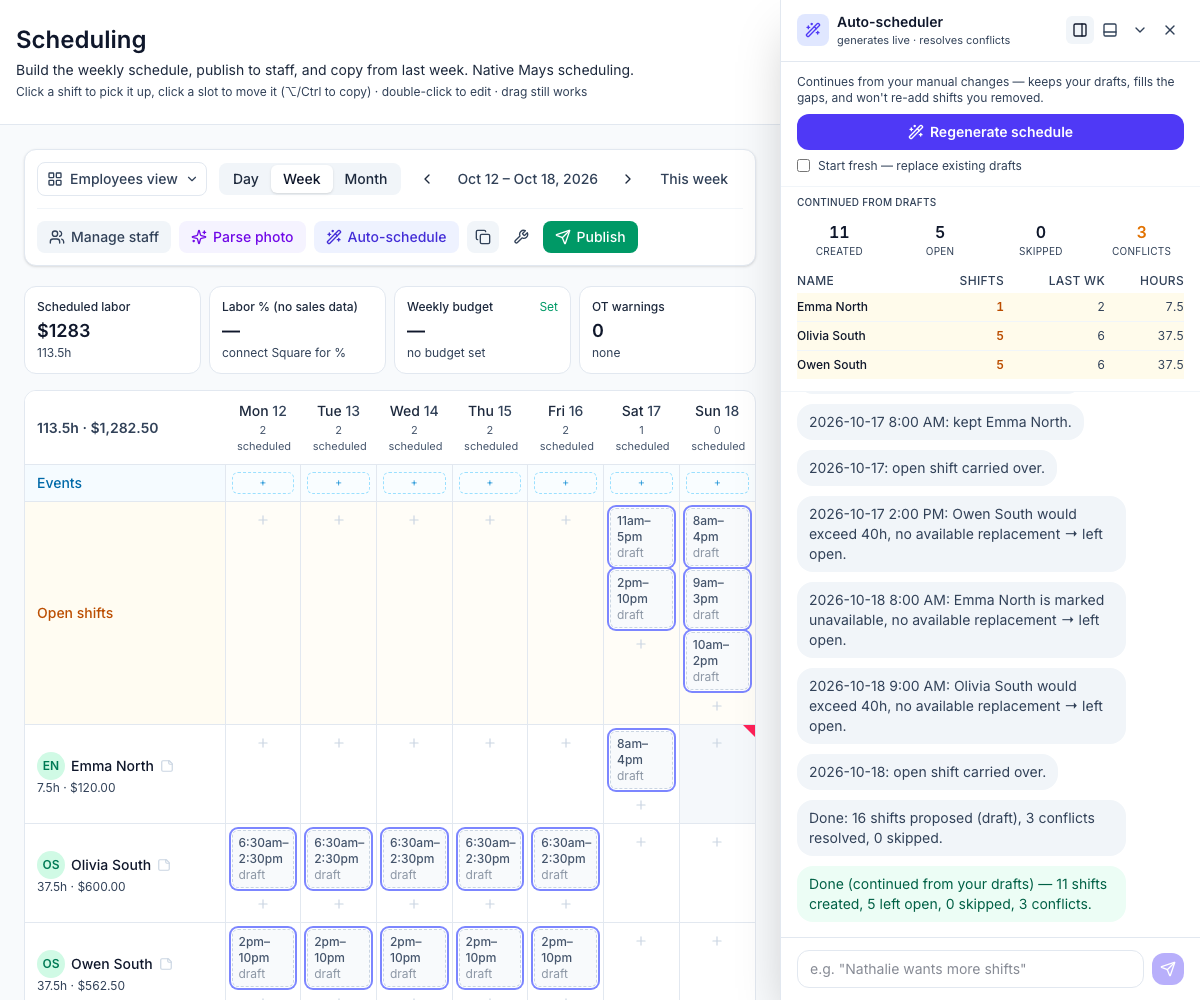
- Go to the week you want to fill and click Auto-schedule. The Auto-scheduler panel opens on the right.
- Leave Start fresh — replace existing drafts unticked to keep what you've already done: it keeps your drafts, fills the gaps, and won't re-add shifts you removed.
- Click Generate schedule. Shifts appear on the grid as it places them, and the panel explains each decision. Stop ends it early — the shifts made so far stay.
- Read the summary: Created, Open, Skipped and Conflicts, and a row per person with their Shifts, last week's (Last wk) and Hours. A highlighted row means that person got fewer shifts than last week.
- Review the grid, change anything you like, then publish — see Publishing the schedule and notifying staff.
Nothing reaches your team until you publish. Don't like the result? Revert in the wrench menu (Schedule tools) removes every draft in the week — including ones you added by hand — and the next Generate schedule starts clean.
How it decides
For each of last week's shifts, it tries to give the same person the same shift a week later. It moves the shift to someone else — or leaves it open — when that person:
- has approved time off that day (pending requests don't count);
- is unavailable or only partly available (approved availability);
- already has a shift that day or at that time — it never double-books anyone;
- would go over the weekly hours limit — the Weekly OT threshold in Scheduling → Settings (40 hours unless an admin changed it), counting their shifts at every location;
- has a scheduling note that rules it out, like no Sundays, not before 10am or max 25 hours — the note icon next to each name on the grid;
- is no longer on the location's schedule;
- is under 18 and the shift would break their work rules — hours, time of day, school hours or the position's minimum age — at a location with Labor law compliance's Minors (under 18) on. See Scheduling minors.
Replacements are picked from people on the schedule, starting with anyone whose note says they want more shifts. It then evens things out so people end up close to last week's count. A note like no mornings is a preference: it tries to swap, and tells you when it couldn't.
It copies each shift's person, position, times and break — not labels, notes or stations.
What it doesn't look at: wages, your weekly budget, the sales forecast, break rules, rest time between a close and the next open, or whether the replacement usually works that position. Check those before you publish.
Start fresh
Tick Start fresh — replace existing drafts to delete this week's drafts first and rebuild from last week. Published shifts are never touched.
- Published shifts stay and count: it won't copy a slot that's already published, and it won't book anyone on a day they already work, here or at another location.
- If last week is empty, it deletes your drafts and creates nothing.
Ask for changes
Type in the box at the bottom of the panel — for example Give Tuesday's close to Olivia, Make Friday's morning shift open, Move some shifts to Owen or Even out the week. The assistant shows what it wants to do under Make this change?:
- Yes — do it.
- Yes, for this week — do it, and stop asking about this kind of change until you leave the week.
- No — leave it alone.
Tell it something about a person — Olivia can't work mornings this month — and it saves that to their scheduling note and uses it next time. You can't chat while it's still generating.
When it edits by chat, the assistant checks whether the person is already working at that time, here or at another location. It doesn't refuse: the change shows a warning such as ⚠ Blake Chen is double-booked on Tue, Sep 29: 9am–5pm overlaps 3pm–9pm at Harbor. and it's your call. It doesn't check time off, availability or hours, so read the publish warnings. At a location with Labor law compliance's Minors (under 18) on, a change that would break a minor's work rules is always put to you with the warning, whatever Ask before changing says.
Settings for each location
On the location's Scheduling tab (Locations & Users → Locations → the location), the Auto-scheduler card has:
- Ask before changing — how much the chat assistant may do without asking: Always ask (the default), Ask before adding/removing, or Never ask.
- House rules — things the chat assistant should always follow, like Sundays need two people on bar. Saved when you click away. Generate schedule doesn't use them yet — only the chat does.
Good to know
- It starts from last week only. To start from another week, there's no option — build or copy that week first. See Copy a week and reuse common shifts.
- It doesn't use AI credits.
- Who can use it: managers for their own locations, and admins. It's on the web only, and Scheduling is part of the Pro plan.