Everything you build is a draft until you publish. Publishing puts the week in your team's app and calendars and tells the people whose shifts changed.
Drafts are invisible to your team. Until you publish, a new shift doesn't appear in anyone's Schedule tab, the Team schedule, the Open shifts list or their calendar feeds. Changes to a published shift — a new time, a different person, a deletion — stay behind the scenes too: staff keep seeing the published version.
Check the warnings
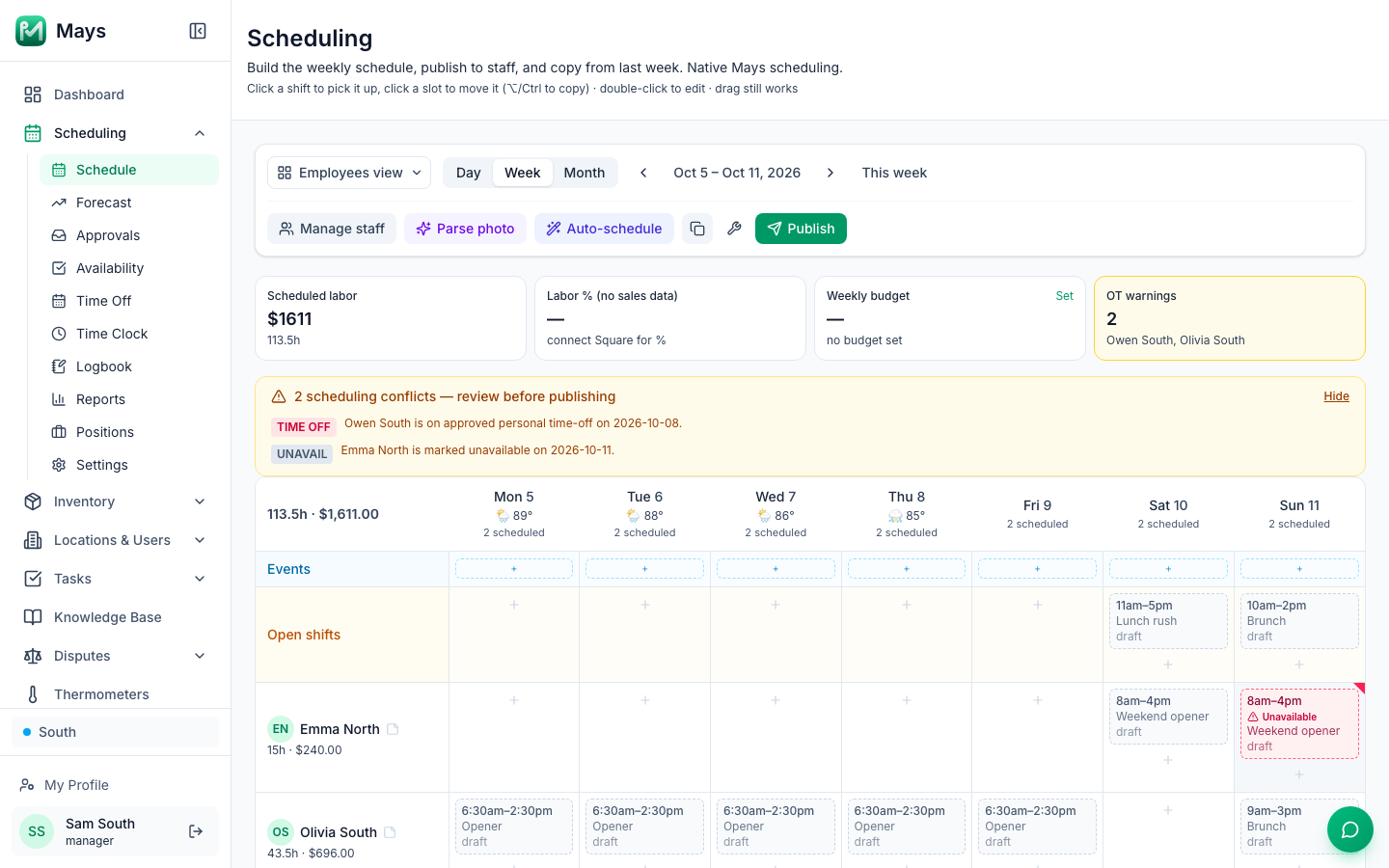
Above the grid, an amber banner counts anything worth a second look: … scheduling conflicts — review before publishing. Click Fix warnings to see the list:
Tag | Meaning |
|---|---|
TIME OFF | The person has approved time off that day. |
UNAVAIL | The shift falls when the person said they aren't available, or outside the hours they are. |
BREAK | A long shift doesn't leave room for a required meal break. Only at locations with break warnings turned on — see below. |
OVERLAP | The person is on another shift at the same time — here or at another location, which the warning names. |
PREMIUM | Someone's day would earn a spread-of-hours or split-shift premium under the location's rules, with what it costs. A second tag names who sets the rule, for example New York. Only where Labor law compliance's Premiums is on — see Labor & compliance. |
FOOD SAFETY | For part of a day, nobody on shift has a valid food handler card or food manager certificate, where the state asks for a certified person on every shift (Hawaii). Only where Labor law compliance's Food safety certificates is on — see Food safety certificates. |
MINOR | Someone under 18 would break a work rule for minors — hours, time of day, school hours or the position's minimum age. A second tag names the law (Federal, Florida …). Only where Labor law compliance's Minors (under 18) is on, and only people who manage the schedule see it. See Scheduling minors. |
Warnings never stop you from publishing; they're there so you can fix things first if you want to. Find the shift on the grid — it has the same red Time off, Unavailable, Overlaps or Minor rule mark.
Break warnings appear when the location's Labor & compliance card (Locations & Users → Locations → the location → Scheduling) has a Jurisdiction (California is available today) and Warn at publish when a shift can't fit its breaks is on. See Labor & compliance (per location).
Publish the week
- In Week view, open the week you want to publish.
- Click Publish.
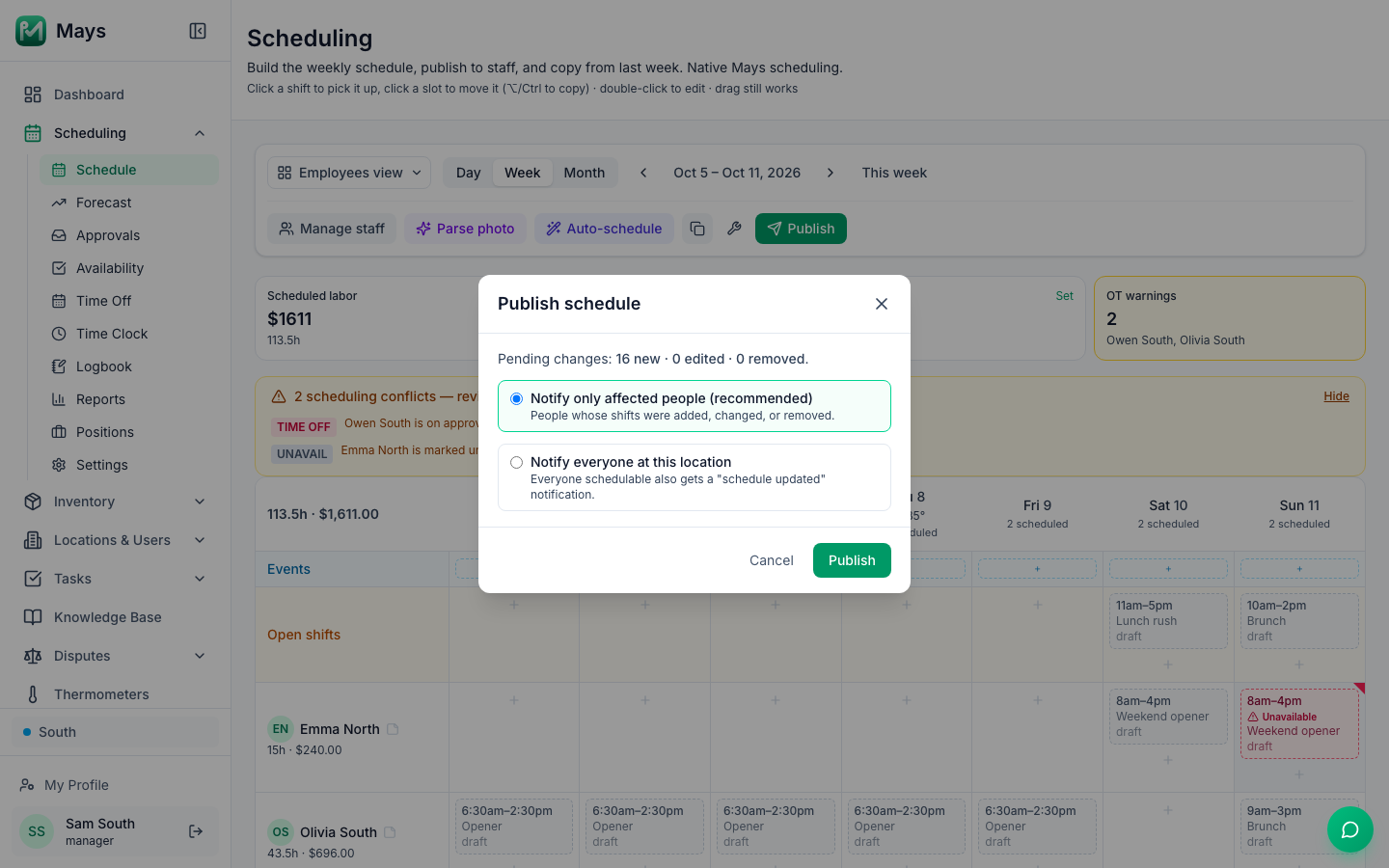
- The Publish schedule window shows what will change, for example Pending changes: 16 new · 0 edited · 0 removed.
- Choose who hears about it:
- Notify only affected people (recommended) — people whose shifts were added, changed or removed.
- Notify everyone at this location — the same, plus a Schedule published notification to everyone else on the schedule.
- Click Publish. A green message confirms it, for example Published 16 new, 0 updated, 0 removed.
Publishing covers the whole week at this location — every department, whatever view or filter you're using. If you publish from Month view, it publishes the last week you had open in Week view, so switch to Week view first.
Who gets told what
Who | What they get |
|---|---|
People with new shifts | A Your schedule is ready notification. |
Someone whose shift moved to another day or time, or changed position | Shift updated. |
Someone who lost a shift | Shift removed (or Shifts removed for several). |
Someone given a shift that was someone else's | New shift assigned; the previous person gets Shift reassigned. |
Everyone who can be scheduled, when the week has open shifts | Open shifts available — they can claim one in the app. |
The location's other managers | A Schedule updated summary: how many shifts were added, changed and removed. |
Everyone whose shifts were added, changed or removed also gets an email with their shifts for the week (if they have an email address in Mays), whichever option you choose. Changing only a shift's break, label or notes publishes silently. Notifications follow each person's notification settings — see Notifications.
With Notify everyone at this location, you can also publish a week with no changes to send everyone a reminder that the schedule is out.
Changes after publishing
Edit the week as usual — changed shifts show edited, deleted ones removed — and click Publish again. Only the people affected by the new changes are told. If the location uses shift confirmations, anyone whose time, position or shift changed needs to confirm again.
To undo, open the wrench menu (Schedule tools):
- Revert throws away every unpublished change to the week — new drafts, edits and deletions — and puts it back the way it was last published. Nobody is notified.
- Clear removes every shift from the week. Published shifts are marked removed and disappear for staff when you publish. Drafts are deleted straight away and Revert can't bring them back.
There's no "unpublish". To take a shift away from your team, delete it and publish.
Publish from your phone
On iPhone go to Schedule → Manage schedule; on Android, Schedule → Manager Schedule. When the week has unpublished changes, a Publish … change(s) button appears. Tap it and choose Notify only affected people or Notify everyone at this branch. The app shows no warnings, and Revert and Clear are on the web only.
Good to know
- Who can publish: admins and managers for their locations — anyone whose role can build the schedule.
- If nothing happens when you click Publish on the web, the week wasn't published. Reload the page; if it still fails, your role may not be allowed to publish at this location.
- The Your schedule is ready notification asks people to confirm their shifts only at locations that use shift confirmations.
- Published shifts show in your team's app right away — see Your schedule in the app — and in their calendar apps at the next refresh — see Calendar sync.