Need a day off? Send a time-off request from the app and your manager approves or declines it. Approved time off shows on the schedule so nobody books you by mistake.
Ask for time off (employees)
- In the app, go to Schedule → Time off.
- Tap +.
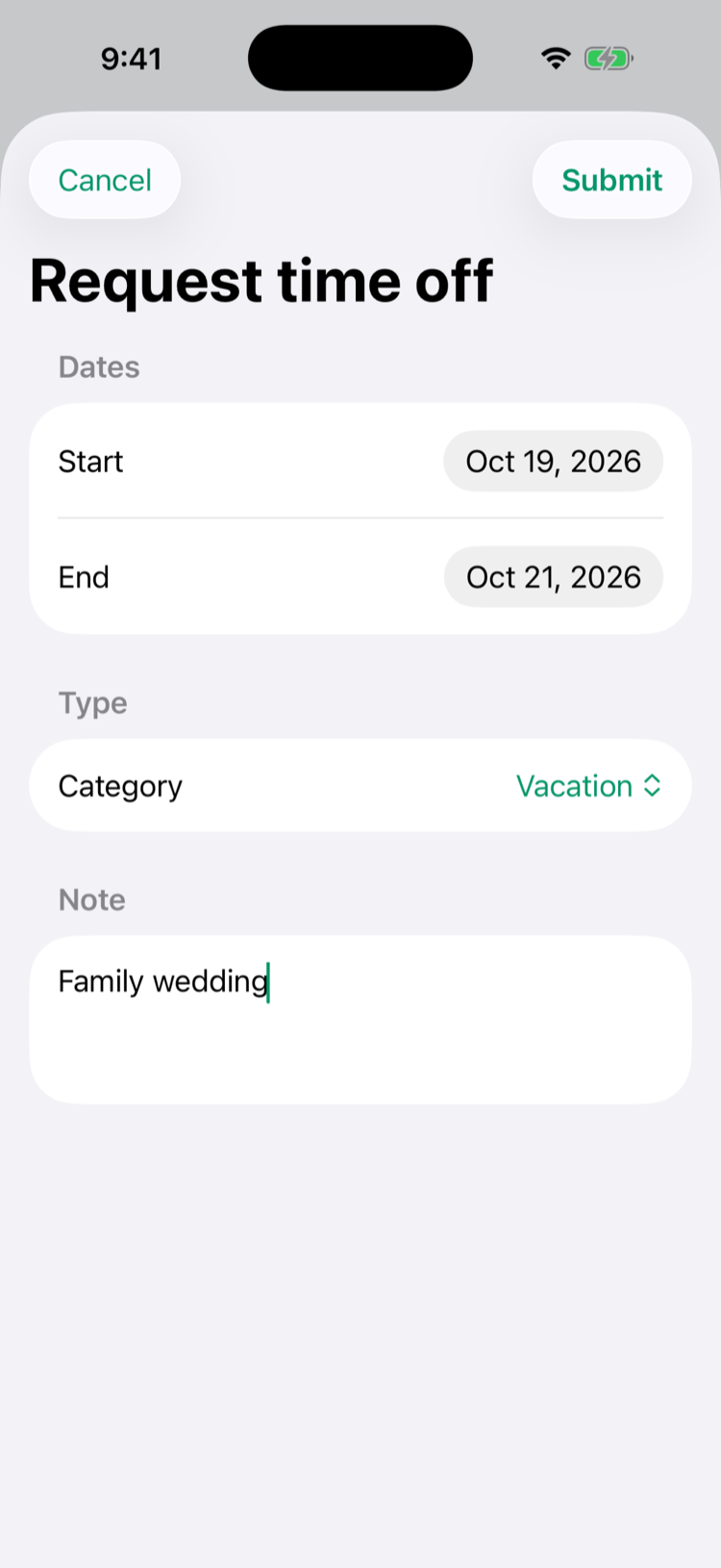
- Pick the Start and End dates. Both days are included.
- Pick a Category — Vacation, Sick, Personal, Unpaid, or one your company added.
- Add a note if you like (Optional reason on iPhone, Reason (optional) on Android).
- Tap Submit.
Your request shows Pending in the list. You'll get Time off approved or Time off declined when your manager decides; a declined request's notification includes the manager's note.
- Requests are for whole days. For part of a day, ask your manager — they can add it for you.
- If you have paid time off, your balances show at the top of the screen (for example 7.8h Vacation). A paid request uses the hours you're scheduled for on those days; days that aren't on the schedule yet count as 8 hours on a weekday and nothing on a weekend. It comes off your balance when it's approved. If your company has a waiting period for new hires, you can't use sick time before it ends: the app says the first day you can use it, and your hours keep building until then.
- To withdraw a request while it's still pending, tap Cancel request. After it's approved you can still cancel it until the day it starts: tap Cancel time off and confirm. Your manager is told, and any PTO it used goes back to your balance. Once it has started, ask your manager. (Update the Mays app to the latest version to see Cancel time off.)
- An AI suggestion (such as AI: approve) can appear on your request. It's a hint for your manager, not a decision.
Why can't I send it?
- A blocked day — your manager has blocked that date (a holiday or a big event), and the app names it. Android warns you as soon as you pick the date; iPhone when you tap Submit.
- "Time-off requests require at least … days notice." — your company asks for requests a set number of days ahead. Android shows the rule on the form.
- If there's no note field, your company has turned comments off.
Approve or decline (managers)
On the web: go to Scheduling → Time Off. The Requests tab lists requests for your location — click Pending to see the ones waiting. Each row shows the reason, the category, how many hours of that category the person has had approved this year, and the AI suggestion.
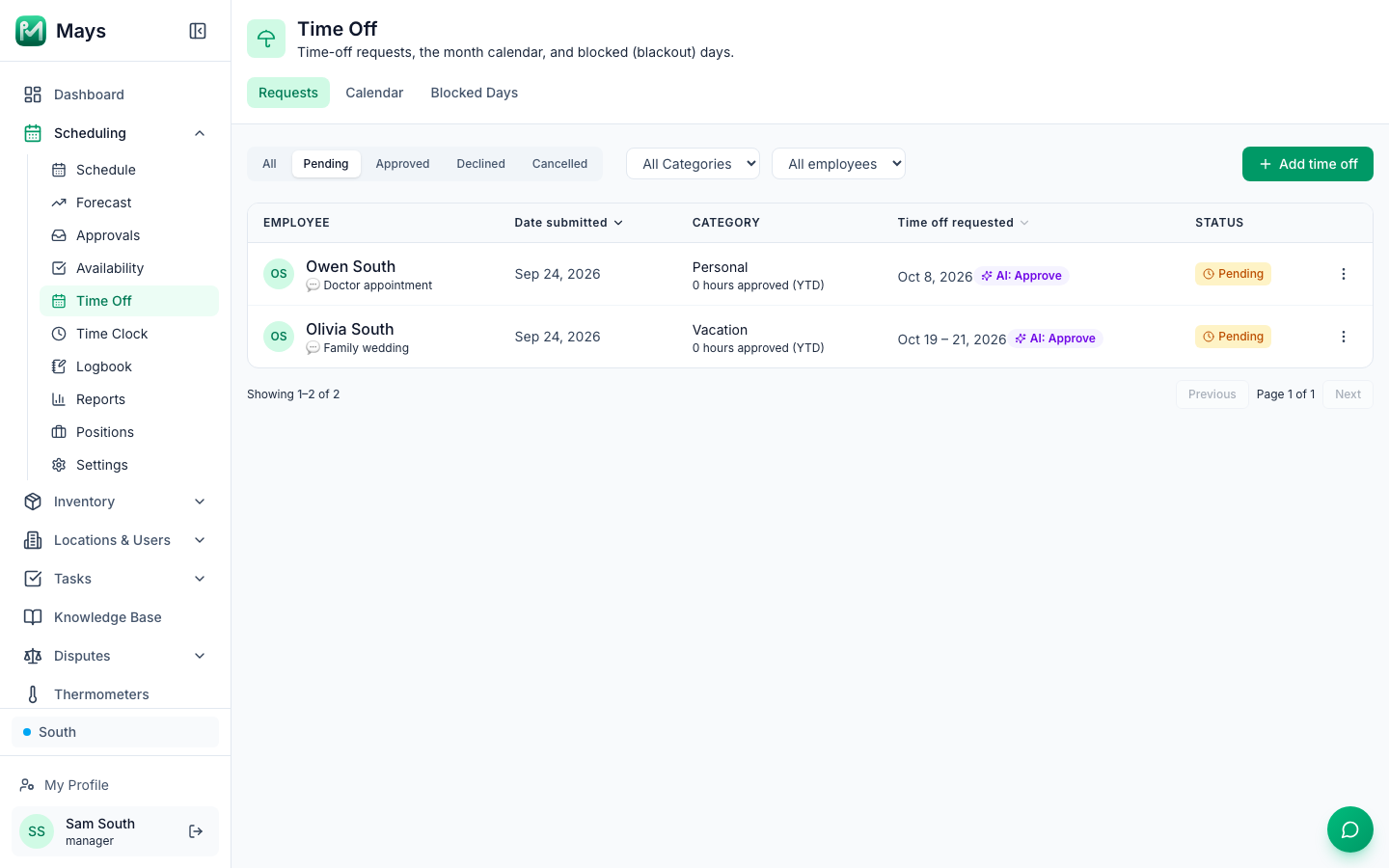
- Click a request.
- Check the Summary — the dates, the category, the hours of it taken this year and the AI's reasoning.
- Optionally type a Decision note. The employee sees it in the notification when you decline.
- Click Approve or Decline.
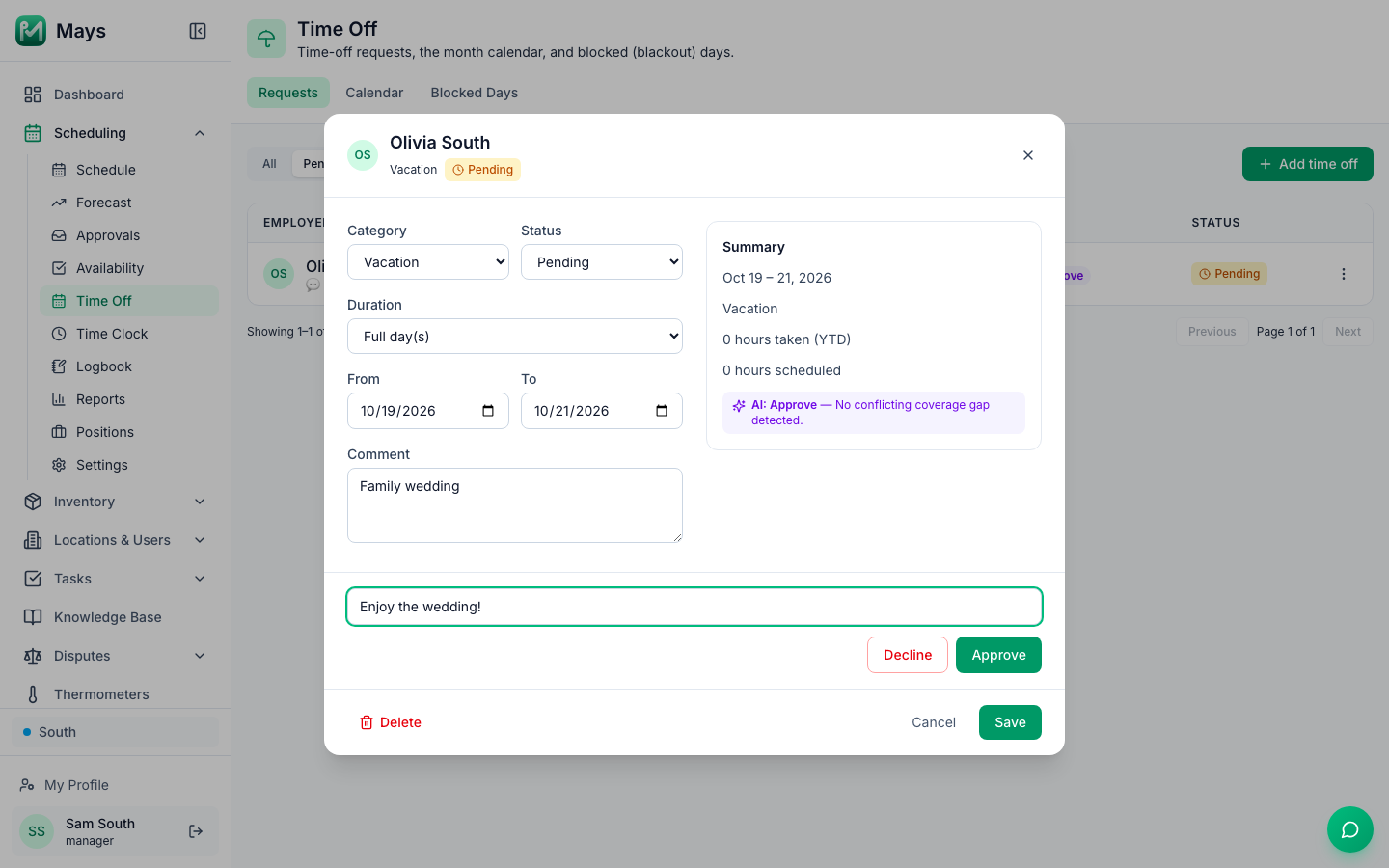
You can also approve or decline from the ⋯ menu on the row. Use Approve and Decline rather than changing Status and clicking Save — only they send the approved/declined notification.
In the app: go to Schedule → Approvals and find the Time off section. Tap Approve or Decline (there's no note in the app). See The approvals inbox.
What approving does:
- Paid time off comes out of the person's balance. If they don't have enough, Mays tells you how much is left and doesn't approve it. Paid sick or safe leave also follows the category's limits and, where Labor law compliance's Paid sick leave is on, the location's own rules: a request inside a new hire's waiting period, or past the yearly use limit, is refused with the reason — Sick time can be used from November 30, 2026: 90 days after Riley's hire date (September 1, 2026). Hours still build up until then.
- Shifts they already have on those days stay on the schedule. Each one gets a red Time off mark and appears in the warnings before you publish — reassign them or make them open shifts. See Building the weekly schedule.
- A shift they'd put up for grabs on those days is taken off the board and stays theirs.
More for managers
- Add time off for someone: Add time off on the Time Off page. Pick the Employee, Category and Status (Pending or Approved), then Full day(s) or Partial day with start and end times. Blocked days and notice rules don't apply to requests you add.
- Calendar tab: who's off each day this month (approved requests only), plus blocked days.
- Blocked Days tab: Add blocked day with a Date, a Title (like Independence Day) and a Location (or All locations). Employees can't request those days off. Only admins can add a day for all locations.
- Cancel or remove a request: open it and set Status to Cancelled (then Save), or click Delete. The employee is told either way.
- Categories, notice and PTO: admins set these in Scheduling → Settings — Advance notice for time off, Allow comments on time-off requests, and under Time off & PTO accrual the categories (Add category), how each one earns hours, and each person's balance (Adjust).
Good to know
- Who decides: managers for their locations, and admins. Every request waits for a manager.
- The AI suggestion looks at who else is off and who's scheduled in that period. It's advice only — it never approves or declines anything — and it shows on the employee's own request too.
- The web has no badge for pending time off — check Pending on the Time Off page, or the Approvals count in the app.
- Time off doesn't show on the schedule until it's approved.