Mark catering orders, inspections and other one-off days on the schedule, and that day's staff get a reminder in the morning. Birthdays show on the schedule too.
Where: the Events row at the top of Scheduling → Schedule on the web, in Week view. Admins, and managers at their own locations, add events; staff get the reminders in the Mays app.
Add an event
- Open the week, with the right location picked in the sidebar.
- In the Events row, click + under the day.
- Type What is happening?, such as Catering — Chamber lunch.
- Add a Note (optional). It's what the morning reminder says.
- Click Add Event.
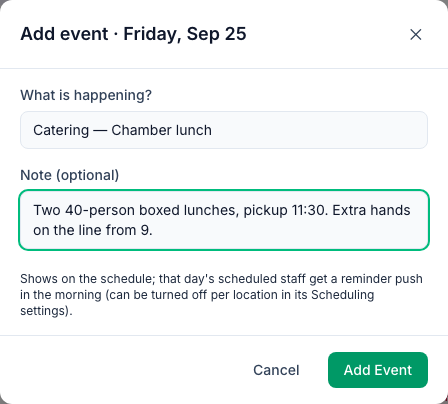
The event shows in the Events row on that day. Hover over it to read the note. To remove it, hover, click × and confirm with OK. To change an event, remove it and add it again.

The morning reminder
Every morning at about 8 a.m. Eastern (5 a.m. Pacific, an hour earlier in winter), everyone with a published shift at that location that day gets a push: Today: Catering — Chamber lunch 📅, with your note, or Heads up — it's happening today at South. if there isn't one. Tapping it opens the Schedule tab. People who aren't working that day aren't told.
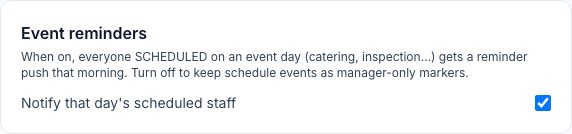
To turn the reminders off for a location and keep events as markers for managers only:
- Go to Locations & Users → Locations and open the location.
- Open the Scheduling tab.
- Under Event reminders, untick Notify that day's scheduled staff. It's on by default.
Birthdays
- On the schedule: the Date of birth on the Employment tab of someone's page (see Add and invite team members) shows in the Events row as a pink chip with 🎂 and their name, on that date each year. Only active people at the location are shown. You can't remove the chip; it goes if you clear their birthday.
- On the day, at about 8 a.m. Eastern, they get Happy birthday, (first name)! 🎂 — Everyone at Mays wishes you a wonderful day.
- Their managers and admins at each of their locations get It's (name)'s birthday today 🎂 — Wish them a happy birthday when you see them.
A February 29 birthday is celebrated on February 28 in other years.
Good to know
- The apps don't show events or birthdays on their schedule screens; staff and managers get the pushes. To see events in your own calendar, subscribe to the Events feed. See Calendar sync.
- Birthday and event pushes can't be turned off in the app's notification settings. See Push notifications.
- Birthday greetings go out to everyone with a date of birth on their page, whether or not you use Mays scheduling. To stop them for someone, clear their birthday.
- Events belong to one location. For something at two stores, add it at each.