When your team wants to pick up, give away or swap a shift, the request lands in one queue for you to approve. In the app, the same queue also holds time off and availability.
On the web | In the app | |
|---|---|---|
Where | Scheduling → Approvals (the page is called Approval Inbox) | Schedule → Approvals |
Shift pool | Yes | Yes |
Shift claims | Yes | Yes |
Shift trades | Yes | Yes |
Time off | No — use Scheduling → Time Off | Yes |
Availability | No — use Scheduling → Availability | Yes |
Count of what's waiting | No | A red number on Approvals and on the Schedule tab |
You see requests for the locations you're assigned to; each card names its location. Admins who aren't assigned to particular locations see all of them.
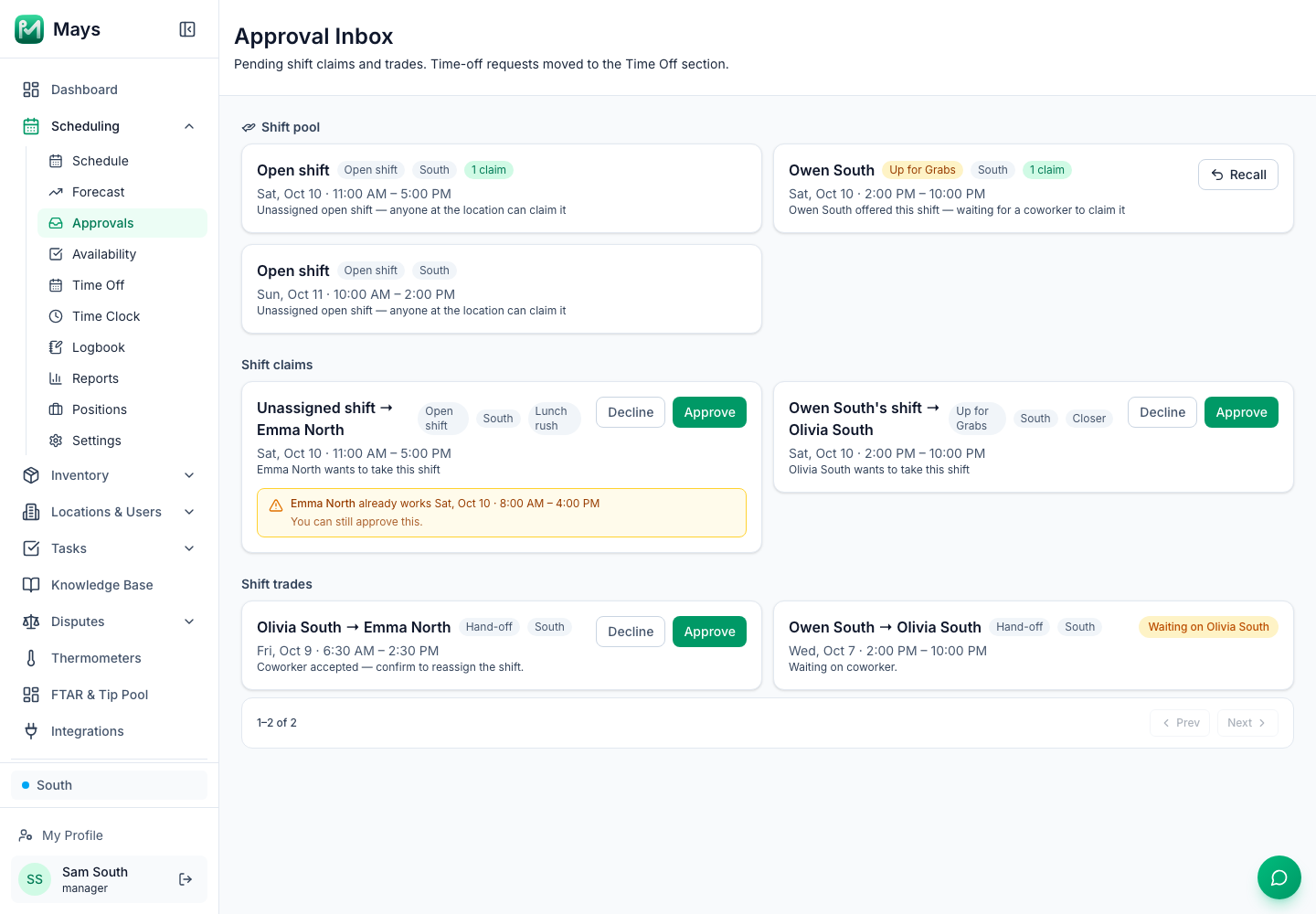
Shift pool
Every open shift and every shift someone has put up for grabs, with how many people have claimed it. Nothing to approve here — it's so you can see what still needs covering.
- Recall (web) or Take it back (app) returns a dropped shift to the person who dropped it and cancels any claims on it. That person gets Your shift is back.
- Open shifts nobody took stay here until you delete them from the schedule and publish.
Shift claims
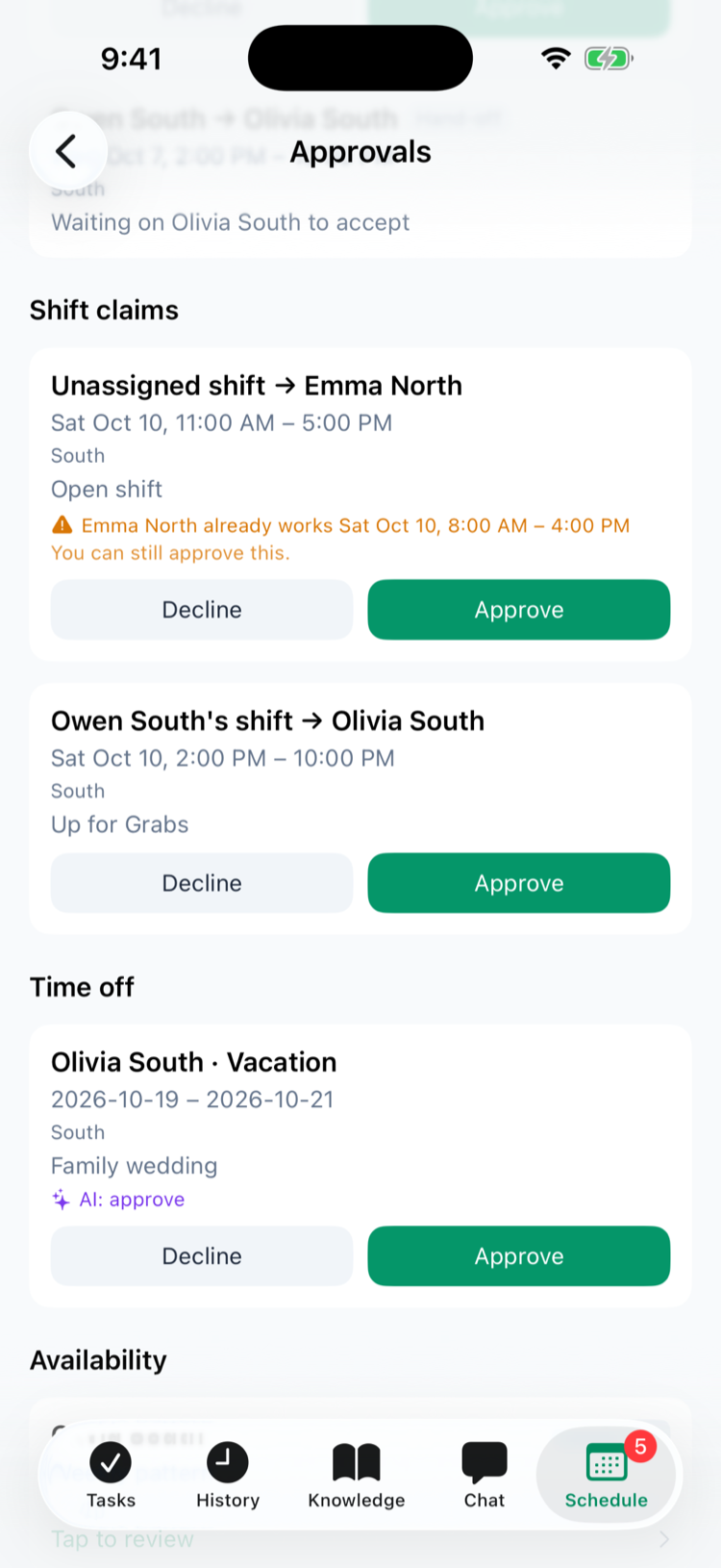
Someone wants to pick up a shift: Unassigned shift → Emma North, or Owen South's shift → Olivia South. A Cover request tag means they said Yes, I can when you asked for cover with Find cover in the app. Click Approve to give them the shift, or Decline. (Older versions of the app show Open shift instead of Cover request — update the Mays app.)
Approving assigns the shift, declines anyone else who claimed it, and tells the claimant, the others and the person whose shift it was. See Open shifts and dropping a shift.
Shift trades
A hand-off or swap between two coworkers, for example Olivia South → Emma North with a Hand-off or Swap tag. A swap shows what each person gives up and takes back.
- Until the coworker accepts, the card shows Waiting on … and can't be approved yet.
- Once they accept — Coworker accepted — click Approve to move the shift(s), or Decline.
See Handing off and swapping shifts.
Overlap warnings
If approving would put someone on two overlapping shifts, the card says so in amber — who, and the shift they already have, such as Emma North already works Sat, Oct 10 · 8:00 AM – 4:00 PM — followed by You can still approve this. Mays never blocks the approval; you decide. If several people asked for the same shift, the card tells you approving one cancels the others.
Time off and availability (in the app)
In the app the list continues with Time off — who, the category, the dates, their reason and an AI suggestion, with Approve and Decline — and Availability, where you tap a request to review and decide it.
On the web, decide time off under Scheduling → Time Off (click Pending) — see Requesting and approving time off — and availability under Scheduling → Availability — see Setting your availability.
What the count includes
The red number in the app counts time off and availability waiting for you, shift claims, and trades the coworker has already accepted. Trades still waiting for the coworker and the shift pool aren't counted. The web has no count — open Approvals, Time Off and Availability to check.
Settings
Admins find approval settings under Scheduling → Settings → Approvals:
- Require manager approval for availability changes (on by default) — turn it off and availability takes effect as soon as it's sent.
- Shift claims, hand-offs, swaps and time off always wait for a manager, whatever the other two boxes say.
Good to know
- Who can approve: managers for their locations, and admins — anyone whose role can build the schedule. In the app, the Approvals row shows for managers and admins.
- There's no decline reason for claims and trades, and no confirmation — a click decides.
- If a card doesn't go away after you click Approve on the web, reload the page. The shift may have started or changed hands in the meantime, and the web doesn't say so yet.
- Notifications tell you about new requests: Shift claim submitted, Cover offer, Shift trade submitted, New time-off request, New availability request. Tapping one opens Approvals in the app.