Most weeks look like the last one. Copy last week's shifts into the week you're building in one click, then adjust — and pick often-used times from Common shifts instead of typing them.
Both are on the web, under Scheduling → Schedule, for the location picked at the bottom of the sidebar.
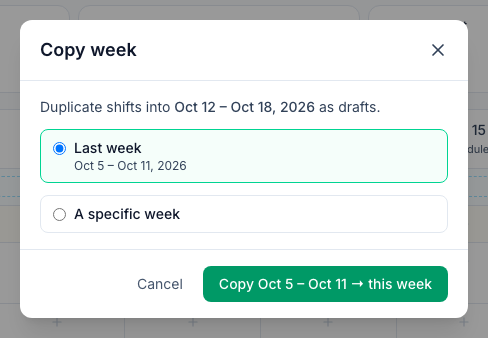
Copy last week
- Go to the week you want to fill.
- Click the copy icon in the toolbar (Copy week).
- Leave Last week selected — the dates underneath show which week it is.
- Click Copy … → this week.
A banner confirms how many shifts were copied and from which week, for example Copied 3 shifts from Sep 14 – Sep 20, 2026 as drafts. If some shifts were left out, it says how many and why, for example Not copied: 3 already in this week, 2 removed shifts. Every copy is a draft, so nobody sees them until you publish — see Publishing the schedule and notifying staff.
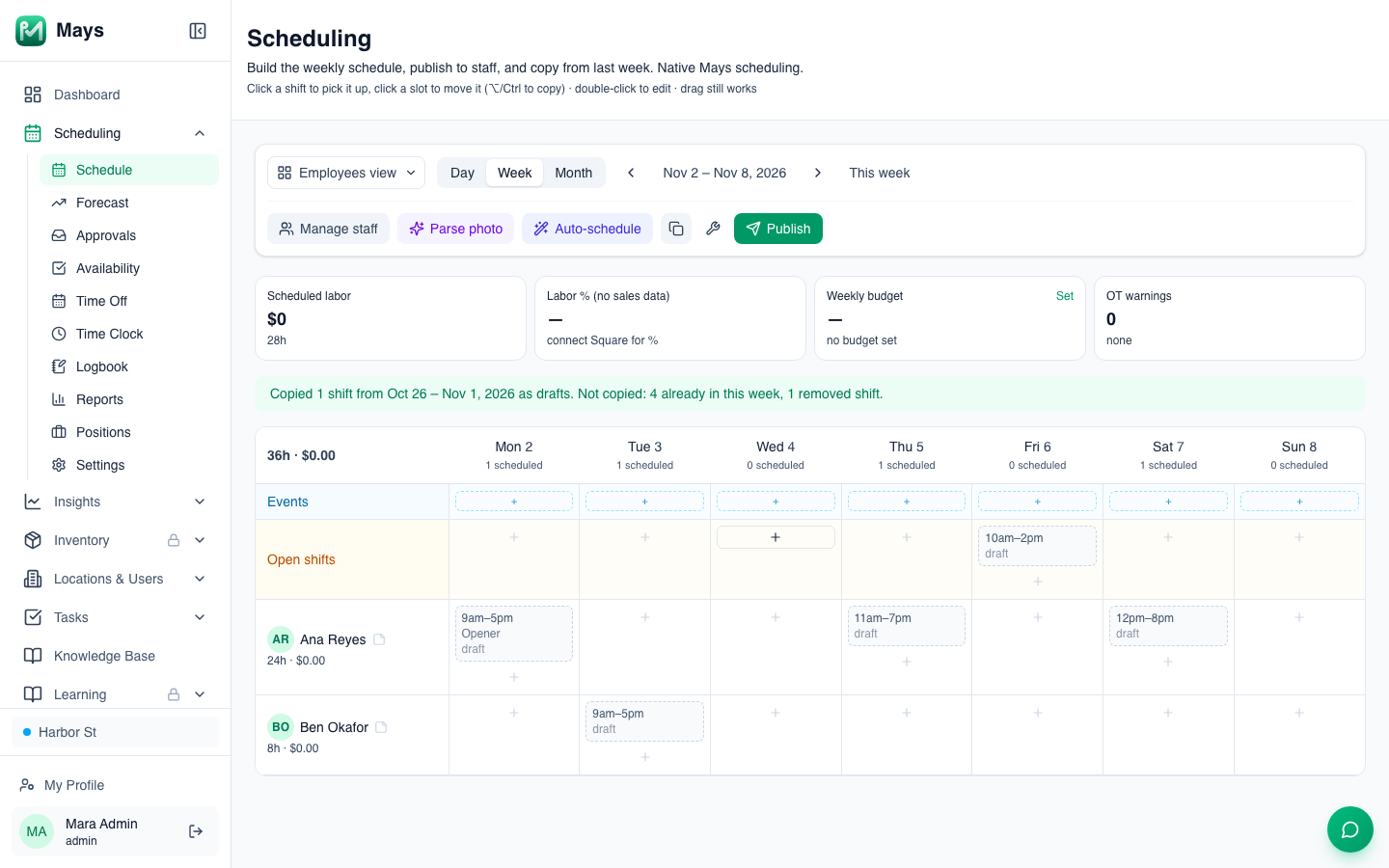
What's copied: each shift's person, position, department, times, break, label, station, notes and late grace. Open shifts stay open. Drafts in last week are copied too. The copy matches what you see in that week on the grid: if you changed a published shift and haven't published the change yet (the amber edited mark), the copy gets the new person, position, times, break, label and notes.
What isn't:
- Shifts already in this week. A shift is skipped when this week already has one on the same day, with the same start and end time, person and position. Copying the same week twice doesn't double anything; the banner counts them as already in this week.
- Removed shifts. A published shift you deleted but haven't published yet (struck through as removed) isn't copied; the banner counts it as a removed shift.
- Shifts with invalid times: one that ends before it starts, or one longer than 23¾ hours. The banner counts them as with invalid times; fix the original shift if you need it.
- Events, confirmations, and whether a shift was up for grabs.
Before you copy
- Copying adds; it never replaces. Shifts already in the week stay. Copying again only adds the shifts that aren't there yet, so a shift you moved or reassigned after the first copy comes back in its original slot. To start over, use Revert in the wrench menu (Schedule tools) — it removes every draft in the week, including ones you added by hand.
- Nobody is checked. People on time off or unavailable that week are copied like everyone else; the grid and the publish warnings flag them. Someone who's been deactivated gets a row again, marked as deactivated, with their copied shifts — delete those.
- To copy an older week, pick A specific week and choose it from the list of the last ten weeks. The copies land in the week you're looking at, on the same days and times.
- To copy a single shift, hold Option (Mac) or Ctrl and click another cell — see Building the weekly schedule.
- The Auto-scheduler also starts from last week, but works around time off, availability and hours — see Auto-schedule with AI.
Common shifts
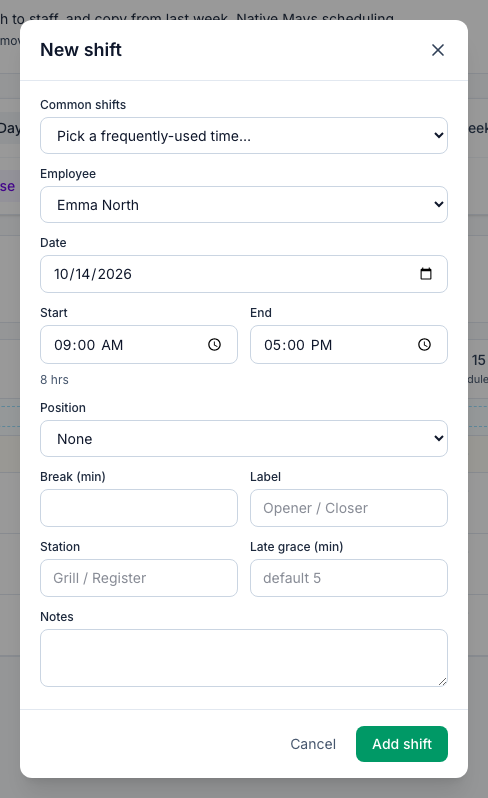
When you add or edit a shift, Common shifts at the top of the dialog lists the start and end times used most at this location, like 2pm–10pm · 30m break · used 6×.
- Open New shift (the + in a cell) or double-click a shift.
- Pick a time from Common shifts (Pick a frequently-used time…).
- Start, End and Break (min) fill in, and the Label too if it was empty. Pick the Employee and anything else, then save. The Position starts on the person's own position (or the Roles view row you clicked in); change it if you need to.
- The list comes from the location's shifts over the last 120 days — the ten time ranges used at least twice, most used first.
- It isn't tied to a position or a person, and there's no separate list to manage. A new location has none until it has some history; the field is hidden until then.
- Times are shown the way your organization writes them (12- or 24-hour).
Good to know
- Who can do this: managers for their own locations, and admins. Scheduling is part of the Pro plan.
- Copy week and Common shifts are on the web only; the app has neither.