Managers can run the schedule from the Mays app: see who's working today and who's on the clock, add and change shifts, find cover, and publish the week.
It's in the Schedule tab for anyone whose role can build the schedule — managers and admins, and custom roles with Build & manage native schedule. The full toolkit — labor costs, warnings, copying a week, the auto-scheduler — is on the web; see Building the weekly schedule.
Your Schedule tab
As a manager, the top of the Schedule tab adds:
- Today at … — today's shifts at your location: the time, who (or Open shift) and the position. A green dot marks shifts happening now. It lists six and then how many more (+2 more). If you manage several locations, tap the name to switch. Tap the card to open the schedule.
- Approvals, with a count of requests waiting — see The approvals inbox.
- Manage schedule (iPhone) or Manager Schedule (Android).
- Logbook — see The manager logbook.
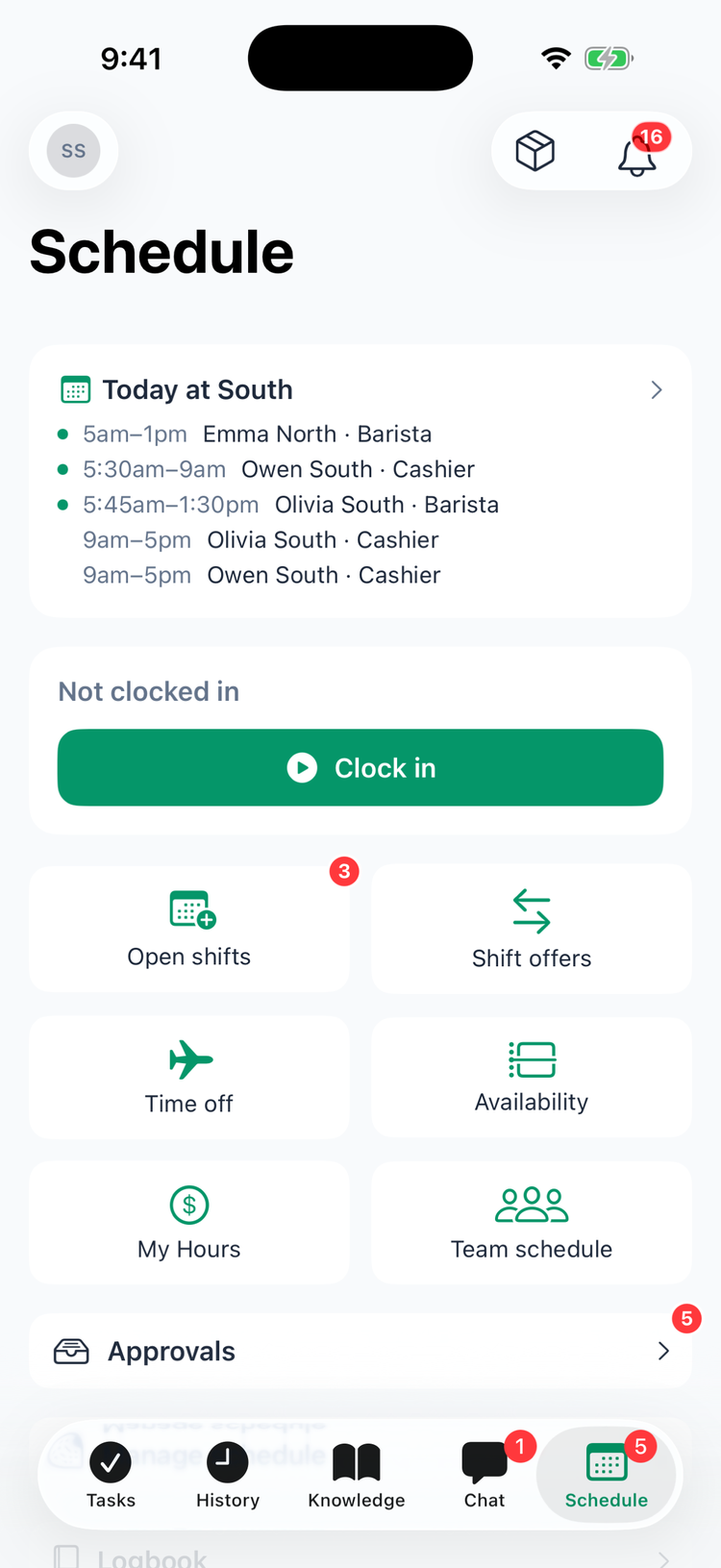
Today at … marks shifts you haven't published yet DRAFT and deleted shifts waiting for publish REMOVED; neither gets the green dot. (Older versions of the app list them without marking them — update the Mays app.)
The week at a glance
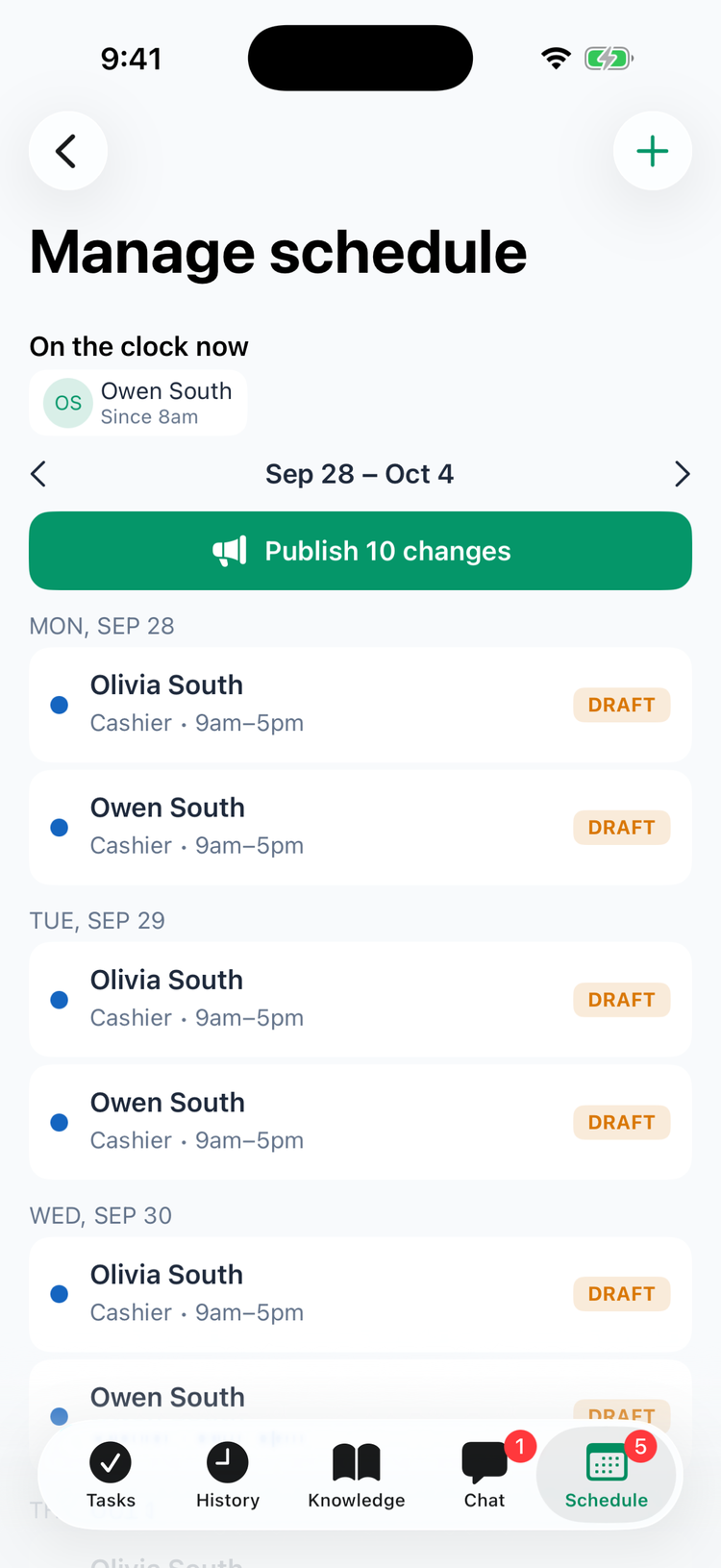
Tap Manage schedule (iPhone) or Manager Schedule (Android).
- On the clock now — everyone clocked in at the location and since when, with On break for people on a break. On iPhone the time shown next to On break since is when they clocked in, not when the break started. Android marks a punch made outside the geofence with an orange dot.
- The arrows move between weeks, which start on the location's schedule week start day.
- Each shift shows the person (or Open shift), the position and the time, with a check if they confirmed it (see Shift confirmations). Badges: DRAFT (not published), edited (a published shift with changes waiting), REMOVED (deleted, waiting for publish), Up for grabs and Open.
- iPhone lists only the days that have shifts; Android shows all seven days.
- If you manage several locations, pick one at the top (chips on iPhone, Branch on Android).
Add or change a shift
- Tap + to add a shift, or tap a shift to change it.
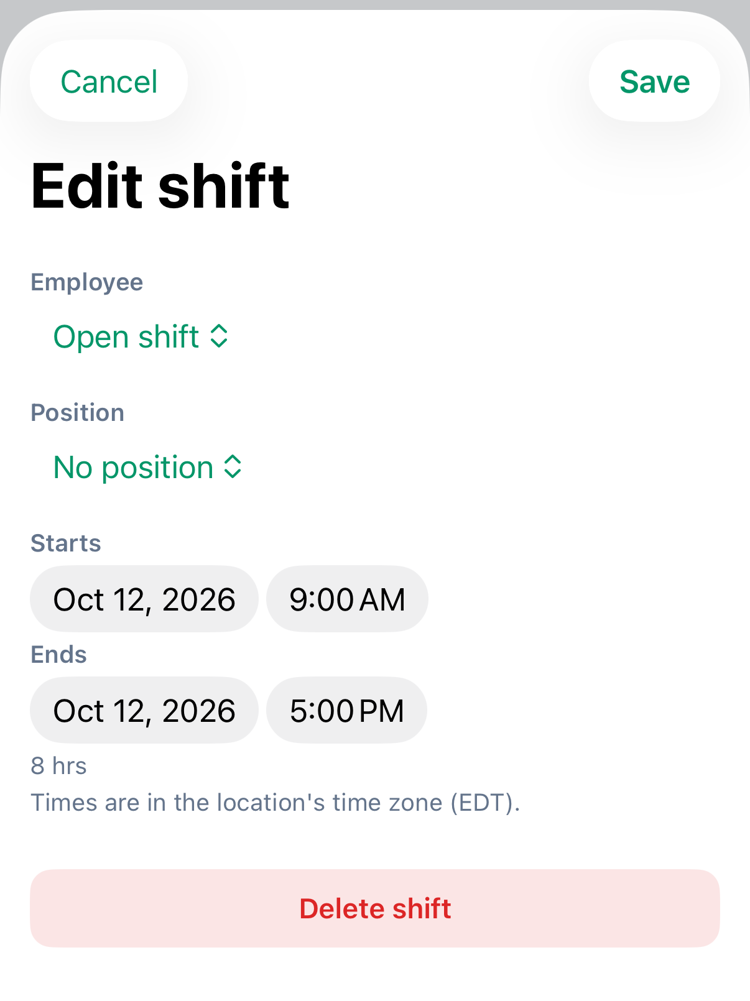
- Pick the Employee — or Open shift (iPhone) / Open shift (unassigned) (Android) for a shift nobody has yet.
- Pick the Position.
- Set the times: Starts and Ends on iPhone; Date and Time on Android, where an end before the start means the shift ends the next day. The length shows underneath, with the location's time zone.
- On Android you can also enter Break (minutes), Label (optional) and Notes (optional). On iPhone, add those on the web.
- Tap Save.
- A new shift is a draft. A change to a published shift waits as edited until you publish.
- Times are in the location's time zone, whatever time zone your phone is in: 9:00 AM means 9:00 AM at the location. The sheet names the zone under the times (for example EDT).
- To remove a shift, tap it, then Delete shift (iPhone) or Delete (Android) and confirm. A draft is deleted straight away; a published shift is marked removed and disappears for your team when you publish.
- Find cover is in the same sheet — see Finding cover for a shift. For a shift someone dropped, Remove from shift pool gives it back to them.
Publish the week
When the week has unpublished changes, a Publish … changes button appears.
- Tap it.
- Choose Notify only affected people or Notify everyone at this branch.
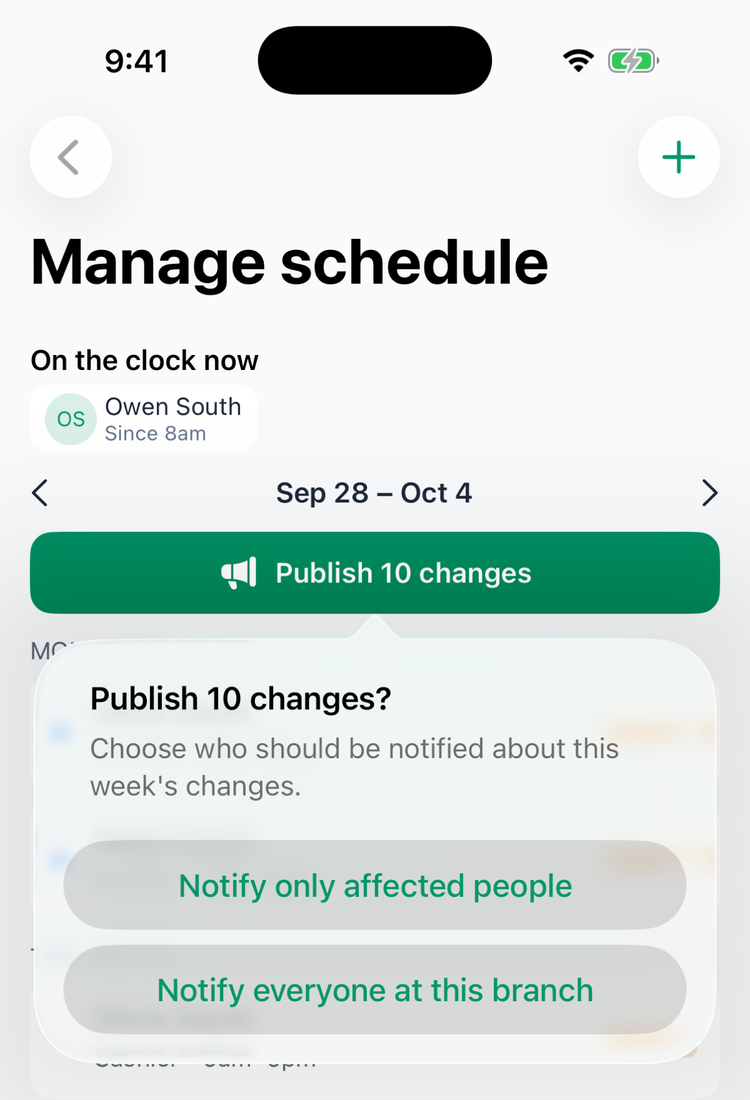
Mays publishes the whole week for that location and shows how many shifts were new, updated and removed. What your team gets is the same as on the web — see Publishing the schedule and notifying staff.
Good to know
- No warnings in the app. It doesn't flag time off, availability clashes, overtime or double-booking, and it shows no labor costs. Check the week on the web before you publish.
- Web only: labor cards and budget, copying a week, common shifts, the auto-scheduler, events, Revert and Clear.
- No clock actions. You can see who's on the clock, but ending someone's punch or marking a no-show is done on the web — see Attendance, late and no-show alerts.
- Who sees this: anyone whose role has Build & manage native schedule — the Manager and Admin roles have it, and so can a custom role. A role without it doesn't see Manage schedule or Approvals. Logbook shows for roles that can see the logbook. (Older versions of the app go by the Manager or Admin role instead — update the Mays app.)