Upload a photo of a paper or whiteboard schedule and the AI turns it into draft shifts. Check who's working what, create the shifts and publish as usual.
Where: Scheduling → Schedule on the web, Parse photo. Admins, and managers at their own locations. Scheduling is part of the Pro plan.
Turn a photo into shifts
- Open the week you want to fill, with the right location picked in the sidebar.
- Click Parse photo.
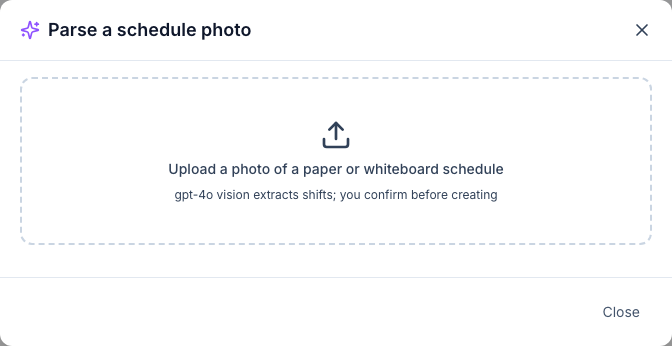
- Click Upload a photo of a paper or whiteboard schedule and pick the photo. Parsing the schedule… shows while the AI reads it.
- Check the list. It starts with how many shifts were found, such as Found 12 shifts · adjust assignments below, then create. Each row has the date, the times, a person and a position:
- If a name on the photo matched someone at this location, they're picked. If not, the box shows the name as written; pick the right person.
- If the position wasn't matched, pick one or leave No position.
- Untick a row to leave it out.
- Click Create N draft shift(s).
- You see Created N draft shifts. Publish from the grid when ready. Check the new shifts on the grid, then publish. See Publishing the schedule.

Upload another reads the next photo, such as the second page, and replaces the list.
How the photo is read
- Names are matched to the active people at this location: the full name first, then the first name alone, then the last name alone. If two people share a first name, check who was picked.
- Dates: if the schedule shows only days of the week, the dates of the week you're looking at are used.
- Times can be written any way; breaks are read if they're on the schedule, otherwise there are none.
- Positions are matched only when the name is the same as one of your positions.
- If the AI isn't sure about a shift, it leaves it out, so compare the count with your schedule.
AI credits
Reading a photo uses AI credits from the location's balance. It's listed as Scheduling-Vision under Usage by Feature. See AI credits.
Good to know
- Nothing is published yet. The new shifts are drafts that only managers see until you publish.
- Rows without a person are skipped when you create them, even if they're ticked, so the result can be lower than the button said. Pick someone, or add those as open shifts on the grid.
- The photo is added to what's there. Shifts already on the grid stay, so check for doubles; overlapping shifts show in the conflicts banner.
- Photos up to 8 MB. A straight, well-lit photo of one week works best.