Let your manager know when you can and can't work. Your availability shows on the schedule while they build it, so they can plan around it.
You set it in the app under Schedule → Availability. There are two kinds:
- Recurring — your normal week, every week. A new recurring pattern replaces the old one.
- Temporary — a different week pattern for a date range (say, the summer), after which your recurring pattern comes back by itself. Your location has to allow it; if it doesn't, you'll only see Recurring.
Days you don't change count as available all day.
Send your availability
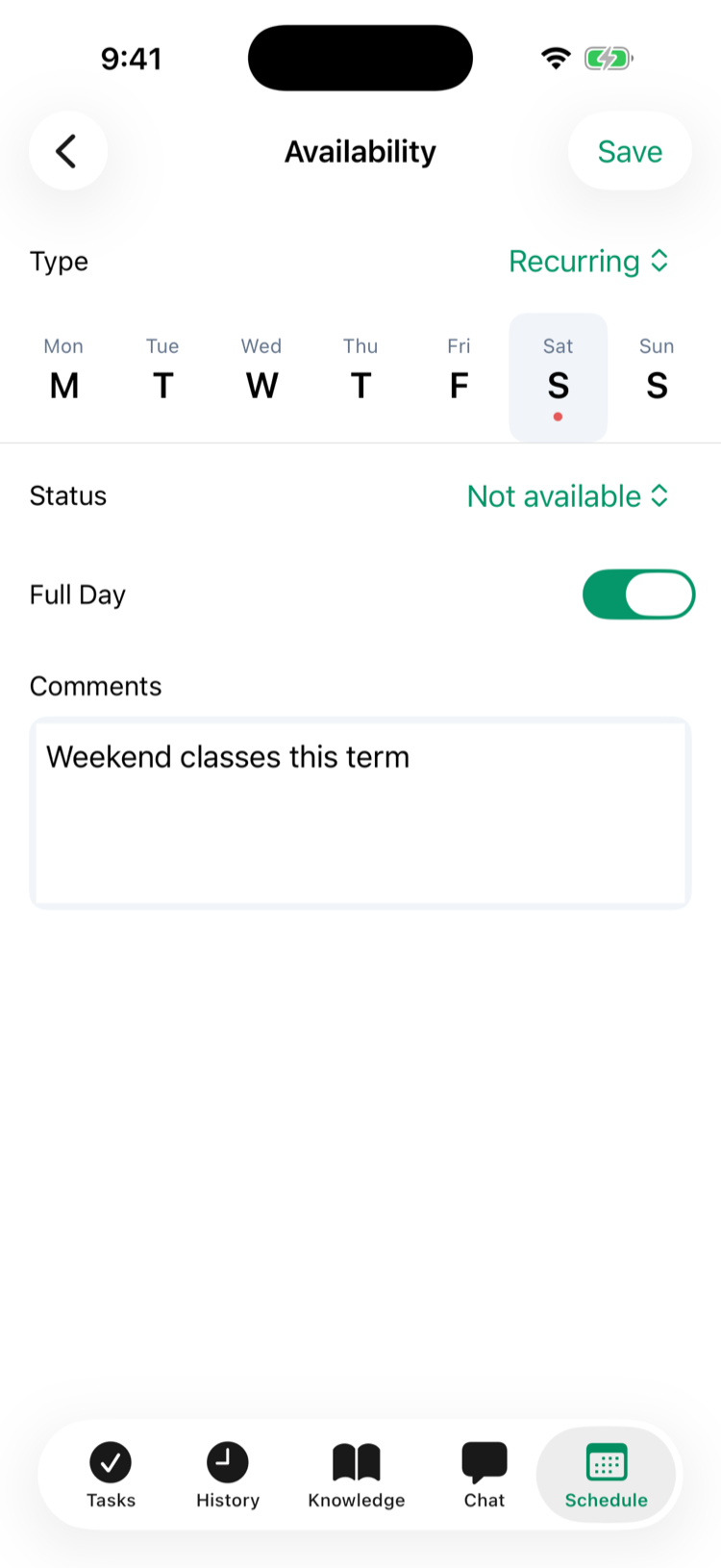
- Go to Schedule → Availability and tap +.
- Next to Type, choose Recurring or Temporary. For Temporary, pick the From and To dates.
- Tap a day in the strip.
- Set its Status: Available or Not available.
- Leave Full Day on for the whole day, or turn it off and pick the times:
- Available with times — you can only work between them (Available from 9am – 5pm).
- Not available with times — you can't work between them, but the rest of the day is open.
- If your company asks for one, pick a Reason for a day you're not available. Add Comments if you like.
- Repeat for the other days — a red dot marks each day you've changed.
- Tap Save.
Waiting for approval
Your request shows as PENDING in the list, with a note at the top: Pending manager approval. Your current availability stays in effect until decided. You'll get Availability approved or Availability changes declined when your manager decides. If your company doesn't ask managers to approve availability, it takes effect straight away.
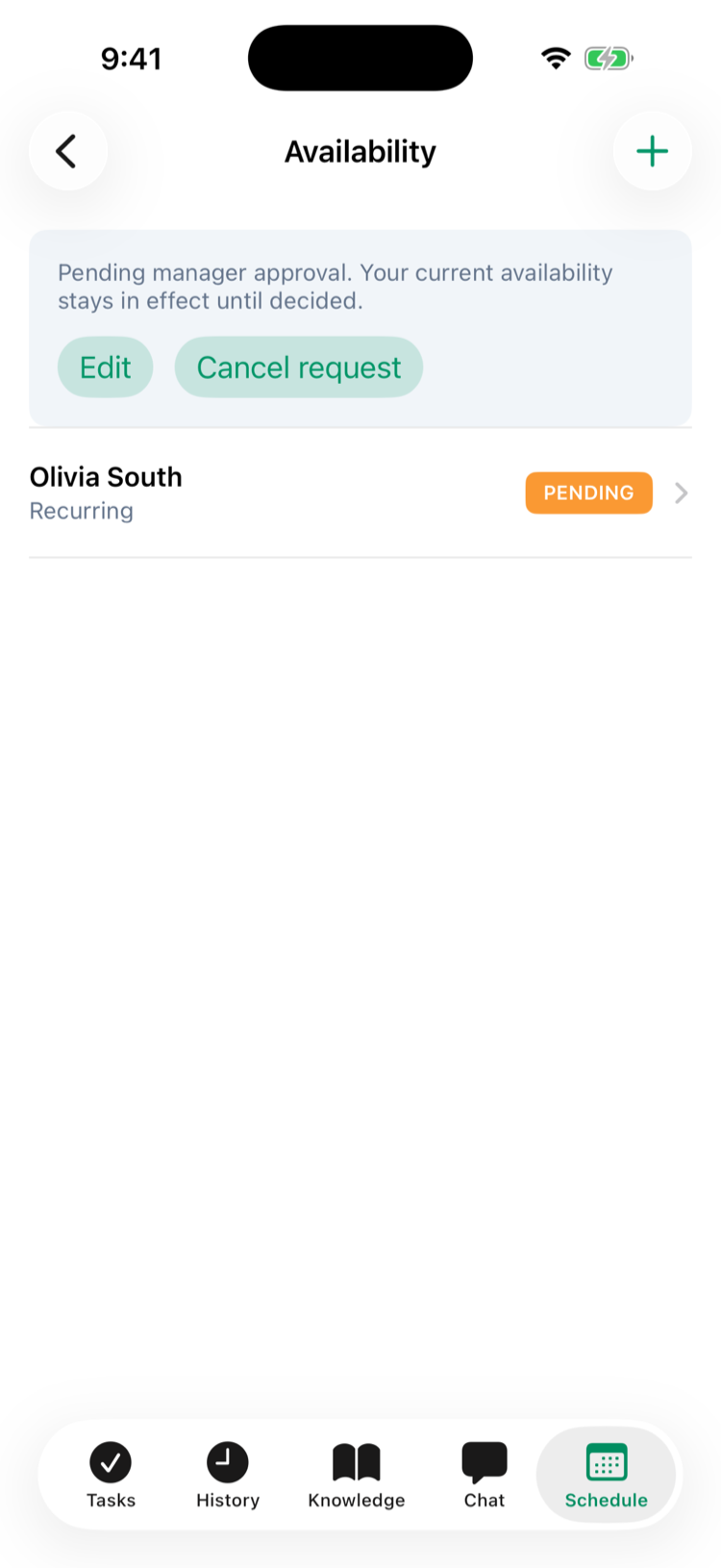
While it's pending you can:
- Cancel request — withdraws it (it shows CANCELLED). There's no confirmation.
- Edit — make changes and Save. Your new request replaces the pending one. Edit starts from what you sent. (On older Android versions it starts from your approved availability — update the Mays app, or set every day again.) Edit always opens a recurring pattern — to change a pending temporary request, cancel it and send a new one.
Tap any request in the list to see it: Requested shows what you asked for, Current what's in effect this week, and a decided request shows who decided and their note.
Good to know
- Sending a new one while an older recurring request is pending cancels the older one. A new temporary request cancels a pending temporary one for overlapping dates.
- Clearing your limits: to go back to available every day, set each day to Available with Full Day on and tap Save. The app only refuses a week that's exactly what you already have (Nothing to submit yet — change at least one day.). (Older versions of the app also need a comment on one day — update the Mays app.)
- Times must start and end on the same day; an overnight range like 10pm – 2am isn't accepted.
- Reasons: if your company has a reason list, every Not available day needs one, and some reasons also need a comment. The app tells you when you tap Save.
- For a single day off, send a time-off request instead — see Requesting and approving time off.
- Your manager sees your availability on the schedule grid and gets a warning before publishing a shift that clashes with it — but they can still schedule you. Approved availability doesn't change shifts already on the schedule.
- The day strip starts on your location's first day of the week. (Older versions of the app always start on Monday — update the Mays app.)
For managers
Requests arrive in Schedule → Approvals in the app (under Availability — tap one to review it), and on the web under Scheduling → Availability, which also has a Glance View of everyone's week, a Reasons tab where admins set up the reason list, and Add availability to enter it for someone. See The approvals inbox.
Admins choose whether availability needs approval (Scheduling → Settings → Approvals → Require manager approval for availability changes, on by default), and each location can turn Temporary availability off on its Scheduling tab — see Setting up scheduling.