A position is the job someone works on a shift — Barista, Cashier, Line Cook. Each has a colour for the schedule and a default hourly wage that Mays uses to cost your schedule.
Positions aren't access roles: a role (admin, manager, employee) decides what someone can see and do; a position is the job on the schedule. See Roles and permissions.
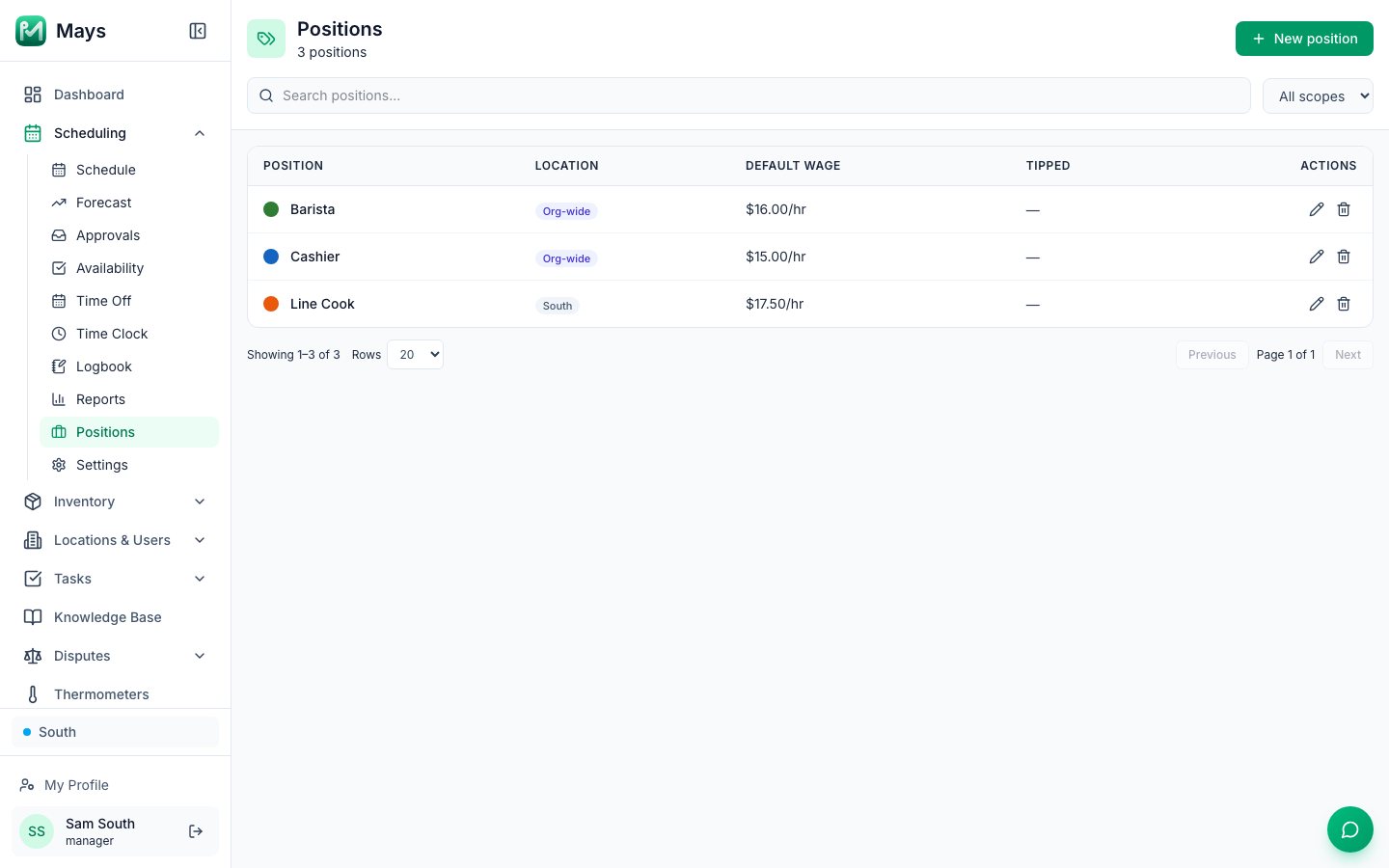
Create a position
- Pick the location at the bottom of the sidebar — a new position belongs to the location that's selected.
- Go to Scheduling → Positions and click New position.
- Type a Name, for example Line Cook.
- Pick a Color. It's the colour block on every shift with this position.
- Enter the Default wage ($/hr). Leave it blank for $0. Where Labor law compliance's Minimum wage is on, if the wage is below the legal minimum at the position's location (for a Tipped position, the tipped cash wage where the state or city allows a tip credit), the dialog says so under the field, and after you save a message says which location's minimum it's below. The position is still saved.
- With Labor law compliance on, optionally set a Minimum age (16 or 18) and tick the tasks the position involves, such as a meat or deli slicer. See Scheduling minors.
- Click Create Position.
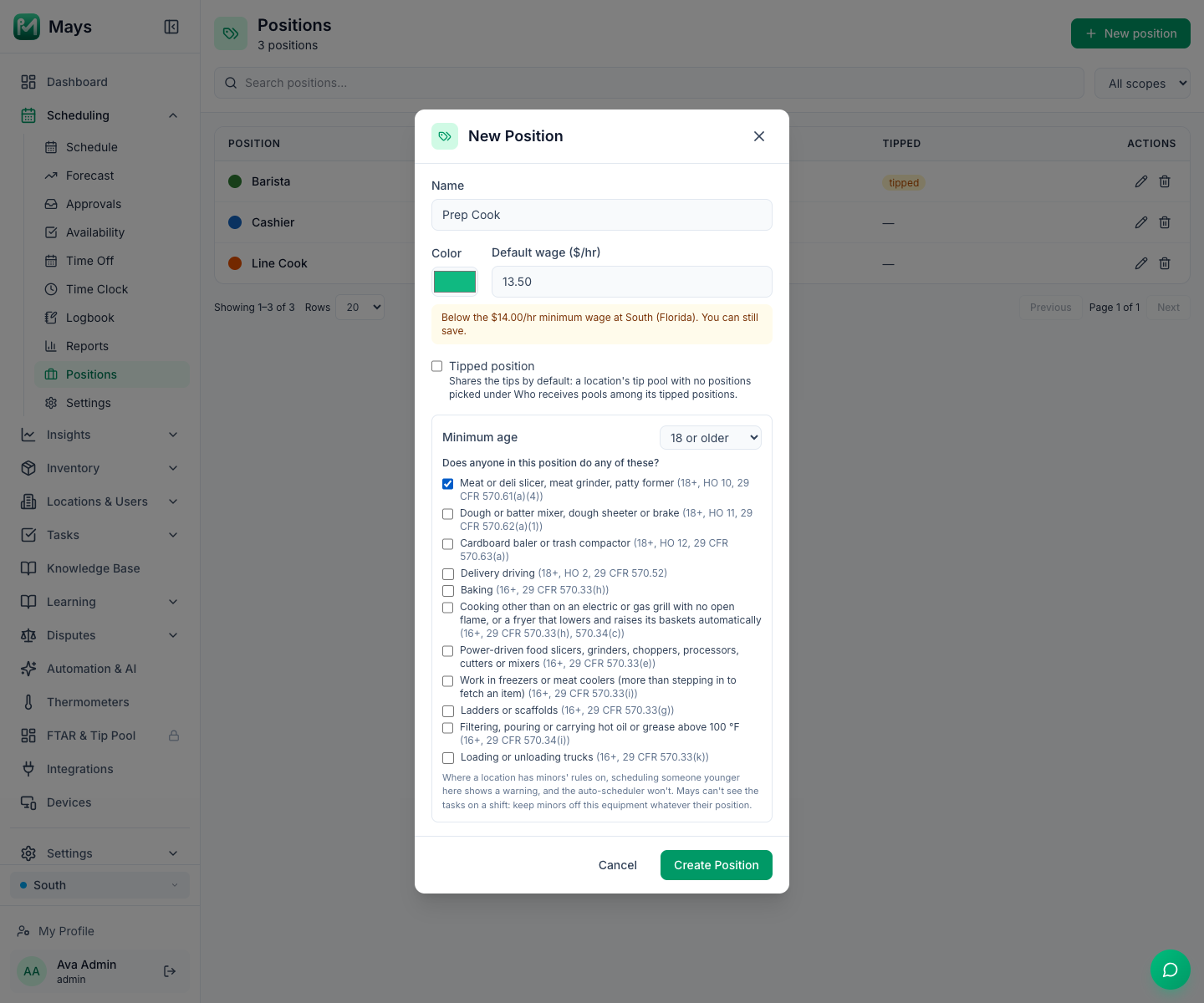
The Positions page lists the positions of the selected location plus any Org-wide positions, which apply at every location (for example ones imported from 7shifts). Use the search box and the All scopes filter to narrow the list.
To change a position, click the pencil, edit and click Save Changes. To remove one, click the trash can — there's no confirmation.
Give people their positions and pay
On the web:
- Go to Locations & Users → Users and open the person.
- Under Scheduling Positions, click the positions they work. The chips are grouped by location (All locations for org-wide ones); a selected chip is highlighted.
- Under Pay, choose the Pay type — Hourly or Weekly salary — and enter their Hourly wage or weekly salary if they have one. Where Labor law compliance's Minimum wage is on, if their Hourly wage is below the legal minimum at one of their locations, the Pay section says so as you type, and a message repeats it after you save. The wage is still saved.
- Click Save Changes.
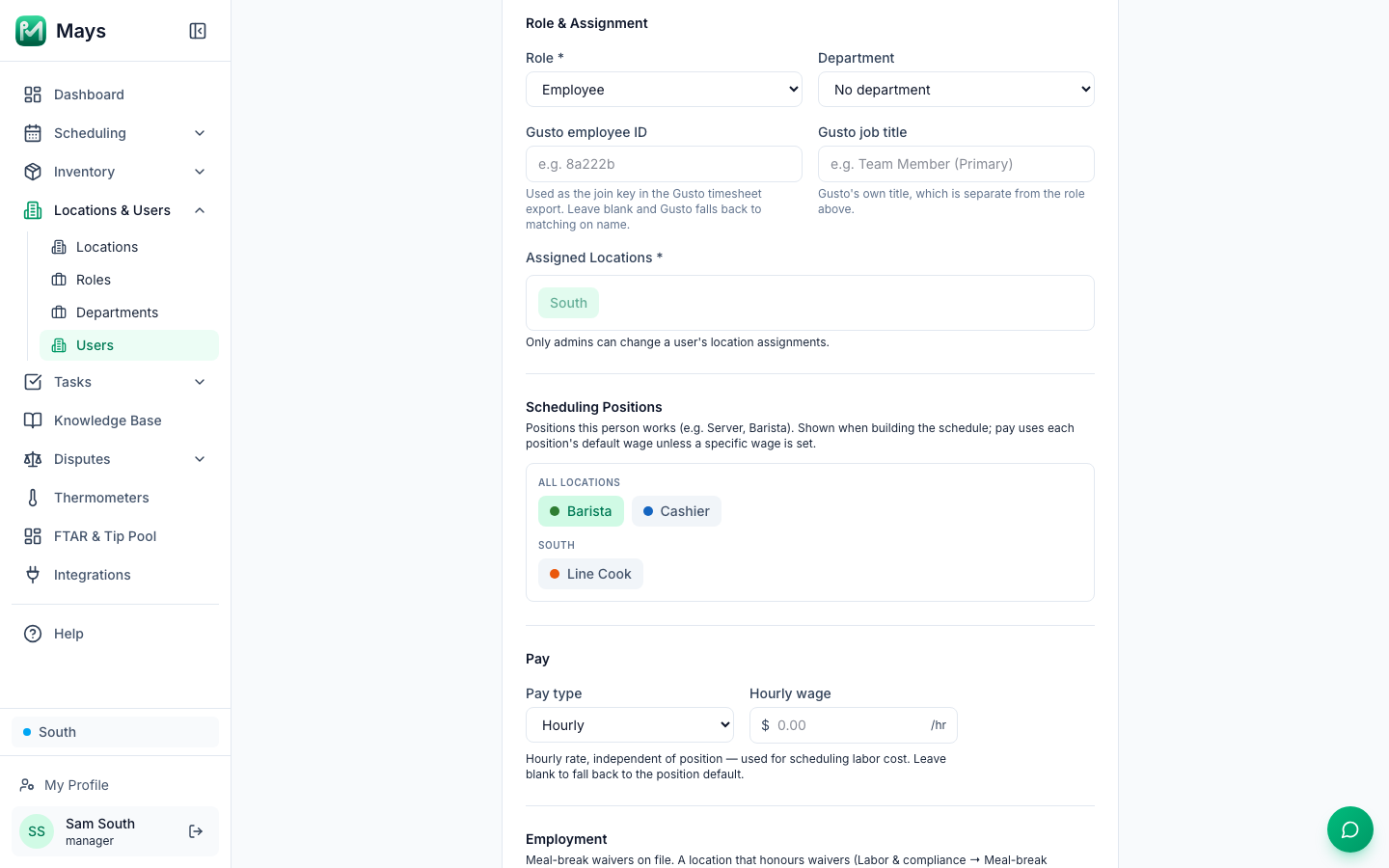
Scheduling Positions appears once the person exists (not on the add form), and only people whose role can build the schedule can change it.
In the app, managers can do the same from Profile → Team → the person: Scheduling positions and Wage (Pay type and the hourly rate or weekly salary). Positions themselves — names, colours, default wages — are created and edited on the web only.
How Mays works out labor cost
For each shift, Mays uses:
- the person's own Hourly wage, if they're paid hourly and one is set — it wins over any position wage;
- otherwise the Default wage of the shift's position;
- $0 if the shift has no position and the person has no hourly wage.
People on a Weekly salary count as their weekly amount in Scheduled labor every week, whether or not they have shifts, and get no overtime warnings.
Time clock pay uses the same order. When someone paid hourly clocks in — on their phone, a kiosk or an NFC tag — or a manager adds a punch for them, Mays saves the wage for the position they're working on that punch. The time clock's pay figures and the payroll export use that saved wage, so changing a wage later doesn't change punches already made. Salaried staff, and people with no wage and no position wage, get no wage on their punches.
You see the cost on the schedule: each person's hours and pay next to their name, the week's total above the grid, and the Scheduled labor card, with overtime priced in — see Building the weekly schedule. Admins and managers see these numbers; employees never see wages.
Wages below the minimum
At a location where Labor law compliance's Minimum wage is on (see Labor & compliance), Mays reads the legal minimum wage from the location's address. When a position's default wage, someone's hourly wage, their wage for a position, or a punch from the last 14 days is below it, the Wages below minimum box at the top of Scheduling → Positions lists it for the selected location, with the figure it's compared with and a link to the official source. It also lists the wages that will be below the next scheduled rate, for example Florida's $15.00 from September 30, 2026. Tipped positions are compared with the tipped cash wage where the state or city allows a tip credit. Nothing is blocked: the list is there so you can fix the wages. Only people who can see pay see it.
On the schedule, a line under the labor cards says how many wages are below the minimum at the location and when the next increase is.
What positions do on the schedule
- Colour and letter. A published shift shows a coloured block with the position's first letter.
- Roles view. Switch the schedule from Employees view to Roles view to group the week by position.
- Pay. The shift's position picks the default wage, as above.
Positions don't stop you scheduling anyone or anyone picking up a shift: you can give anyone any position on a shift, and anyone at the location can claim an open shift. At a location with Labor law compliance's Minors (under 18) on, a position's Minimum age and the tasks ticked under Does anyone in this position do any of these? warn you when someone younger is on it, and the auto-scheduler won't put them there. See Scheduling minors.
Good to know
- Before you delete a position, take it off the people who hold it. A deleted position disappears from their page but stays attached behind the scenes, and changing their positions afterwards fails with Failed to save position assignments.
- Adding a location and one of its positions at once: save the new location on the person first, then pick the position and save again.
- Tipped position is the tip pool's default: a location whose Tip pool card (Locations & Users → Locations → the location → Scheduling) has no positions picked under Who receives shares tips among its tipped positions.
- 7shifts: with Scheduling data sync on, your 7shifts roles become positions and people's 7shifts wages come across; imported positions start with a $0 default wage, so set one. See Setting up scheduling.
- Managers can set pay for employees at their locations; pay for managers and admins is changed by an admin.