Want more hours? Claim a shift from Open shifts in the app. Can't make a shift? Drop it so a coworker can pick it up. Either way, a manager approves who ends up working it.
There are two kinds of shifts to pick up:
- An Open shift — a shift your manager published with nobody on it.
- A shift that's Up for Grabs — a coworker's shift they've dropped.
Pick up a shift
- In the app, go to the Schedule tab and tap Open shifts. The red number is how many you can claim.
- Each card shows the day and time, the location, whose shift it is (or Unassigned — nobody is covering this yet), the position and the label.
- Tap Claim. The card changes to Sent — manager will approve, with a Cancel link if you change your mind.
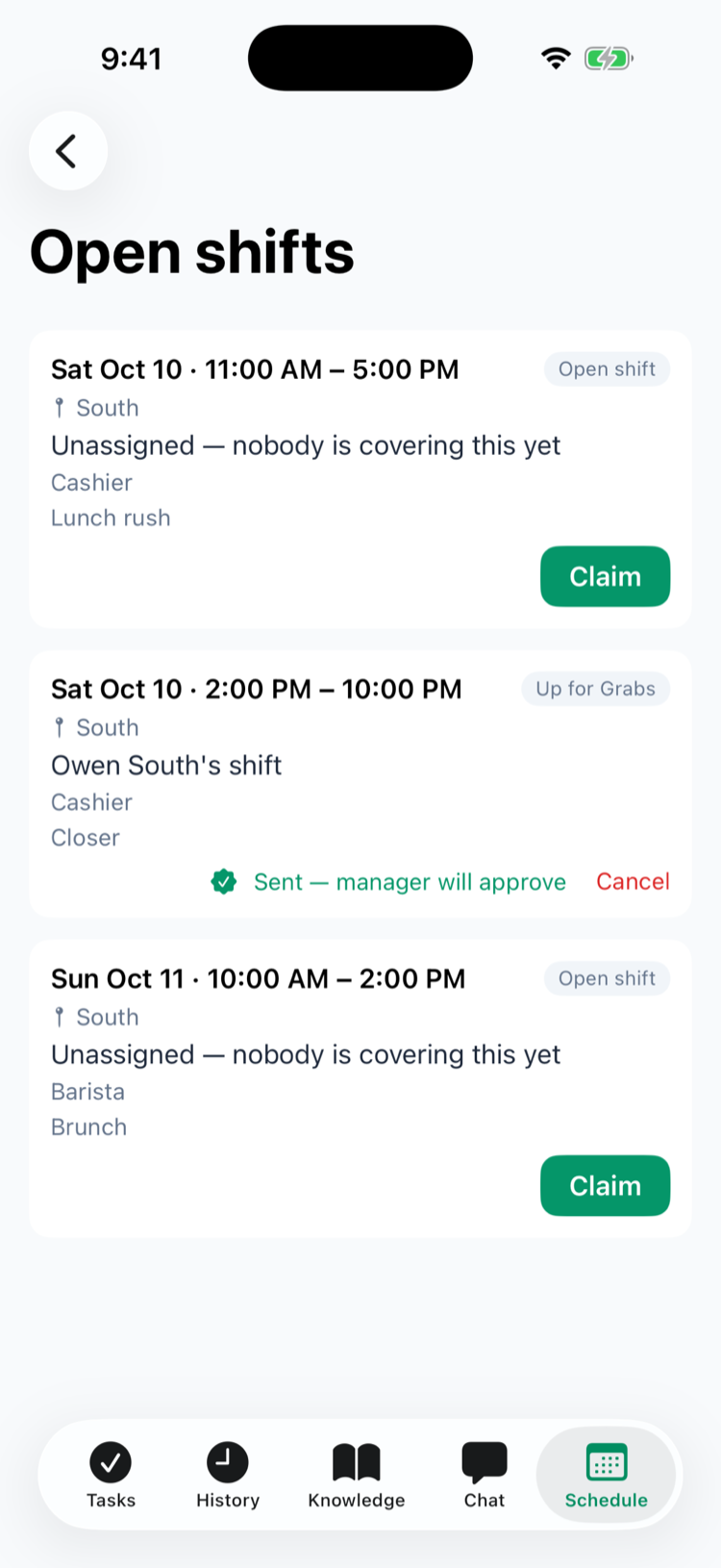
You'll get Shift claim approved or Shift claim declined when your manager decides. If someone else gets it, you'll hear Shift no longer available.
- You can claim any open or up-for-grabs shift at the locations you work at, as long as it hasn't started. Positions don't limit what you can claim.
- The app doesn't warn you if a shift overlaps one you already have — your manager sees that when deciding.
- Several people can claim the same shift; the manager picks one and the others are declined.
- A shift you claimed keeps showing Sent — manager will approve until your manager decides, even after you leave the screen. (In older versions of the app it shows Claim again — your claim is still waiting, so don't claim it twice; update the Mays app.)
Drop a shift
- On the Schedule tab, find the shift under Upcoming shifts and tap Drop shift.
- Confirm with Put up for grabs.
- The shift now says Up for grabs — waiting for a coworker to claim it, and coworkers get a Shift up for grabs notification.
It's still your shift until a manager approves someone's claim. When that happens you get Your shift was picked up and it leaves your schedule. If nobody takes it before it starts, it stays yours.
To cancel, tap Take it back on the shift.
Want to give it to someone specific instead? Use Hand off — see Handing off and swapping shifts.
For managers
Offer a shift: publish an open shift — in the Open shifts row of the schedule, or with Open shift (unassigned) as the employee. When you publish a week with open shifts, everyone at the location who can be scheduled is told. See Building the weekly schedule.
Approve claims: claims wait in the approvals inbox — Scheduling → Approvals on the web, Schedule → Approvals in the app — under Shift claims. Tap Approve or Decline. Approving gives the shift to that person, declines everyone else's claim and tells the person who dropped it. If the claimant already works at that time, the card says so (… already works …) — you can still approve. See The approvals inbox.
Take a dropped shift off the board: under Shift pool, click Recall (web) or tap Take it back (app). It goes back to its owner, who gets Your shift is back, and anyone who claimed it is told.
In the app you can also offer someone's shift yourself: open the shift in Manage schedule (iPhone) or Manager Schedule (Android), tap Find cover, then Put in pool.
Good to know
- Claims always need a manager. There's no automatic approval.
- Time off and dropped shifts: if someone's time off is approved for a day they'd put up for grabs, the shift is taken off the board and stays on their schedule — find cover or reassign it yourself.
- Past open shifts that nobody took stay in the Shift pool until you delete them from the schedule and publish.
- Upcoming shifts covers the next 3 weeks, so you can drop a shift up to 3 weeks out.
- Employees drop and claim shifts in the app only; the web is for managers.
- Turn these notifications on or off under Profile → Notifications → Shift pool & trades — see Notifications.