Scheduling → Settings holds your organization-wide rules: the schedule week, overtime, pay periods, which requests need a manager, and time off. Each location has its own settings too.
Only admins can change these. Managers who open the page see a link to each of their locations and the note The org-wide settings here are managed by an organization admin.
Save your changes
Change the settings in Workweek & overtime, Pay periods, Auto-break, AI agent and Approvals, then click Save settings (Scheduling settings saved.). The Gusto employee IDs and Time off & PTO accrual sections below it save on their own.
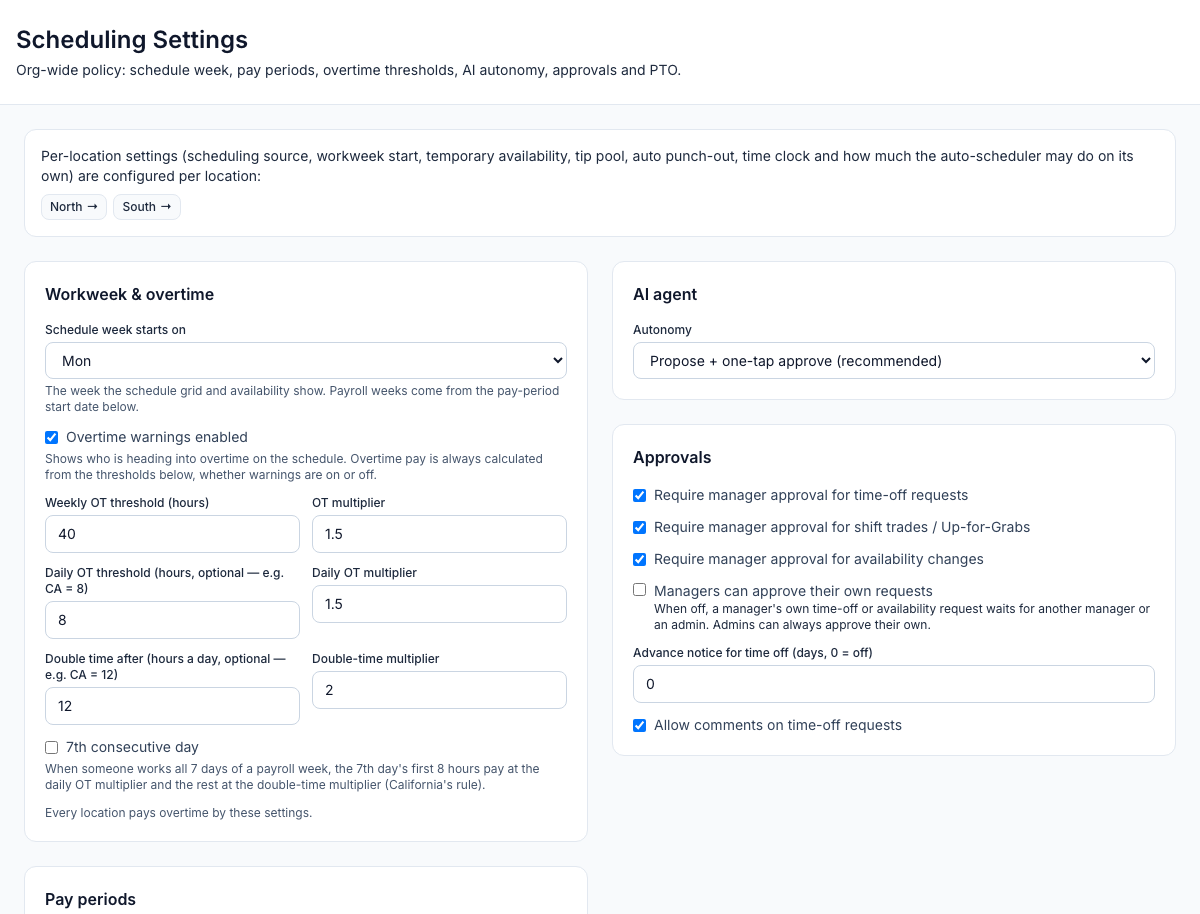
Workweek & overtime
Setting | What it does |
|---|---|
Schedule week starts on | The first day of the schedule grid and of availability — Monday unless you change it. A location that picks its own day keeps it. Payroll weeks follow the pay period instead. |
Overtime warnings enabled | Shows who is heading into overtime on the schedule (the OT warnings card). Untick it if you don't want those warnings — overtime pay is always calculated from the thresholds below, whether warnings are on or off. |
Weekly OT threshold (hours) | Hours in a payroll week before overtime starts: 40 unless you change it — leave the box blank for the default of 40. Also the most hours the auto-scheduler gives anyone in a week. More than 0 and up to 168; parts of an hour are fine, up to two decimals (37.5 for 37½ hours). |
OT multiplier | The overtime pay rate for weekly overtime, 1.5 unless you change it. Between 1 and 5. |
Daily OT threshold (hours, optional — e.g. CA = 8) | Hours in one day before daily overtime starts. Leave it blank for no daily overtime. Up to 24, and parts of an hour are fine (7.5). |
Daily OT multiplier | The pay rate for daily overtime, 1.5 unless you change it. Between 1 and 5. |
Double time after (hours a day, optional — e.g. CA = 12) | Hours in one day before double time starts. Leave it blank for no double time. Up to 24, and more than the daily OT threshold when there is one. |
Double-time multiplier | The pay rate for double time, 2 unless you change it. Between 1 and 5. |
7th consecutive day | When someone works all 7 days of a payroll week, the 7th day's first 8 hours pay at the daily OT multiplier and the rest at the double-time multiplier (California's rule). |
- The boxes show exactly what's saved. A threshold of 7.5 hours shows as 7.5 and stays 7.5 when you save other settings on the page.
- 0 isn't accepted in any threshold. The box shows Must be more than 0 hours. Leave it blank for the default of 40. (or, for daily overtime and double time, …blank to turn daily overtime off. / …blank to turn double time off.) and Save settings stays greyed out until you fix it. Double time must start after daily overtime: the box shows Must be more than the daily OT threshold (8 hours).
- Each location pays these settings. Where Labor law compliance's Overtime law is on, a location pays the more protective of these settings and the overtime law at its address: the lower threshold and the higher multiplier. Its Labor & compliance card shows its law with the official source and can set rules of its own — see Labor & compliance.
Pay periods
Setting | What it does |
|---|---|
Pay frequency | Weekly, Every 2 weeks (the default), Twice a month (1st–15th and 16th–end) or Monthly. |
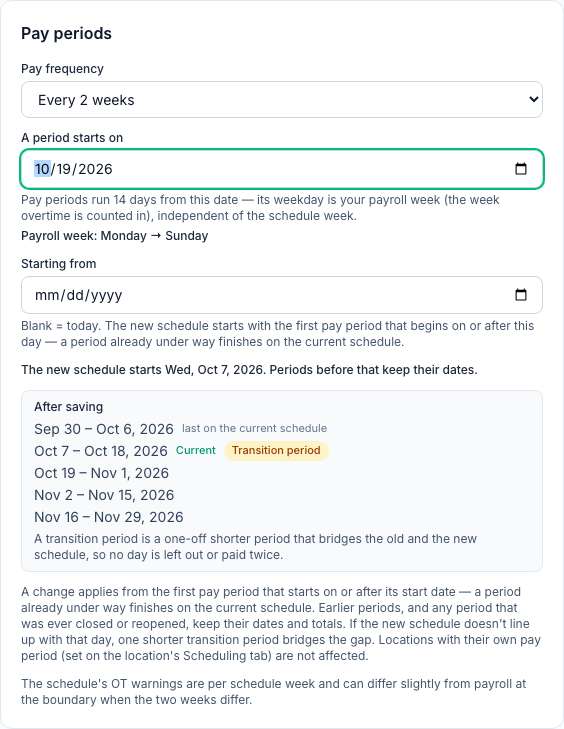
A period starts on | The first day of any pay period. Its weekday becomes your payroll week (shown as Payroll week: Monday → Sunday) — the week overtime is counted in. For monthly periods, the day of the month they start. |
Overtime workweek starts on | Twice a month only: periods always run the 1st–15th and the 16th–end, so pick the day your 7-day overtime week starts (Monday unless you change it). |
Starting from | Shown once you change the schedule: the day the change should apply from. Blank means today. |
Upcoming pay periods (as saved) shows the next three, with Current on this one. Pay periods drive the Time Clock page, overtime and the payroll exports — see Timesheets and pay periods.
Changing the schedule never moves a period that already happened. The new schedule starts with the first pay period that begins on or after Starting from; a period already under way finishes on the current schedule. Before you save, After saving shows the last period on the current schedule and the next ones on the new schedule, and says when the new schedule starts (The new schedule starts Wed, Oct 7, 2026. Periods before that keep their dates.). If the new periods don't line up with that day, one shorter Transition period fills the gap, so no day is left out or paid twice. Periods before the change, and any period that was ever closed or reopened, keep their dates and totals. A location with its own pay period isn't affected — see Timesheets and pay periods.
Mays won't start a new schedule on a day in the past when hours were already recorded after it: Hours are already recorded … so a new pay schedule can't start that early — pay periods that already have hours keep their dates. Pick today or a later day.
Approvals
Setting | What it does |
|---|---|
Require manager approval for availability changes | On by default. Turn it off and staff availability takes effect as soon as it's sent. See Reviewing staff availability. |
Require manager approval for time-off requests | Has no effect today — time off always waits for a manager. |
Require manager approval for shift trades / Up-for-Grabs | Has no effect today — claims and trades always wait for a manager. |
Managers can approve their own requests | Off unless you turn it on. Off, a manager's own time-off or availability request shows Waiting for another manager and waits for another manager of their location or an admin. On, managers approve or decline their own like anyone else's — on the web, in the app and through a connected AI app — and the request's note records it (Self-approved by a manager.). Admins can always approve their own, whichever way this is set. See Requesting and approving time off and Reviewing staff availability. |
Advance notice for time off (days, 0 = off) | How many days ahead staff must ask, counted from today's date at their location. It doesn't apply to sick or safe time (a category with This is paid sick / safe leave ticked under Time off & PTO accrual, which is on by default for one called Sick or Safe), which people can ask for on the same day. Time off a manager adds isn't limited. |
Allow comments on time-off requests | Untick to remove the note field from the time-off form in the app. |
Settings that don't do anything yet
- Auto-break — Auto-deduct an unpaid break on long shifts (with Break length (min) and Applies after (worked min)) is saved but no break is deducted. Put breaks on shifts, and see Labor & compliance for break rules.
- AI agent — Autonomy has no effect. How much the scheduling assistant does on its own is set per location — see Auto-schedule with AI.
Time off and Gusto
- Time off & PTO accrual — time-off categories, how each earns paid hours, and everyone's balances. See PTO policies and balances.
- Gusto employee IDs — see Exporting payroll (CSV and Gusto).
Each location's settings
Click a location's name at the top of the page (or go to Locations & Users → Locations → the location → Scheduling). Those settings save as soon as you change them, and managers can change them for their own locations:
Card | See |
|---|---|
Scheduling source, Schedule week start | |
Pay periods (this location uses its own pay period — admins only) | |
Temporary availability | |
Auto-scheduler | |
Labor & compliance | |
Time clock, Auto punch-out | |
Punch verification | |
NFC punch tags | |
Shift confirmations | |
Event reminders | |
Tip pool |
Good to know
- Overtime changes also change closed pay periods the next time you open or export them, so export and keep your files before changing them. Pay period changes don't: closed periods keep their dates.
- Scheduling is part of the Pro plan. These settings are on the web only.