Stick an NFC tag by the register or the back door, and staff clock in by tapping their phone on it. It proves they were at the store — and you can make it the only way to clock in from a phone.
Plan: part of Scheduling (Pro plan). You need NFC stickers (NTAG213 or larger) and a free app that writes NFC tags, such as NFC Tools.
Set up a tag (managers and admins)
- On the web, go to Locations & Users → Locations → the location → Scheduling tab → NFC punch tags.
- Click Add tag, name it after where the sticker will go (for example Front register), and click Create.
- The next window shows the tag's link and a QR code. This is the only time the link is shown, so write it to the sticker now: in NFC Tools, write the link as a URL and hold the sticker to your phone. Or open NFC Tools on another phone, scan the QR code, tap Write and hold the sticker to that phone.
- Click Done and put the sticker where staff can reach it.
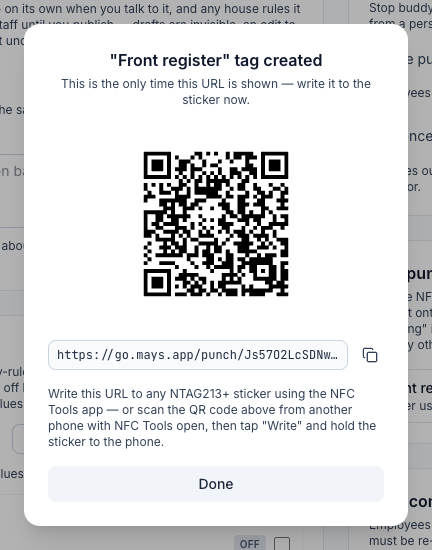
Each tag in the list shows Active or Deactivated and when it was last used to clock in or out.
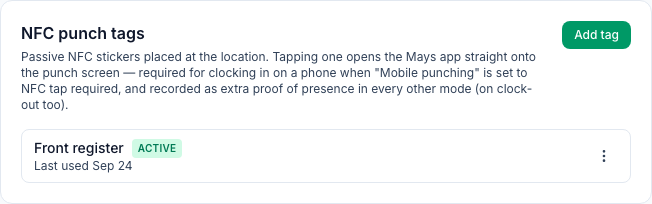
Make tags required by setting Mobile punching to NFC tap required on the same tab — then a phone can only clock in by tapping a tag; breaks and clocking out still work on the phone as usual. Otherwise tags are optional, and a tag punch shows NFC tag as its source on the timesheet. See Punch verification and geofencing.
Rename or turn off a tag with the ⋮ menu: Rename or Deactivate. Deactivate asks you to confirm; the sticker then stops working until you turn it back on. A deactivated tag's ⋮ menu has Reactivate (the same sticker works again) and Delete, which also asks first and is for good — to use that spot again, add a new tag and write it to a sticker. Punches a tag already verified are kept either way. If every tag is deactivated and taps are required, nobody can clock in from a phone until one is active again; people already clocked in can still take breaks and clock out.
Treat the link like a key. Anyone who has it can open the punch screen for your store. If a sticker's link gets copied or shared, delete that tag and make a new one — reactivating it would bring the same link back.
Clock in with a tag (staff)
You need the Mays app installed and to be signed in.
- iPhone: unlock your phone and hold the top of it near the tag. Tap the notification that appears to open Mays. Android: make sure NFC is on, then hold the back of your phone to the tag. The first time, if your phone asks which app to use, choose Mays and Always.
- Mays opens a punch screen with the store's name. The tap alone doesn't clock you in — tap Clock in (or Start break, End break or Clock out).
- You see Done and you're back on the Schedule tab.
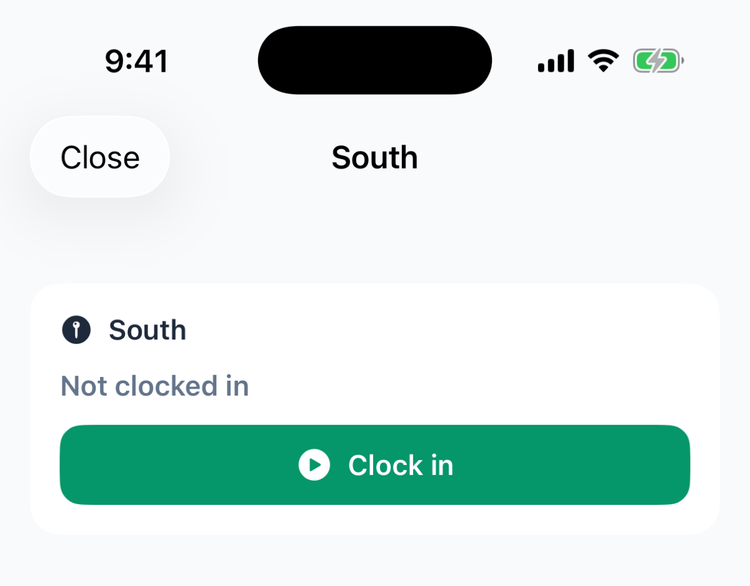
- The punch is recorded at the tag's store, even if you work at several locations.
- You can also start a break from this screen, on iPhone and Android. (Older Android versions offer one button — Clock in, End break or Clock out — so update the Mays app, or start breaks from the Schedule tab.)
- Not signed in? Sign in when the app asks (on iPhone it says NFC tag detected — log in to punch); the punch screen opens afterwards.
- On a slow connection the button says Still working — slow connection… — wait for Done rather than tapping again.
If the tag opens a web page instead
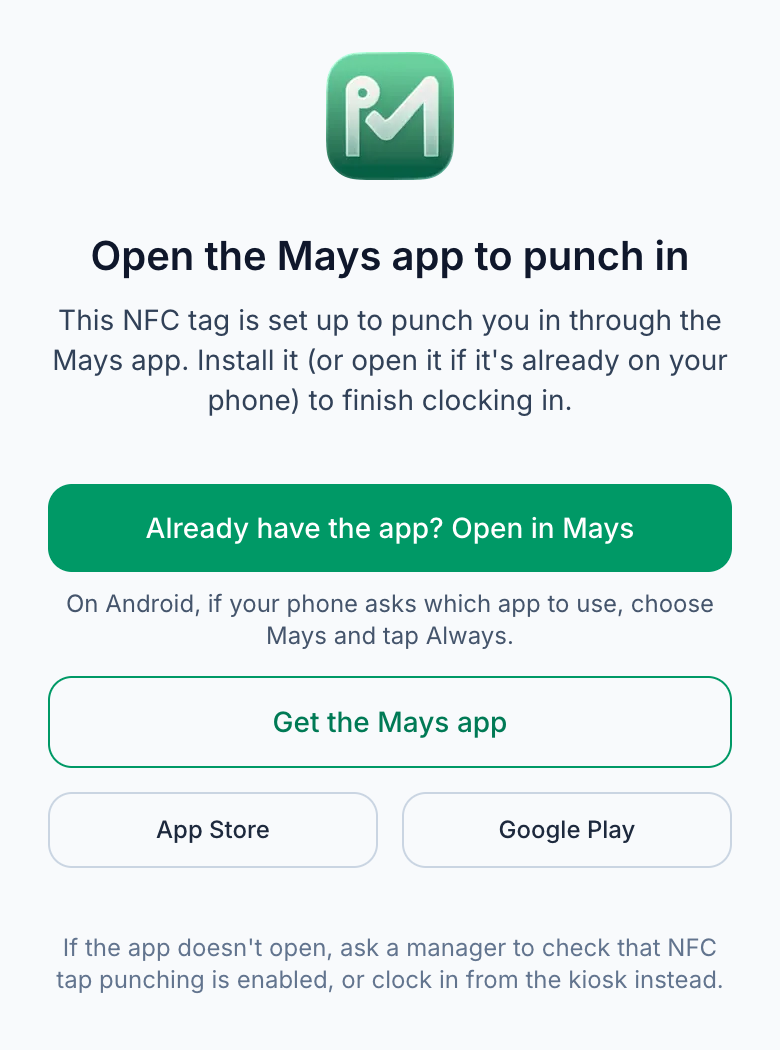
If the Mays app isn't installed, or your phone opens the link in the browser, you see Open the Mays app to punch in. This page doesn't clock you in. Tap Already have the app? Open in Mays, or Get the Mays app to install it.
Messages you might see
Message | What it means |
|---|---|
This NFC tag is turned off or no longer exists. Ask a manager to check it. | The tag was deactivated or deleted, or its link is wrong. Tell your manager. On Android, Retry looks the tag up again — for example once your manager has reactivated it. |
Location outside your scope. | The tag belongs to a store you aren't assigned to. |
Mobile punching is off for this location — use the kiosk. | Your store clocks in only on its kiosk. |
Your session expired — log in and tap the tag again. | Sign in to the app again, then tap the tag. |
Troubleshooting on iPhone: Diagnostics
If tapping a tag doesn't open the punch screen, open Profile → Diagnostics. The Deep-link trace lists the last 20 tag and link events the app received — the time, how it arrived, a shortened link, and what happened (for example received, holding until login or presented).
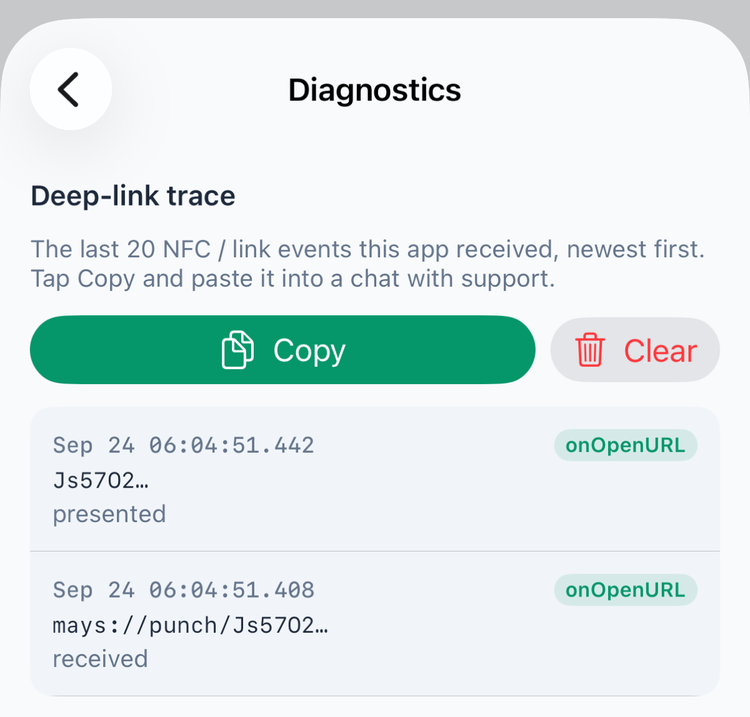
Tap Copy and paste it into a message to support. Clear empties the list. No events at all after a tap means the phone never passed the tag to Mays — check the app is installed and the sticker was written with the link from step 3. Android doesn't have this screen.
Good to know
- Location check: a tag punch still goes through the location's geofence, so someone far away with a copied link is flagged or blocked when their phone shares its location.
- "Last used" changes when someone clocks in or out from the tag's punch screen.
- Use a few tags at big stores (front and back door) so nobody queues.