Decide which time-off categories are paid and how people earn hours. Mays adds the hours nightly or as punches are approved, takes them off when time off is approved, and shows everyone their balance in the app.
Where: Scheduling → Settings → Time off & PTO accrual, on the web. Only admins see it.
Set up a category
The list starts with Vacation, Sick, Unpaid and Personal. Type a name in Add a category (e.g. bereavement) and click Add category to add your own; the ✕ next to one you added removes it.
For each category:
- Tick Paid if hours come out of a balance.
- Pick how it earns hours (see the table below) and fill in the amount.
- Optionally enter a maximum balance (max bal). Added hours stop at the cap.
- Click Save on that row. Each row saves separately.
Option | How it works |
|---|---|
No accrual | No automatic hours. You can still add hours by hand. |
Fixed per period | The same number of hrs every week, month, year or pay period. Pay period follows each person's location: its own pay period if it has one, else the organization's — twice a month gives two grants a month, every 2 weeks one every other week. |
Per hour worked | hrs PTO / approved hr worked — for example 0.0385 is about one hour for every 26 approved hours worked. |
Annual grant | hrs / year, all at once. |
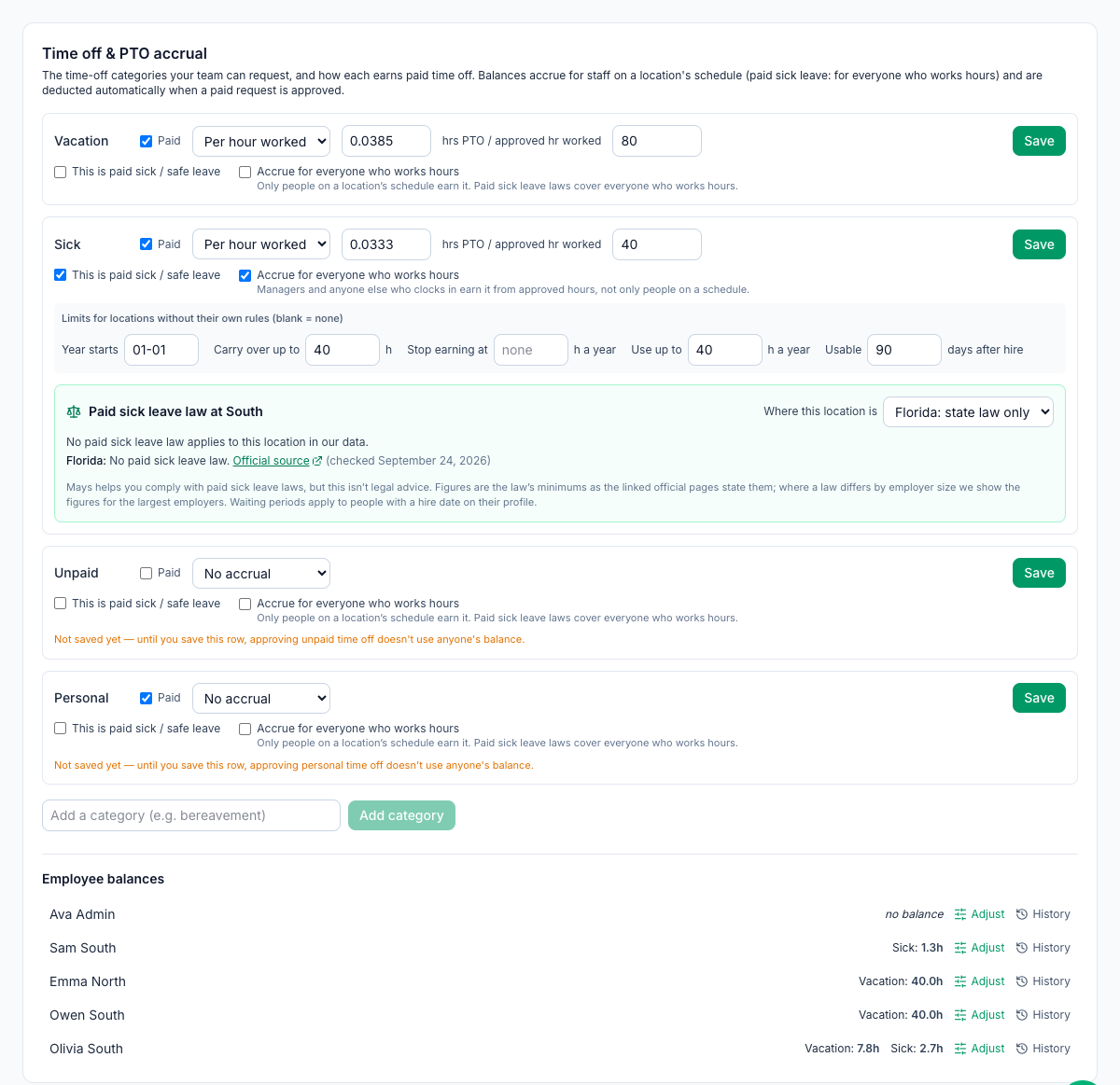
A category only uses a balance after its row is saved with Paid ticked. Until then the row says Not saved yet, and approving time off in it takes nothing off anyone's balance. Paid starts ticked on every row except Unpaid. A category you add is saved straight away with Paid unticked and No accrual — tick Paid and click Save if it should use a balance.
How hours are added
- Hours are added for staff on a location's schedule — the people on its schedule roster, which by default means employees, not managers or admins. A category with Accrue for everyone who works hours ticked earns for everyone whose punches are approved, managers included. It starts ticked for a category marked This is paid sick / safe leave, and a category called Sick or Safe starts marked.
- Per hour worked adds hours when a manager approves a punch on the Time Clock page (one at a time or with Approve all); punches that aren't approved earn nothing. Punches imported from 7shifts as approved count too.
- Fixed per period and Annual grant are added once a night (around 3 AM Eastern). Nothing is added the first night after you save, or after someone joins: the first grant comes at the next period — a week later, at the start of the next month or of the next pay period at the person's location, or on January 1 for yearly and annual grants — then every period after that. Nothing is prorated; to give someone a starting balance, use Adjust.
- Balances carry over from year to year with no limit and no reset, except in a paid sick / safe leave category with a carryover limit: when its year starts (January 1, or the Year starts date, at midnight where the person works), hours over the limit are removed and the person's History shows a Year-end carryover line. Use max bal to stop other balances growing.
- Sick and safe leave limits. A category marked This is paid sick / safe leave has a row of its own limits under it: Year starts, Carry over up to, Stop earning at (hours a year), Use up to (hours a year) and Usable (days after hire). Leave a box blank for no limit. The waiting period counts from the Hire date on the person's Employment tab; with no hire date, none applies.
Paid sick leave by location
This needs Labor law compliance, with Paid sick leave on at the location (see Labor & compliance). Without it, the category's own limits apply everywhere.
Paid sick leave laws differ by state and city, so a sick or safe leave category can have its own rules at each location. Pick the location at the bottom of the sidebar. Under the category, Paid sick leave law at the location shows the law that applies there — the accrual rate, the yearly accrual and use limits, the balance limit, carryover, the waiting period for new hires and front-loading — each with a link to the official page. Where we don't have a figure yet it says Not in our data yet: check the official source. If the city or county is wrong, change Where this location is.
- Click Apply these rules. Mays fills in This location's rules and says which figures it left open.
- Change any value and click Save location rules. If a value is below the law's minimum, a warning says which one and why — for example Carries over only 16 h; New Jersey requires at least 40 h. You can still save.
- Use the organization's rules here instead removes the location's own rules.
At a location with its own rules, hours worked there earn at its rate and stop at its yearly limit, the balance carries over up to its limit when the year starts, and new hires can't use sick time before the waiting period ends. The waiting period counts from the Hire date on the person's page (Locations & Users → Users → the person → Employment tab); with no hire date, none applies. Locations without their own rules use the limits on the category row. Mays helps you comply with these laws, but it isn't legal advice: where a law differs by employer size, the figures shown are for the largest employers.
When time off is approved
- A request uses the hours the person is scheduled for on those days (their published shifts, less breaks); a day that's on the published schedule but not theirs uses nothing. Days that aren't on a published schedule yet use 8 hours on a weekday and nothing on Saturday or Sunday. The hours are worked out again when the request is approved. A partial day a manager adds on the web uses its exact hours. Employees can only ask for whole days in the app — see Requesting and approving time off.
- The hours come off when a manager approves the request. If the balance is too low, Mays refuses — Approving this request needs 16h of vacation but Olivia South has 8h left. Adjust the balance first. Employees can still send the request; the check happens at approval.
- If an approved request is cancelled, set back to another status or deleted, the hours go back. Staff can cancel their own approved time off in the app until the day it starts (Cancel time off, then confirm), and their managers get a notification; after that, a manager changes it on the web. Update the Mays app to the latest version to see Cancel time off.
- Time off copied in from 7shifts doesn't use any balance.
Adjust a balance
Under Employee balances (the people at the location picked at the bottom of the sidebar), each person shows their balances, such as Vacation: 40.0h, or no balance.
- Click Adjust next to the person.
- Pick the Category.
- Enter the Hours: a positive number adds, a negative number takes away (for example -8). The dialog shows the balance now and after.
- Write a Note saying why — it's required — and click Save adjustment.
- Click History next to the person to see every change to their balances: hours earned, time off used and given back, and adjustments with who made them and their note.
- An adjustment can go above max bal or below zero.
What your team sees
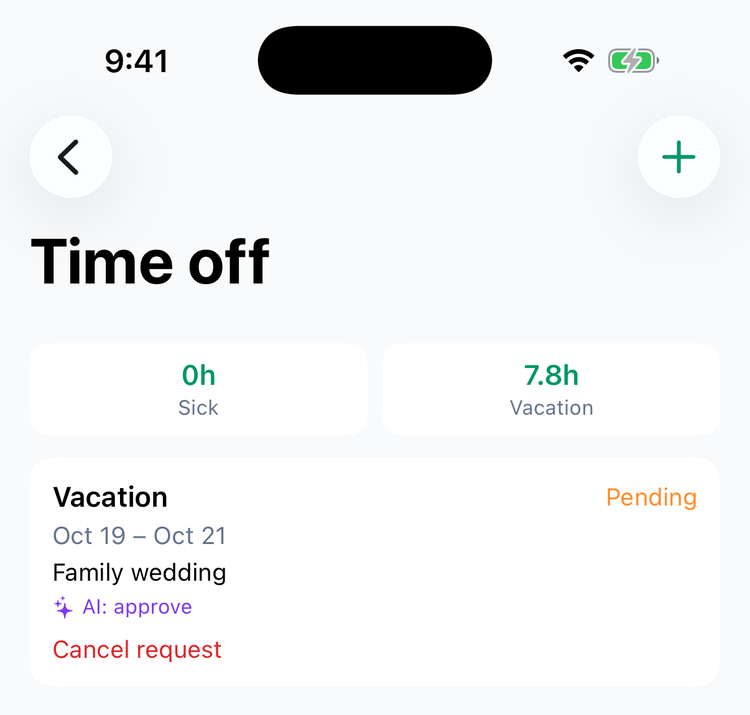
In the app, Schedule → Time off shows each balance above their requests, for example 7.8h Vacation or 0h Sick — to one decimal, zeros included. Update the Mays app to the latest version; older versions round down to whole hours and hide a zero balance.
Good to know
- Managers don't see balances on the web. A time-off request shows how many hours of that category the person has had approved this year.
- PTO isn't in the payroll export. Pay time off in your payroll provider — see Exporting payroll (CSV and Gusto).
- Removing a category you added stops people requesting it and stops its hours being added. Balances people already have in it stay, and you can still Adjust them.
- Adding or removing a category reloads the page's other settings — save changes to the rest of Scheduling Settings first.
- Scheduling is part of the Pro plan.