Two checks stop people clocking in for a friend or from home: Mobile punching decides whether a personal phone can clock in at all, and Geofence checks that the phone is near the store.
Where: Locations & Users → Locations → a location → Scheduling tab → Punch verification card (Scheduling, Pro plan). Admins can change any location; managers the locations they manage. Changes save straight away.
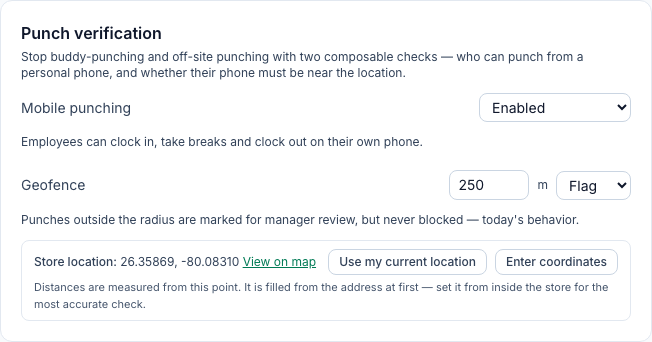
Mobile punching
Option | What staff can do |
|---|---|
Enabled (default) | Clock in from their own phone. |
Kiosk only | Clock in only on the store's shared kiosk (or a manager adds the punch). The app shows Use the kiosk to clock in. instead of the Clock in button. Anyone already clocked in can still take breaks and clock out on their phone. |
NFC tap required | Clock in from their phone only by tapping one of the location's NFC tags — see Clocking in with NFC tags. The app shows Tap the store tag to clock in, or use the kiosk. Breaks and clock-out work on the phone as usual. |
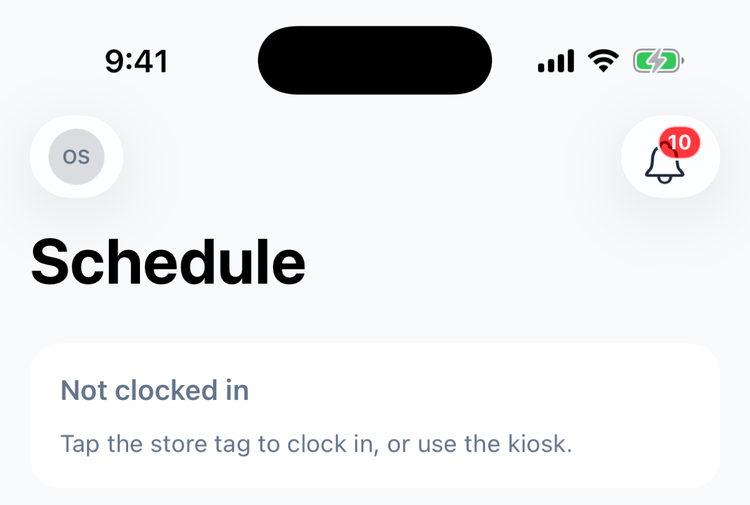
- Only clocking in is restricted. Someone already on the clock can still take breaks and clock out from their phone in every mode, so nobody gets stuck.
- Kiosks and manager-added punches are never restricted by this setting.
- Staff don't need to sign out after you change it. The app picks up the new setting the next time they open it or go back to the Schedule tab. If someone taps an old Clock in button before that, Mays refuses — Mobile punching is off for this location — use the kiosk. or Tap the store's NFC tag to punch. — and the app then shows the new option.
Geofence
Option | What happens at clock-in |
|---|---|
Off | Location isn't checked. |
Flag (default) | The punch is saved either way. If the phone is outside the radius, the punch is marked Outside geofence for you to review, and the employee's app shows Outside store next to On the clock. |
Block | A clock-in from outside the radius is refused: You're too far from South to punch in. |
Set the radius in metres in the box next to the option (250 m by default). It saves when you click out of the box or press Enter. Use at least 10 m — phone GPS is rarely more precise — and at most 10,000 m; if you empty the box, the current radius is kept.
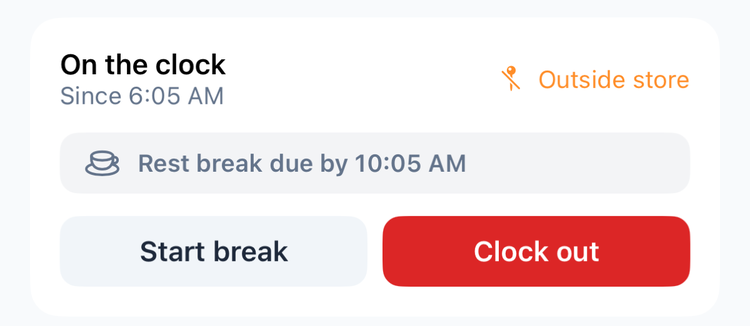
Where you see flagged punches:
- Time Clock → a pay period: an Outside geofence badge on the punch and a row on the Warnings tab — see Timesheets and pay periods.
- The on the clock now strip on the Time Clock page marks the person with a pin icon (Outside geofence). A warning icon (No GPS) means Mays has no location for that punch — for example a kiosk punch, or a phone with location turned off.
How the check works
- It's done once, at clock-in. Breaks and clock-out aren't checked.
- A phone that doesn't share its location is never blocked or flagged, even with Block on. The app asks for location permission the first time someone clocks in; staff who say no can still clock in.
- Distances are measured from the store location, shown under the geofence while it's on (Store location, with View on map). At first it's filled in from the street address — sometimes only roughly — and it isn't looked up again if you change the address later. To set it exactly, stand inside the store and click Use my current location, or click Enter coordinates and paste the latitude and longitude from a map app. Until a location has a store location (not set — the geofence can't check anyone until it is.), Flag and Block do nothing.
- A kiosk iPad or iPhone sends its own location when someone clocks in on it, so Block applies there too; Android kiosks don't send one.
Start with Flag and a generous radius, watch the Outside geofence warnings for a week or two, and only then switch to Block if you need it.
Good to know
- Both apps show the reason when a clock-in is refused, on iPhone and Android.
- The app uses the phone's GPS, which can be off by a few hundred metres indoors or on a weak signal. A small radius makes false flags more likely.
- These settings sit next to the location's other time clock rules — see Grace periods, rounding and auto-approval.