Each location has its own time clock rules: how much grace a punch gets, whether times are rounded, which punches approve themselves, and what happens to a forgotten clock-out.
Where: Locations & Users → Locations → a location → Scheduling tab → Time clock card (Scheduling, Pro plan). Admins can change any location; managers can change the locations they manage. Each change saves as soon as you make it and applies to the next punches — punches already recorded aren't changed.
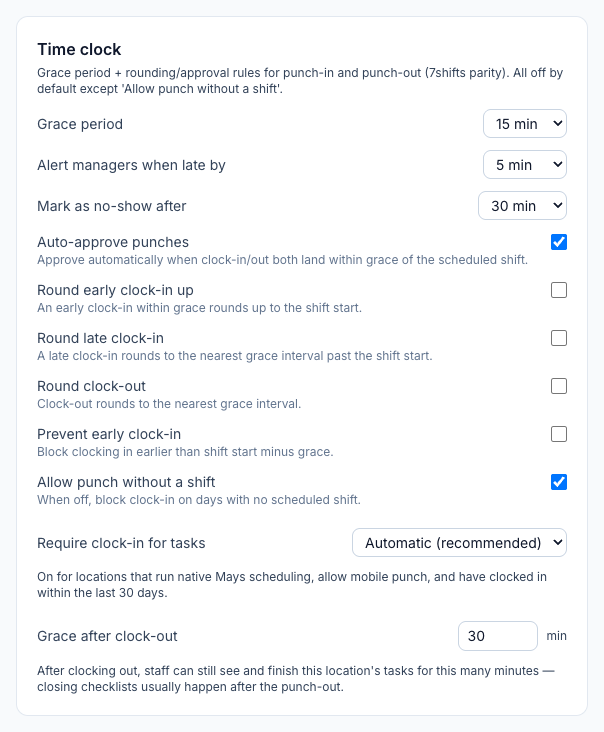
The settings
Everything is off by default except Allow punch without a shift.
Setting | What it does |
|---|---|
Grace period | 5, 10, 15 (default), 20 or 30 minutes. The window used by the rounding, auto-approval and early clock-in rules below. A clock-out more than the grace period before the shift ends is flagged Early out on the timesheet. |
Alert managers when late by / Mark as no-show after | When someone counts as late or a no-show, and when managers are alerted. The no-show time must be longer than the late time — choices that aren't are greyed out. See Attendance, late and no-show alerts. |
Auto-approve punches | At clock-out, the punch is approved automatically when both the clock-in and the clock-out are within the grace period of the shift's start and end. Punches with no shift, and automatic clock-outs, are never auto-approved. |
Round early clock-in up | Clocking in early, within the grace period, records the shift's start time instead. |
Round late clock-in | A late clock-in is rounded to the nearest grace step after the shift start. |
Round clock-out | Clock-out is rounded to the nearest grace step on the clock (with 10 minutes: 3:03 → 3:00, 3:08 → 3:10). It's never rounded back to or before the clock-in. |
Prevent early clock-in | Blocks clocking in earlier than the shift start minus the grace period. The employee sees You can punch in at 8:45am. |
Allow punch without a shift | On by default. When off, people can't clock in on a day they have no shift at that location — they see No shift scheduled today. |
Require clock-in for tasks and Grace after clock-out control who sees the location's tasks — see Why can't I see my tasks?.
An example
Grace period 15 minutes, a shift from 9:00 AM to 5:00 PM:
The employee… | Rule turned on | Recorded as |
|---|---|---|
clocks in at 8:50 | Round early clock-in up | 9:00 |
clocks in at 8:40 | Prevent early clock-in | Refused: You can punch in at 8:45am. |
clocks in at 9:07 | Round late clock-in | 9:00 |
clocks in at 9:08 | Round late clock-in | 9:15 |
clocks in at 8:55 and out at 5:10 | Auto-approve punches | Approved automatically |
- The rounded time is the one that's kept. The original time isn't stored, and hours and pay use the rounded time. Lateness is still measured from the real clock-in.
- The rules use the person's shift at that location that day — the one closest to the time they punch. With no shift that day, nothing is rounded or approved.
- They apply everywhere people clock in: the app, NFC tags and shared kiosks.
Close forgotten punches automatically
The Auto punch-out card on the same tab closes punches that are still open at a set time of day.
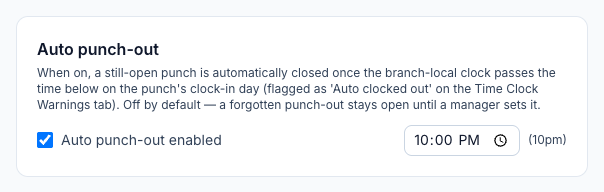
- Tick Auto punch-out enabled.
- Set the cut-off time for the location.
Mays checks every 15 minutes. A punch still open after the cut-off is closed at the cut-off time (someone who clocked in after that day's cut-off is closed at the next day's). Any break still running ends then too.
- The employee is told: You were automatically clocked out at 10pm — contact your manager if this is wrong.
- On the timesheet the punch shows Auto clock-out and appears under Warnings. It's never approved automatically, and Approve All skips it — check the real time and fix it. Once you set a different clock-out time the Auto clock-out badge goes and Approve All includes it; if the cut-off was right, approve it on its own. See Timesheets and pay periods.
Without auto punch-out, a forgotten clock-out stays open until a manager sets it, and shows as Missing punch-out from the next day.
Good to know
- Settings are per location. Set each store separately.
- Punches in a closed pay period are left alone by auto punch-out; the punch shows as Missing punch-out until a manager reopens the period and sets it. A period can't be closed while anyone is still clocked in on it.
- The per-shift "Late grace" in the shift window only affects the late clock-in phone calls; it doesn't change these rules or lateness.