Staff confirm each published shift in the Mays app, managers see who has confirmed, and anyone who hasn't gets a reminder when the shift is close.
Turn confirmations on or off
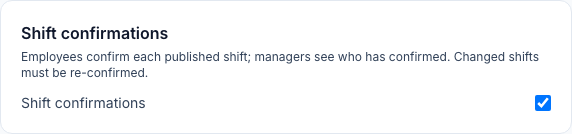
Shift confirmations are on at every location unless you turn them off.
- Go to Locations & Users → Locations and open the location.
- Open the Scheduling tab.
- Tick or untick Shift confirmations. It saves straight away.
Admins can change it for any location, and managers for their own.
How staff confirm
- When a week is published, staff get Your schedule is ready.
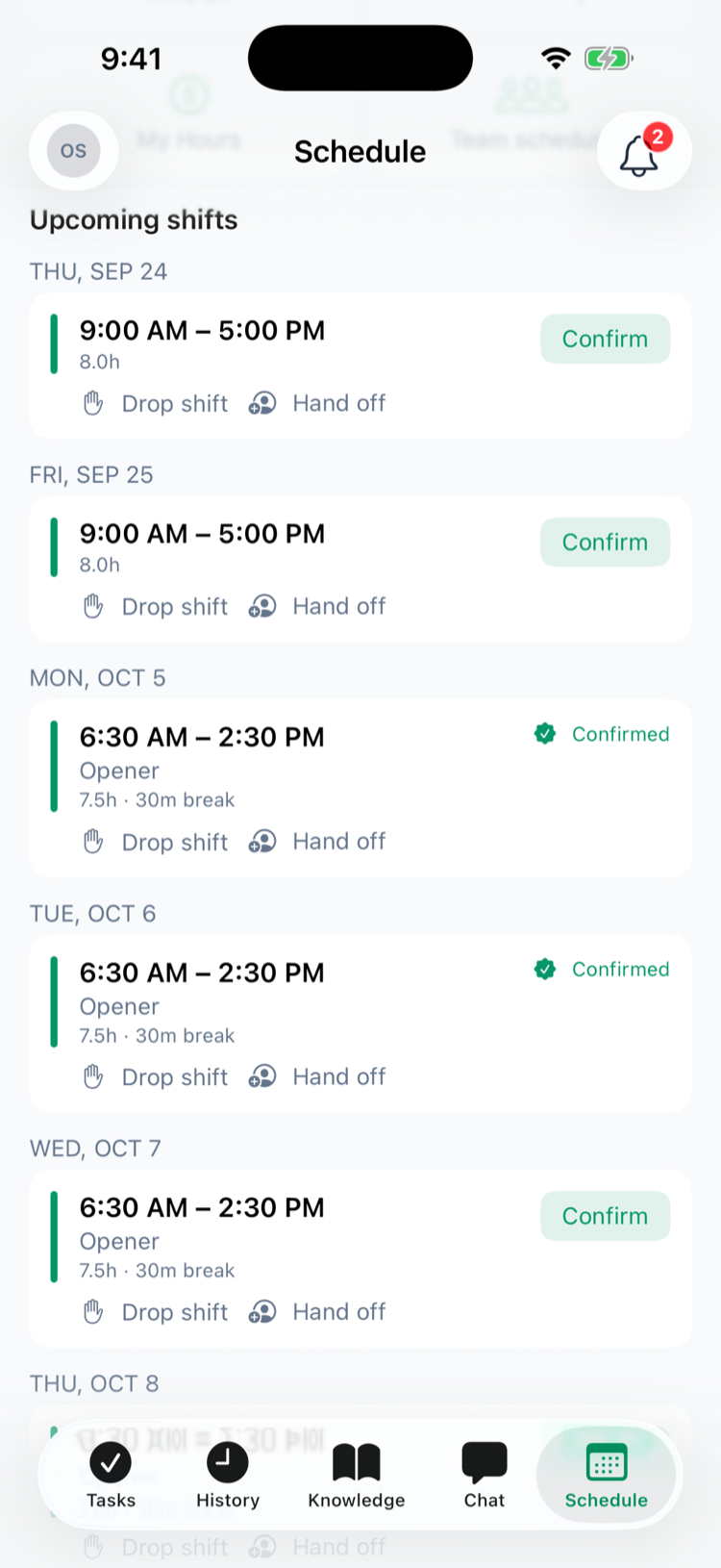
- In the app's Schedule tab, each upcoming shift has a Confirm button.
- They tap Confirm, and the shift shows Confirmed with a green check.
Reminders
Once a day, at about 2 a.m. Eastern (11 p.m. Pacific the evening before), Mays sends Confirm your shift to everyone with a published shift that starts in the next 24 hours and isn't confirmed. For example: Tap to confirm you're working Fri, Sep 25 9am. Each shift gets one reminder, and tapping it opens the Schedule tab.
It's a Schedule notification, so people can turn it off under Profile → Notifications. See Push notifications.
See who has confirmed
- In the app: on Manage schedule (iPhone) or Manager Schedule (Android), a green check next to a person's name means they confirmed that shift. See Managing the schedule from your phone.
- On the web, the schedule grid doesn't show confirmations.
When a shift changes
If you change a confirmed shift's time, the person on it or its position and publish, it needs confirming again and the Confirm button comes back. Changing only its label or notes keeps the confirmation. See Publishing the schedule.
Good to know
- Turning confirmations off hides the button and stops the reminders, and Your schedule is ready no longer asks people to confirm their shifts.
- Out-of-date apps can still show Confirm at a location that turned confirmations off, and it still works there.
- Only the person on the shift can confirm it. A manager can't confirm for someone, and open shifts can't be confirmed.
- Confirming doesn't change anything else. An unconfirmed shift stays on the schedule, anyone can still clock in, and managers aren't alerted about unconfirmed shifts.
- Confirmations help with cover. AI outreach in Find cover favours people who confirmed their shifts over the last 60 days.