Mays can pool all of a location's tips and share them among the people who worked — by hours, equally, or by FTAR score. Each person's share goes into the payroll export.
Where: Locations & Users → Locations → a location → Scheduling tab → Tip pool card, at the bottom (Scheduling, Pro plan). Admins can change any location; managers can change the locations they manage.
The pool is every tip from the location's point-of-sale sales in the period, so connect Square or Union first — see Connecting Square. Without a connected POS there are no tips to share and the tip columns stay at 0.00. When you connect, Mays brings in the location's last 30 days of sales in the background.
If staff were clocked in on days when no sales came in from your POS — before you connected, or while it was disconnected — those days' tips aren't in the pool, and the pay period shows a yellow note: No sales came in from your POS for … while staff were clocked in, so tips for those days aren't in these totals or the Gusto file. Open a ticket in Help & Support and we'll load the missing sales; the shares update by themselves once they arrive. See Timesheets and pay periods.
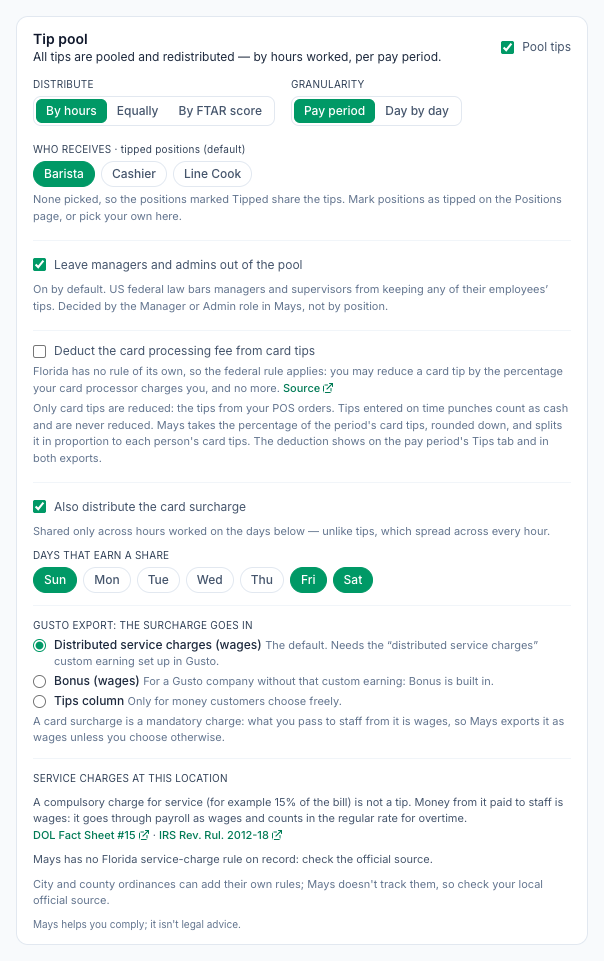
Set up the pool
Tip pooling is on for every location unless you turn it off. Each change saves as soon as you click — there's no Save button.
- Open the location's Scheduling tab and scroll to Tip pool.
- Leave Pool tips ticked. The line under the title sums up the rule, for example All tips are pooled and redistributed — by hours worked, per pay period.
- Under Distribute, choose how the pool is split (see the table below).
- Under Granularity, choose Pay period (one pool for the whole period) or Day by day (each day's tips go to the people who worked that day). Pay period means this location's pay period — its own if it has one, else the organization's — including a shorter Transition period after a pay schedule change.
- Under Who receives, click the positions that share tips — for example Barista and Cashier. With none picked, the positions marked Tipped share the tips (· tipped positions (default)), or everyone who worked if no position is tipped (· everyone who worked). Reset to tipped positions (or Clear (everyone)) goes back to that.
- Leave Leave managers and admins out of the pool ticked — see below.
Distribute | How the shares are worked out |
|---|---|
By hours | In proportion to the hours each person worked. The default. |
Equally | The same share for everyone who worked. With Day by day, each day is split equally among that day's staff. |
By FTAR score | Hours worked weighted by each person's FTAR (the share of their checklist tasks accepted first time) and their task productivity. People who submitted no tasks in the period share by their hours at the team's average score. Granularity applies, as with the other methods. |
Shares are worked out to the cent and always add up to the whole pool.
Keep managers out of the pool
Leave managers and admins out of the pool is on at every location unless you turn it off, so managers and admins who clock in don't get a share of the tips.
Under US federal law, managers and supervisors may not keep any of their employees' tips, and some states have their own rules. If you're unsure what applies to you, check with your payroll provider or an employment adviser.
- Mays decides who's a manager by their role in Mays (Manager or Admin), not by their position. A shift lead set up with the Employee role still gets a share — leave their position out of Who receives if they supervise others.
- The share a manager would have had goes to everyone else.
Card surcharge
If the location adds a surcharge to card payments, tick Also distribute the card surcharge to share it as a second pool.
- Mays works out the surcharge on each sale as whatever the customer paid on top of the items, tax and tip — so any other service charge at the location lands here too.
- It's shared by hours worked, but only hours on the Days that earn a share (Fri, Sat and Sun unless you change them). Pick at least one day, or nobody receives any.
- Gusto export: the surcharge goes in picks its column: Distributed service charges (wages), the default, which needs that custom earning in Gusto; Bonus (wages), for a Gusto account without it; or Tips column, only for money customers choose freely. A card surcharge is a mandatory charge, so what staff get from it is wages, not tips (IRS Rev. Rul. 2012-18, DOL Fact Sheet #15). With Labor law compliance's Tips on at the location, the card warns if you pick Tips column.
Card processing fees and state rules
These are on the card while Labor law compliance's Tips is on at the location (see Labor & compliance).
Deduct the card processing fee from card tips is off by default. Turn it on and enter your processor's percentage, and Mays takes that percentage of the card tips from your POS, rounded down, split in proportion to each person's card tips. It never takes more than the fee and never touches tips entered on time punches. Where the state bans the deduction, the card shows a red warning; where it's allowed, the card explains the rule; where Mays has no clear answer, it says to check the official source. Under Service charges at this location, the card shows your state's service-charge rule with its source and a checklist of what it asks you to do, where Mays has one.
While Tips is off, the card has no card-fee setting and nothing is deducted (a percentage you saved before is kept), and it shows no service-charge rules.
Where the shares show up
- Payroll export: the pay period's Standard CSV has Tips and Card Surcharge columns, and Gross Pay includes them. With the card fee deduction on, it adds Card Fee Deducted. The Gusto timesheet puts tips in
paycheck_tipsand the card surcharge in a wage column, andpersonal_notesays how much card fee was deducted. See Exporting payroll (CSV and Gusto). - Time Clock → a pay period → Tips: each person's tips paid and their card surcharge (wages), and, where a card fee was deducted, their tips before the fee and the fee.
- Scheduling → Reports → Tip Payouts: worked hours, tips and (when the location shares one out) the Card surcharge $ per person for any dates you pick. It counts the same punches as the pay period — completed ones, by your location's days — so for the dates of a pay period it shows the same amounts as the export. See Scheduling reports.
- The Labor Summary on the Time Clock page doesn't include tips.
Good to know
- Only punches count. Shares go to people who clocked in and out in Mays. Hours on a shift nobody clocked in for earn nothing.
- When positions decide who's in (picked, or the tipped default), a punch counts only if it has one of those positions. A punch with no position takes the position of the shift it was matched to, or else the person's main position — the only position they hold at the location. If neither exists its hours earn no share, and the card says how many punches this pay period have no position.
- Turning Pool tips off means each person keeps only tips recorded on their own punches, which only 7shifts provides. Tips from your POS then go to nobody in the export.
- Moving from 7shifts? If any punch in the period came from 7shifts with tips on it, that period's pool uses those tips instead of your POS tips.
- No cash tips or adjustments. There's no place to add cash tips or change one person's share; add those in your payroll provider.
- Employees don't see tips in the app, except in Wisconsin with Labor law compliance on, where My Hours shows the tip declaration to confirm each pay period (see Tip declarations). Otherwise My Hours shows hours and estimated pay without tips — see My Hours and estimated pay.
- The FTAR & Tip Pool page in the sidebar has a tip calculator that splits exactly like payroll: the same tips, this card's settings and the location's own days, among everyone who worked. For the same location and days it shows the same amounts as the pay period's Tips tab. With one location picked, Manual amount splits a sum you type in, such as cash tips, by that location's rules; nothing on the page reaches payroll. The amounts only show for people who can see pay. See FTAR and tip pool report.
- The Tipped position box on a position sets the default for Who receives: with no positions picked on the card, tipped positions share the tips.