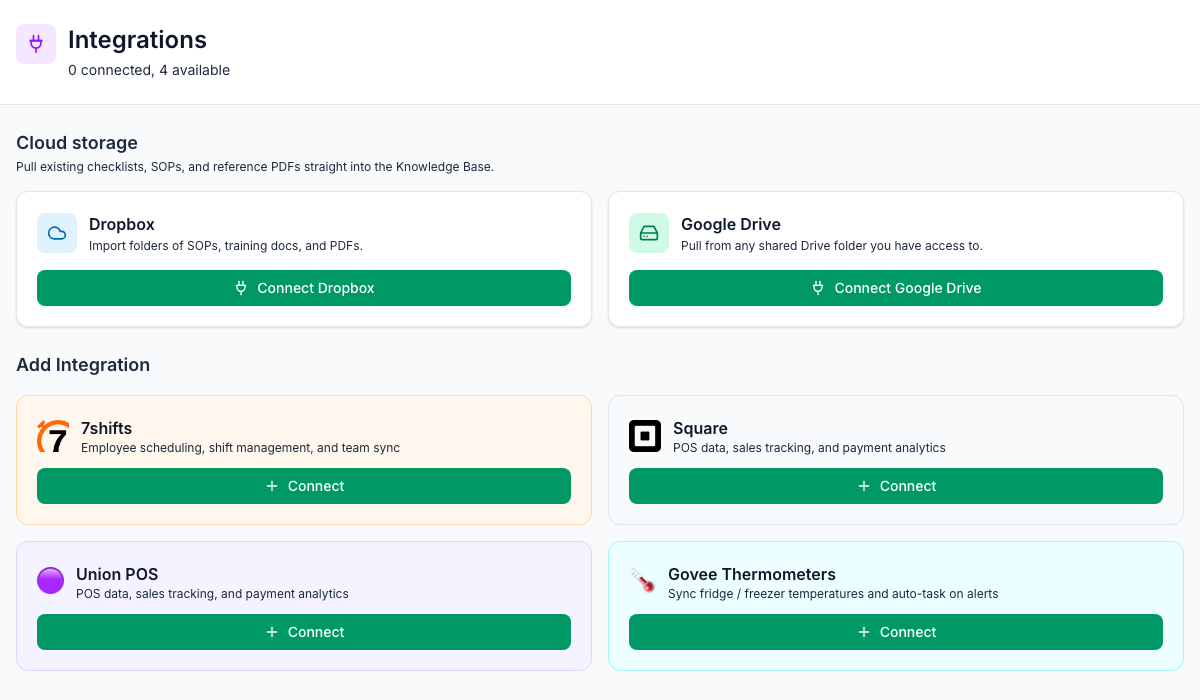
Connect Mays to the systems you already use: your POS for sales, 7shifts for your team and schedule, Google for reviews, Govee for fridge temperatures, and Dropbox or Google Drive for documents.
Where: Integrations in the sidebar of the web app. Integrations are part of the Basic and Pro plans and the free trial.
What you can connect
Integration | What it brings into Mays |
|---|---|
Square | Sales, payments, tips and refunds, items that are sold out, and your Square team. See Connecting Square. |
7shifts | Your team, and the 7shifts schedule, punches, time off and availability. See Connecting 7shifts. |
Union POS | Sales. You connect it with an API key and client ID from your Union contact; see Connecting Union POS. Like Square's, its sales can take ingredients out of inventory; see POS mapping and automatic depletion. |
Google Business | Your Google Maps reviews, so you can reply from Mays. It's listed when your organization has the Reviews module. See Connecting Google Business Profile. |
Govee Thermometers | Fridge and freezer temperatures, with a task when a sensor alerts. |
Dropbox, Google Drive | Your existing SOPs, checklists and PDFs, imported into the Knowledge Base. |
Using a different POS or scheduling tool? Write to Mays support. Other systems aren't available to connect yet.
Who can connect what
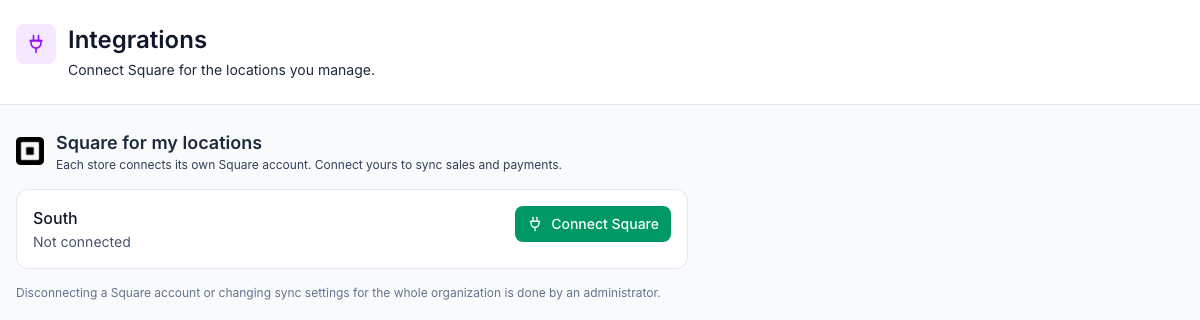
- Admins see the whole page. They can connect, sync, configure and disconnect every integration. In a custom role, this is the Connect / disconnect / sync integrations permission.
- Managers can connect Square for the locations they're assigned to, and nothing else. Their Integrations page only shows Square for my locations. In a custom role, this is the Connect POS for your locations permission.
- Employees don't see Integrations.
One POS per location
Each location should take its sales from a single POS, Square or Union POS, so its revenue isn't counted twice. Mays checks this every time a location is linked to a POS, and stops you before anything is saved:
- Connect Union POS for a store that already has Square: That location already syncs sales from square. Disconnect it (or unmap the location) before connecting Union, otherwise its revenue would be counted twice. Nothing is connected, so no extra Union POS card is left behind.
- Connect Square for a store that already has Union POS: Square connects, but the store isn't linked to it. You'll see Square connected, but this location was not mapped with the reason.
- Configure → Location Mapping: a location that already gets its sales from the other POS says so in the Location list, for example South (sales from Union POS). Pick it and a warning explains why, and Map stays off.
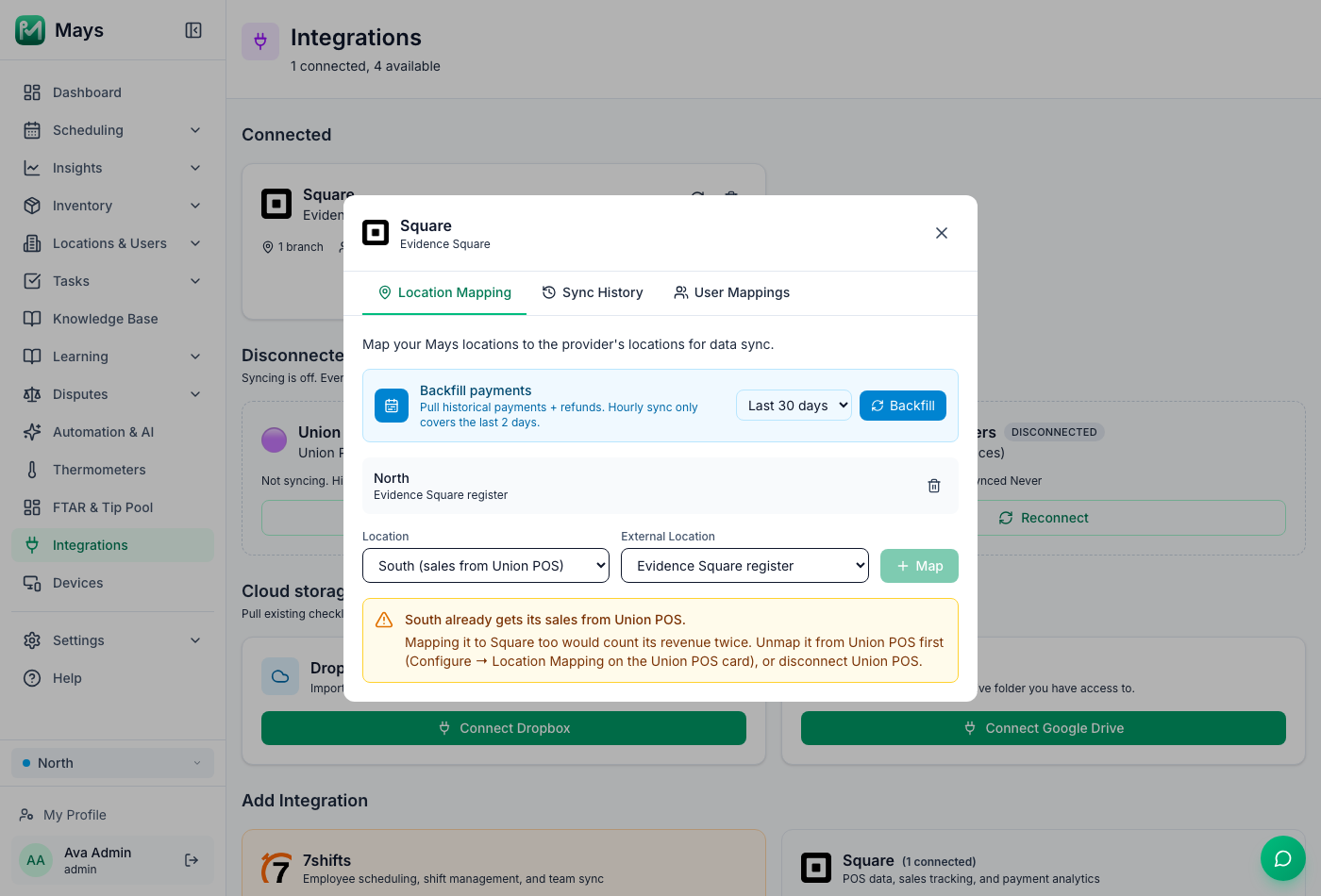
To move a store from one POS to the other, unmap the store from the old one under Configure → Location Mapping first. If the old connection only covers that store, you can disconnect it instead. A location that was linked to both before this check existed shows Also gets sales from …, so its revenue is counted twice on its Location Mapping row. Unmap one of them.
Moving a store between two Square accounts is not a clash: the store moves to the new account. See Connecting Square.
7shifts, Google Business and Govee don't count as a POS. A location can have any of them alongside its POS.
Check, sync or disconnect a connection (admins)
Once something is connected, it moves to Connected at the top of the page. Each card shows:
- the account's name and the Mays locations it covers (or No stores mapped yet);
- who connected it;
- when it last synced.
On the card:
- The sync icon (the circular arrows) syncs now instead of waiting for the next automatic sync. It syncs what that integration brings in: payments for Square, sales for Union POS, team members for 7shifts, readings for Govee and reviews for Google Business. A message in the corner says when it's done, or why it failed.
- Configure opens the details, in three tabs:
- Location Mapping shows which Mays location goes with which location in the other system. Change it here with Location / External Location and Map.
- Sync History lists recent syncs, how many records each one created or updated, and any that failed.
- User Mappings lists the people matched between the other system and Mays.
- The bin icon disconnects it. Mays asks you to confirm and tells you what happens: syncing stops, everything already synced stays in Mays, and you can connect the same account again to carry on.
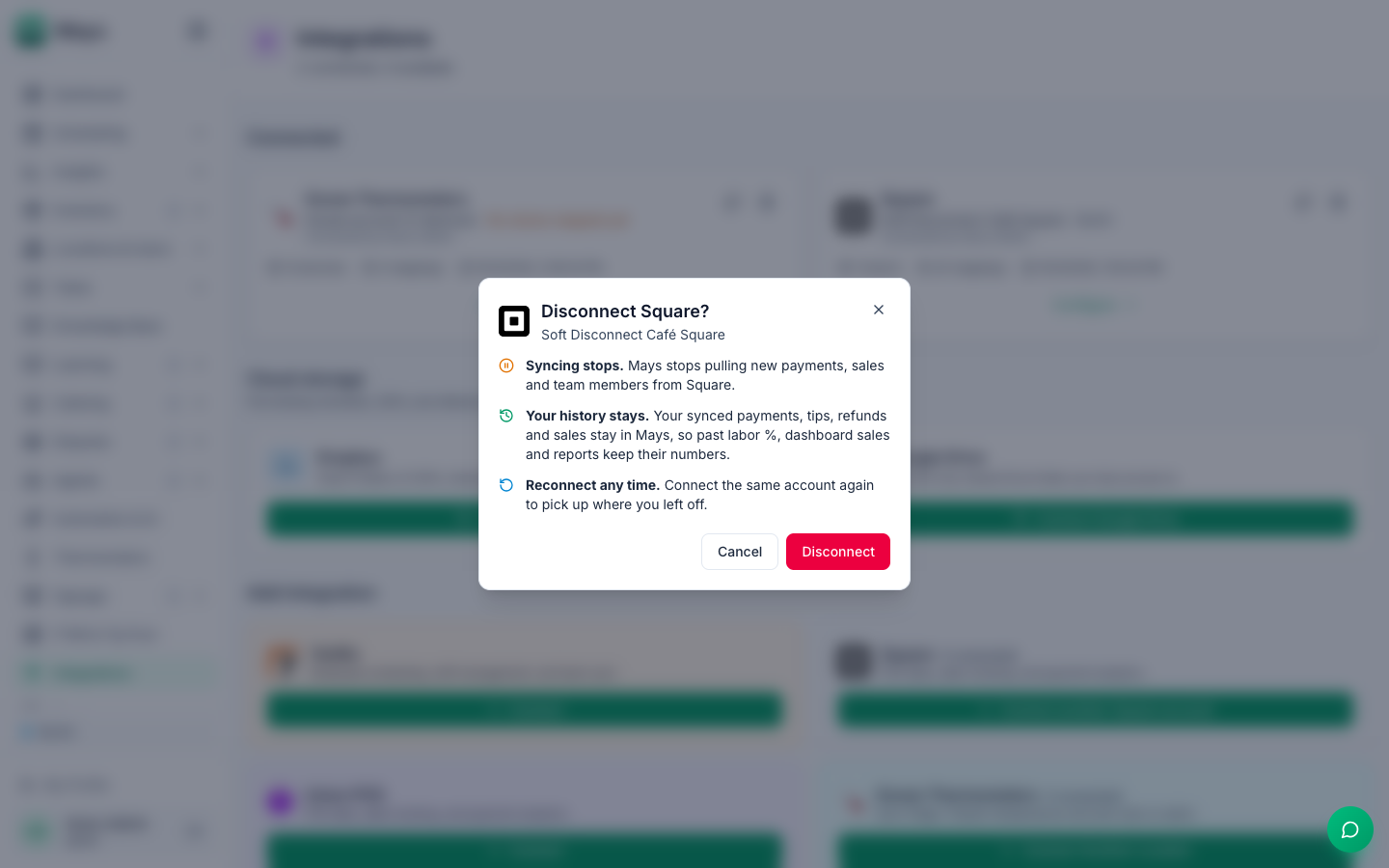
A disconnected account moves to Disconnected on the same page. It doesn't sync, but its history is still there. Click Reconnect on its card to connect it again.
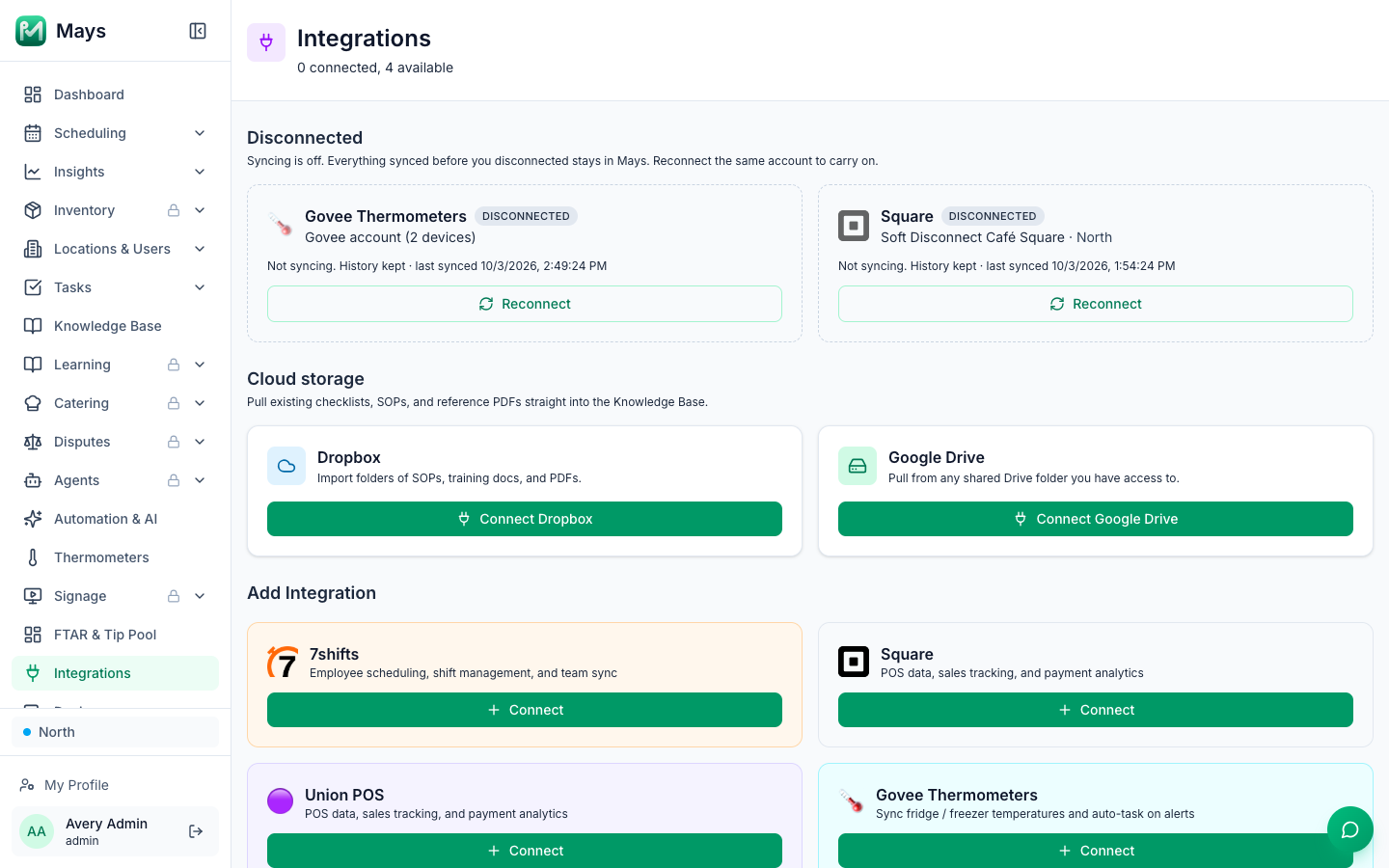
Thermometers and Google Business have their own pages: use Thermometers and Reviews in the sidebar. See Setting up Govee thermometers. Dropbox and Google Drive imports are managed from the Knowledge Base; see Importing from Dropbox or Google Drive.
Google reviews need Mays support to finish
You can sign in to Google Business from Integrations yourself. But linking each Mays location to its Google listing isn't something you can do in the app yet. Until a location is linked, its reviews don't come into Mays. After you connect, write to Mays support and we'll link your locations for you. See Connecting Google Business Profile and Google reviews and replies.
Good to know
- Syncing is automatic. Sales and payments sync every few minutes, and team members once a day. You only need the sync icon when you don't want to wait.
- When something can't be done, Mays says why. If a sync, a connection, a location mapping or an unmap fails, a message in the corner of the page gives the reason, for example that the account is disconnected or the location already takes its sales from another POS.
- Disconnecting keeps your history. Syncing stops, and nothing already in Mays is deleted:
- Square: payments, tips, refunds and sales stay, so labor %, dashboard sales and reports for past days keep their numbers.
- Govee: the thermometers stay, with their full temperature history. You can still view it and download the logs.
- 7shifts, Union POS and Google Business: the people, shifts, sales and reviews already in Mays stay.
- Reconnecting carries on where you left off. Connect the same account again (the same Square account, the same 7shifts company, the same Union client ID, or the same Govee account) and Mays picks up the same history and locations. A location that has moved to another POS in the meantime isn't switched back.
- Connected the wrong store? Admins can fix it under Configure → Location Mapping. Managers can use Change location next to their location.