Sign in with Google from Integrations so Mays can bring in your Google Maps reviews and post your replies. Then Mays support links each location to its Google listing.
Who: admins. In a custom role, this is the Connect / disconnect / sync integrations permission. Google Business shows on the Integrations page when your organization has the Reviews module, which is part of the Basic and Pro plans and the free trial.
Before you start: use a Google account that's an Owner or Manager on the Google Business Profile of every location.
Sign in with Google
- Go to Integrations and find Google Business (Pull Google Maps reviews and reply from Mays) under Add Integration.
- Click Connect.
- In Connect Google Business, click Continue with Google.
- Sign in to Google and allow Mays to manage your business profile.
- Google sends you back to Mays: Google Business connected successfully! Reviews will sync within 15 minutes. Click Back to Integrations.
Finish within 10 minutes, as the same person. The Google sign-in Mays opens is only good for 10 minutes, and only for the Mays user who clicked Continue with Google. If it runs out, you'll see Connection failed: This Google connection link is invalid or has expired. Start again from Integrations. Click Connect again.
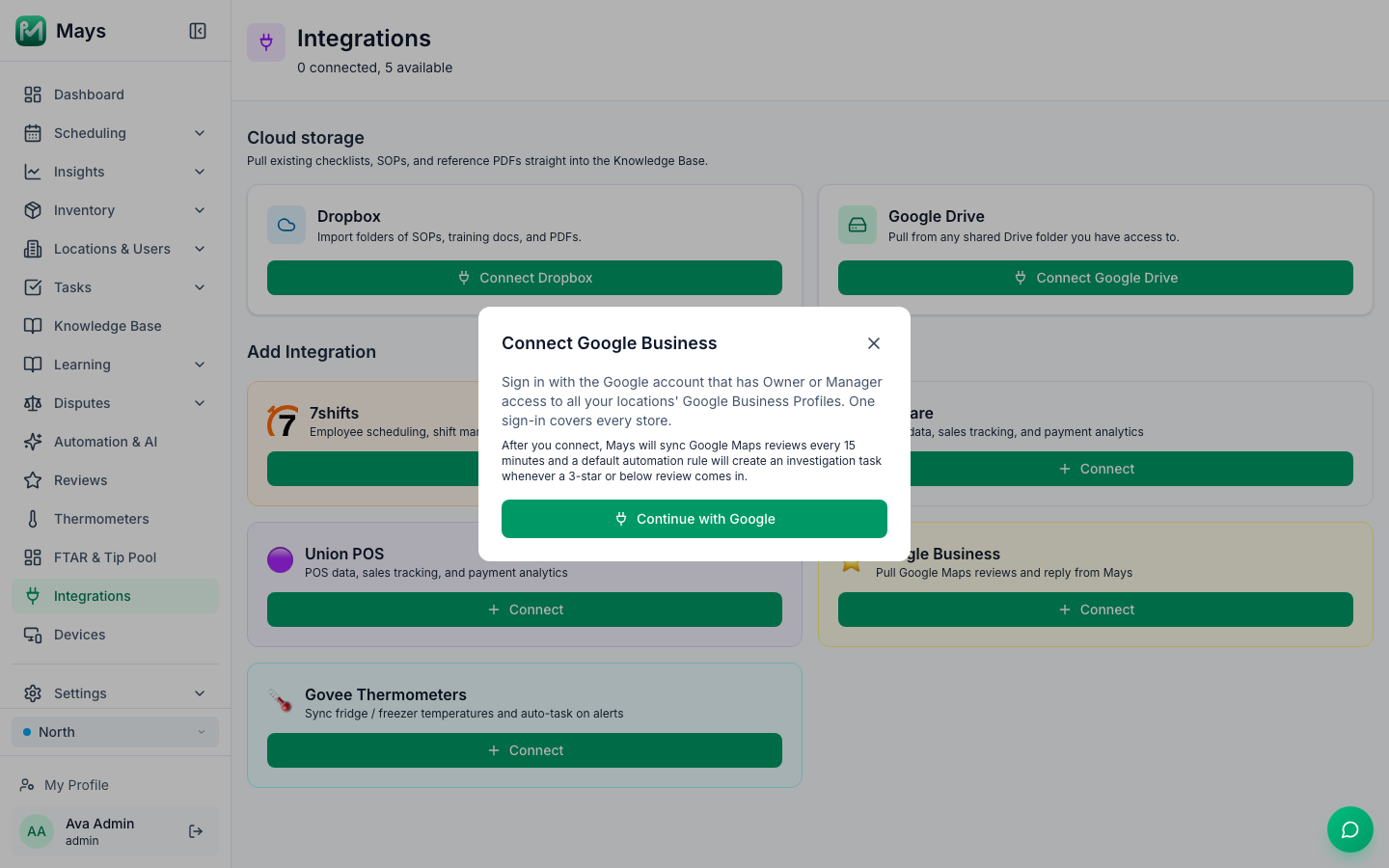
One sign-in covers every location. If something goes wrong, Mays shows Connection failed and the reason, for example access_denied when you cancel on Google's page.
Ask Mays support to link your locations
Mays can't match your locations to their Google listings on its own yet, and there's no screen to do it yourself. Until a location is linked, no reviews come in for it and you can't reply to its reviews, whatever the success message says.
After you connect, write to Mays support with each Mays location and its Google listing (the name and address on Google Maps). We'll link them for you. See Getting help and support tickets.
While nothing is linked, the Google Business card under Connected says No stores mapped yet.
What happens next
- Reviews come in every 15 minutes for each linked location, and appear on the Reviews page. See Google reviews and replies.
- Replies you send from Mays are posted on Google Maps as the owner's reply.
- An automation is added: Investigate low-rated review, meant to create a task for reviews of 3 stars or less. It doesn't fire at the moment, whatever the window above says. See Automation triggers and actions.
- Configure on the card says Reviews are managed on a dedicated page, names the connected Google account, and has an Open Reviews button.
Good to know
- More than one business account? If your Google login manages several Business Profile accounts (for example a personal one and your company's), Mays uses the first one Google lists. Sign in with a login that only manages your business, or ask Mays support to check which one is connected.
- The card's sync icon checks Google for new reviews straight away, for the locations that are linked. You rarely need it: reviews sync on their own every 15 minutes. The card's last sync time still says Never for Google Business.
- You don't need Connect Another Location. The Google Business card shows it once you're connected, but one sign-in already covers every location.
- If Google access stops working, for example when the account loses Owner or Manager access, Mays doesn't warn you. New reviews just stop coming in. Connect again with a working account.
- Disconnecting is the bin icon on the card, and asks you to confirm. New reviews stop coming in; reviews already in Mays and the automation stay. Connect the same Google account again to carry on. Mays isn't removed from your Google Account's list of connected apps; remove it there too if you want to.
- Managers can't connect Google Business. They can read and answer reviews for their locations.