Connect each store's Square account and Mays brings in its sales, payments, tips and refunds, the items it has sold out, and its team.
Who: admins, and managers for the locations they're assigned to. Square is part of Integrations, which is in the Basic and Pro plans.
Before you start: have the login of someone who can approve apps on the store's Square account, usually the account owner. Each Mays location connects to one Square location.
Connect a store (admins)
- Go to Integrations and find Square under Add Integration.
- Click Connect. Once one account is connected, the button reads Connect another Square account.
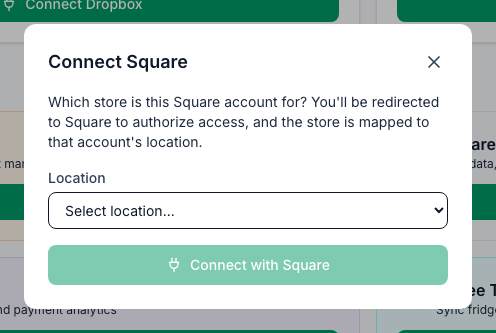
- In Connect Square, pick the Mays Location this Square account is for.
- Click Connect with Square.
- Sign in to Square and approve the connection.
Square sends you back to Mays:
- If the Square account has one location, it's linked straight away. You'll see Square connected · (account) · (Square location).
- If it has several, pick the right one in Choose Square location and click Use this location. Sales and payments from that location will sync to your store.
Finish within 10 minutes, as the same person. The Square sign-in Mays opens only works for 10 minutes, and only for the Mays user who clicked Connect with Square or Connect Square. If it runs out, you'll see Connection failed: This Square connection link is invalid or has expired. Start again from Integrations. Start the connection again from Integrations.
Connect your store (managers)
Managers see Square for my locations on the Integrations page, with a row for each location they manage.
- Click Connect Square next to your location.
- Sign in to Square and approve the connection.
- If Square asks, pick the Square location for your store.
If your organization already has a Square account connected, you'll also see Use an account that's already connected. It lets you pick one of those accounts instead of signing in again.
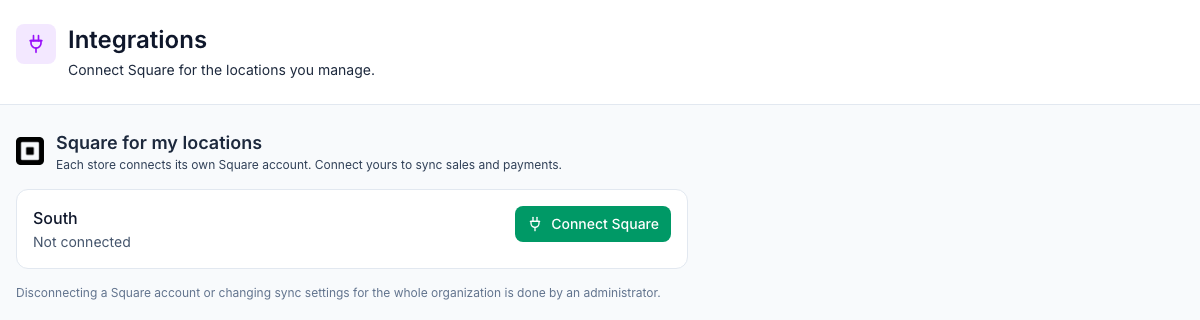
Once a location is connected, its row shows Connected with the account and Square location, plus two links:
- Change location picks a different Square location on the same account.
- Connect a different account signs in to another Square account.
What comes into Mays
What | How often |
|---|---|
Sales: orders and the items on them | Every 15 minutes |
Payments, with tips and refunds | Every 10 minutes |
Sold-out items at each location | Every 30 minutes |
Your Square team | Once a day |
- Team: team members assigned to the connected Square location are matched to people in Mays by email. Anyone new is added as an employee at that location. Someone who's no longer active in Square is deactivated in Mays.
- Older payments: each sync only looks back two days, so the payments from before you connected aren't there yet. An admin can bring them in: open Integrations, click Configure on the Square card, go to the Location Mapping tab, pick a period in Backfill payments (from Last 7 days to Last 90 days) and click Backfill.
A task for every refund
Connecting Square also turns on an automation called Investigate Square refund. Whenever a refund goes through at a location, Mays creates a high-priority task, Refund issued — explain why. The task goes to whoever is on shift there and asks them to write down what happened. You can change or switch off the automation under Automation & AI.
Good to know
- Inventory: with Inventory in your plan, sales can take ingredients out of stock. See POS mapping and automatic depletion.
- One POS per location. If a location already gets its sales from Union POS, unmap it from Union first, or its sales are counted twice. Mays won't link Square to it until you do: after the Square sign-in you'll see Square connected, but this location was not mapped, and on Location Mapping the location is marked (sales from Union POS) with Map turned off. See Integrations overview.
- Card shows No stores mapped yet? The Square account had no active location Mays could link. Add the location in Square. Then map it under Configure → Location Mapping. Managers can use Use an account that's already connected instead.
- Only admins can disconnect a Square account. Disconnecting stops syncing. The payments, tips, refunds and sales already in Mays stay, and connecting the same Square account again carries on from there. See Integrations overview.
- Managers can't sync by hand or see the sync history. Syncing happens on its own.