A person's role decides what they can see and do in Mays; their assigned locations decide where. Mays comes with three roles, and admins can add their own.
The built-in roles
Role | Web app | Locations | In short |
|---|---|---|---|
Admin | Everything | Every location | Owns the setup: locations, users and roles, billing, integrations and settings. |
Manager | Most of the day-to-day | Only their assigned locations | Runs their stores: schedule and time clock, checklists and approvals, inventory, their team. |
Employee | No web access | Their assigned locations | Uses the phone app: tasks, schedule, clock in and out, chat. |
Go to Locations & Users → Roles to see them. They're marked System: you can't edit or delete them, but you can click the eye icon (View permissions) to see exactly what they include. Mays keeps them up to date — when a new feature ships, the built-in roles get its permissions automatically.
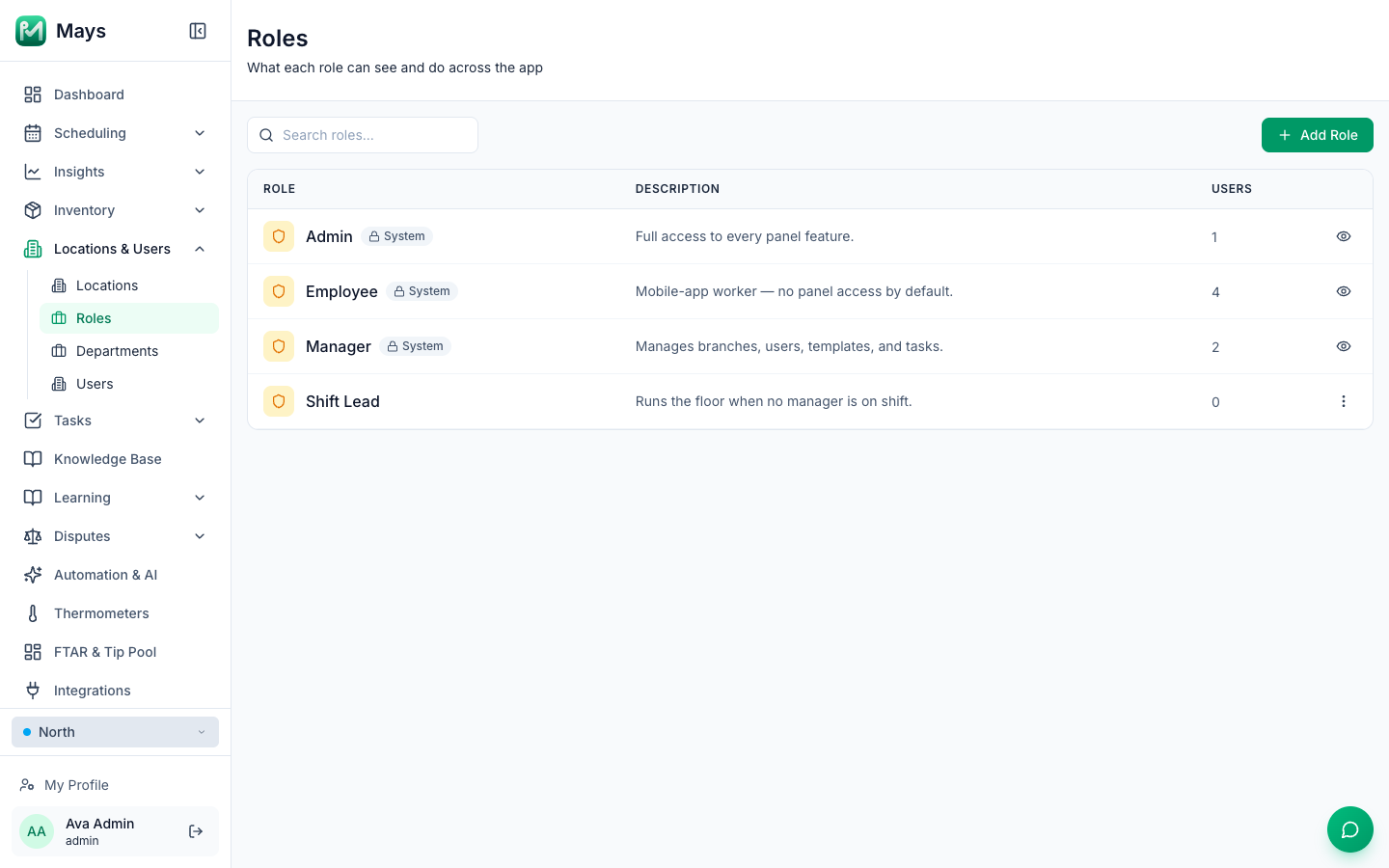
What managers can and can't do
Out of the box, a Manager can use the web app and, for their own locations:
- see the dashboard, build and publish the schedule, approve requests and edit the time clock;
- see the location list, add and invite employees and other managers, and edit, deactivate or reactivate the employees at their locations (not other managers or admins);
- set up and manage their locations' kiosk tablets (Devices);
- create and edit checklist templates, add one-off tasks and reject submitted work;
- use the knowledge base, inventory, the manager logbook, disputes, reviews, signage, thermometer readings, custom reports and the answers submitted on task forms;
- connect Square for their own locations.
Only admins can, by default: add, change or delete locations; give out any role; manage roles and departments; change organization settings and billing; see Insights; set up integrations, automation, thermometer alerts, catering, learning, AI agents and custom task types; and run the AI onboarding.
Employees have no web permissions — if they try the web app, it tells them to use the mobile app.
Where someone can work: assigned locations
- Admins see every location.
- Everyone else sees only their Assigned Locations — set on their page under Locations & Users → Users. A manager assigned to North sees North's schedule, people and checklists, not South's.
- Only admins can change which locations an existing person is assigned to.
- An admin who is assigned to particular locations still sees every location, except in Scheduling, which then shows only their assigned ones.
Give someone a role
Open the person under Locations & Users → Users and pick their Role under Role & Assignment, then click Save Changes. Each person has one role, and it applies at every location they're assigned to. New people start with Employee.
Managers can give a new person the Employee or Manager role, but never Admin — and never a role with a permission they don't have themselves, so their role list only offers the roles they can give. They can't edit other managers, admins, or anyone whose role has admin-level permissions.
Create a custom role
Use a custom role when a built-in one is too much or too little — for example a Shift Lead who can review checklists but not touch the schedule.
- Go to Locations & Users → Roles and click Add Role.
- Enter a Role Name (it must be unique) and, optionally, a Description.
- Under Permissions, tick what the role may do. Permissions are grouped by area — Core, Operations, Branches & Users, Templates & Tasks, Inventory and so on — and each shows a short explanation. Click a group's header to tick or clear the whole group; Select all and Clear work on everything. The counter shows how many are ticked.
- Click Create Role.
If the role can't be saved — for example because the name is already taken — the reason is shown above the buttons.
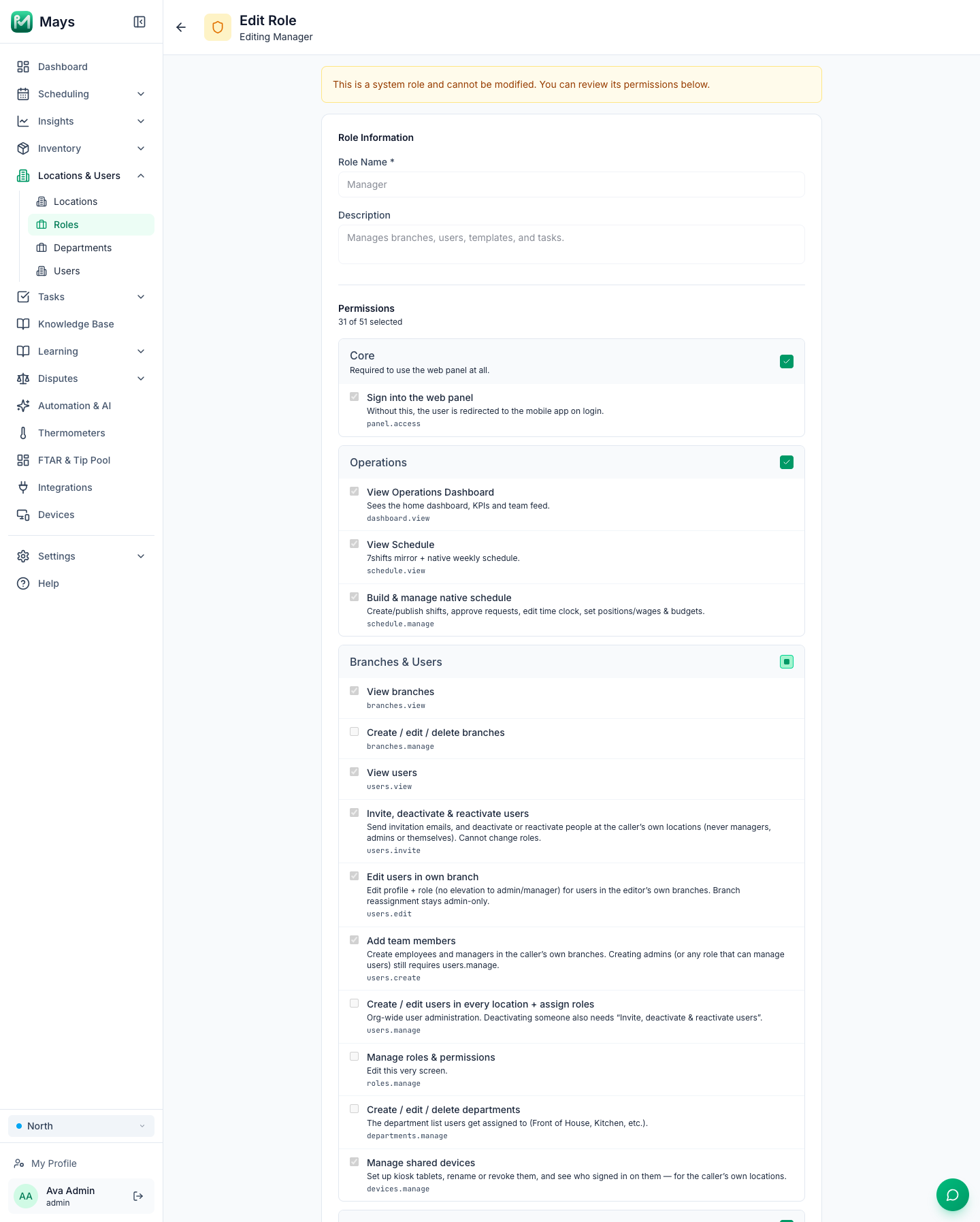
Tick Sign into the web panel (under Core) for anyone who should use the web app — without it, the person is sent to the mobile app when they sign in.
To change or remove a custom role, click ⋮ on its row and choose Edit or Delete. Deleting asks you to confirm ("This cannot be undone"); the Delete Role button inside the role's page deletes without asking. People who had a deleted role lose its permissions — give them a new role right away.
How Mays treats people with a custom role
A custom role gets exactly the web permissions you tick. Everywhere else, Mays treats its people like employees:
- they see only their assigned locations, even if you tick every permission;
- the phone app shows them the employee screens, not the manager ones (no approvals inbox, for example);
- they don't get the notifications meant for a location's managers;
- when you add them, they're invited by text message, not by email — see Add and invite team members.
If someone needs all of that, give them the built-in Manager or Admin role.
Good to know
- Only admins can create, edit or delete roles, and nobody can give a role a permission they don't have themselves.
- Changes take effect right away for what people can do. Their sidebar can take up to an hour to catch up — signing out and back in refreshes it.
- Roles, positions and departments are different things. A role is about access. A position (Server, Barista, Line Cook) is the job someone works on the schedule, with its wage — set under Scheduling → Positions. A department (Front of House, Kitchen) groups people for scheduling, labor reports and checklist assignments — set under Locations & Users → Departments.
- Some permissions only matter when your plan includes that module — for example the inventory permissions do nothing without Inventory.