Connect your Govee Wi-Fi thermometers with an API key, then give each one a location. Mays records every sensor's temperature every five minutes and watches it around the clock.
Who: admins connect Govee and set thermometers up. Managers see the thermometers at their own locations, read-only. Plan: Thermometers are part of the Pro plan; if your plan stops including them, Mays stops reading the sensors and raising alerts. The sensors are bought separately.
What you need
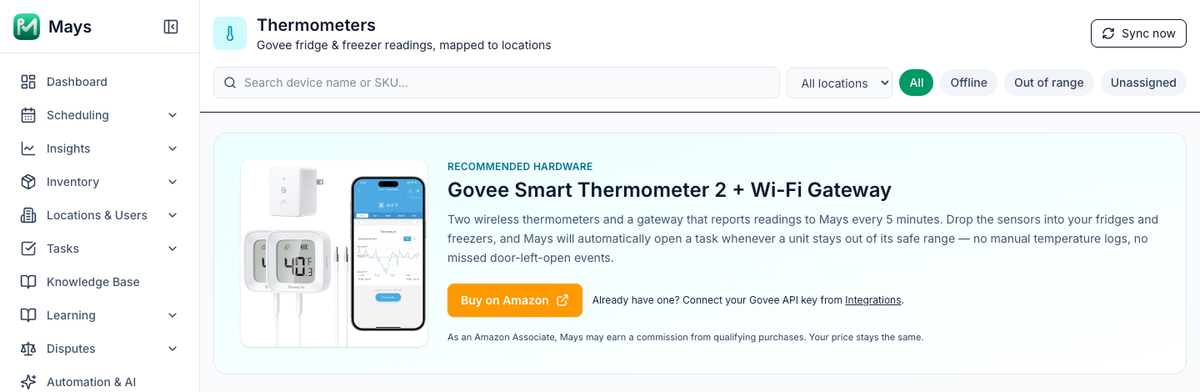
- Govee Wi-Fi thermometers that report to the Govee Home app, for example the Govee Smart Thermometer with its Wi-Fi gateway. Until you connect, Thermometers in the sidebar shows the recommended kit with a link to buy it.
- The Govee Home app on your phone, signed in to the Govee account the thermometers are on.
1. Get your Govee API key
In the Govee Home app, go to Profile → Settings → Apply for API Key and follow the steps. Govee emails you the key.
2. Connect it to Mays
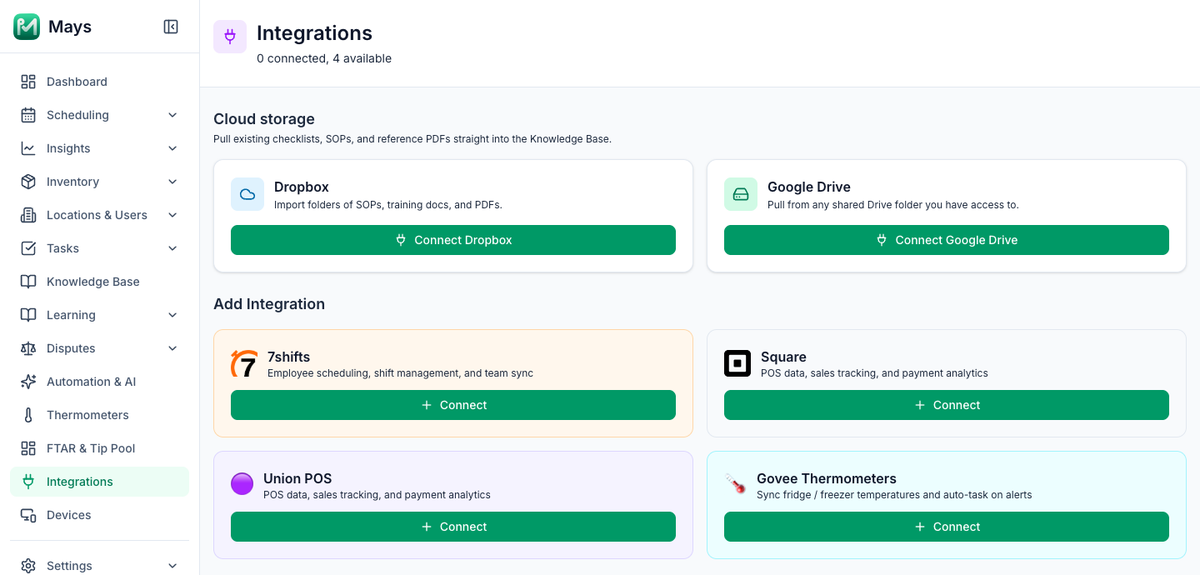
- On the web, go to Integrations.
- On Govee Thermometers, click Connect.
- Paste the API key. Add a Label (optional), such as the store it's for.
- Click Connect Govee.
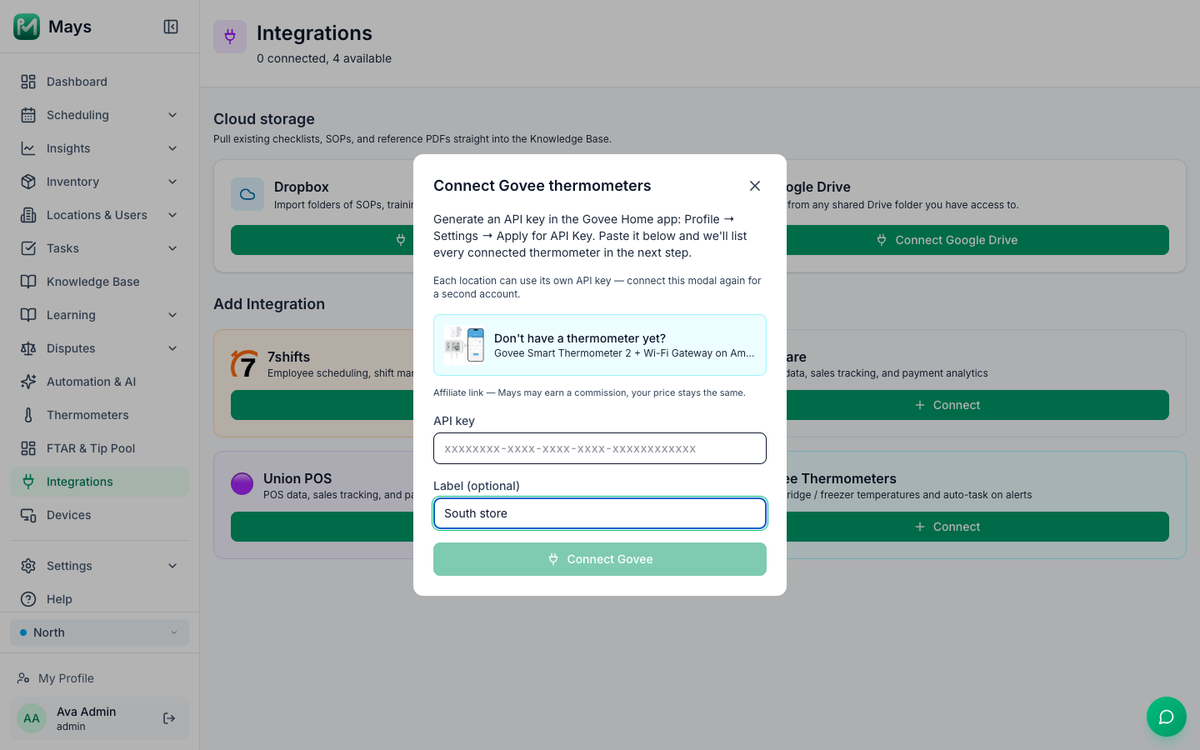
Mays checks the key with Govee straight away. If the key is wrong, the window says so and nothing is saved. If it works, the window closes and every thermometer on that Govee account appears on the Thermometers page a moment later.
Several Govee accounts? Connect again with the other key, for example one per store. Each account is listed separately on the Integrations page.
3. Give each thermometer a location
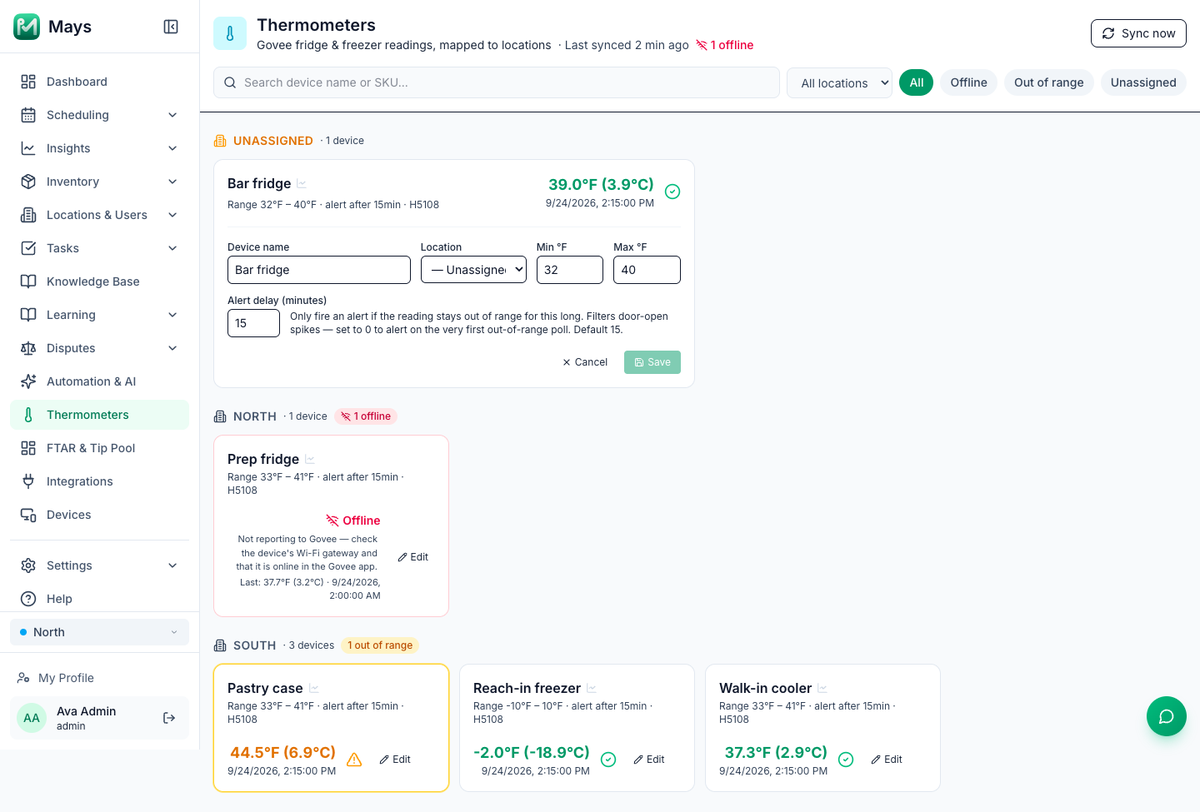
New thermometers appear at the top of Thermometers under Unassigned, already open for editing.
- Check the Device name, for example Walk-in cooler. It's the name on alerts and logs.
- Pick the Location.
- Check the safe range, Min °F and Max °F, and the Alert delay (minutes). See Temperature thresholds and alerts.
- Click Save.
A thermometer that isn't assigned to a location still records temperatures, but it never raises an alert, and its log has no location or license number on it.
Reading the Thermometers page
- Thermometers are grouped by location, with each one's latest temperature in °F (and °C), when it was taken, the safe range, the alert delay and the Govee model.
- Green with a tick is inside the range; orange with a warning sign is outside it.
- Offline means Govee has stopped hearing from the sensor. Check its Wi-Fi gateway and that it shows as online in the Govee Home app.
- stale next to the time means no new reading in the last 30 minutes.
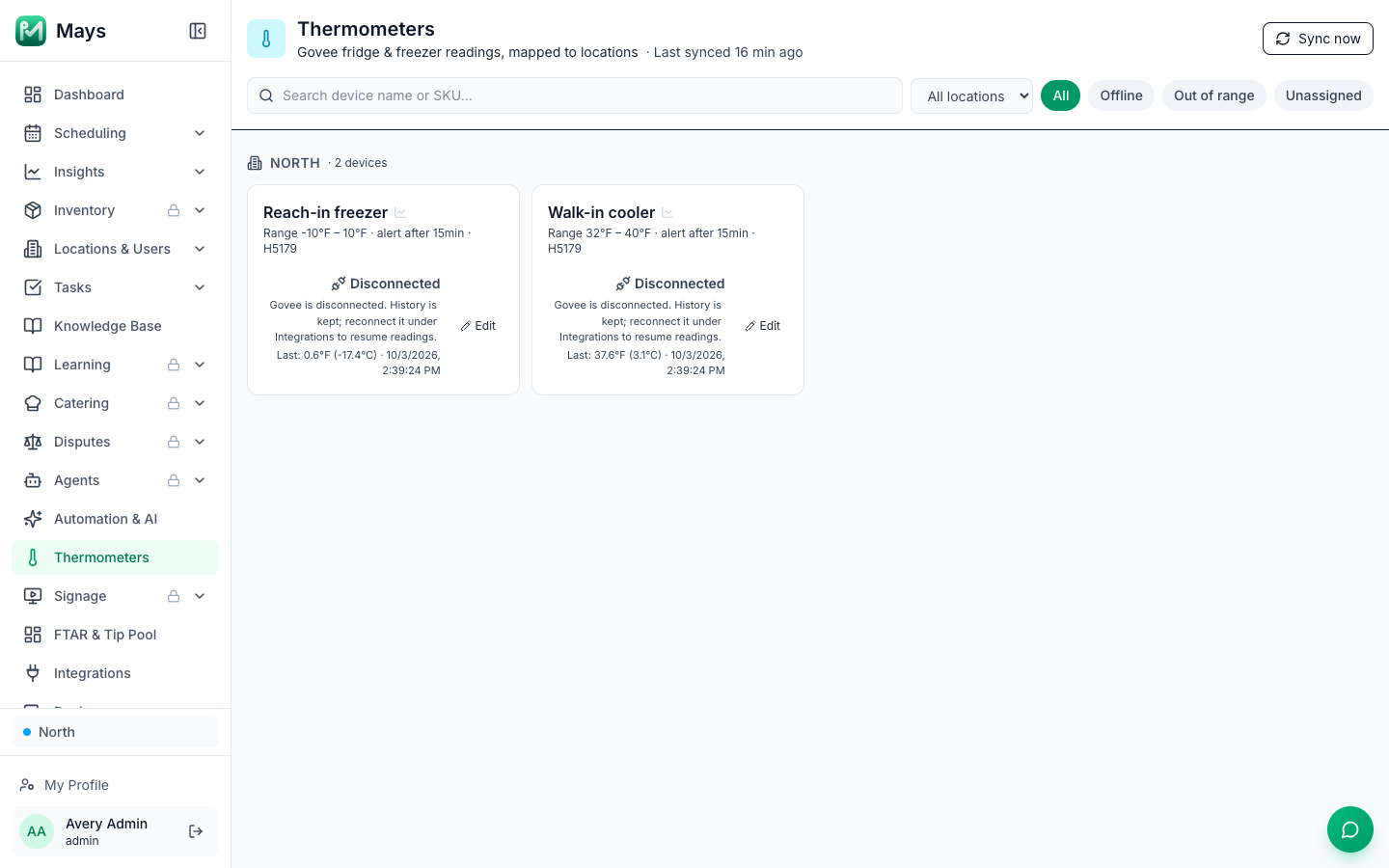
- Disconnected means the Govee connection was disconnected under Integrations. The thermometer and its history stay, but no new readings or alerts come in until you connect Govee again.
- The header shows when Mays last got a reading (Last synced 2 min ago) and how many sensors are offline.
- Filter with the search box (name or model), a location, or Offline, Out of range and Unassigned.
- Sync now (admins) fetches the latest readings without waiting for the next five-minute round. The sync icon on the Govee Thermometers card under Integrations does the same. If Govee can't be reached, a message says why.
- Click a thermometer's name for its history chart and the inspection log. See Health-department temperature logs.
Good to know
- Default ranges: a new thermometer starts at 32–40°F, or −10–10°F if its Govee name contains freezer. Change them to match your own rules.
- Renaming in the Govee app later doesn't change the name in Mays, and doesn't move the thermometer to another location. New sensors you add to the Govee account appear in Mays by themselves.
- Temperatures are in °F. The ranges are always entered in °F; the page shows °C alongside.
- Sensors read the air, not the food. Keep probing hot-holding and cooling food and log it with a custom form.
- Staff don't see thermometers in the app. They get the alert tasks, see Temperature thresholds and alerts.
- Disconnecting Govee keeps the thermometers and all their history. Readings and temperature alerts stop, and each thermometer shows Disconnected. You can still open its history and download its logs. See Integrations overview.
- Reconnecting Govee with the same API key, or a new key from the same Govee account, carries on in the same thermometers: names, ranges, locations and history.
- Readings are kept for 13 months. Older readings are deleted, so export anything you need for longer.