Stuck, found a bug or have a question? Open a support ticket from Help in the web app, or use the contact page. A real person on the Mays team answers.
Other ways to reach us
Not signed in, on your phone, or not using Mays yet? Use the contact page at mays.app/contact:
- Pick what it's about: Book a demo / Sales, Support, Partnerships & investors or Other. The link above picks Support for you.
- Fill in your name, email, phone number and message. For Support, the email and the phone number are both required, so we can reach you either way. Company is optional.
- Click Send message (Send support request for Support). For Support you'll see Thanks — we've opened a support request and will reach you at your email or your phone number.
To stop spam, the form runs a quick security check from Cloudflare. Most people never see it. If a check box appears, tick it. If you see Please complete the check and try again, do the check and send again.
A support request from the contact page opens a ticket for the Mays team. If you enter the email on your Mays account, the request also shows up in Help → My tickets, marked From mays.app, and you can follow our replies there.
The contact page also lists our phone number, +1 (561) 286-3939 (Monday to Friday, 9:00 AM to 6:00 PM Eastern; after hours, leave a message).
Open a ticket
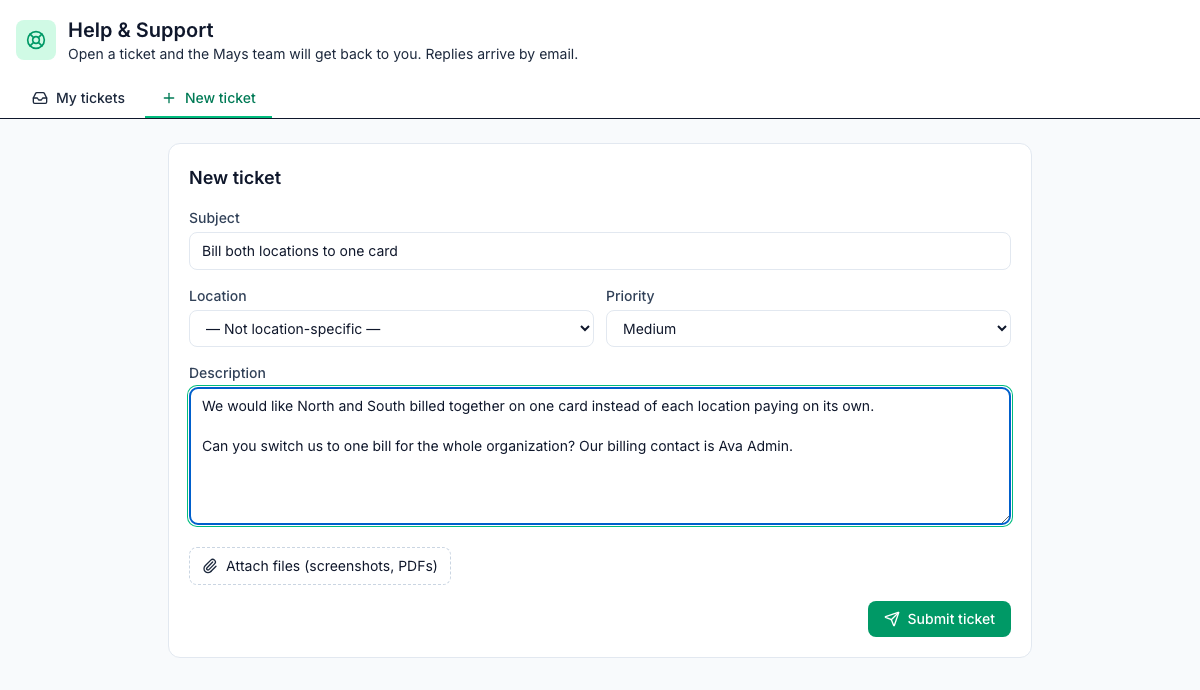
- In the web app, click Help at the bottom of the sidebar. The page is called Help & Support.
- Open the New ticket tab.
- Fill in:
- Subject: a short summary.
- Location: the store it's about, or — Not location-specific —.
- Priority: Low, Medium, High or Urgent. Keep Urgent for something that stops your store from working.
- Description: what you were doing, what you expected and what happened instead.
- To add screenshots or files, click Attach files (screenshots, PDFs). Each file can be up to 10 MB.
- Click Submit ticket.
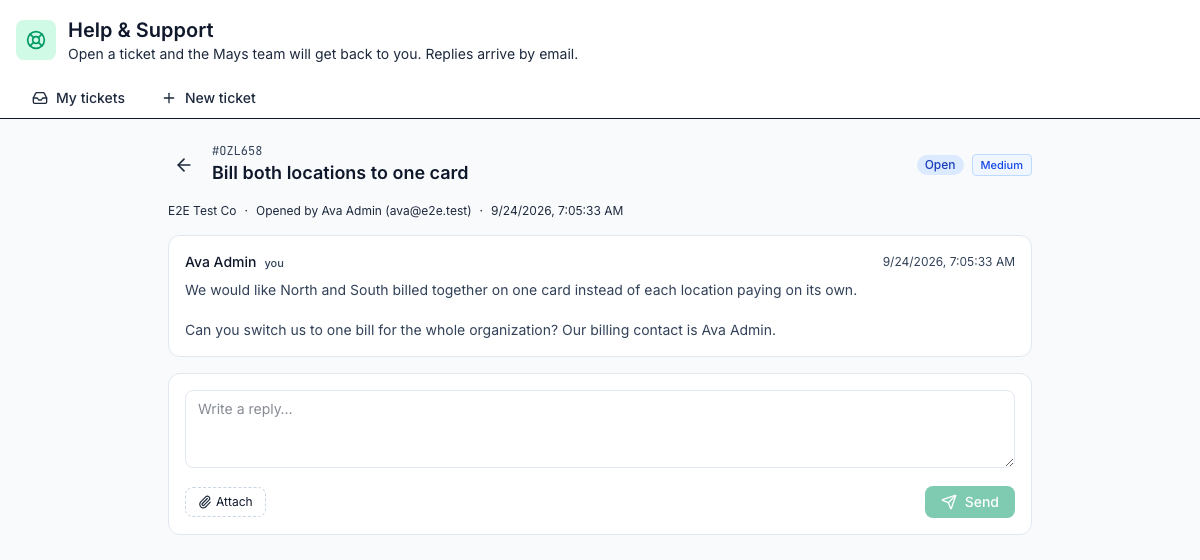
The ticket opens straight away, with its number (for example #0ZL658) and the status Open. We also email you a confirmation.
Follow your ticket
My tickets lists the tickets you've opened: open ones first, then by most recent activity. Search them with Search tickets... or filter by status. A ticket's status tells you where it is:
Status | Meaning |
|---|---|
Open | New, or you've replied since our last answer. |
In progress | We're working on it. |
Awaiting reply | We've answered and are waiting for you. |
Resolved | We think it's fixed. |
Closed | Finished. |
When the Mays team replies or changes the status, you get an email with a link back to the ticket.
Reply, add files or reopen
Open the ticket from My tickets, type in Write a reply…, add files with Attach if you need to, and click Send.
A ticket that's Resolved or Closed isn't gone for good. Reply to it and it opens again.
You can also reply to our email. Keep [Ticket #…] in the subject line so the reply lands on the right ticket.
Good to know
- Tickets are private to you. Only the person who opened a ticket sees it under My tickets, not the other admins or managers in your company.
- The Mays team sets a ticket's status and priority. You pick the priority when you open it.
- Tickets need the web app. The iPhone and Android apps don't have a ticket screen, and employees don't use the web app. Staff should ask their manager, or use the contact page.
- Can't sign in at all? Send a support request from the contact page. It asks for your email and phone number: use the email you sign in to Mays with, and we'll reach you there or by phone. See also Signing in on web and mobile.