Connect 7shifts to bring your team into Mays and keep using your 7shifts schedule, or to move your schedule, punches and time off over to Mays scheduling.
Who: admins. 7shifts is part of Integrations, which is in the Basic and Pro plans.
Before you start: you need to be able to create an access token in your 7shifts account's Developer Tools.
Connect
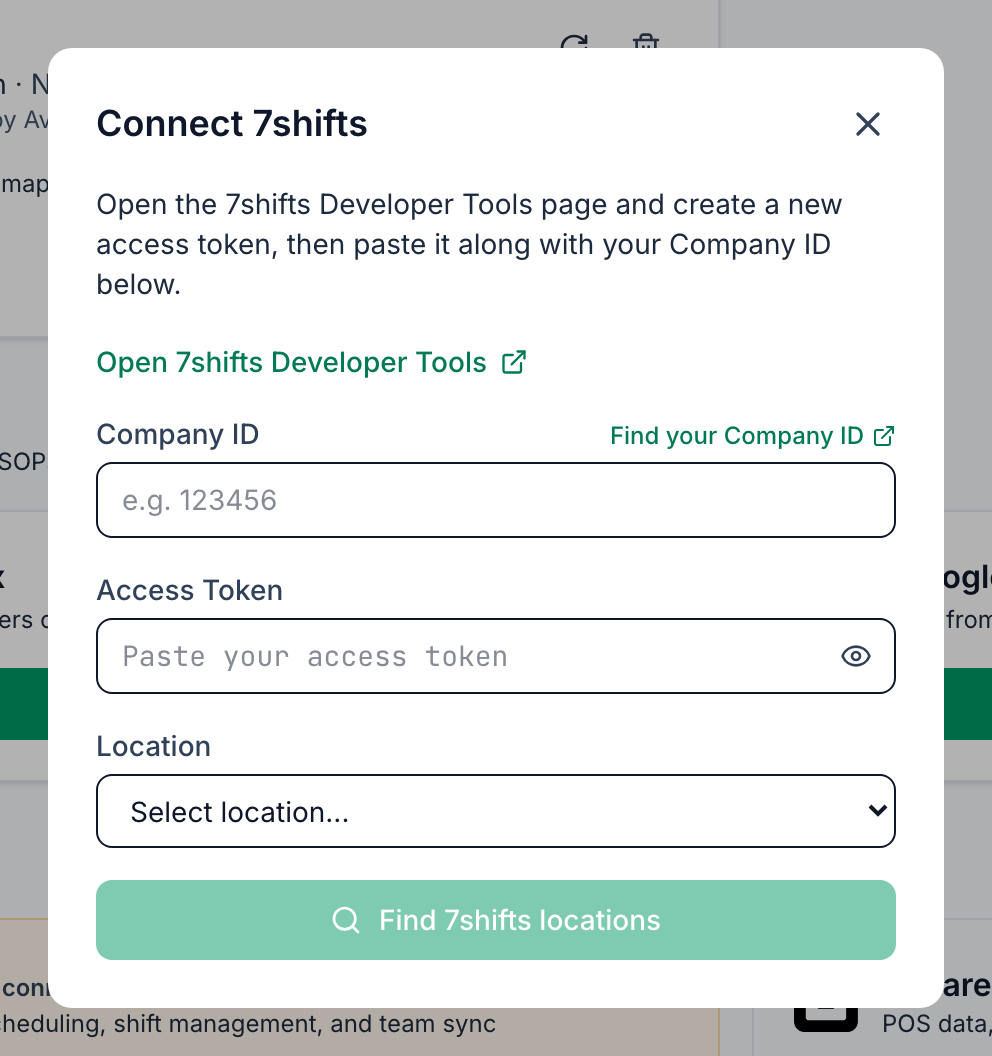
- Go to Integrations, find 7shifts under Add Integration and click Connect.
- In Connect 7shifts, click Open 7shifts Developer Tools. In 7shifts, create a new access token and copy it.
- Back in Mays, click Find your Company ID to see your ID in 7shifts. Type it into Company ID.
- Paste the token into Access Token. The eye icon shows what you pasted.
- Pick the Mays Location to connect.
- Click Find 7shifts locations. Mays checks your details and lists the locations in your 7shifts company. Nothing is saved yet.
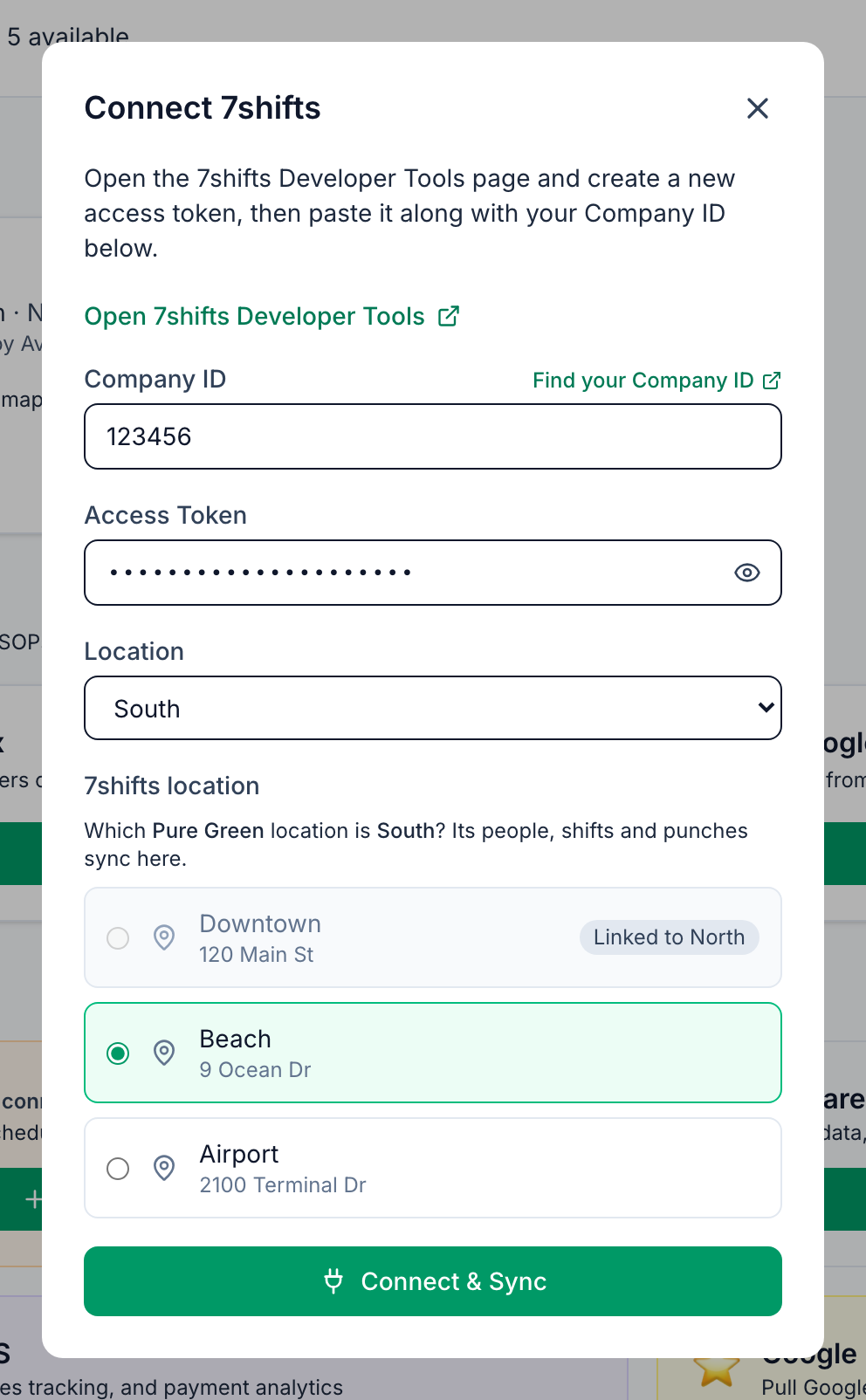
- Under 7shifts location, pick the 7shifts location that matches this Mays location. Its people, shifts and punches sync into the Mays location.
- Click Connect & Sync.
If Mays can't use the details, you'll see Invalid 7shifts token or company ID. Please check your credentials.
Which location is picked for you: if your 7shifts company has just one free location, or one with the same name as the Mays location, Mays picks it for you. Check it before you click Connect & Sync. Otherwise pick one yourself.
One 7shifts location feeds one Mays location. A 7shifts location that's already linked to another Mays location shows Linked to and that location's name, and you can't pick it. Linking it twice would bring the same people, shifts and punches into both stores and count the labor twice. To move it, remove it from the other Mays location first: Configure → Location Mapping, then the bin icon on that row.
If you change the Company ID or the token after the list appears, click Find 7shifts locations again.
Connect your other stores
Once 7shifts is connected, the card under Add Integration says Connect Another Location. It opens the same window: enter the same Company ID and token, pick the next Mays Location, click Find 7shifts locations and pick its 7shifts location. The ones you've already linked show which Mays location they feed.
You can also link a store from Configure → Location Mapping on the 7shifts card: pick the Mays Location and its External Location, then click Map. The same rule applies there, so a 7shifts location that already feeds another Mays location is refused.
What comes into Mays
Your team: active 7shifts users at the linked locations come in with their name, email, mobile number, birthday and location.
- The first sync starts as soon as you connect. After that, Mays syncs once a day.
- People are matched by email, then by mobile number. Anyone new is added as an employee.
- Someone who's no longer in any linked 7shifts location is deactivated in Mays. They're reactivated if they come back.
- A 4-digit 7shifts clock-in PIN becomes the person's Kiosk PIN in Mays. See Shared kiosk devices and PINs.
Your schedule, as long as you keep building it in 7shifts: a connected location becomes a 7shifts mirror, unless you've already chosen Native (Mays) for it. Every 30 minutes Mays reads who's working from 7shifts, so it can send tasks to the people on shift and make its late clock-in calls. See Setting up scheduling.
Move your scheduling into Mays
Ready to schedule in Mays instead? Turn on Scheduling data sync. It's on the Location Mapping tab once a location is linked.
- Mays copies your 7shifts positions, wages, shifts, punches, time off and availability into Mays, and lines up your pay periods.
- It switches the linked locations to Native (Mays) scheduling.
- The copy keeps running every 30 minutes. It only goes one way, so nothing you change in Mays goes back to 7shifts.
- Anything copied shows a 7shifts badge. Editing it in Mays stops 7shifts from updating it.
- The card shows when the last run happened. Sync now runs it straight away.
Turning it off asks you to confirm: Turning off deletes the synced records from Mays (records you edited in Mays are kept). The locations then go back to the scheduling source they had before.
See Positions and wages for what to check after the first copy.
Bring in 7shifts task lists
Also on the Location Mapping tab, Sync task lists opens Import 7shifts task lists. There you pick which 7shifts task lists to turn into Mays checklist templates. See Importing 7shifts task lists.
Late clock-in calls come with it
Connecting 7shifts adds these automations for opening shifts and switches them on. If you already have them, for example added paused when your company was created, they keep their status.
- Late opening shift — call employee: if the opening employee hasn't clocked in 5 minutes after the shift starts, Mays calls them to ask when they'll arrive.
- Late clock-in — escalate to manager: if they don't answer, Mays calls the location's escalation manager.
- Late clock-in — notify manager of the result: the escalation manager gets a push notification with the result and the key pressed when the calls end.
- Late clock-in — opener can't come: if they press 9 (can't come in), Mays calls the escalation manager.
Review, change or switch them off under Automation & AI. The escalation manager is set on each location's Basic Info tab. See Add and manage locations and Late clock-in phone calls.
Good to know
- Sync by hand: Configure → Sync History has Sync Employees and Sync Shifts. It also lists recent syncs and any errors.
- Keep the token valid. If the token is deleted in 7shifts, syncs start failing, and the failures show in Sync History. To fix it, connect again with a new token, the same Company ID and the same location. Mays updates the existing connection.
- Disconnecting is on the bin icon of the 7shifts card. Syncing stops; the people, shifts and time punches already in Mays stay. Connect again with the same Company ID to carry on.