Connect a store's Union POS with the API key and client ID that Union gives you, and Mays brings in the store's sales every 10 minutes.
Who: admins. In a custom role, this is the Connect / disconnect / sync integrations permission. Union POS is part of Integrations, which is in the Basic and Pro plans and the free trial.
Before you start: ask your Union contact for the venue's API key and client ID. One client ID covers one venue, and connects to one Mays location. For a second store, you connect again with that venue's client ID.
Connect
- Go to Integrations and find Union POS under Add Integration.
- Click Connect. Once one venue is connected, the button reads Connect Another Location.
- In Connect Union POS, paste the API key. The eye icon shows what you pasted.
- Type the Client id.
- Pick the Mays Location this venue is.
- Click Connect Union. Mays checks the key with Union first (Checking the key…).
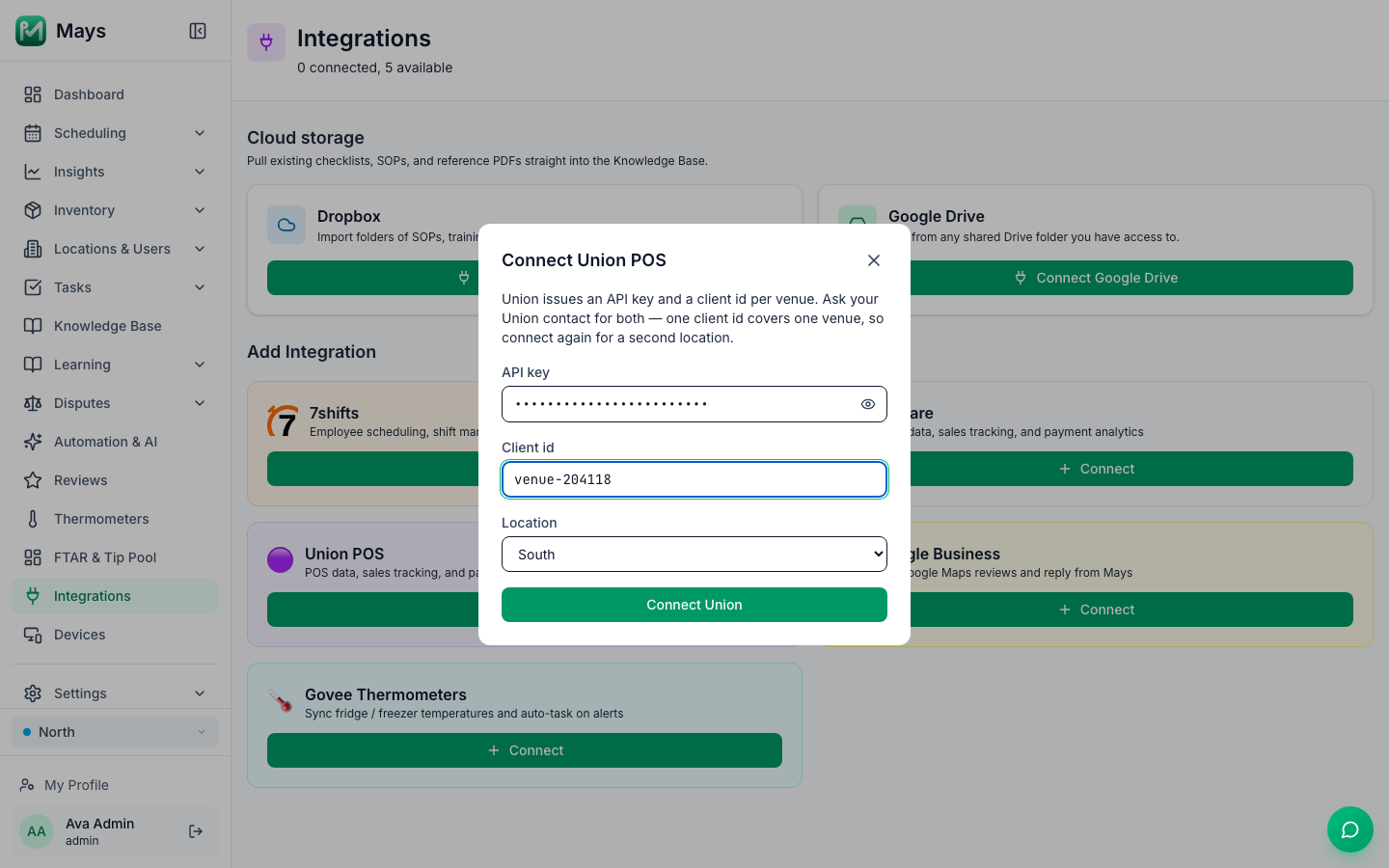
The window closes, and Union POS appears under Connected, named after the last six characters of the client ID. The first sales arrive within 10 minutes.
If it doesn't connect, the window says why:
- Union rejected the API key — check the key and client id.
- That location already syncs sales from square. A location takes its sales from one POS only. Unmap it from Square first. See Integrations overview.
- Could not connect — check the API key and client id.
What comes into Mays
Every 10 minutes, Mays reads the last two days of the venue's tickets: the items, modifiers, discounts, taxes, service charges and total on each one, plus the tips from its payments. Voided, canceled and refunded tickets aren't counted as sales.
Those sales feed:
- Revenue on Prime cost and Labor cost insights;
- Actual sales in the scheduling reports and forecast;
- the tip pool, from the tips; see Tip pooling;
- inventory, when you map the items you sell to recipes; see POS mapping and automatic depletion.
Union doesn't send your staff, shifts, menu or customers to Mays.
Good to know
- Older sales: when you connect with a location, Mays brings in that location's last 30 days of sales in the background. After that, each sync reads back two days. For sales older than 30 days, write to Mays support.
- Syncing by hand: the sync icon on the Union card and Sync Sales in Configure → Sync History bring in the last two days of sales straight away. You rarely need them: sales sync every 10 minutes.
- Sync History can look fine when it isn't. If Union stops accepting the key, for example after it's been replaced, the runs still show as successful with nothing new. If sales stop appearing, connect again with the new key, the same client ID and the same location. Mays updates the existing connection.
- Moving a venue to another location: under Configure → Location Mapping, click the bin icon next to the old location. It's removed straight away, with no confirmation. Then connect again with the same client ID and the new location. The Map button on that tab doesn't work for Union.
- User Mappings stays empty for Union, because Union doesn't send staff.
- Disconnecting is the bin icon on the card. Syncing stops and sales already in Mays stay. Connect again with the same client ID to carry on.