Mays's AI features use AI credits. Every location has its own balance: your plan adds credits each month, and you can buy more whenever you need them.
What uses credits
Each time one of these features does some AI work, it takes credits from a location's balance. Next to each feature is the name it has in the Usage by Feature list on the location's Billing & Credits tab.
Feature | In Usage by Feature |
|---|---|
AI photo verification scores photos on completed tasks | Photo Verify |
The AI Assistant answers questions in the app's Chat tab | Chat |
Mays AI, the assistant button in the corner of every web page | Dashboard Chat |
AI agents | Names starting with Agent:, for example Agent:Catering |
The scheduling assistant's suggestions for requests and cover | Scheduling |
Scheduling-Vision | |
The dispute evidence coach | Disputes |
Reading the text in a photo uploaded to the Knowledge Base | Document Ocr |
The AI onboarding assistant | Onboarding Agent |
A short answer uses a few credits. Longer conversations and photo checks use more.
Which location pays? A photo check comes out of the balance of the location the task belongs to. A question to the AI Assistant or Mays AI comes out of the balance of the location where the person asking works.
How many credits you get
Plan | Credits for each location |
|---|---|
Free trial | 1,000 to start with. The trial doesn't add more each month. |
Basic | 5,000 every month |
Pro | 25,000 every month |
A paid plan adds its credits to every location when your subscription starts, and again each time a month's payment goes through. Credits you don't use stay in the balance.
Check a balance
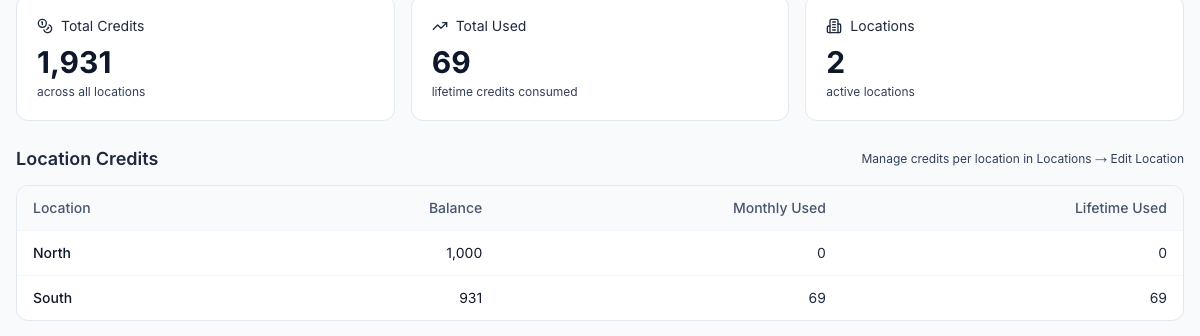
For all locations: go to Settings → Billing (admins). Total Credits adds up every location's balance, and the Location Credits table shows each location's:
- Balance, which turns red below 100;
- Monthly Used;
- Lifetime Used.
For one location:
- Go to Locations & Users → Locations.
- Open the location.
- Open the Billing & Credits tab.
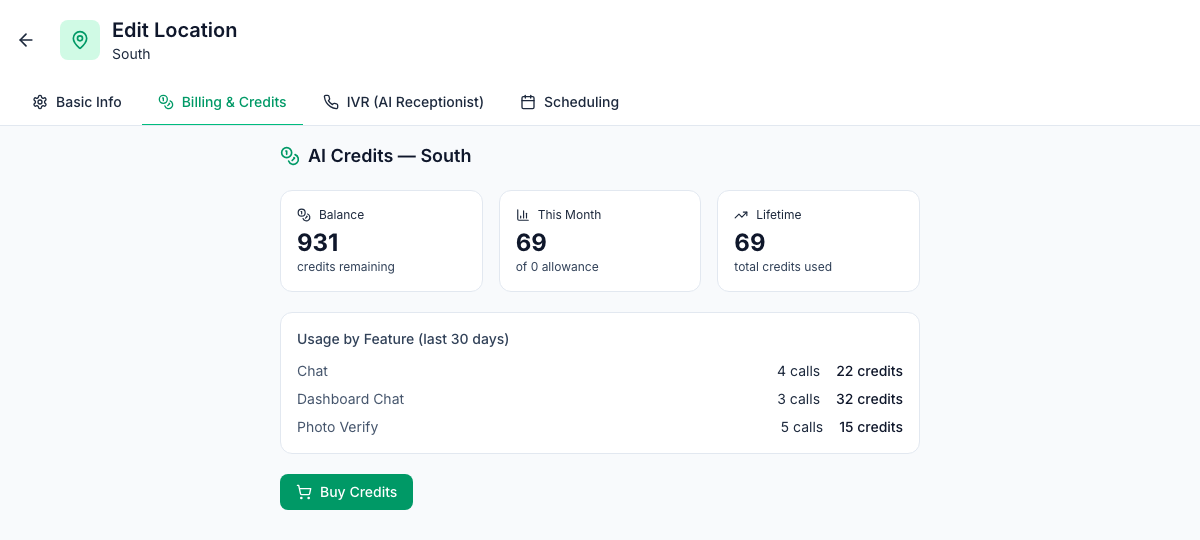
The tab shows:
- Balance: the credits remaining.
- This Month: credits used this month, out of the monthly allowance. The allowance shows 0 until your first paid month.
- Lifetime: all credits the location has ever used.
- Usage by Feature (last 30 days): calls and credits for each feature.
Managers can open this tab for the locations they're assigned to, check the balance and usage, and buy credits there. That's the Pay for and buy AI credits for their own locations permission, which managers have by default; admins can buy for any location. Anyone without it, or on a location they aren't assigned to, sees Ask an admin instead of Buy Credits.
When a location runs out
AI features pause at a location when its balance runs out. They also pause when the free trial ends without a plan.
- The AI Assistant in the app replies that it can't answer because the location is out of AI credits.
- Mays AI on the web says Your organization is out of AI credits. (or names the location, with per-location billing) and links to billing.
- Photos aren't checked, so photo tasks stay completed without an AI score, marked Not checked by AI (no credits) on the web. The first skipped photo in a billing month notifies the location's escalation manager (or your admins) and emails the billing contact, and a Photo checks are paused: out of AI credits banner shows on Settings → Organization and the task's details. See AI photo verification.
Everything else keeps working. Buy credits or choose a plan to turn AI back on.
Buy more credits
Credits come in packs of 10,000, 50,000, 100,000 or 500,000. The bigger packs cost less per credit. Each pack's price and discount are shown where you buy it.
For one location:
- Open the location's Billing & Credits tab.
- Click Buy Credits.
- Pick a pack.
- Pay in Stripe's secure checkout.
You come back to the location with Payment received — your AI credits have been added.
For every location at once (admins):
- Go to Settings → Billing.
- Under Buy Credits (All Locations), click Buy Now on a pack.
The pack is split evenly across your active locations. If your organization is billed per location, this section isn't there, so buy credits on each location instead.
A receipt goes to the location's billing email and to your admins. Recent purchases are listed at the bottom of Settings → Billing.
Good to know
- Credits can't be moved between locations. Mays support can move credits, add them or give a refund for you. Write to us, see Getting help and support tickets.
- Credits belong to the location, not the person. Someone who works at two locations uses the credits of one of them.
- Inventory's AI features don't use credits: reading invoices, counting by voice or photo, drafting recipes and suggesting matches. See Vendor invoices.
- Training quizzes don't use credits either: having the AI write a quiz from your knowledge base is free. See Creating training modules.
- The AI phone receptionist doesn't use credits. It's an add-on with its own monthly price. See AI phone receptionist.
- ChatGPT, Claude or Grok connected to Mays don't use credits: the AI runs on your own plan with them. See Connect Mays to ChatGPT, Claude or Grok.
- AI photo verification is switched on or off for the whole organization. See AI photo verification.