Mays bills your organization in one of two ways: one subscription and card for the whole organization, or a separate subscription and card for each location.
Centralized (the default) | Per location | |
|---|---|---|
Who pays | The organization, with one card | Each location, with its own card |
Where you manage it | Settings → Billing | Each location's Billing & Credits tab |
Your plan level (Basic or Pro) | You choose it under Settings → Billing | Mays sets it for you |
Buying AI credits | For all locations at once, or for one location | For one location at a time |
Mays sets up the billing model. You can't switch it yourself. If you'd like each location to pay on its own, or you want to move back to one bill, write to Mays support.
Centralized billing
Everything happens under Settings → Billing (admins):
- Pick or change your plan on the plan cards. See Plans, the free trial and locked modules.
- Manage Subscription at the top of the page appears once you're subscribed. It opens your billing account on Stripe, our payment provider. There you can update the card on file and see past invoices.
- Buy Credits (All Locations) buys an AI credit pack that's split across your locations. See AI credits.
You can also buy credits for a single location from its Billing & Credits tab. The organization's card pays, and the credits go to that location.
Per-location billing
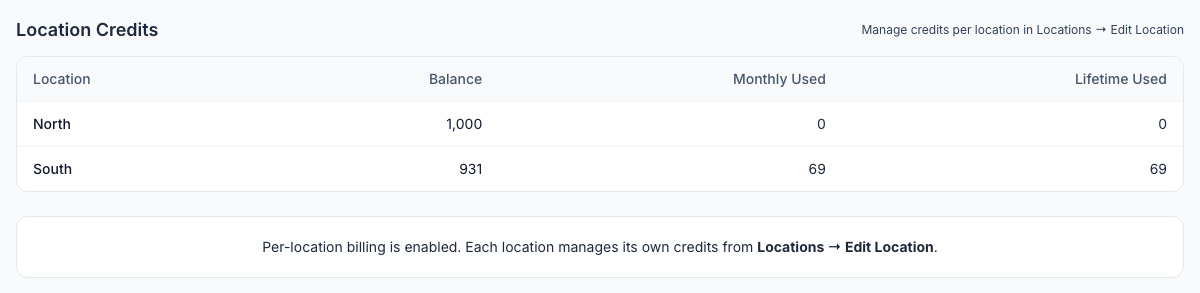
With per-location billing, the credit packs disappear from Settings → Billing. The page says so:
Each location subscribes and pays from its own tab:
- Go to Locations & Users → Locations and open the location.
- Open the Billing & Credits tab.
- Use the buttons under the credit balance:
- Buy Credits buys an AI credit pack for this location.
- Subscribe to … starts this location's monthly subscription in Stripe's checkout. The button names your organization's plan level and its price, for example Subscribe to Pro · $99/mo.
- Manage Card opens this location's billing account on Stripe. There you can update its card and see its invoices.
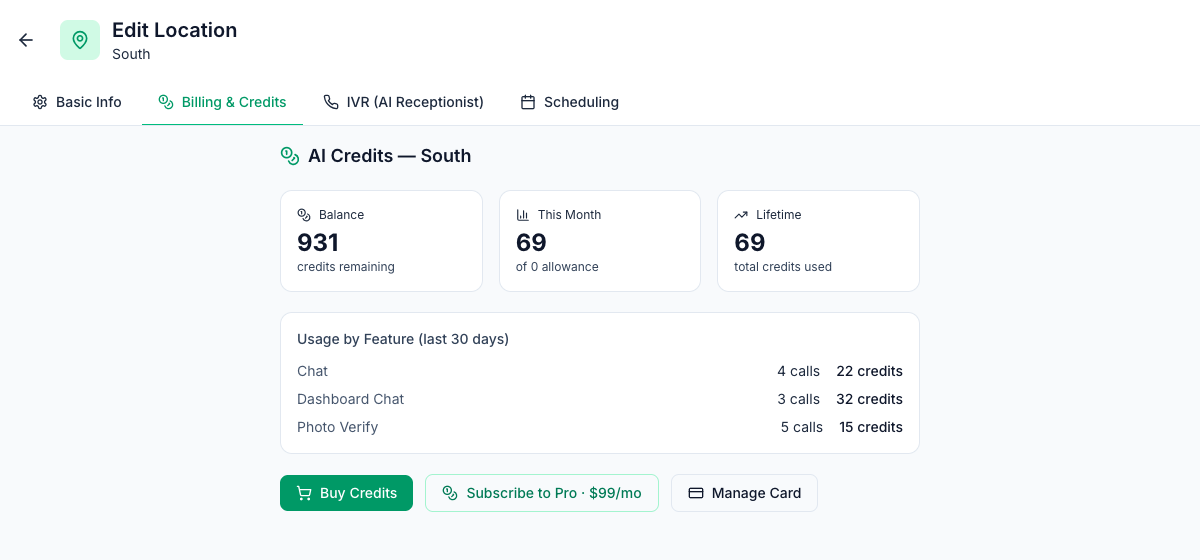
After paying, you come back to the tab with Payment received — your subscription is now active. The location gets its plan's monthly AI credits straight away.
Which plan does a location pay for? Your organization's plan level. If the location already has a subscription, clicking Subscribe again doesn't start a second one: it says This location already has an active … subscription.
Changing the plan level: with per-location billing, Settings → Billing has no Upgrade buttons. Ask Mays support to move your organization to another plan.
Each location's free trial
When per-location billing is switched on, every location that isn't subscribed yet gets its own 30-day AI trial. Mays then emails the location's billing contact and your admins:
When | |
|---|---|
AI trial ends in 3 days for {location} | About three days before that location's trial ends. |
AI paused for {location} (Trial ended) | The trial ended without a subscription. AI features stop at that location until it subscribes. |
Payment failed for {location} | A monthly payment didn't go through. AI pauses at that location until it's paid, so update the card with Manage Card. |
AI paused for {location} (Subscription canceled) | The subscription was canceled. Subscribe again to turn AI back on. |
Each email has a link to the location's Billing & Credits tab.
Receipts and invoices
- After every payment, whether for a plan or for credits, Mays emails a Payment received — … receipt. For a location's payment, it goes to the location's billing contact and to every admin. For an organization payment, it goes to the admins.
- A location's billing contact is its Billing email, set on the location's Basic Info tab. If that's empty, Mays uses the location's Email. See Add and manage locations.
- Invoices are on Stripe: open them with Manage Subscription (centralized) or Manage Card (per location).
- Recent Purchases at the bottom of Settings → Billing lists your latest credit purchases.
Good to know
- Settings → Billing is for admins. Managers can open the Billing & Credits tab of the locations they're assigned to.
- A location's managers pay for their own locations. Buy Credits, Subscribe to … and Manage Card on a location's tab need the Pay for and buy AI credits for their own locations permission, which managers have by default, and work only for the locations they're assigned to. Admins can pay for every location.
- Organization billing is for admins. Manage Subscription, the plan buttons and Buy Credits (All Locations) under Settings → Billing need Edit organization settings, which only admins have by default.
- Anyone without the right permission sees the balance and usage with an Ask an admin note instead of the buttons. Employees can't pay for anything. See Roles and permissions.
- Mays never stores your card. Stripe handles card details, both at checkout and when you update your card.
- Changing your receipt's look or wording: the Payment confirmation email can be branded under Settings → Email Templates. See Branding customer emails.