Mays AI is the round green button in the bottom-right corner of every web page. Ask it about today's tasks, who's on shift, sales, temperatures or labor cost, or have it build a report.
Admins and managers can use it; it's part of every plan. Each answer uses AI credits.
Use ChatGPT, Claude or Grok already? You can also ask about your locations from there — see Connect Mays to ChatGPT, Claude or Grok.
Ask a question
- Click the round green button in the bottom-right corner. The Mays AI panel opens (Your operations command center).
- Click one of the Suggested questions, or type your own in Ask a question, or build a report... and press Enter.
- While it works, a line shows what it's doing, for example Checking who is on shift right now….
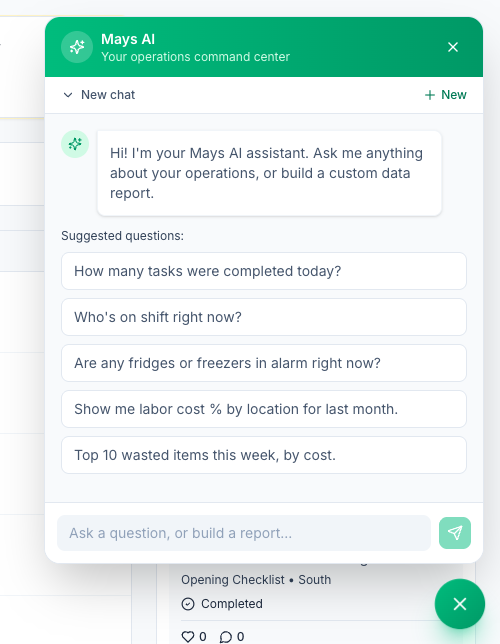
Click the button again (it turns into an ×) to close the panel. It stays on every page, so you can keep asking while you work.
What you can ask
- Tasks: how many were completed today, what's overdue, the details of one task, recent completions and rejections.
- People: who's on shift right now and until when, scheduled hours this week, finding someone on your team.
- Sales: today's or another day's sales per location, top and bottom sellers, unusual drops, and cancellations. Sales come from a connected POS such as Square.
- Food safety: current thermometer readings, fridges or freezers in alarm, and temperature history.
- Costs and stock: labor cost % and prime cost, items at or below par, invoices waiting for review, and answers from your custom forms (for people who can see Tasks → Data).
- Mays itself: how to do something in Mays, for example How do I add a new employee?
Who's on shift and scheduled hours need the View Schedule permission, and sales need View Operations Dashboard. Managers and admins have both unless a custom role takes them away.
It answers for the locations you work at (admins: all locations). It doesn't follow the location picked in the sidebar, so name the location in your question when it matters.
Ask it to do something
Mays AI can also:
- create a task, for example Add a task for South to deep clean the ice machine today;
- update someone's details, such as their phone number or email;
- build a report (below).
It can't change the schedule.
Build and save a report
- Ask for a report, for example Show me labor cost % by location for last month.
- The answer includes a table (the first rows of it) and a Save this report button.
- Click Save this report, give it a Name and choose Share with: Just me, Everyone in the org or Specific people. Click Save report.
Saved reports are under Insights → Custom Reports. They're meant to run again there, but at the moment each one shows an error instead; see Custom reports with AI. Save a report before you leave the page: the table in the chat isn't kept.
Earlier conversations
- + New starts a new chat.
- Click the chat's name at the top of the panel to see your earlier chats, and click one to open it. Hover over a chat and click the bin (Delete chat) to delete it; there's no confirmation.
- When you open the panel, it carries on from your most recent chat, even though the top says New chat.
- Load earlier messages at the top of a long chat shows older messages.
AI credits
Each answer uses AI credits from one of the locations you work at (for an admin who isn't assigned to a location, the company's oldest location). It shows as Dashboard Chat under Usage by Feature. A short answer uses a few credits; long chats and reports use more.
When the credits run out, the panel says Your organization is out of AI credits. (or names the location) with an Open billing link. See AI credits.
Good to know
- Mays AI doesn't read your knowledge base. To ask about your SOPs, recipes or policies, use the AI Assistant in the app's Chat tab. See AI answers from your knowledge base.
- Check the numbers that matter. Mays AI reads your data, but it can still misread a question. For payroll and money, use the matching report.
- Employees don't use the web app, so they don't have Mays AI. They have the AI Assistant in the app. See The AI Assistant in chat.