Upload the checklists you already use, in PDF, Word, Excel or a photo, and Mays AI drafts your checklist templates, departments and roles. You review the drafts and save the ones you want.
It's for admins, on the web, in every plan. Use a computer: the drafts list only shows on a wide screen.
Open it
- The first time an admin opens the web app, Mays takes them to Mays AI Onboarding.
- Skipped it? The dashboard shows Finish setup with Mays AI. Click Continue.
- Any time later: go to Tasks → Templates and click Import from Document.

Upload your checklists
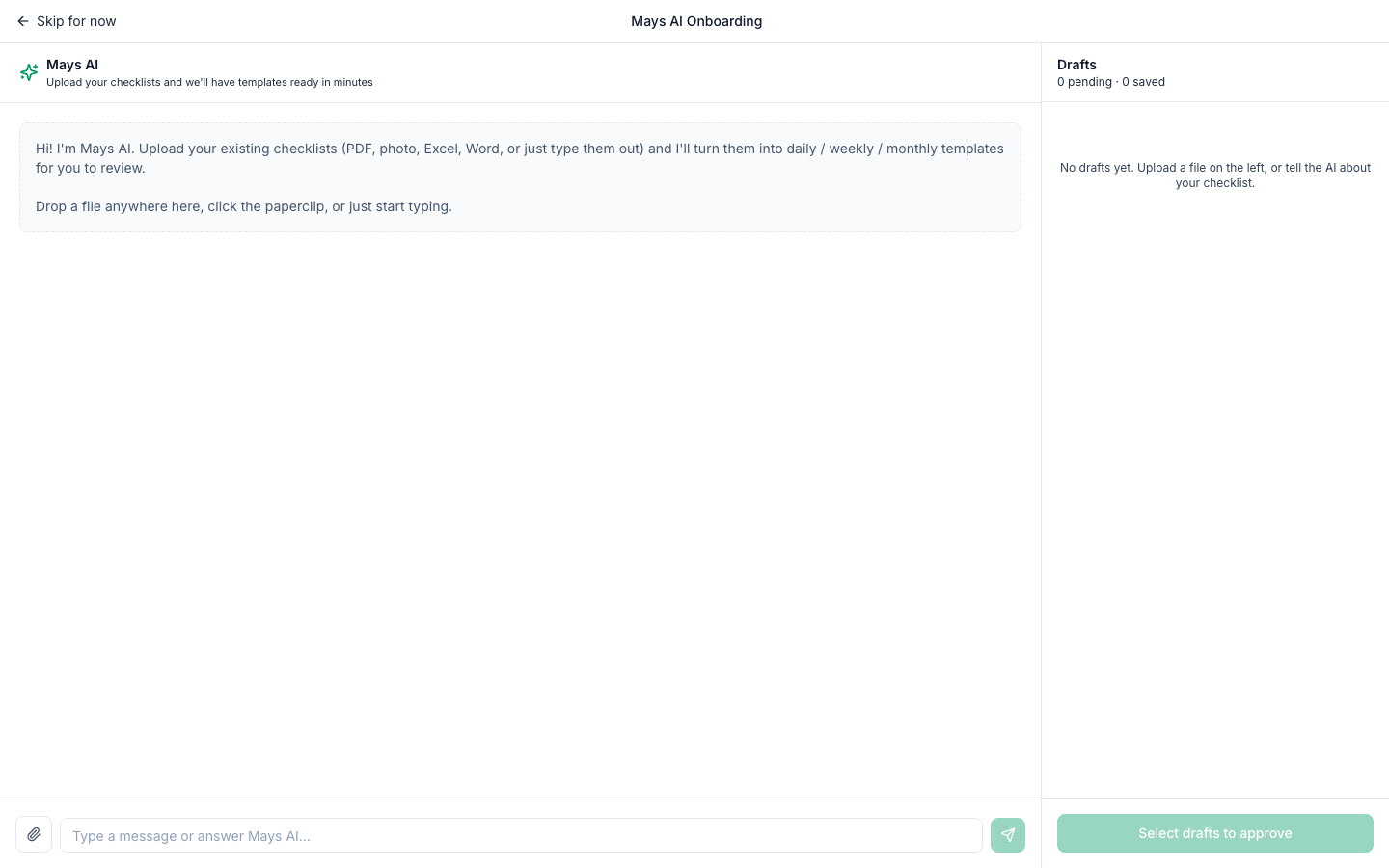
- On the left, under Mays AI, add your files: click the paperclip, drag them onto the chat, or paste a picture. You can add several.
- Or skip the files and paste or type a checklist into Type a message or answer Mays AI….
- Send a message, for example Here are our opening and closing checklists. Uploading on its own doesn't start anything: the AI reads your files when you send a message.
- Answer its questions. Some come with buttons to tap, for example how often a checklist runs.
Files it can read: PDFs with text in them, Word (DOCX), Excel (XLSX and XLS), CSV, TXT and Markdown files, and photos. Each file can be up to 25 MB. For an old Word .doc, save it as DOCX first. For a scanned PDF, take a photo of the page instead.
Review the drafts
As the AI works, drafts appear on the right under Drafts:
- Templates, with how often they run and their task groups and tasks;
- Departments;
- Roles.
Click a draft to see its details. To change one, tell the AI in the chat, for example Make the deep clean weekly or Split the kitchen tasks into prep and line. To drop one, hover over it and click the bin.
Save them
- Tick the drafts you want, or click All. Ticking a template also ticks the department or role it needs.
- Click Approve & save (it shows how many drafts).
- Mays saves them and takes you to Task Templates.
The templates are switched on straight away. Departments are under Locations & Users → Departments and roles under Locations & Users → Roles.
Check each template's locations. With one location, the AI assigns every template to it. With several, it may leave that to you, and a template with no location never produces tasks. Open each template and check its Assignments tab. See Scheduling and assigning checklists.
Check the new roles. Open each one under Locations & Users → Roles and choose what it can do. See Roles and permissions.
Skip, come back or start over
- Skip for now (top left) takes you to the dashboard. Nothing is lost: your chat, files and drafts are kept, and Continue on the dashboard banner brings you back.
- There's one setup chat for your whole company. Other admins see the same chat and drafts.
- Start over (top right) clears the chat, the uploaded files and any drafts you haven't saved. Templates you've already saved stay.
- A very long chat eventually fills up (This conversation has reached the maximum length.). Save the drafts you want, then click Start over.
AI credits
The setup assistant uses AI credits, shown as Onboarding Agent under Usage by Feature. They come from your company's oldest location. Every message uses credits, and the more files the AI has read, the more each message uses. See AI credits.
Good to know
- It only makes templates, departments and roles. It doesn't add locations, positions, people or knowledge base articles, and your files aren't added to the knowledge base.
- Duplicates: the AI checks what you already have and tries to reuse it, but it can't change an existing template. Running it again can give you a second template with the same name; delete the one you don't want.
- Checklists that don't repeat, like new employee onboarding, are saved as Custom: they never appear on their own, and you start one from Tasks → Tasks → Create Task → From Template when you need it. An every-other-day checklist is set to the closest weekly days instead; check its Settings tab.
- The banner's close button (✕) hides it for your company in that browser. Otherwise the banner goes away once you've saved drafts, or 30 days after you skipped.
- Nothing happened after an upload? Send a message. A red line with the file name means Mays couldn't read that file; the message says why.
- You can also build templates by hand. See Creating a checklist template.