Turn your knowledge base articles and documents into a short quiz. The AI drafts the questions from your own text, you review and edit them, then publish the module for your team.
Where: Learning → Modules on the web. Who: admins; managers don't see Learning. Staff take the quizzes in the Mays app (see Taking training in the app).
Learning is part of the Pro plan. The Mays team switches it on for your organization: if you're on Pro and Learning is in your sidebar but nothing you create is saved, write to support.
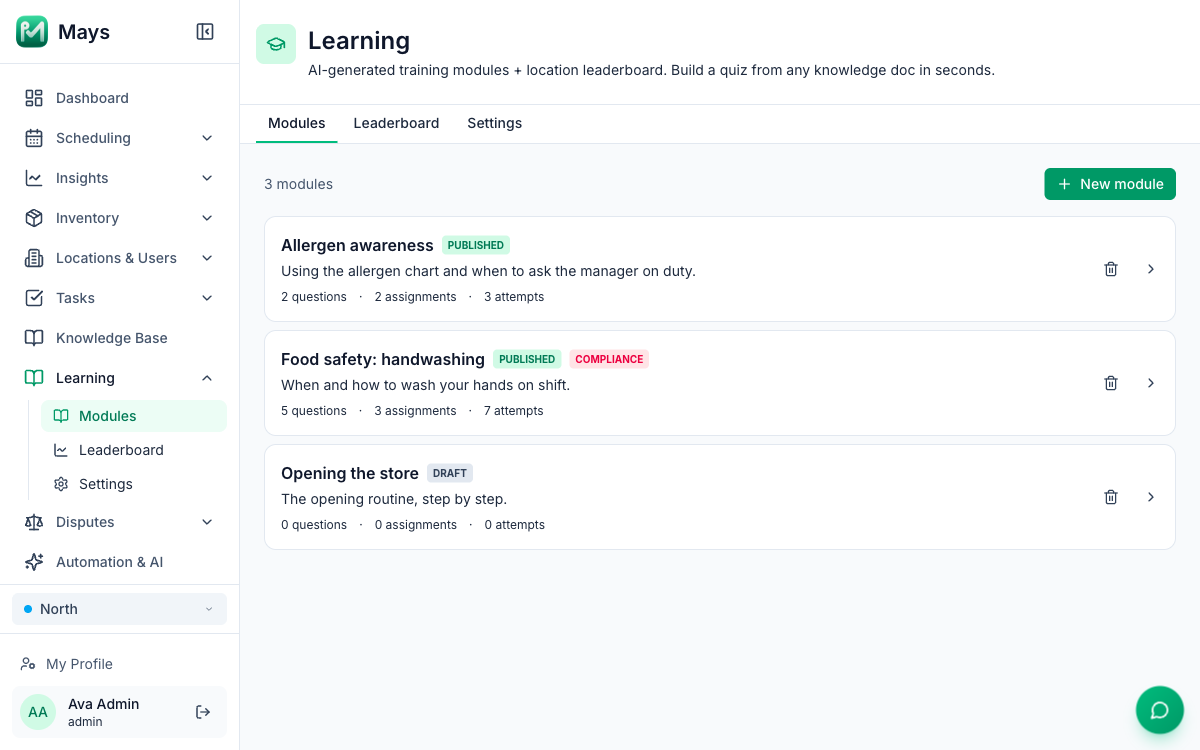
1. Create the module
- Go to Learning → Modules and click New module.
- Enter a Title, such as Food safety: handwashing, and a short Description (optional).
- Tick Compliance-critical (issues a PDF certificate on pass) if the module is one people must pass, like food safety. See Training certificates. A compliance module also limits retakes: someone who doesn't pass sees which answers were wrong but not the right ones, waits 30 minutes before trying again, and gets 3 tries a day.
- Click Create. The module opens as a Draft.
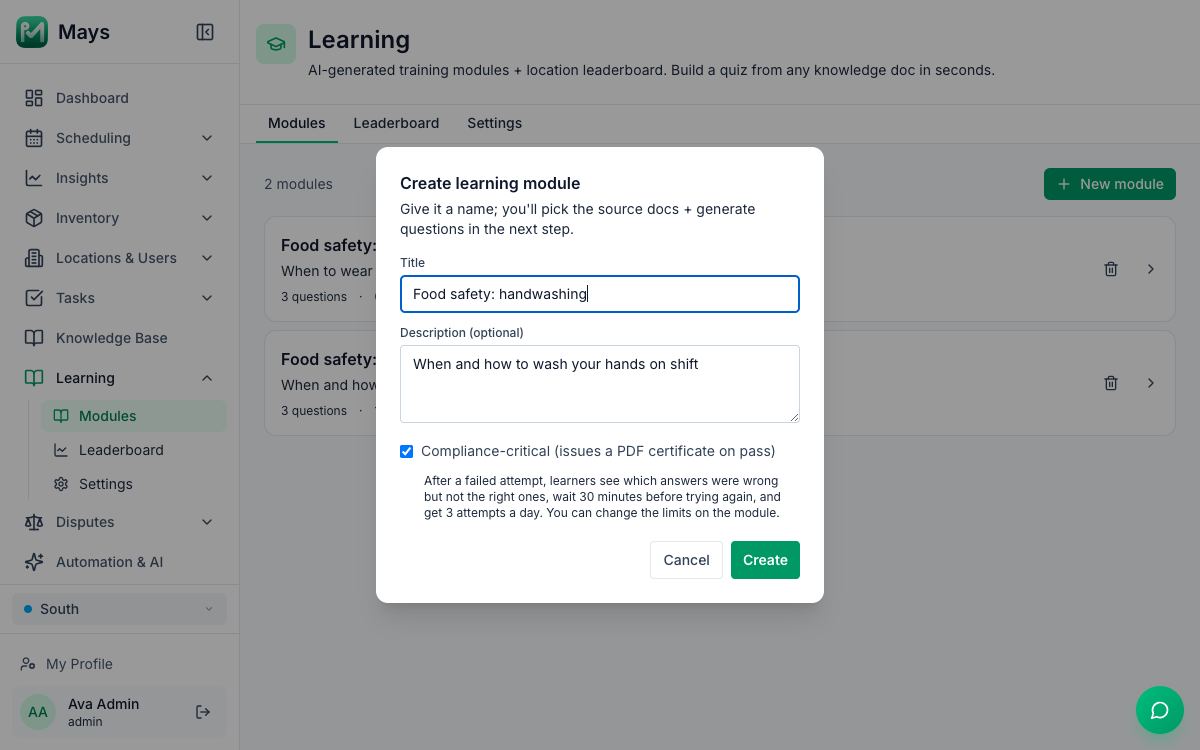
Choose the title and the compliance box carefully: there's no way to change either after you click Create. To change them, create a new module.
2. Let the AI write the questions
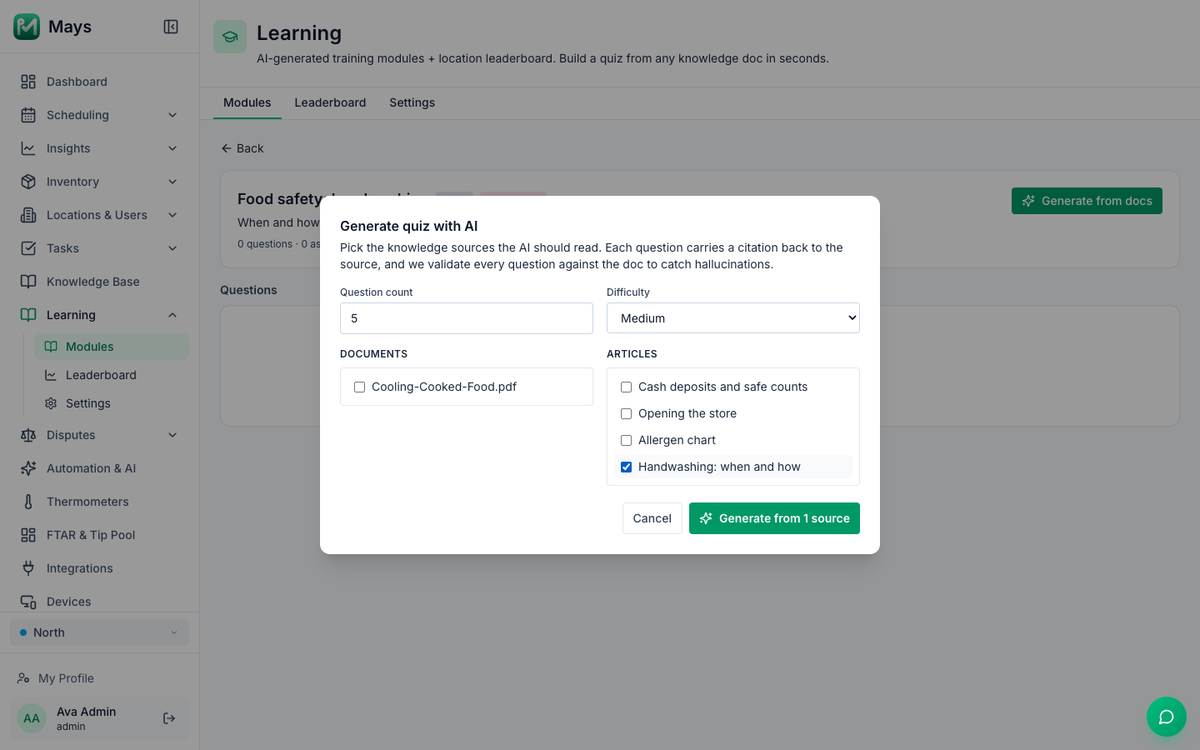
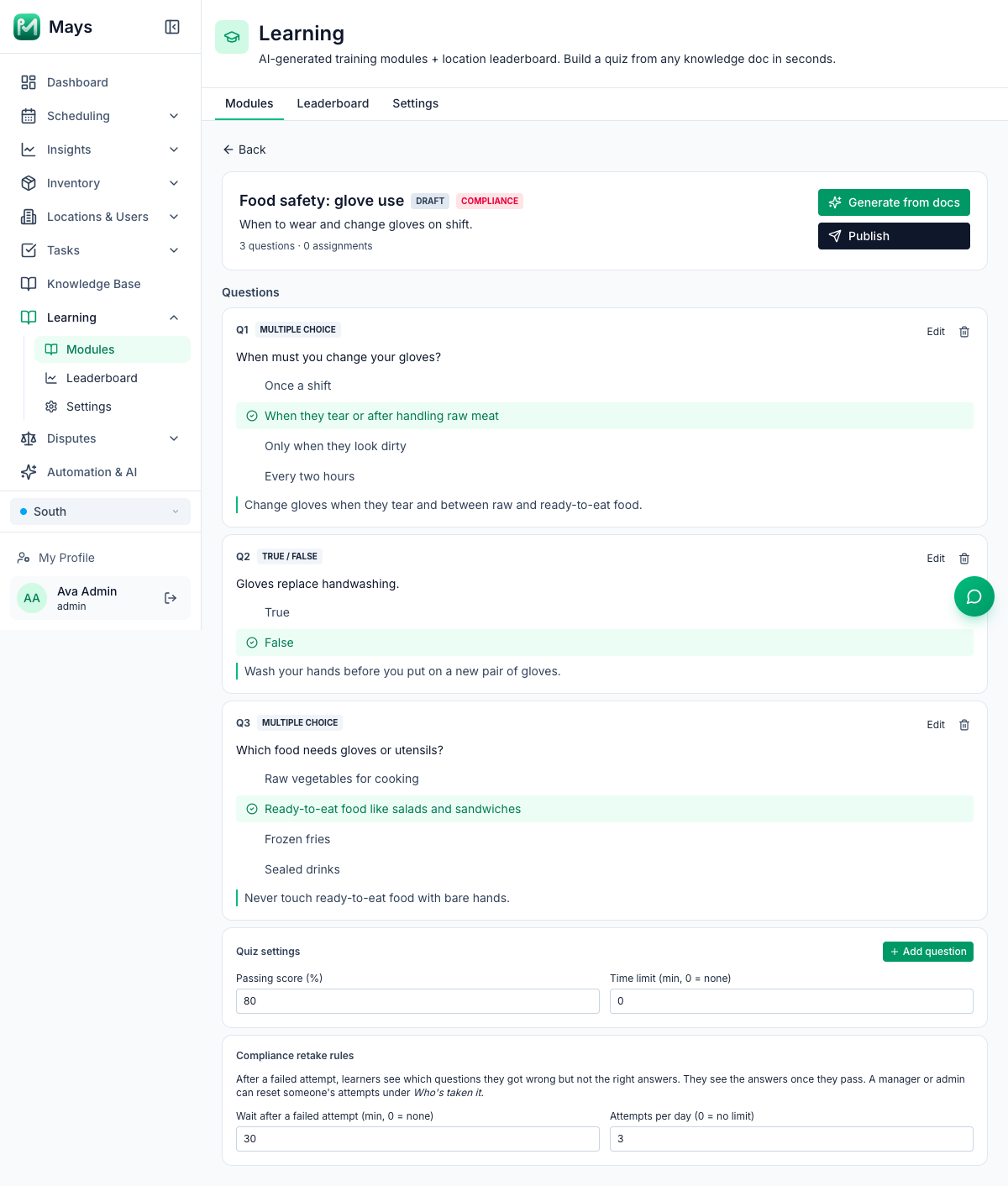
- In the module, click Generate from docs.
- Set the Question count (1 to 15; it starts at 5) and the Difficulty: Easy, Medium or Hard.
- Tick the Documents and Articles from your knowledge base that the quiz should cover.
- Click Generate from 1 source (the button counts what you ticked).
After a few seconds you see 5 questions ready for review. Click Review questions.
How the AI writes them:
- It uses only your text, not general food-safety knowledge. If your source doesn't say it, it isn't asked.
- Each question is multiple choice (four answers) or true/false, with a one-sentence explanation that staff see after they answer.
- Each question comes with the exact sentence it was based on, shown in grey under it (source: "…").
- A second check reads every question against your text and throws out any that don't match it. You'll see Dropped 1 hallucinated question. with the reason. So you may get fewer questions than you asked for.
- Generating a quiz doesn't use AI credits.
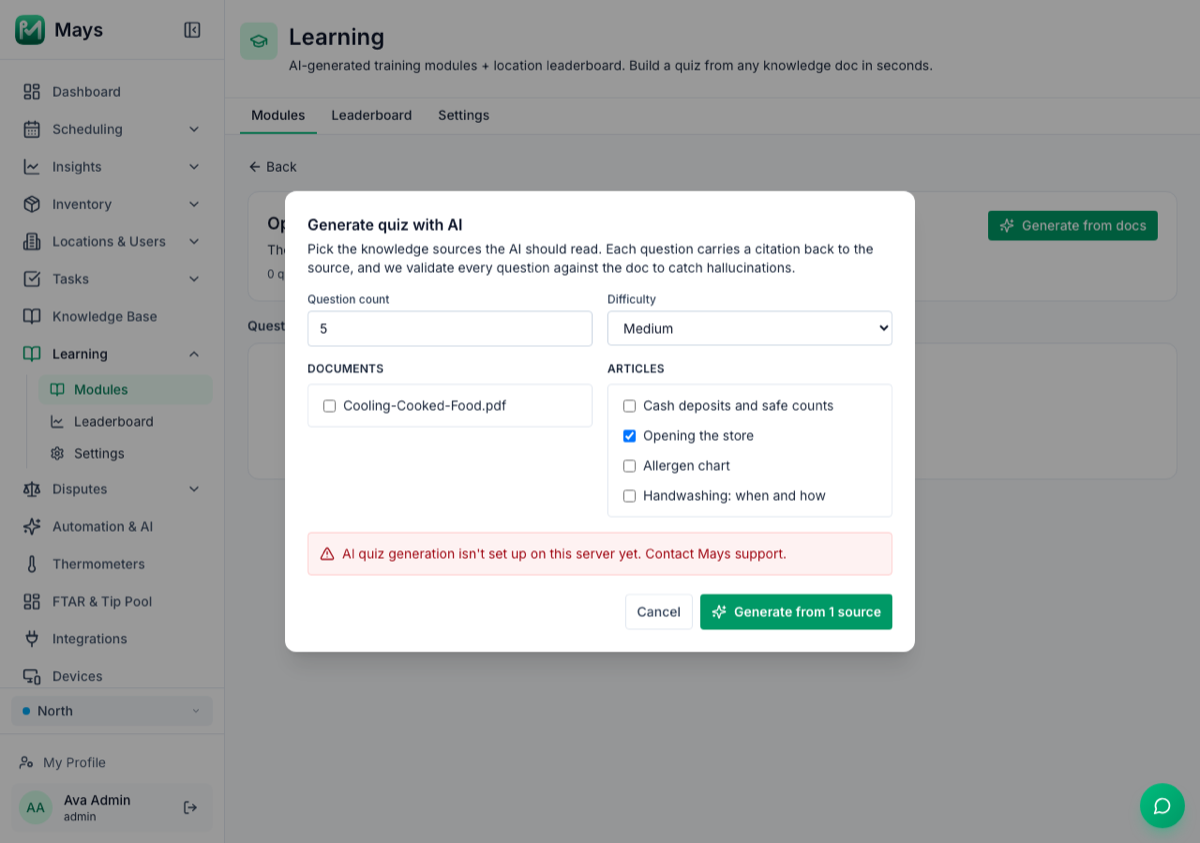
It didn't work? The window says why, in red, and keeps your choices so you can try again or tick other sources:
- Selected sources have no extracted text yet. The document has no readable text, such as a scanned PDF. Try an article, or a document with real text in it.
- The AI service is out of credits…, …is busy right now… or The AI couldn't generate a quiz this time… The AI service Mays uses didn't answer. This isn't your organization's AI credits. Wait a minute and try again, and contact Mays support if it keeps happening.
- AI quiz generation isn't set up on this server yet. Contact Mays support.
If the AI answered but none of its questions matched your text, the window says No questions were generated. with the reason. Click Pick other sources to try again.
Very long sources are cut off: the AI reads roughly the first 7,000 words of what you tick.
3. Review and edit
Read every question before you publish: your team is graded on them.
- Edit changes the question, the answers and which answer is correct (the radio button). Click Save.
- The bin deletes a question.
- Add question writes your own: pick Multiple choice or True / False, type the Question, the answers, choose the correct one and add an Explanation (shown to learner after answer). It appears once the module has at least one question.
- Passing score (%) is 80 to start with. Change it and click outside the box to save.
- Compliance retake rules (compliance modules only): Wait after a failed attempt (min, 0 = none), 30 to start with, and Attempts per day (0 = no limit), 3 to start with. Change a number and click outside the box to save.
4. Publish
Click Publish. The module is now Published and the Assign button appears, see Assigning training. You can only publish a module that has at least one question.
Good to know
- Staff don't see a module until it's published and assigned.
- Letting someone try again sooner: on a compliance module, Who's taken it has a Retakes column (Can retry in 23 min, 3 of 3 used today). Reset attempts lets that person start again straight away. Their earlier attempts stay in the list.
- Changing a published module: edits and new questions apply to the next person who takes it. Earlier results aren't recalculated. A published module can't be switched back to draft.
- Generating again replaces the questions, including your edits and added questions, and sets the passing score back to 80, as long as nobody has taken the module yet. Once someone has, edit or add questions instead: new AI questions for a module that's already been taken don't reach your team.
- Time limit (min, 0 = none) is saved, but the apps don't show or enforce a timer yet.
- Deleting a module (the bin on the Modules list) deletes its questions, its assignments and everyone's results and certificates in Mays. Points already earned stay.
- Your own SOPs only. A Mays module isn't a state-approved food handler course. With Labor law compliance on, keep outside certificates such as food handler cards and food manager certificates on the Certificates tab of the team member's page. See Food safety certificates.