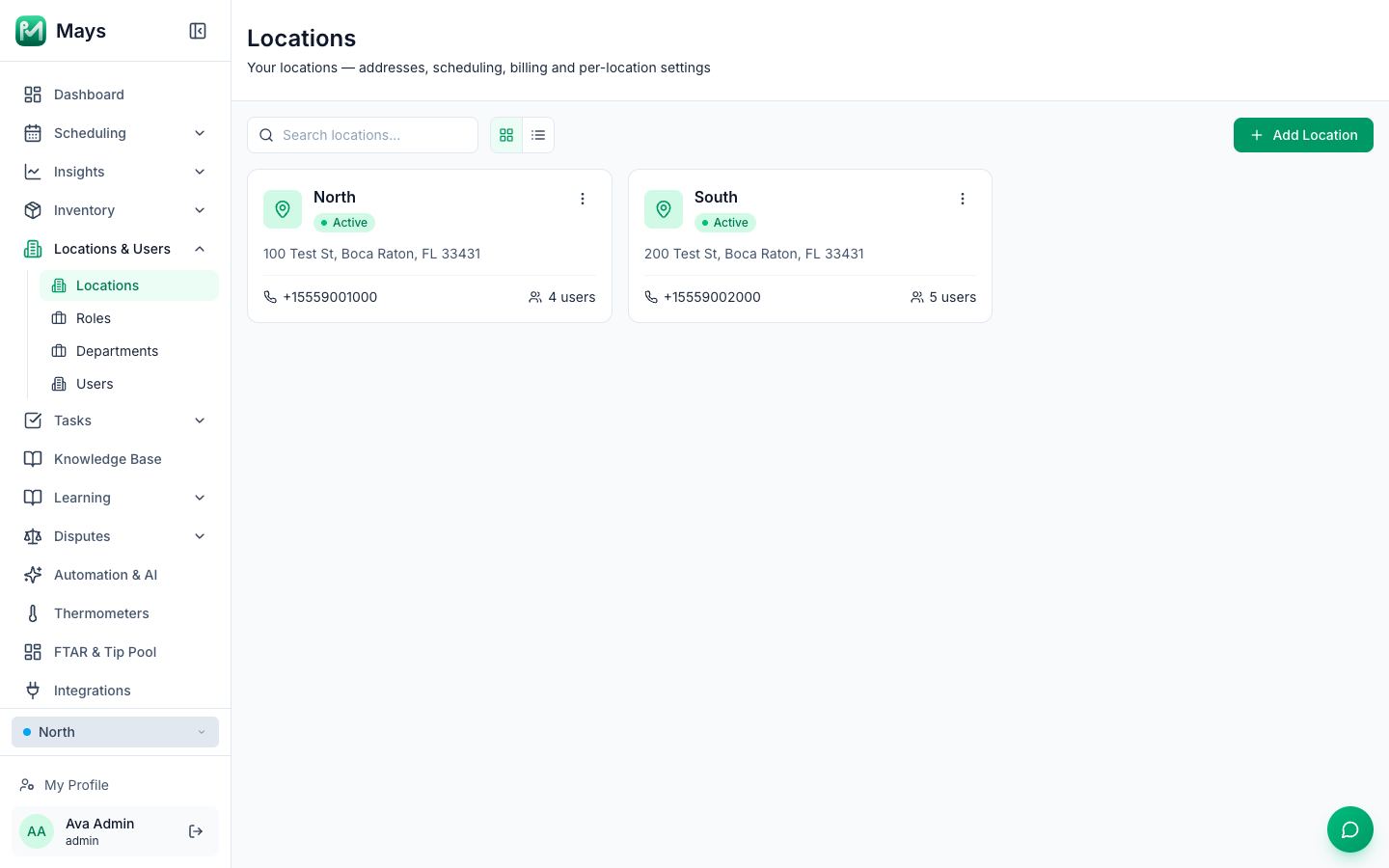
Each store you run is a location in Mays. Its address, phone and time zone live here, and so do the settings that are specific to that store.
Only admins can add, change or delete locations. Managers see the locations they're assigned to.
Add a location
- Go to Locations & Users → Locations and click Add Location.
- Under Basic Information, enter the Location Name (what your team calls the store), Street Address, City, State and ZIP Code. With Labor law compliance on, Mays uses the City and State to look up the labor laws at the location's address, such as its legal minimum wage — see Labor & compliance.
- Under Contact Information, enter the store's Phone (pick the country first; US and Canadian numbers need all 10 digits) and its Email. Billing email is optional — receipts for this location go there instead of to the location email.
- Choose the store's Timezone. Arizona stores: pick Arizona (MST, no daylight saving), not Mountain. Arizona doesn't change its clocks.
- Optionally add a License / Permit # (it's printed on the temperature logs you export for the health department) and Notes.
- Click Create Location. You're taken back to the list, where the new location appears.
Next, add the people who work there — see Add and invite team members.
Why the time zone matters
Mays uses a location's time zone to decide when that store's day starts and ends — for the schedule, the time clock and reports — and for the times it writes into texts, emails, notifications and PDFs for that store. Pick the zone the store is in, even if you manage it from somewhere else. The list covers the US zones (Eastern, Central, Mountain, Arizona, Pacific, Alaska, the Aleutian Islands, Hawaii, Puerto Rico and the US Virgin Islands, Guam and the Northern Mariana Islands, and American Samoa) and a few international ones; if your store's zone isn't there, write to Mays support before you pick a neighbor. The time zone also tells Mays whether the store is in the US: at a location whose time zone is outside the US, Labor law compliance applies no US labor rules.
Change a location
Click a location's card (or ⋮ → Edit) to open it. The page is called Edit Location and has these tabs:
Tab | What's there |
|---|---|
Basic Info | The same details as when you added it, plus Status and the Escalation manager (below). Click Save Changes when you're done. |
Billing & Credits | This location's AI credit balance, what it used this month and in total, and Buy Credits. |
IVR (AI Receptionist) | The AI phone receptionist add-on for this location. |
Scheduling | This location's scheduling and time-clock settings — week start, time-clock rules, punch verification, shift confirmations, labor & compliance (including, with Labor law compliance on, this location's legal minimum wage) and more. Shown when your organization has Scheduling. |
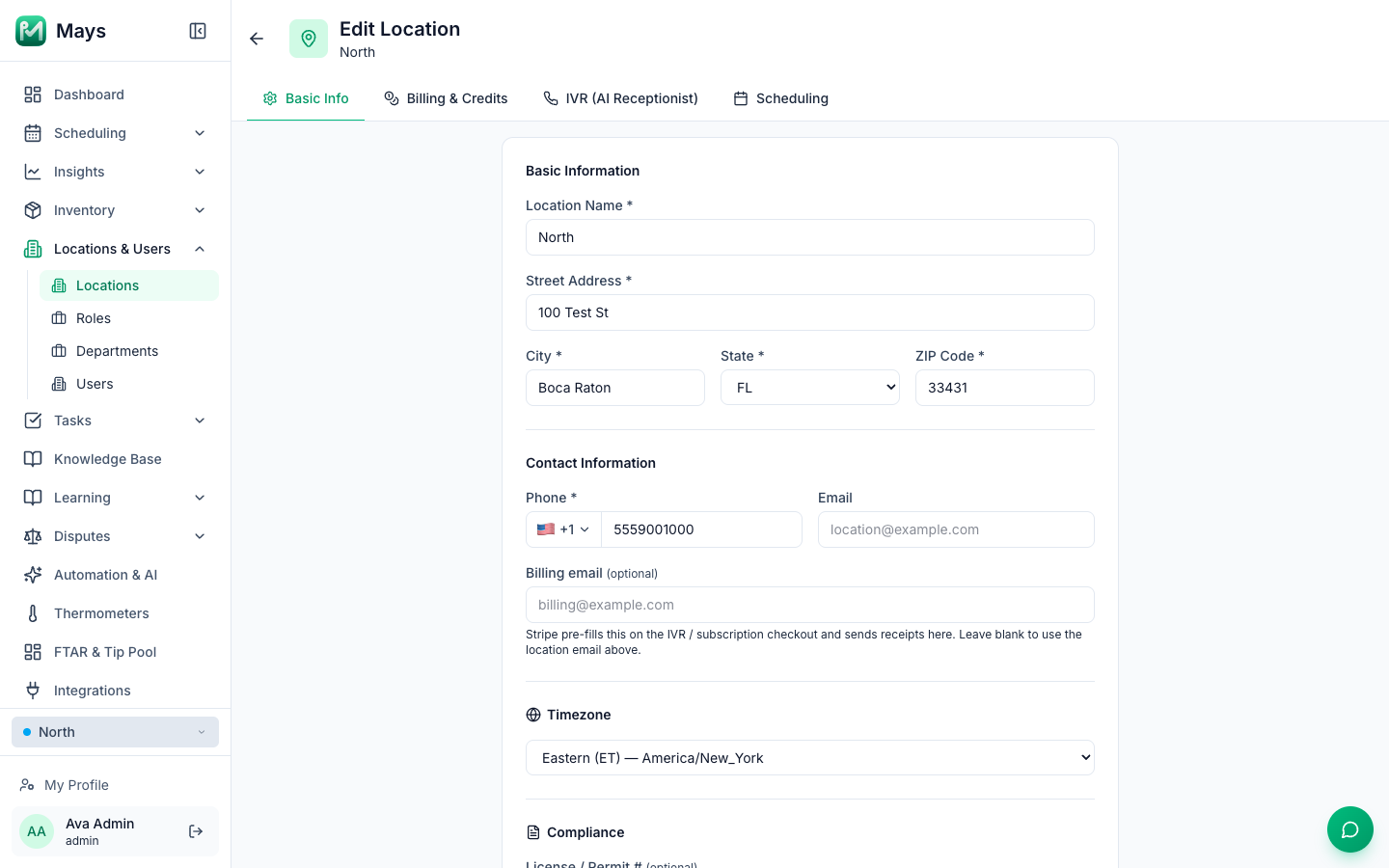
Escalation manager — the person who gets automated escalation calls for this store, for example when nobody answers the calls about a late clock-in. Pick one of the location's managers or admins; with — None —, Mays calls the first manager or admin it finds. The list only shows people already assigned to this location.
Close or delete a location
- Closed for a while? Open the location, set Status to Inactive and click Save Changes. It stays in your Locations list but no longer appears in the location switcher.
- Gone for good? In the Locations list, click ⋮ → Delete on the location and confirm. The confirmation warns that this can't be undone.
The Delete Location button at the bottom of a location's Basic Info tab deletes it straight away, without asking first — use it only when you mean it.
Good to know
- Fill in the location's Email. The form needs it to save, even though it isn't marked with an asterisk. If Create Location or Save Changes seems to do nothing, check the Email field.
- State is a list of US state codes, plus DC. With Labor law compliance on, if you change a location's address, its minimum wage and the other labor laws Mays follows there change with it.
- A new location is always created as Active; change its status afterwards if you need to.
- Don't see a new location in Scheduling? An admin who is assigned to particular locations sees only those in Scheduling, and the account you signed up with is assigned to your first location. Add the new location to your own Assigned Locations (Locations & Users → Users → you).
- The list has a search box and a switch between cards and a table (the two icons next to the search).