Record what vendors delivered and charged. Scan or photograph an invoice, upload its PDF, share it from your phone or email it in, and the AI drafts it; check the lines next to the document, then post it to add the stock and update your prices.
You can also enter an invoice from ChatGPT, Claude or Grok — type it, or upload the photo or PDF from the chat (Mays reads it the same way as Capture invoice and keeps the file with the draft) — and it creates a draft here for you to check and post. See Upload invoices and documents.
Where: Inventory → Invoices on the web, for the location you're on, and + → Add invoice on My Tasks in the Mays app on iPhone and Android. Admins, and managers at their own locations: anyone whose role can manage inventory.
Ways to add an invoice
- Capture invoice: take a photo, or pick a photo or PDF, and the AI reads it into a draft.
- From your iPhone: scan the paper invoice, or pick its PDF or a photo, or share it straight from Mail or Files (see Add an invoice from your iPhone).
- From your Android phone: the same, and share from Gmail or Files (see Add an invoice from your Android phone).
- Email invoices: each location has its own address, such as inv-…@s.mays.app. Give it to your vendors, or forward your invoice emails to it. Each invoice attached to the email becomes a draft (see What gets read from an email).
- New: a blank draft to type in by hand.
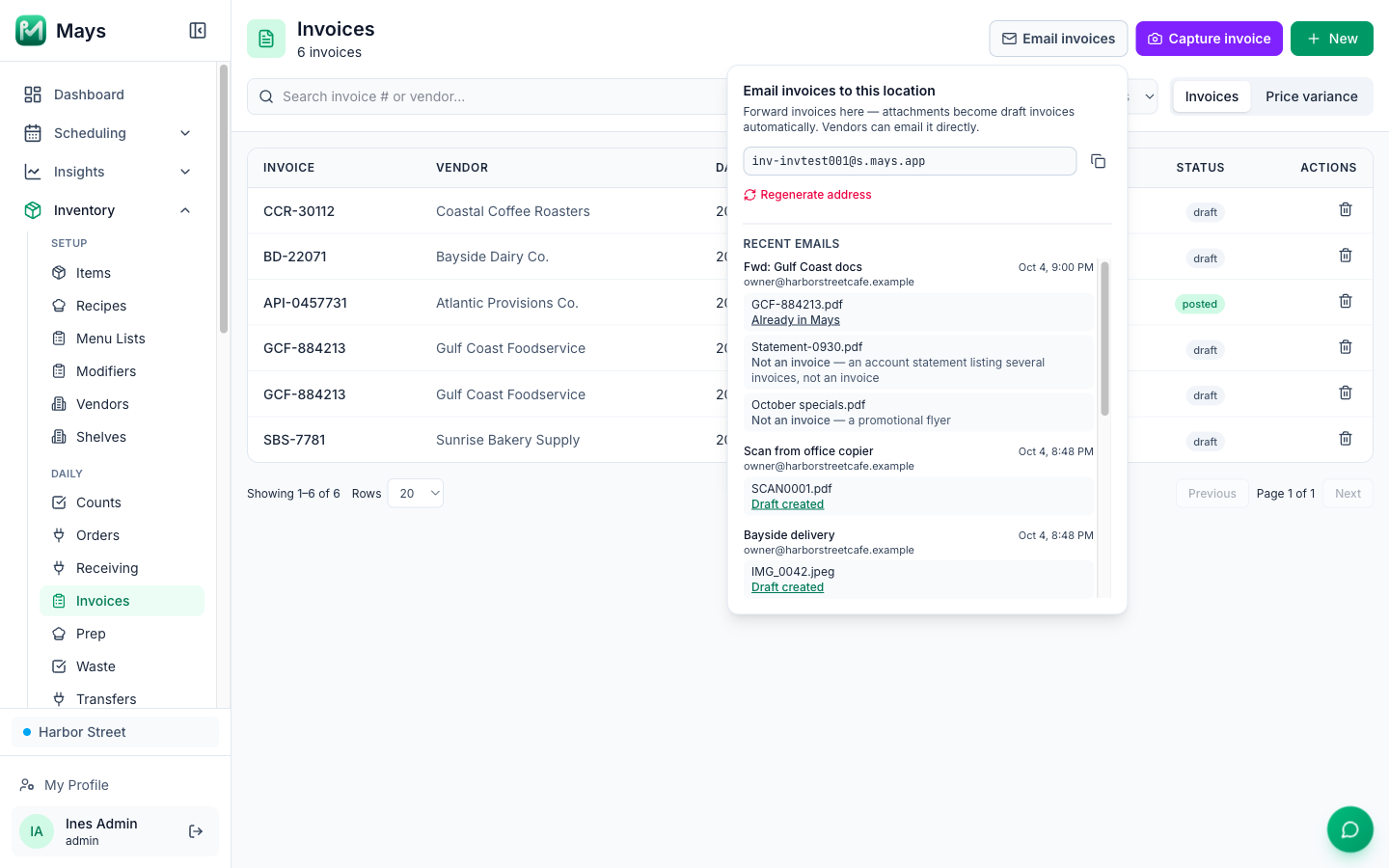
Setting up email forwarding from Gmail: Gmail sends a confirmation email to the address first. When it arrives, a dot appears on Email invoices and the panel shows Confirm Gmail forwarding. Click it, then Dismiss. Regenerate address gives the location a new address; the old one stops working straight away.
What gets read from an email
- PDFs and photos (JPG, PNG, WebP) attached to the email. A PDF with several pages is read as one invoice. If one PDF holds several separate invoices (different invoice numbers, each with its own total), each becomes its own draft.
- Logos, signatures and other small pictures in the email are skipped, so they don't turn into empty invoices. Photos you attach from a phone are still read, even when your mail app puts them inside the message.
- Anything that isn't an invoice is skipped too, such as an account statement, a promo flyer or a price list. Receipts and credit memos are read.
- Size: a whole email can be up to 40 MB. Each PDF can be up to 20 MB and each photo up to 10 MB.
- If an invoice can't be read automatically (for example, the reader is briefly unavailable), the draft is still created with the document attached and a note saying so. Fill in the lines by hand, or open AI extraction (debug) and click Re-run AI.
- The same invoice sent twice (forwarded again, or sent by the vendor and forwarded by you) isn't added a second time. Mays compares the vendor and the invoice number.
The draft's header shows who sent it and the email's subject.
See what happened to an email: open Email invoices (pictured above). Under Recent emails each email shows every attachment and what happened to it:
- Draft created (click it to open the draft);
- Skipped, with the reason, such as a logo or signature;
- Not an invoice;
- Already in Mays;
- Draft created — couldn't be read, fill it in.
While an email is still being read it says Reading attachments….
Capture an invoice
- Click Capture invoice. On a phone or tablet you can take a photo, pick one from your library, or choose a PDF file.
- The button shows Reading… while the AI works.
- The draft opens with the photo or PDF on the right.
If the file isn't an invoice, or nothing could be read from it, no draft is made and a red message at the top of the page tells you why. Take a straight, well-lit photo of the whole page, or use New to type it in.
What the AI fills in: the vendor (matched to your vendors by name), the invoice number and date, tax, and one line per item with its SKU, pack, quantity shipped and price per pack. Fees, fuel surcharges and deposits come in as lines too. Items sold by weight come in by the pound. Returns come in as a negative quantity, and credits and discounts as a negative price. Each line is matched to one of your items:
- by the vendor's SKU, when the item already has that SKU from this vendor (an exact match);
- otherwise by the AI, and the line is tagged AI.
Backordered lines are flagged. The header shows how sure the AI was overall (AI and a percentage), and the AI extraction (debug) section lists everything it read with how sure it was of each line's match. Re-run AI reads the image again and shows the result there, without changing your lines.
AI credits: reading invoices doesn't use AI credits.
Add an invoice from your iPhone
When a delivery arrives, add its invoice on the spot. You need the Mays app and a role that can manage inventory; others don't see Add invoice.
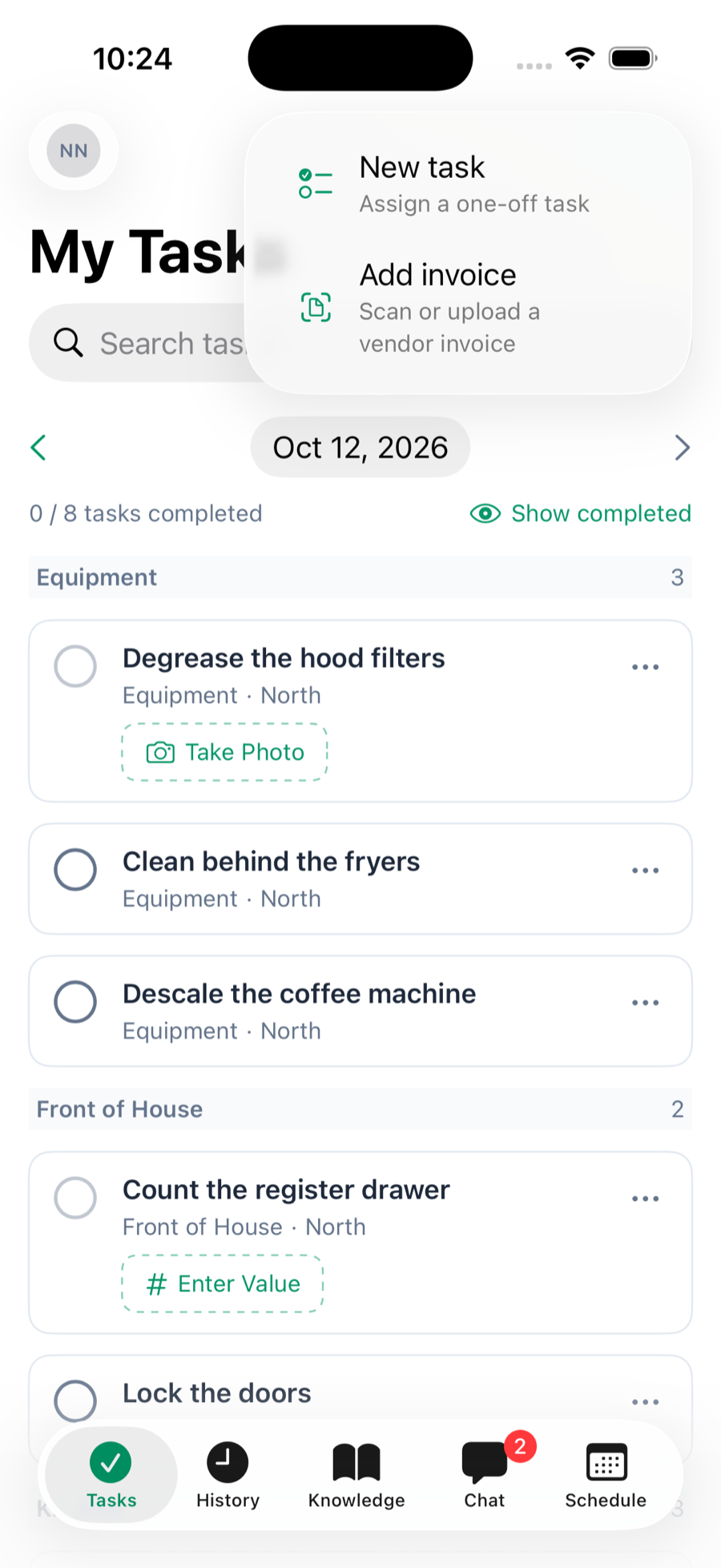
- On My Tasks, tap + at the top right and choose Add invoice, or tap the box icon (Inventory) at the top of the screen, then Add invoice. If your role can't create tasks, + opens Add invoice straight away.
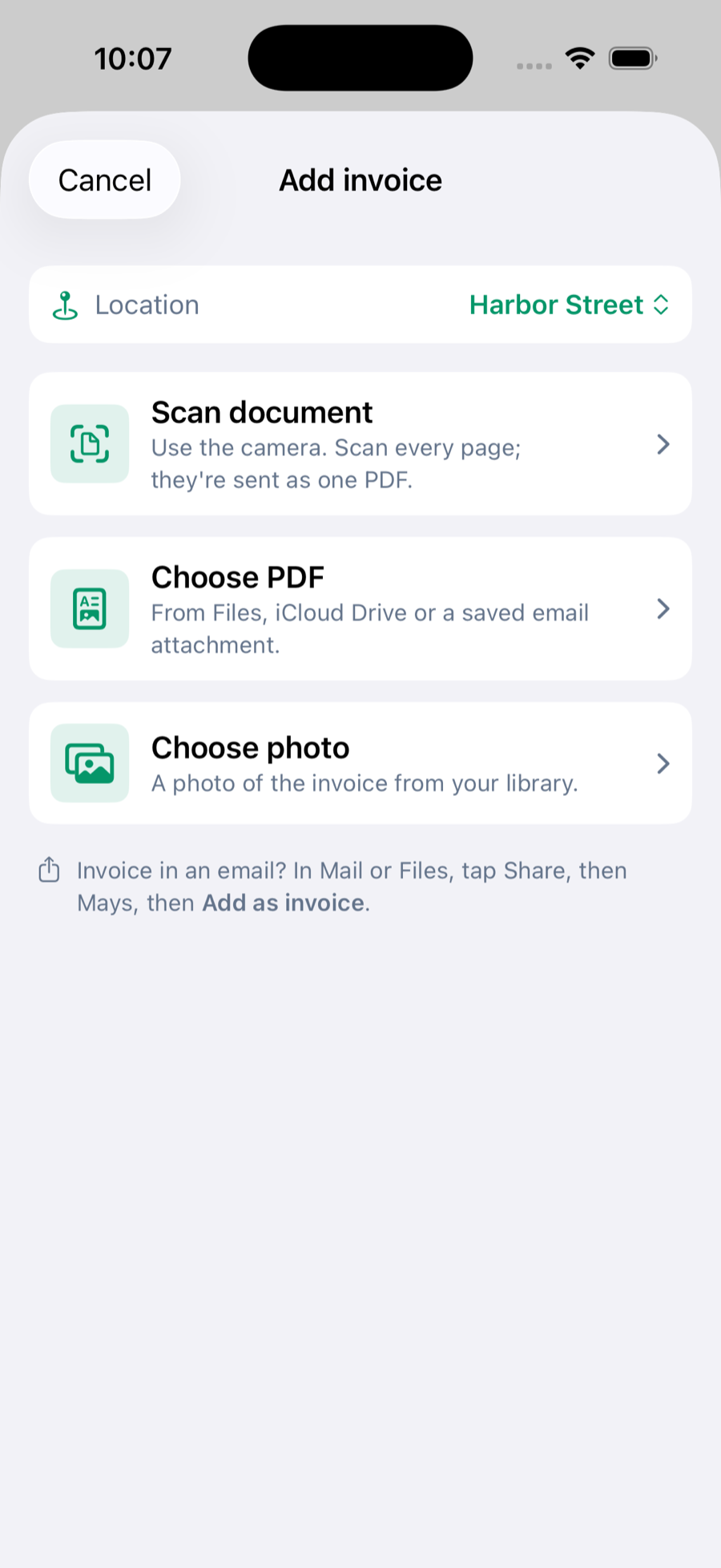
- If you run more than one location, check Location. Mays remembers the one you used last.
- Pick how to add it:
- Scan document: the camera finds the page edges and straightens each page. Scan every page of the invoice; the pages are sent as one PDF.
- Choose PDF: from Files, iCloud Drive or an attachment you saved.
- Choose photo: a photo of the invoice from your library.
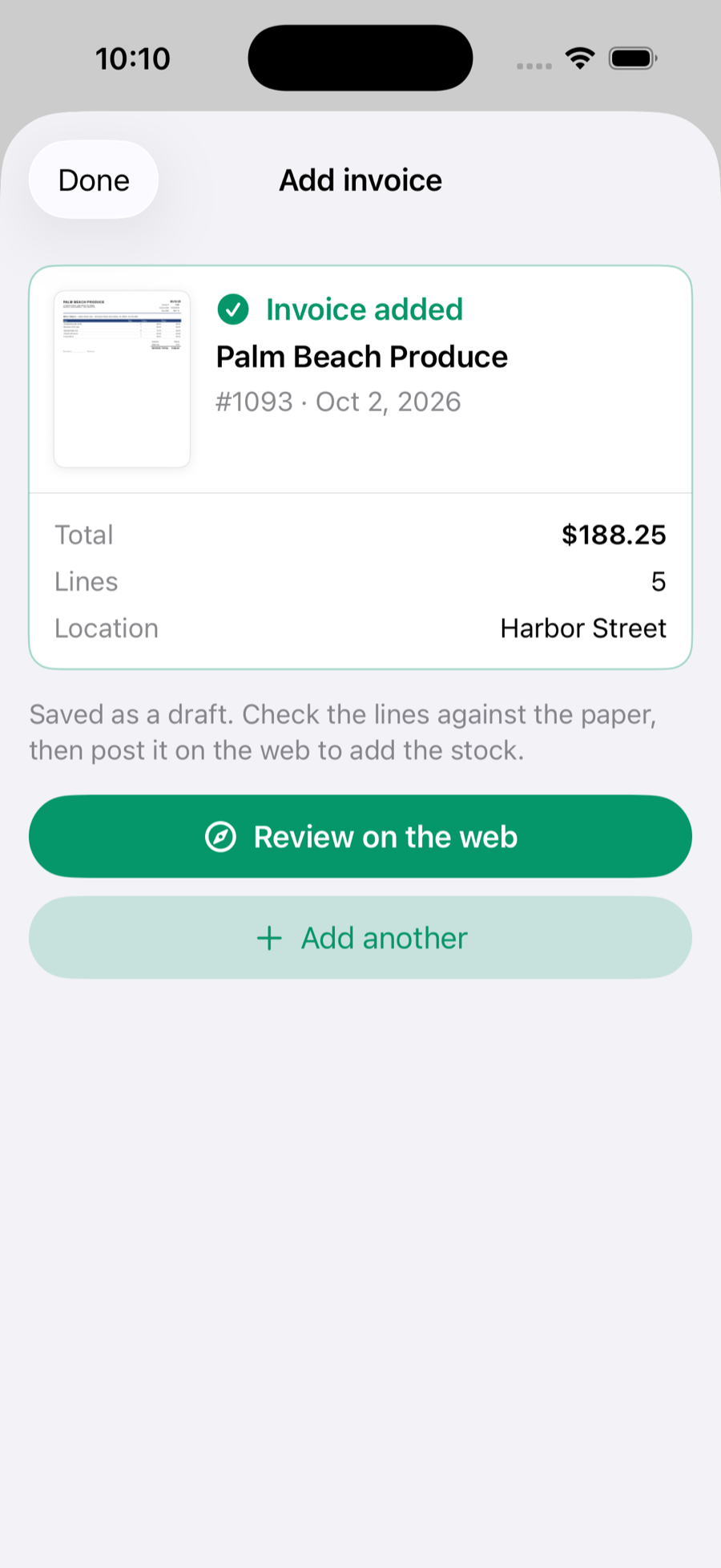
The app shows Reading invoice… while the AI works, then a card with what it read: vendor, invoice number, date, total, the number of lines and a picture of the document.
The card can also say:
- Already in Mays: the same vendor and invoice number are already there. The new copy is saved as a draft too; tap Remove this copy to delete it, or compare the two on the web.
- Couldn't read this — saved for review: the file is saved as an empty draft. Fill it in on the web, or re-run the AI there.
- Not an invoice: nothing is saved. The card says what the file looked like, such as a promotional flyer.
- You're offline: nothing was uploaded. Tap Try again when you're connected.
Review on the web opens the invoice at go.mays.app in Safari. That's where you check the lines, match items and post it. Add another starts again.
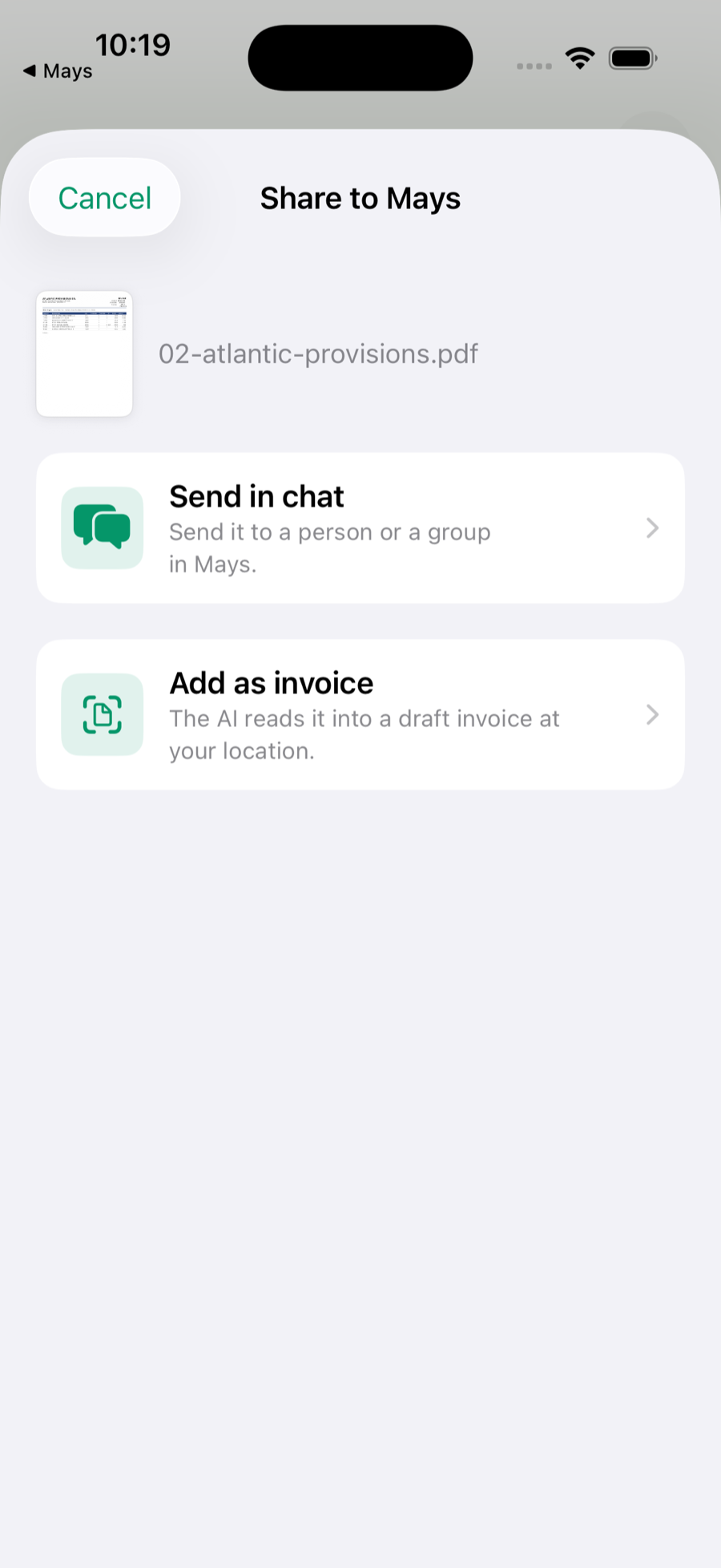
Share from Mail or Files: open the invoice PDF or photo, tap Share, then Mays, then Add as invoice. Check the location and tap Add invoice. Send in chat sends the same file in a Mays chat instead. If several photos are shared together, they're sent as the pages of one invoice. If your Mays session has ended, the app keeps the file and sends it as soon as you sign in again.
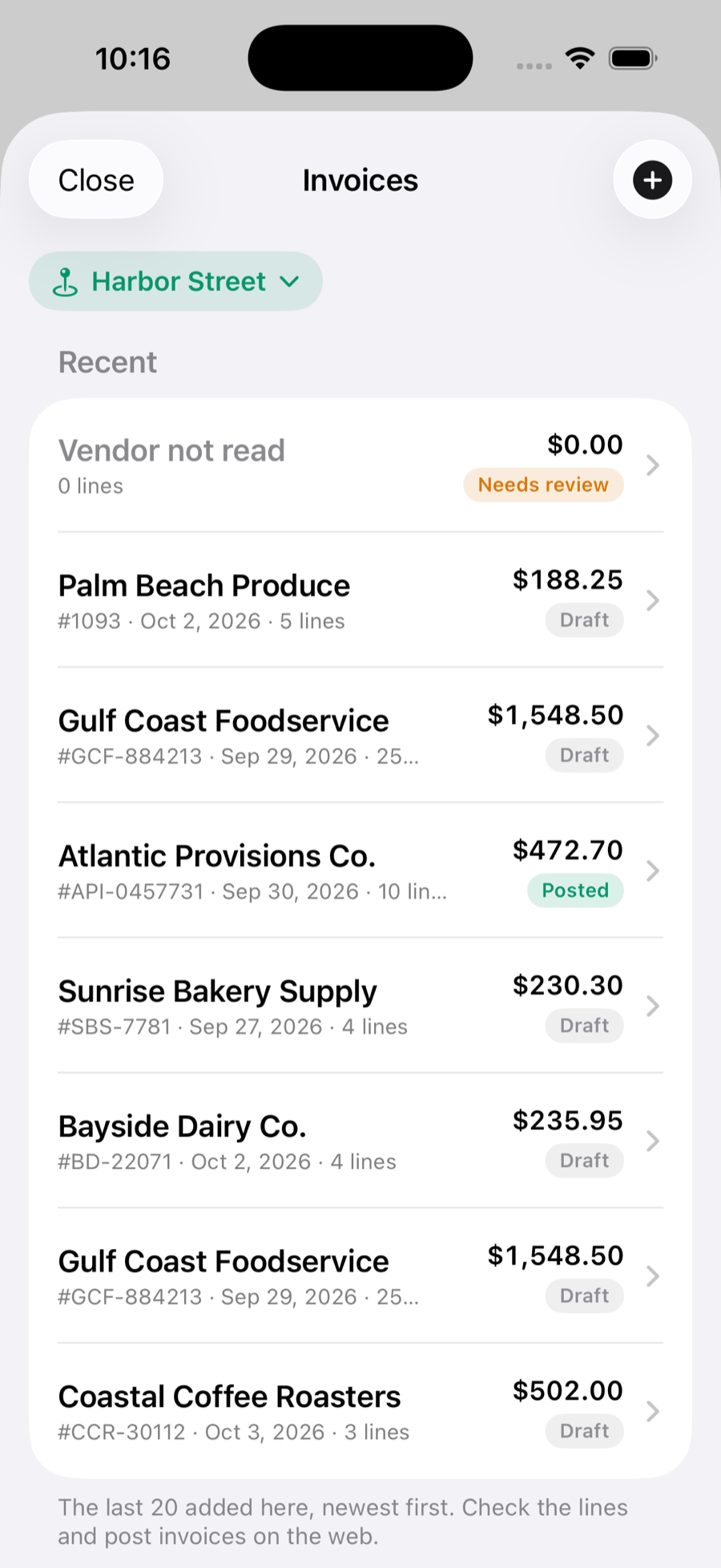
See recent invoices: tap the box icon, then Invoices. It lists the last 20 added at the location, newest first, with their total and status: Draft, Needs review, Submitted or Posted. Tap one to see the document (PDFs open with every page; pinch to zoom a photo) and the lines it read. Lines are read-only on the phone: edit and post invoices on the web.
Size limits are the same as on the web: a PDF up to 20 MB, a photo up to 10 MB. Big photos are made smaller before they're sent, so they stay sharp enough to read.
Add an invoice from your Android phone
It works the same way as on iPhone. You need the Mays app and a role that can manage inventory; others don't see Add invoice.
- On My Tasks, tap + at the bottom right and choose Add invoice, or tap the box icon (Inventory) at the top of the screen, then Add invoice. If your role can't create tasks, + opens Add invoice straight away. Inventory → Invoices has an Add invoice button too.
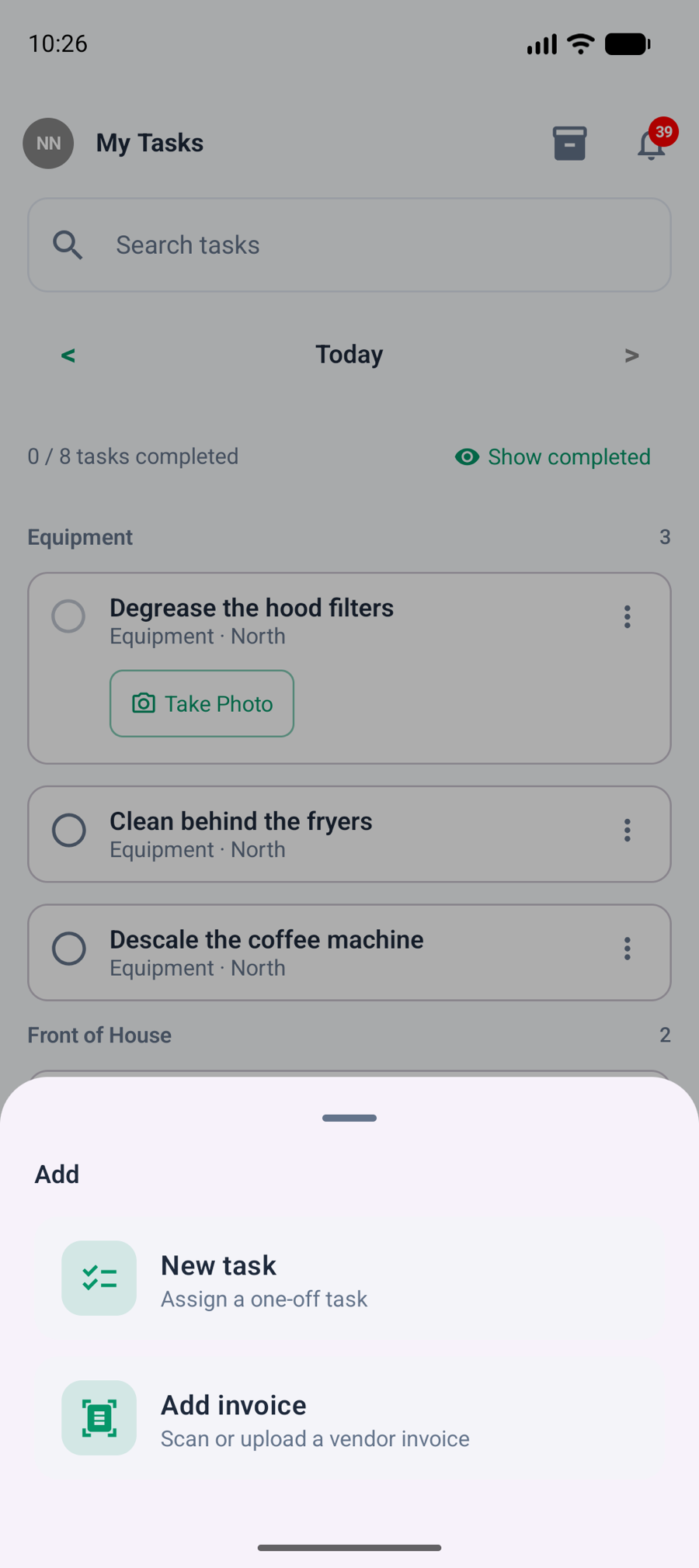
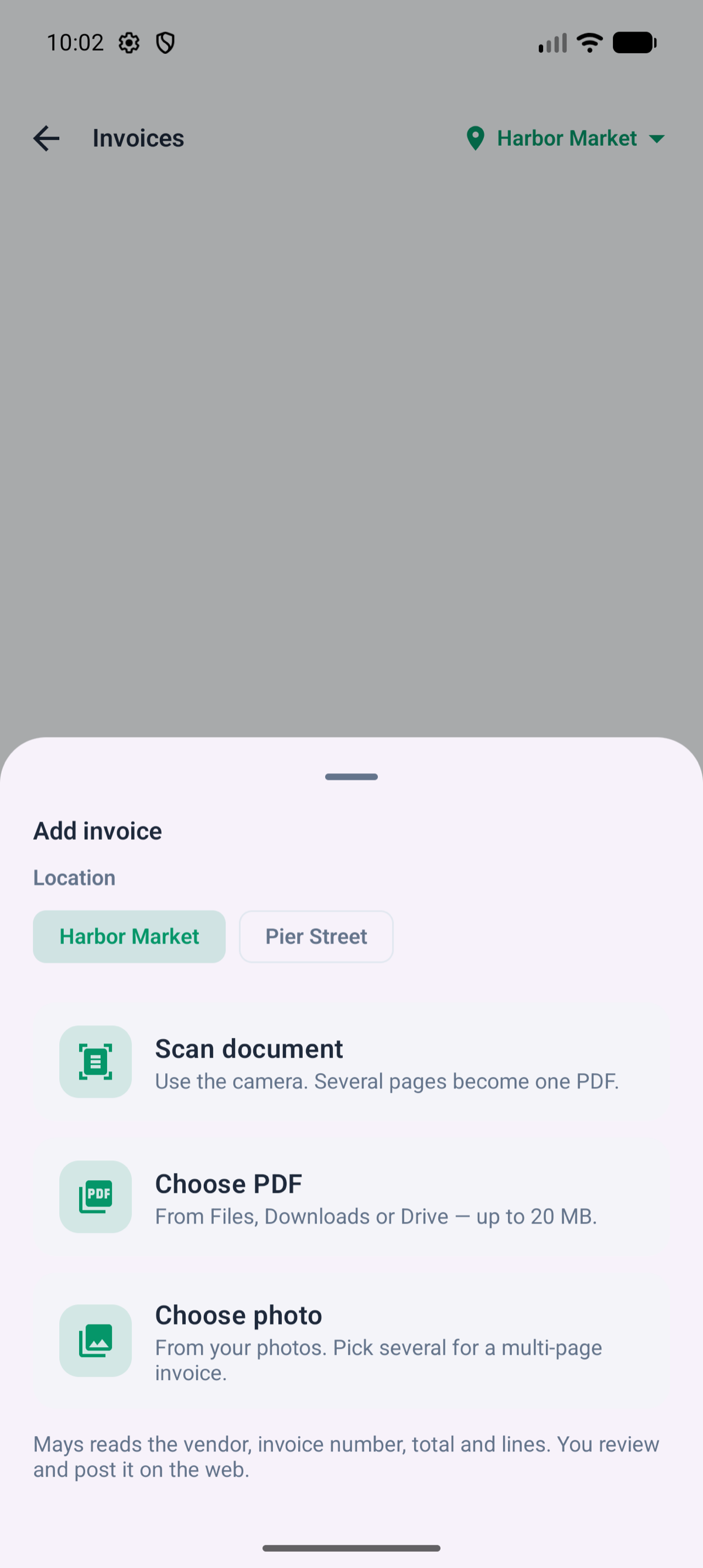
- If you run more than one location, check Location. Mays remembers the one you used last.
- Pick how to add it:
- Scan document: Google's document scanner finds the page edges and straightens each page. Scan every page of the invoice; the pages are sent as one PDF. On a phone without Google Play services, or when the scanner can't be downloaded, the camera opens instead: take one photo per page, tap Add page for the next, then Use N pages.
- Choose PDF: from Files, Downloads or Drive.
- Choose photo: a photo of the invoice from your photos. Pick several to send them as the pages of one invoice.
The app shows Reading invoice… while the AI works, then a card with what it read: vendor, invoice number, date, the number of lines, total and a picture of the document.
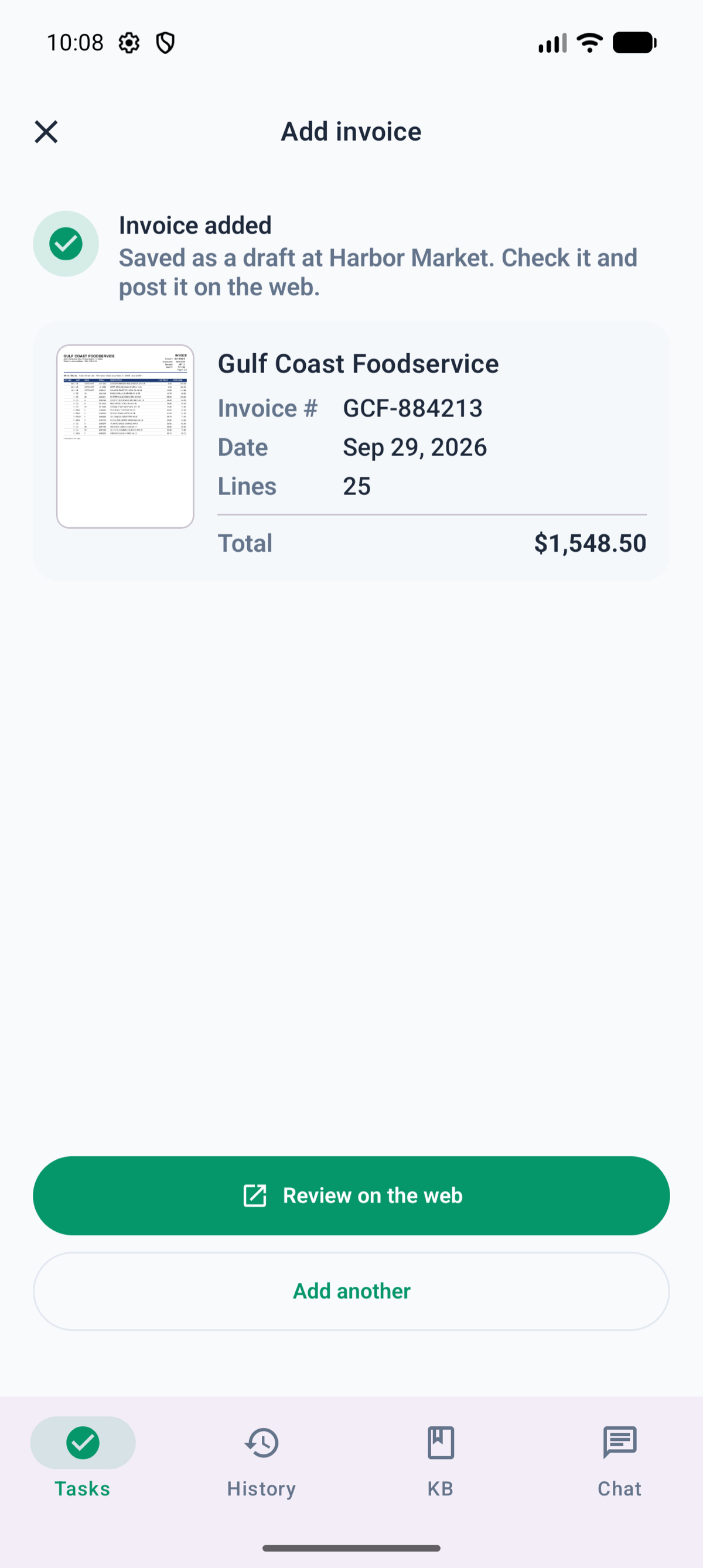
The card can also say Already in Mays (tap Remove this copy to delete the new copy), Couldn't read this — saved for review, Not an invoice or You're offline (tap Try again), the same as on iPhone. Review on the web opens the invoice at go.mays.app in your browser. Add another starts again.
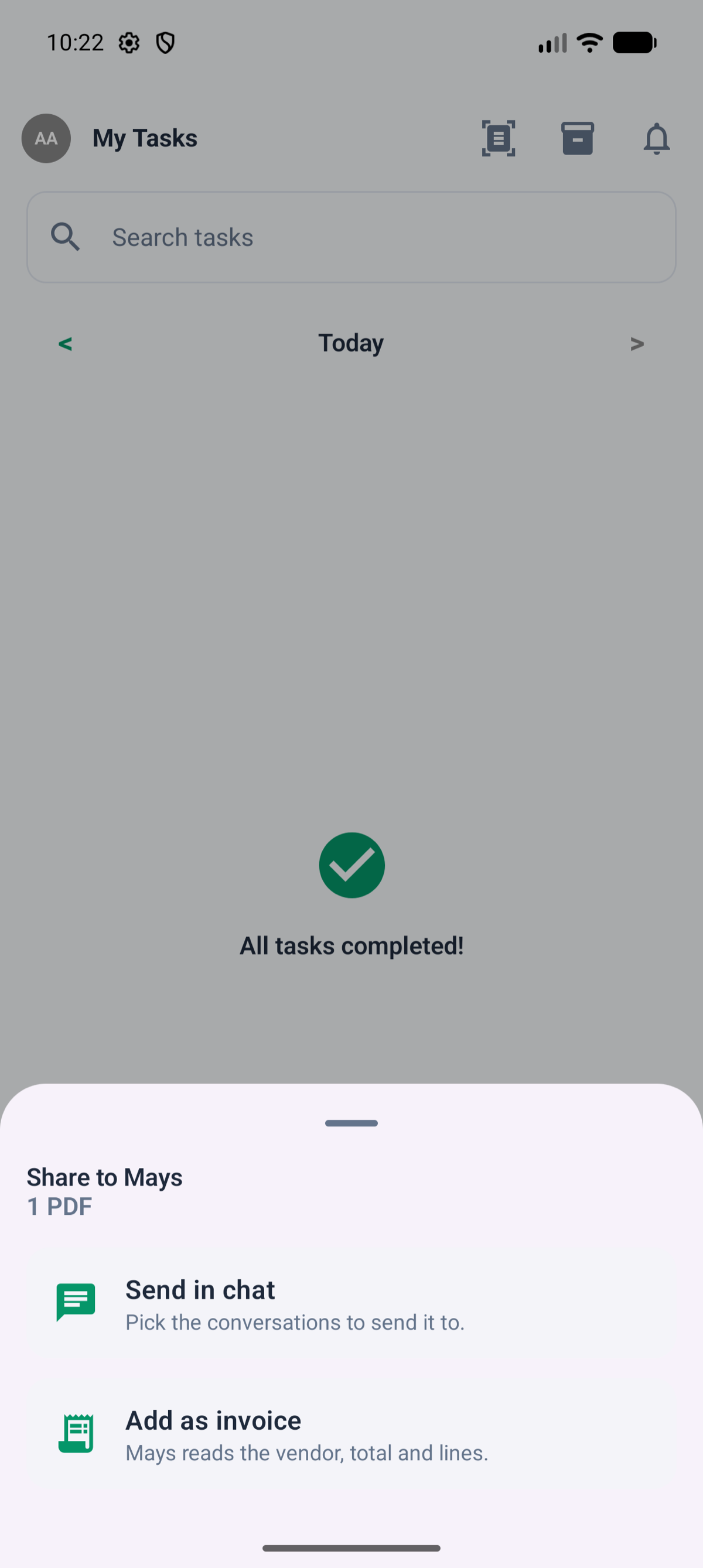
Share from Gmail or Files: share the invoice PDF or photo, pick Mays, then Add as invoice. If you run more than one location, pick it and tap Add invoice. Send in chat sends the same file in a Mays chat instead. Several PDFs shared together each become their own invoice; several photos are sent as the pages of one. If you aren't signed in, sign in first and Mays carries on.
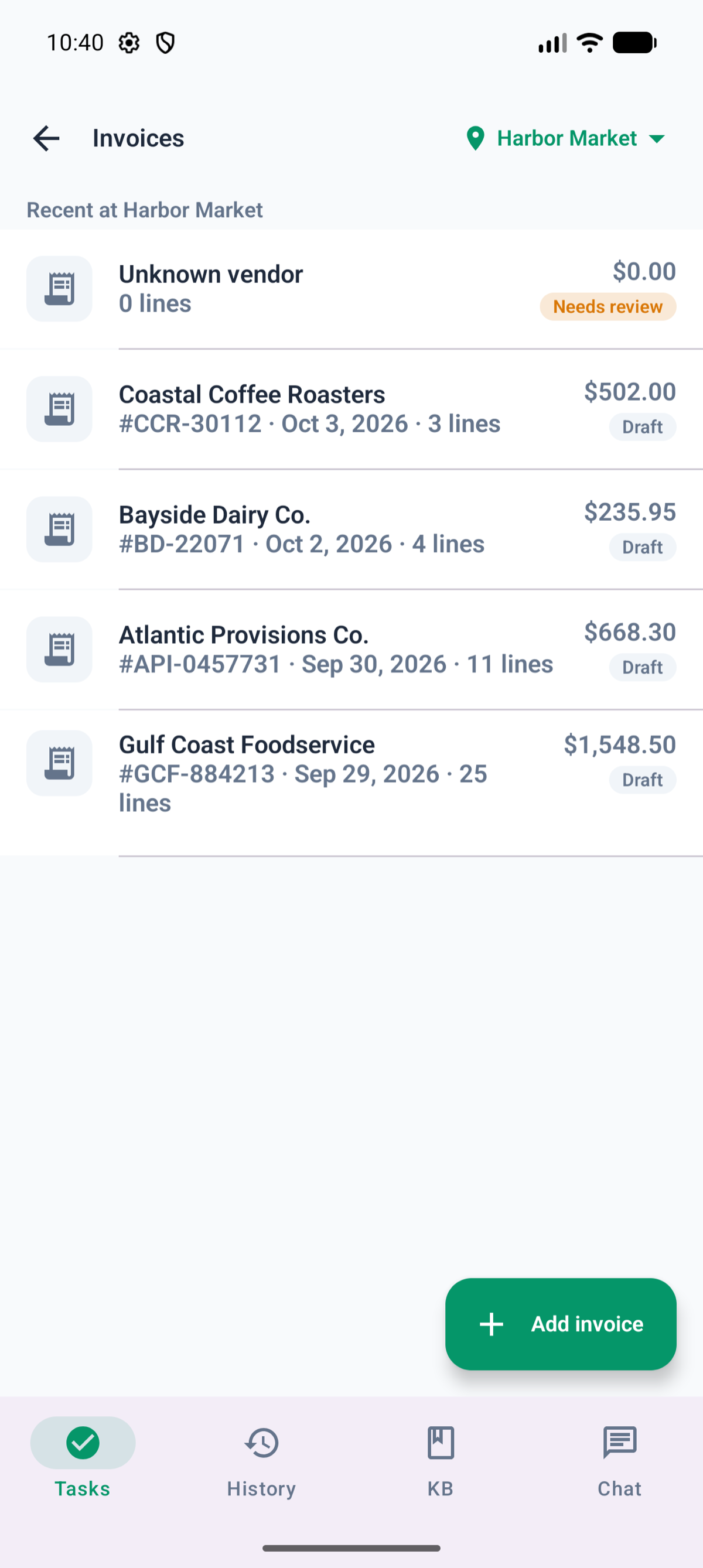
See recent invoices: tap the box icon, then Invoices. It lists the last 20 at the location, newest first, with the invoice number, date, line count, total and status: Draft, Needs review, Submitted or Posted. Tap one to see the document (every PDF page; tap a page to zoom) and the lines it read. Lines are read-only on the phone: edit and post invoices on the web.
Photos are made smaller on the phone (each page stays sharp and under about 4 MB). A PDF over 20 MB isn't sent: the app shows its size and the limit.
Check the draft
A PDF opens in a viewer next to the lines, with every page. Scroll it, or click Open PDF to open it in a new tab. A photo can be zoomed.
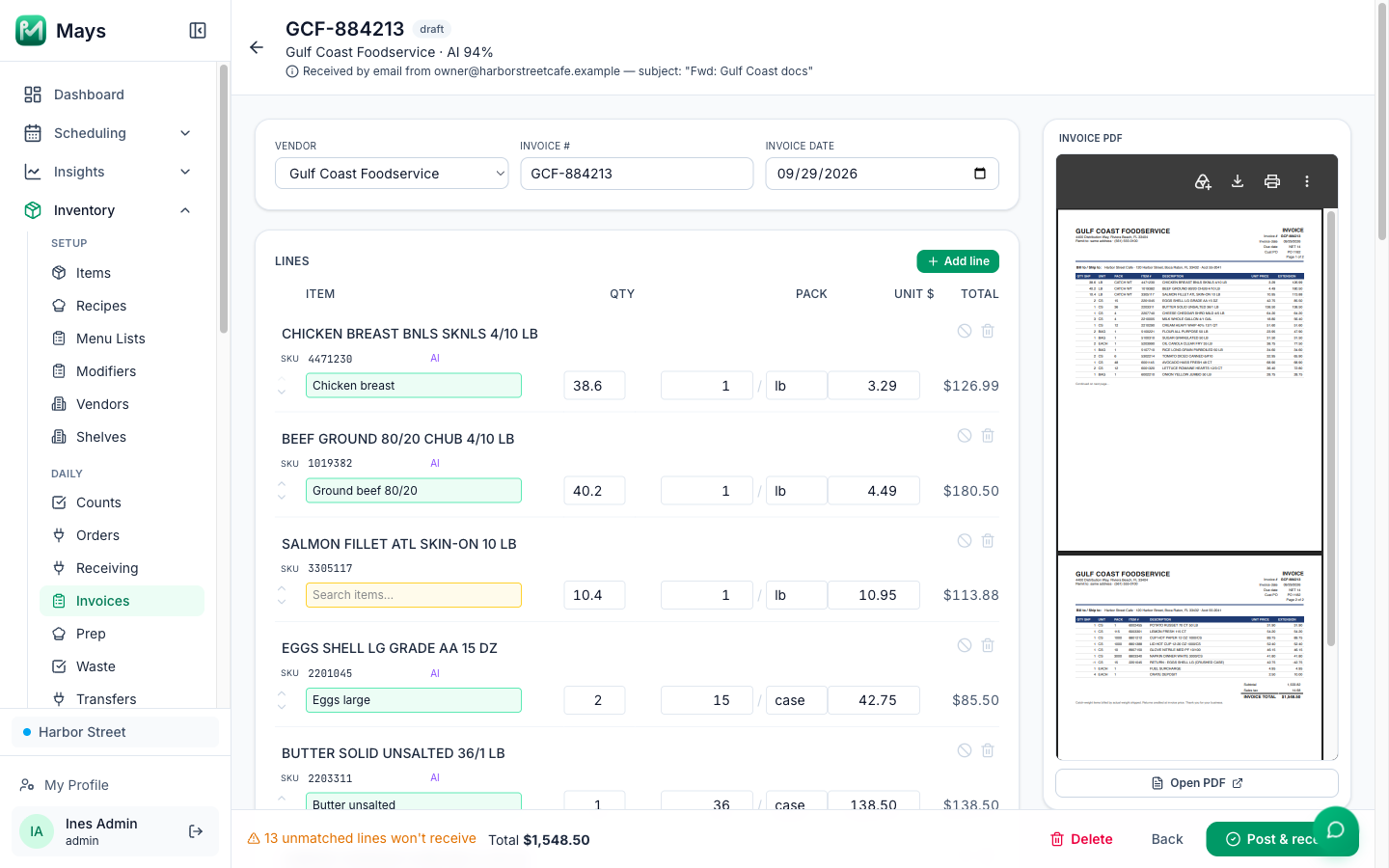
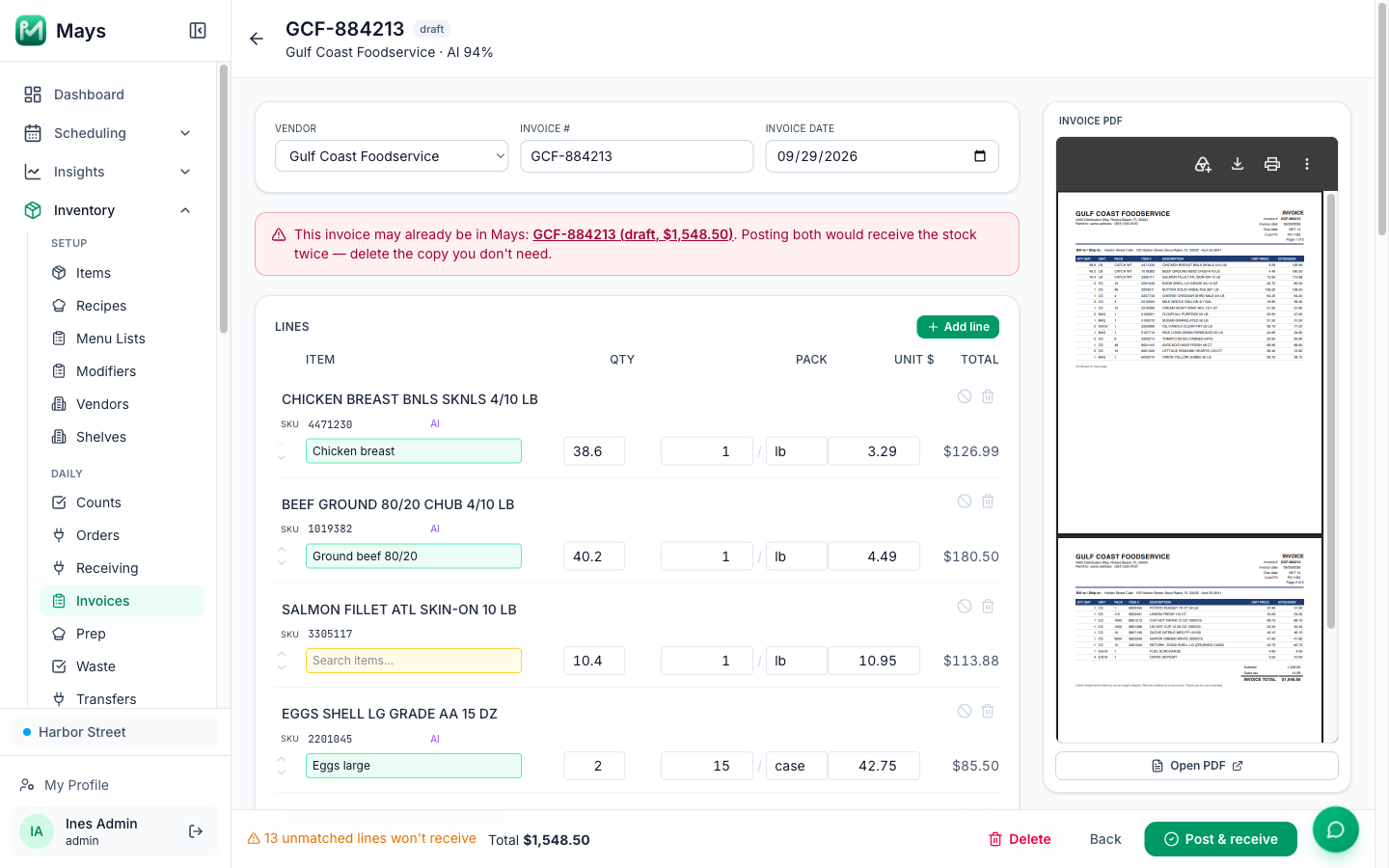
If the same vendor and invoice number are already in Mays, a red note at the top links to the other copy. Delete the one you don't need: posting both would add the stock twice. Post & receive asks you to confirm first.
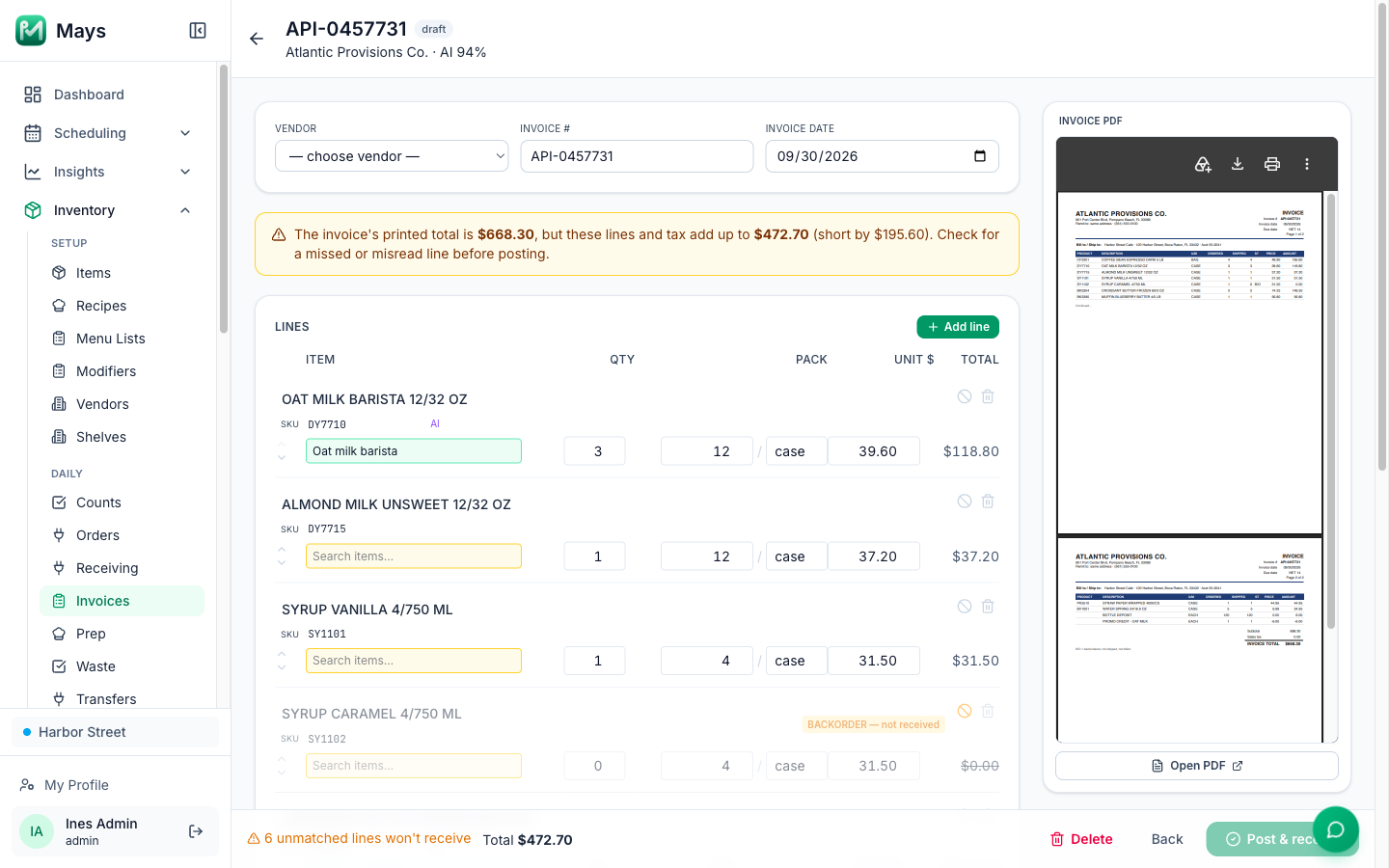
If the lines plus tax don't add up to the total printed on the invoice, a yellow note above the lines says by how much, for example short by $195.60. Usually a line was missed or misread. Compare with the document before you post.
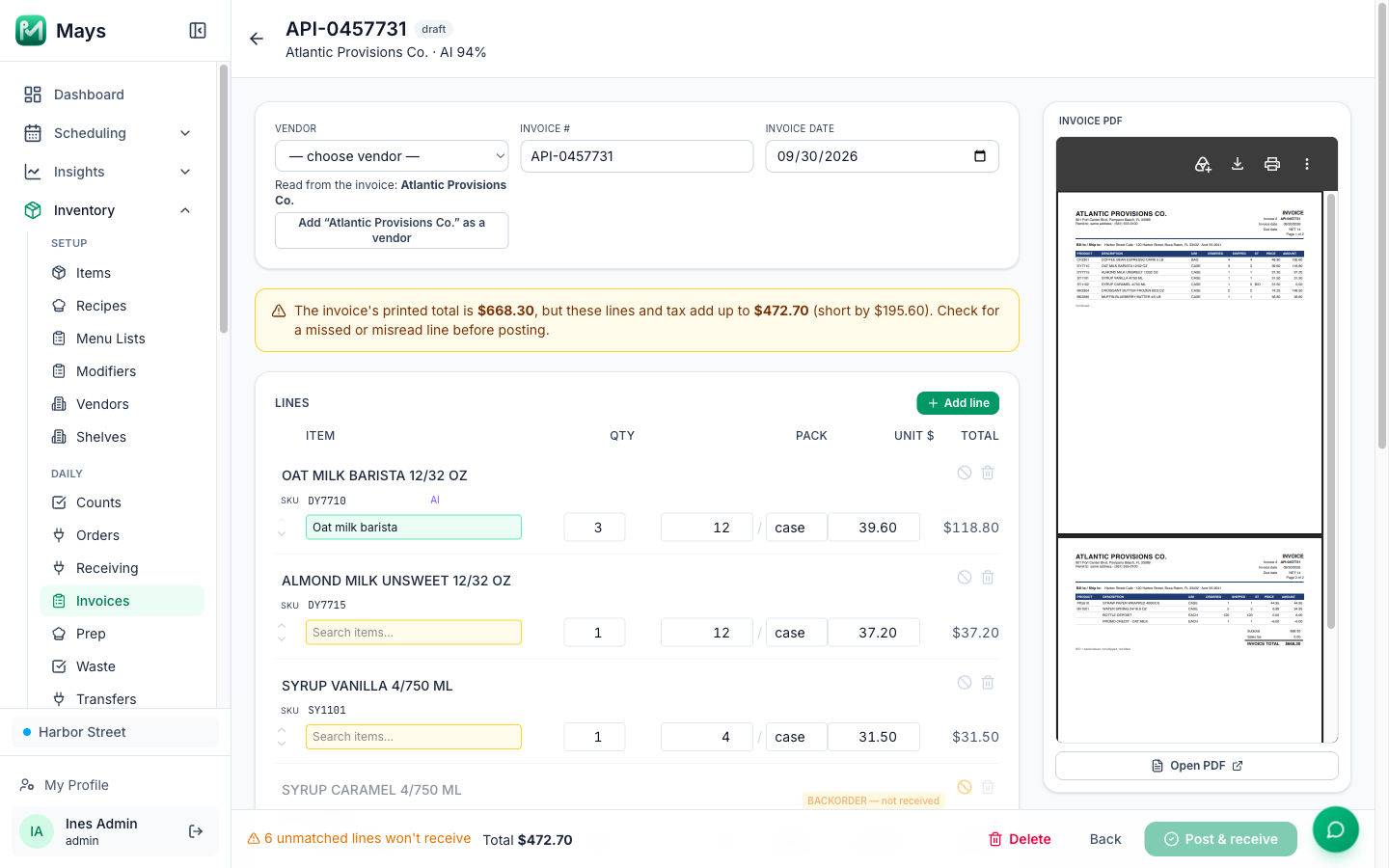
- Pick the Vendor. You can't post without one. The AI matches the vendor name it reads to your vendors, ignoring endings like Inc. or Co.. For a forwarded email it also checks who originally sent it. When the name matches none of your vendors, the name it read appears under the field. Then:
- click Use … when it suggests one of your vendors with a similar name;
- or click Add "…" as a vendor to create it. Only admins can add vendors.
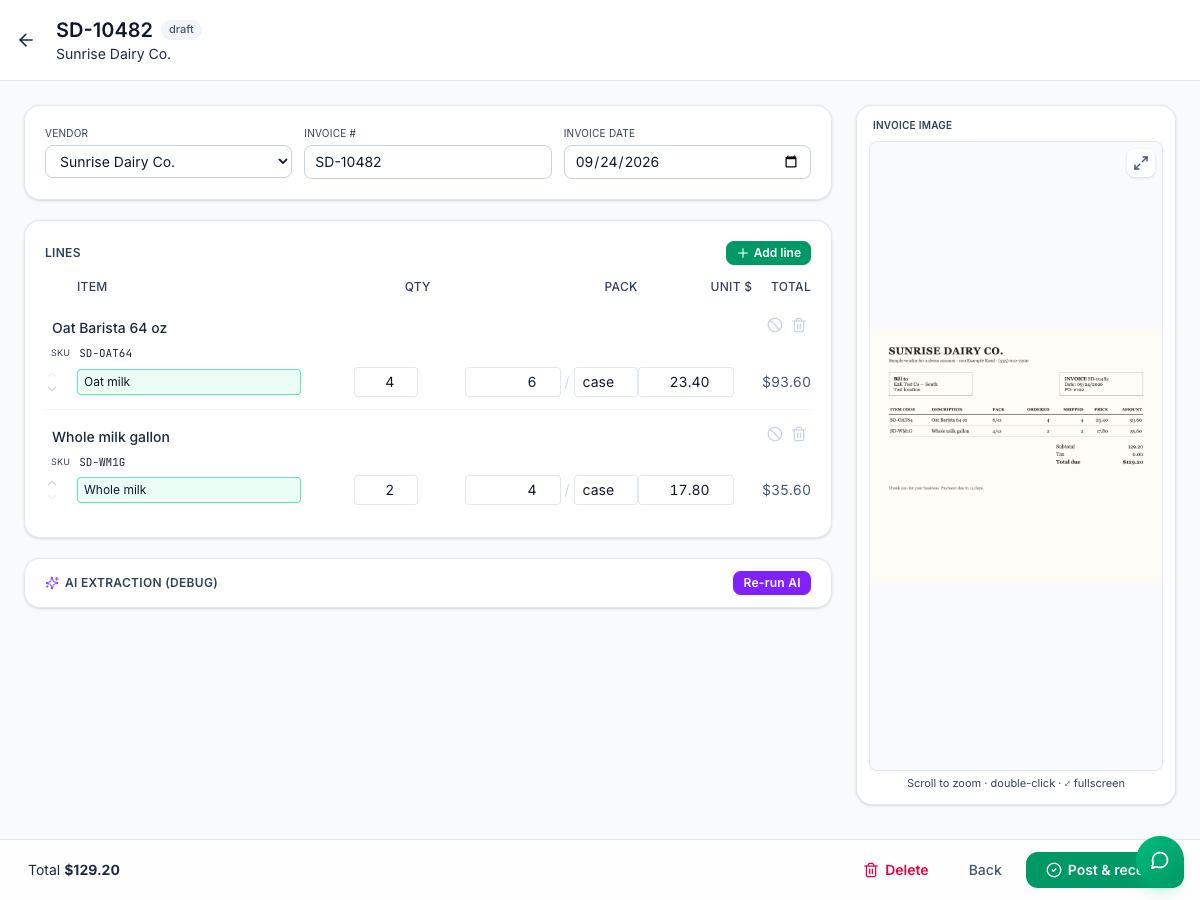
- Check the Invoice # and Invoice date.
- For each line:
- match it to one of your items in Search items…;
- check Qty (packs delivered), the pack size and pack unit (for example 6 / case) and Unit $ (price per pack);
- click the ⊘ button to mark a line BACKORDER — not received, or the trash icon to delete it.
- Use Add line for anything missing, and the arrows to put lines in the invoice's order.
The pack size is in the item's count unit: for cups counted in sleeves of 50, a case of 1,000 cups is 20, not 1,000.
Post & receive
Click Post & receive. For every matched line that isn't a backorder, Mays:
- adds the stock: quantity × pack size, in count units;
- updates this location's price for that vendor and pack, so recipe costs and the order form use it;
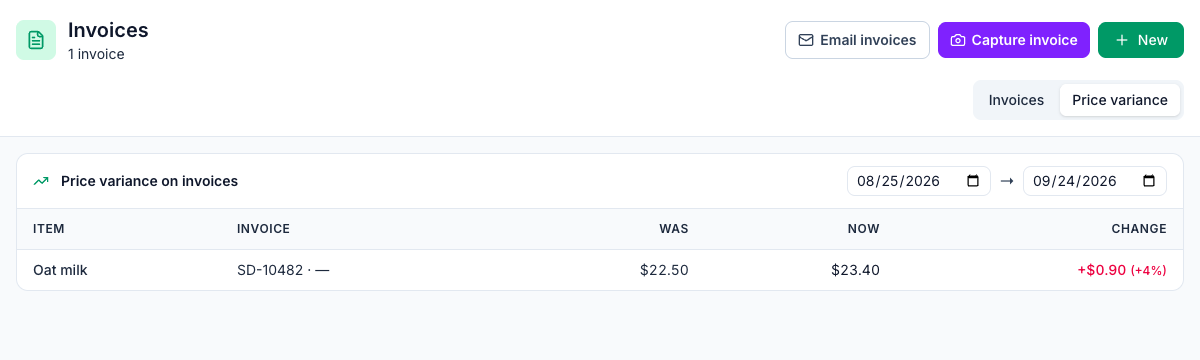
- records the price change against the previous price, for the Price variance tab and any Vendor Price Change alert set up under Insights → Alerts & Reports (see Alerts and scheduled reports). Posted invoices also feed Vendor spend.
Lines that aren't matched to an item are skipped; the footer warns you first (1 unmatched line won't receive). A matched return line (negative quantity) takes that stock back out. Credit and return lines never change your prices. A posted invoice can't be edited.
Deleting a posted invoice takes back the stock it added: Delete this posted invoice? This will reverse the received stock. Items counted again since keep their count.
To check the invoice against your order, see Placing purchase orders and Receiving deliveries.
Good to know
- PDFs and photos are both read. That includes scanned PDFs, which are pictures of the pages.
- No AI available? The draft still opens with the document attached and no lines. Fill it in by hand.
- Size limits: photos up to 10 MB, PDFs up to 20 MB.
- The list's Vendor column and the Price variance tab show the vendor you picked, or the name the AI read.
- Posting creates a price for this location. It appears on the item as a vendor price marked this location.