If you already use ChatGPT, Claude or Grok, you can connect Mays to it and ask about your restaurants from there — "Who's on at Midtown right now?", "Anything waiting for my approval?", "Any fridges out of range today?". The AI app works in Mays as you: your locations, your permissions, nothing more.
If your admin turns on actions and you allow it when you connect, it can also make changes for you — "Add Jordan Price as a barista at Midtown", "Approve Sam's time off", "Add 'check the ice machine' to the closing checklist" — and it always shows you what will change and waits for your yes first. See Let it make changes.
Managers and admins can connect. It works on every Mays plan and doesn't use AI credits: the AI runs on your own ChatGPT, Claude or Grok plan.
The address to use
Every AI app asks for the same thing — the Mays server address:
https://go.mays.app/mcpPaste it exactly, with no slash at the end. You'll also find it, with a Copy button, under Settings → Connected AI apps in Mays.
Connect in Claude
Custom connectors work on every Claude plan (the Free plan allows one).
Pro or Max:
- In Claude, go to Customize → Connectors.
- Click + Add, then Add custom connector.
- Name it Mays, paste
https://go.mays.app/mcpand click Continue. - Keep the suggested sign-in settings and click Add.
- Click Connect. Claude opens Mays: sign in if you're asked, then click Allow (see What you approve below).
Team or Enterprise: an Owner adds the connector once, under Organization settings → Connectors → Add → Custom → Web, with the same address. Then each person goes to Customize → Connectors, finds Mays and clicks Connect, so everyone signs in to Mays with their own account.
To use it in a chat, click + at the bottom left, then Connectors, and switch Mays on. It also works in the Claude desktop and mobile apps once it's added on the web.
Connect in ChatGPT
ChatGPT connects Mays through developer mode, on Plus, Pro, Business, Enterprise and Edu plans, on the web.
- In ChatGPT, open Settings → Security and login and turn on Developer mode. (On Business, Enterprise and Edu, a workspace admin may have to allow it first.)
- Go to chatgpt.com/plugins and click +.
- Name it Mays, add a short description, and under Connection paste
https://go.mays.app/mcp. Leave authentication on OAuth. - Create it. ChatGPT opens Mays: sign in if you're asked, then click Allow.
To use it, click + in the message box, choose Developer mode and switch Mays on. Naming it helps: "Use Mays to show today's schedule at Midtown."
On Business and Enterprise, a workspace admin can add Mays once and publish it to the workspace; each person still signs in to Mays with their own account.
Connect in Grok
- Go to grok.com/connectors.
- Click New Connector, then Custom.
- Paste
https://go.mays.app/mcpand sign in to Mays when Grok asks, then click Allow.
On Grok Business and Enterprise, a team admin has to add the connector first. Grok doesn't say which personal plans include custom connectors; if you don't see Custom, your plan doesn't have it yet.
Grok support is newer than ChatGPT and Claude: if Grok can't finish signing in to Mays, write to Mays support and we'll switch it on for Grok.
Claude Code and other tools on your computer
Developer tools that run on your own computer, like Claude Code or MCP Inspector, can connect with the same address. Mays shows an extra warning on the approval page for them — continue only if you started the connection yourself.
What you approve
When the AI app sends you to Mays, sign in (pick the organization if you belong to more than one), and Mays shows what you're about to allow:
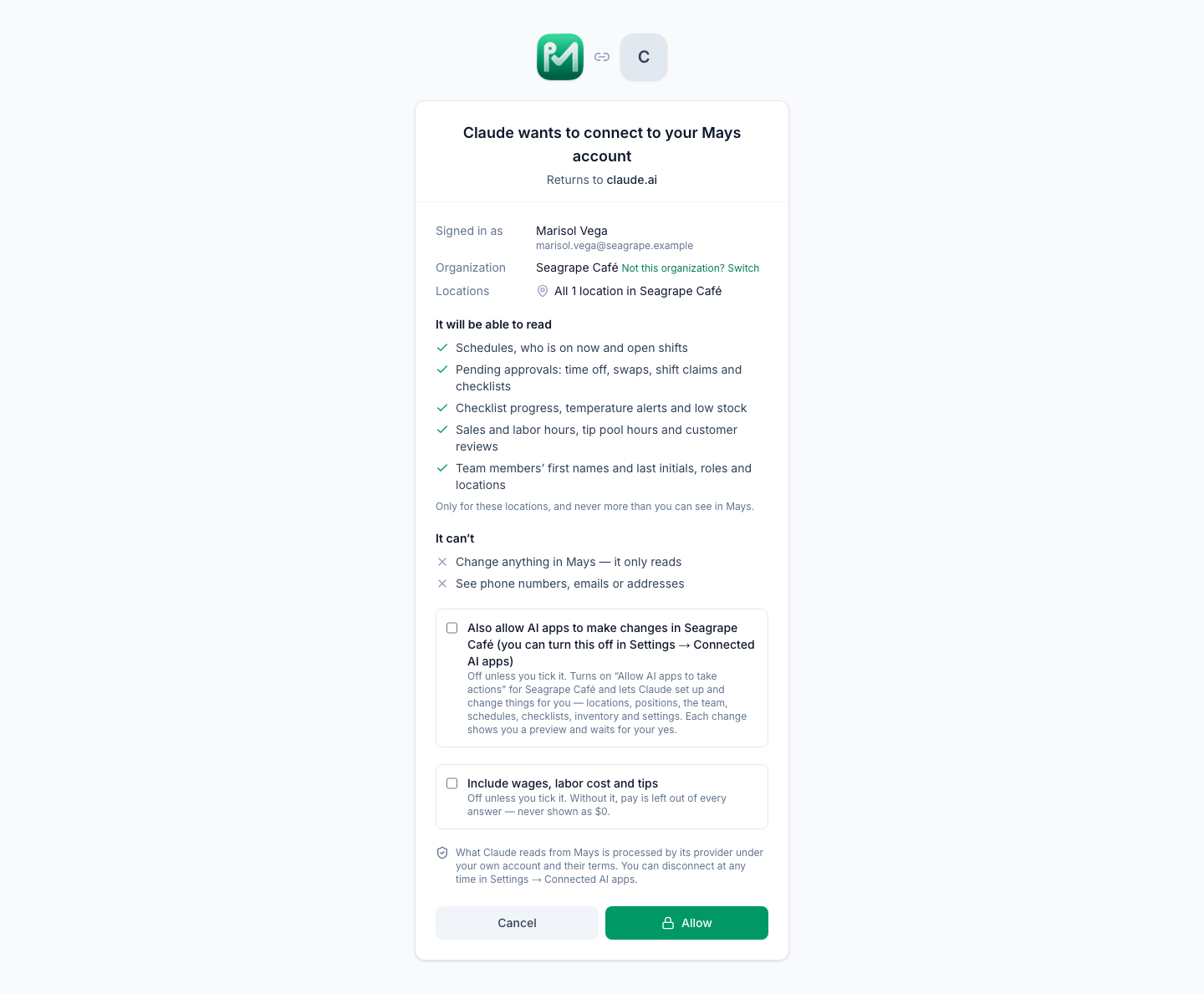
- The app and where it returns to, like claude.ai or chatgpt.com. If the name or the address looks wrong, click Cancel.
- Your account and organization. Wrong organization? Click Not this organization? Switch to sign in again and pick another one.
- Locations: admins see All locations; managers see the locations they're assigned to.
- What it can read: schedules and who's on, open shifts, pending approvals, checklist progress, temperature alerts, low stock, sales and labor hours, the tip pool and customer reviews.
- Let app make changes in Mays (it will always ask you to confirm first): shown only when your organization allows actions from AI apps and your role can make at least one of the changes. Off unless you tick it; without it, the app can only read.
- Also allow AI apps to make changes in your organization (you can turn this off in Settings → Connected AI apps): shown instead, only to an admin, while the organization hasn't turned on actions yet — typical right after you sign up. Ticking it turns on Allow AI apps to take actions for the organization (recorded in Mays) and lets this app make changes. Every change still shows you a preview and waits for your yes. Managers never see this box.
- Include wages, labor cost and tips: shown only if you can see pay in Mays, and off unless you tick it. Without it, pay is left out of every answer, and the app can't set wages.
Click Allow and you're back in the AI app, connected. Cancel sends you back without connecting.
You'll see a message instead of the Allow button if:
- you're not a manager or admin (Ask your manager);
- your organization has turned AI app connections off;
- the request took longer than 10 minutes (start again from the AI app).
What it can and can't see
- It sees only your locations and only what your role can see in Mays. If your role or locations change, the next answer follows.
- People appear as first name and last initial. It never sees phone numbers, email addresses or home addresses.
- Unless you ticked make changes (and your admin allows it), it only reads. Even then, it can only make the changes your own role can make in Mays, and never without your yes.
- Times are on each location's own clock.
- Notes written by your team or by customers (time-off notes, reviews) are passed on as quotes, and the AI app is told never to follow instructions inside them.
What you can ask
Ask in your own words; the AI app picks the right part of Mays. A few examples:
- Who's working, and where the gaps are: "Who's on at Midtown right now?", "Show me next week's schedule at Riverside", "Where does Tuesday's schedule leave nobody on?", "Was anyone missing yesterday afternoon?" Ask about a week and you get the week grid (see What you see in the chat); one question can cover up to 14 days. Each shift comes with its clock-in and clock-out and its scheduled and worked hours, and each day lists its coverage gaps: stretches of 15 minutes or more between the first and last shift with nobody scheduled, and (up to now) stretches where a shift was scheduled but nobody was clocked in.
- Timecards: "Who went over their schedule on Saturday?", "Show Jordan's punches this week", "Which punches were edited or auto clocked out last week?" Each punch shows clock-in, clock-out, breaks, the shift it belongs to, how far it ran over or under, minutes late, an early clock-out, overtime, and whether a manager added or edited it (who, and when it last changed). Up to 31 days at a time; wages only with pay access.
- Attendance patterns: "Is Sam's no-show a pattern?", "Who's been late most this month?" Per person: no-shows, late arrivals with the average minutes late, call-outs, sick days, early clock-outs, attendance % and the reliability score Mays uses to suggest cover. Up to 92 days; someone working a double isn't counted as a no-show on their second shift.
- Sales and labor, broken down: "Last week at Midtown, day by day, with labor %", "Compare my locations this month", "Whose hours were highest last week?" One answer can split the numbers by day, week, location or daypart, and lists each person's scheduled and worked hours.
- When sales happen (admins, or anyone who can open Insights): "Which hours are busiest at lunch?", "Does the 10am–4pm mid shift match the lunch rush on weekdays?", "Sales by daypart last month, with how many people were on." Sales, orders and average ticket per hour or per daypart — breakfast 6–11am, lunch 11am–2pm, afternoon 2–5pm, dinner 5–9pm, late night 9pm–6am, on each location's clock — with the people scheduled and clocked in, and labor cost only with pay access.
- Orders and product mix (anyone who can view reports in Mays): "Which items sell together?", "What did weekday lunch orders look like last week?", "Which items get discounted most?", "What are my best and worst sellers this month?", "How many of last week's guests came back?", "Show me online orders over $50." It reads the orders your POS (Square or Union) sends to Mays: each order's items, modifiers, discounts, tax, tip and channel, and your product mix by item, category or modifier, with each one's share of sales and how often it's in an order. Guests appear only as an anonymous code, so the AI can tell a returning guest apart without seeing who they are; card details and payment messages are never sent. Mays doesn't receive the names of discounts from the POS, only their amounts. Up to 31 days at a time; long lists come in pages.
- Labor targets: "What's Midtown's labor target this week?", "Did any location go over its labor target last week?" Mays keeps a labor % target and a labor budget per schedule week, the same ones as the labor card on the schedule. Sales and labor answers say when a location went over its labor % target, and schedule answers say when the week as scheduled would (labor cost against the sales forecast, with pay access). Mays can't store a minimum staffing level per daypart or a maximum shift length yet; the AI app tells you so instead of making one up.
- A suggested schedule: "Suggest next week's schedule at Riverside", "How should I staff next week to stay at 25% labor?", "Draft next week and make sure there are always 3 people on." Mays runs its own auto-scheduler for that week without changing anything: it keeps every shift already there and proposes what to add (last week's pattern, checked against time off, availability, people's notes, minors' rules and the weekly hours cap). The answer shows the sales forecast by day and daypart, the proposed shifts, the hours and — with pay access — the labor cost and labor % against your target, roughly how many hours to cut to reach it, and the dayparts with fewer people on than you asked for. The forecast averages the same weekday over the last 8 weeks but skips days with no sales, so it tends to run a little high. To use the suggestion, ask the AI app to add it (see Let it make changes).
- Comparisons: "How did this week compare with last week?", "Are we up on the same week last year?", "This month vs last month at Riverside", "Which location has the best labor %?", "Rank my stores by sales per labor hour." The AI app compares two periods (this week so far against the same days last week, the same week last year, or any two date ranges) or puts every location you can see side by side, with each one's rank and the median. It covers net sales, orders, average ticket, clocked labor hours, sales per labor hour, labor cost and labor % (with pay access), food cost and prime cost (see below), no-shows, late arrivals and your top items. "Last year" means the same weekdays 52 weeks earlier, so a Monday is compared with a Monday. When Mays has no data for one side, for example because your POS was connected after that week, the answer says so instead of showing a drop to zero.
- Food cost and prime cost (anyone who can open Insights, or Inventory reports): "What was my food cost % last week?", "How much did we waste this month?", "What's prime cost by location?" Food cost is Mays' theoretical food cost: what the items you sold should have used, from their recipes and your ingredient prices. The answer says how much of your sales is mapped to recipes (unmapped items add no cost, so a low share means food cost reads low) and lists the best-selling items still to map. It also shows what you bought on posted invoices, and the Waste Log by reason and item. Prime cost (labor plus food cost) needs View insights and pay access. Mays can't yet give food cost from your inventory counts (opening plus purchases minus closing), because counts don't store a dollar value.
- Overtime risk: "Who's going into overtime this week?", "Can I give Sam another shift?", "Who should I cut before Friday?" For this workweek (or next), the AI app adds the hours each person has already clocked to the hours they're still scheduled, using each location's own overtime rules. It lists who's already in overtime, who the schedule will push over, and who's within a few hours of it, with their next shift. Dollar amounts appear only with pay access. Mays counts overtime per location, so hours at two locations aren't added together; anyone over the weekly limit only when you add their locations together is flagged separately so you can check.
- Cancellations, refunds and discounts (anyone who can view reports in Mays): "Why so many cancellations this week?", "How many orders were refunded?", "Which items get discounted most?" From your POS orders: canceled orders and how each one ended (card declined, abandoned before paying, or paid and then canceled or refunded), the card decline reasons, and the items, hours and channels involved, plus discounts by item. Mays can't show comps or voids by employee, or discount names, because the POS doesn't send them. A refund issued later on a Square order that stays completed isn't included either.
- Inventory and ordering (anyone who can view inventory): "What do we pay Sysco for romaine?", "What's our par for oat milk at Riverside?", "What do I need to order for Midtown?", "Which orders are still drafts?" The AI app looks up your items (unit, pack, par and on-hand at each location, and each vendor's SKU and last price) and builds an order from your par levels the way Suggest from par does: per vendor, the packs to order, the total, the next delivery day, the order cutoff on the location's clock and the vendor's minimum. Building an order changes nothing. Prices show for anyone who can view inventory, as in Mays.
- What this connection can do: "Can you make changes in Mays?", "Why can't you add shifts?" The AI app checks the connection and tells you what's switched off and how to turn it on — for example, that an admin has to turn on Allow AI apps to take actions, or that you need to connect again with make changes ticked.
- Tips, checklists and the rest: "How were tips split last week?", "How did the closing checklists go this week?", "Any fridges out of range today?"
Dates work the way you say them: today, yesterday, this week, last week, next week, the last 7 days, the last 30 days, or any from–to range. Weeks run Monday to Sunday, on each location's own calendar. When an answer would be too long for the chat, Mays sends the first part and says so — ask for one location or fewer days to see the rest.
What you see in the chat
In ChatGPT and Claude (web, desktop and mobile), many answers come with a Mays card under the AI's reply: a compact, live view of what you asked about. The AI still answers in words too, and every card has an Open in Mays button that takes you to the same place in the Mays app. Grok and other apps show the answer as text.
Cards follow your app's light or dark mode, fit a phone screen, and show only what the answer contains — the same people, locations and pay rules as above.
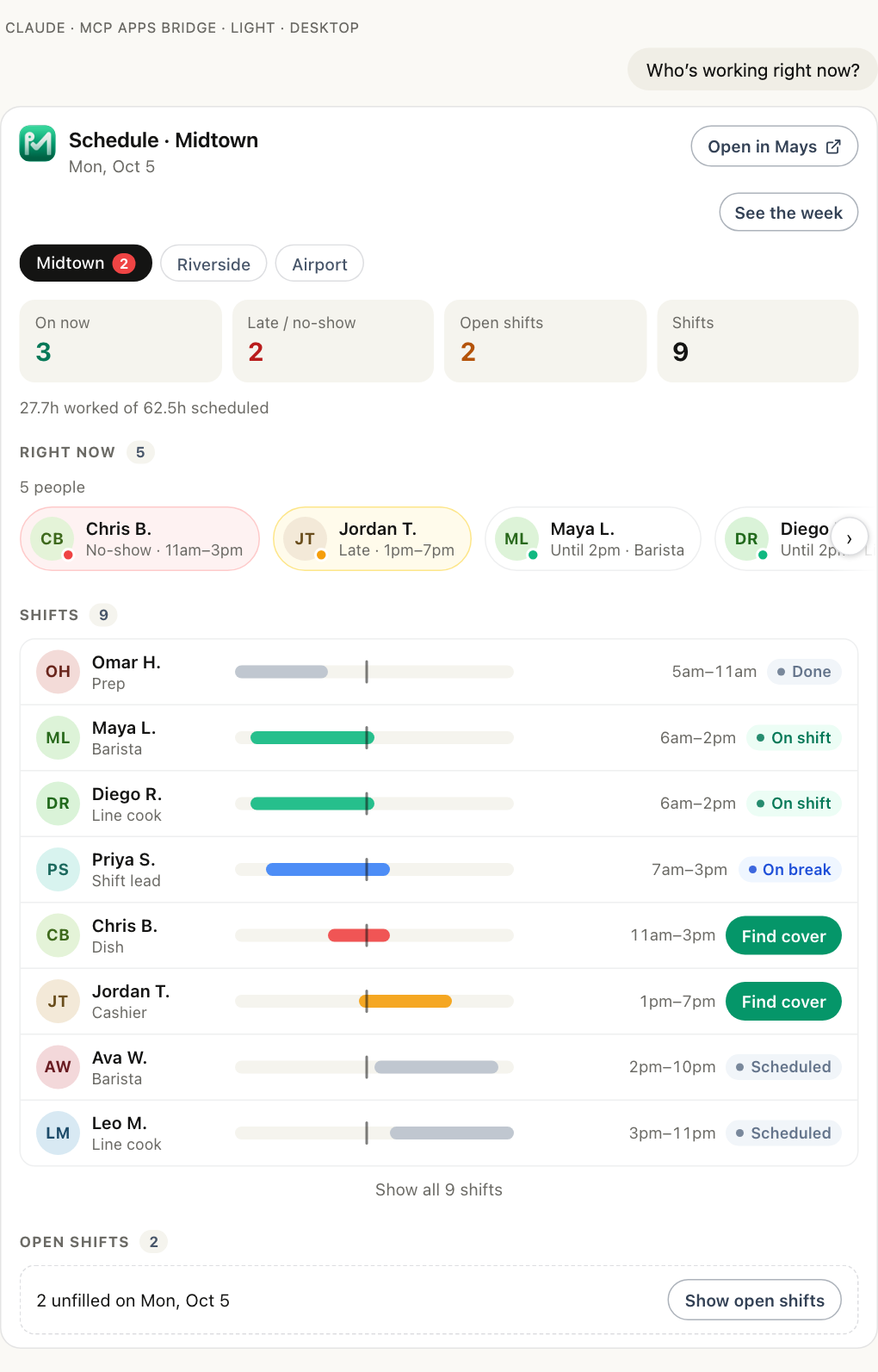
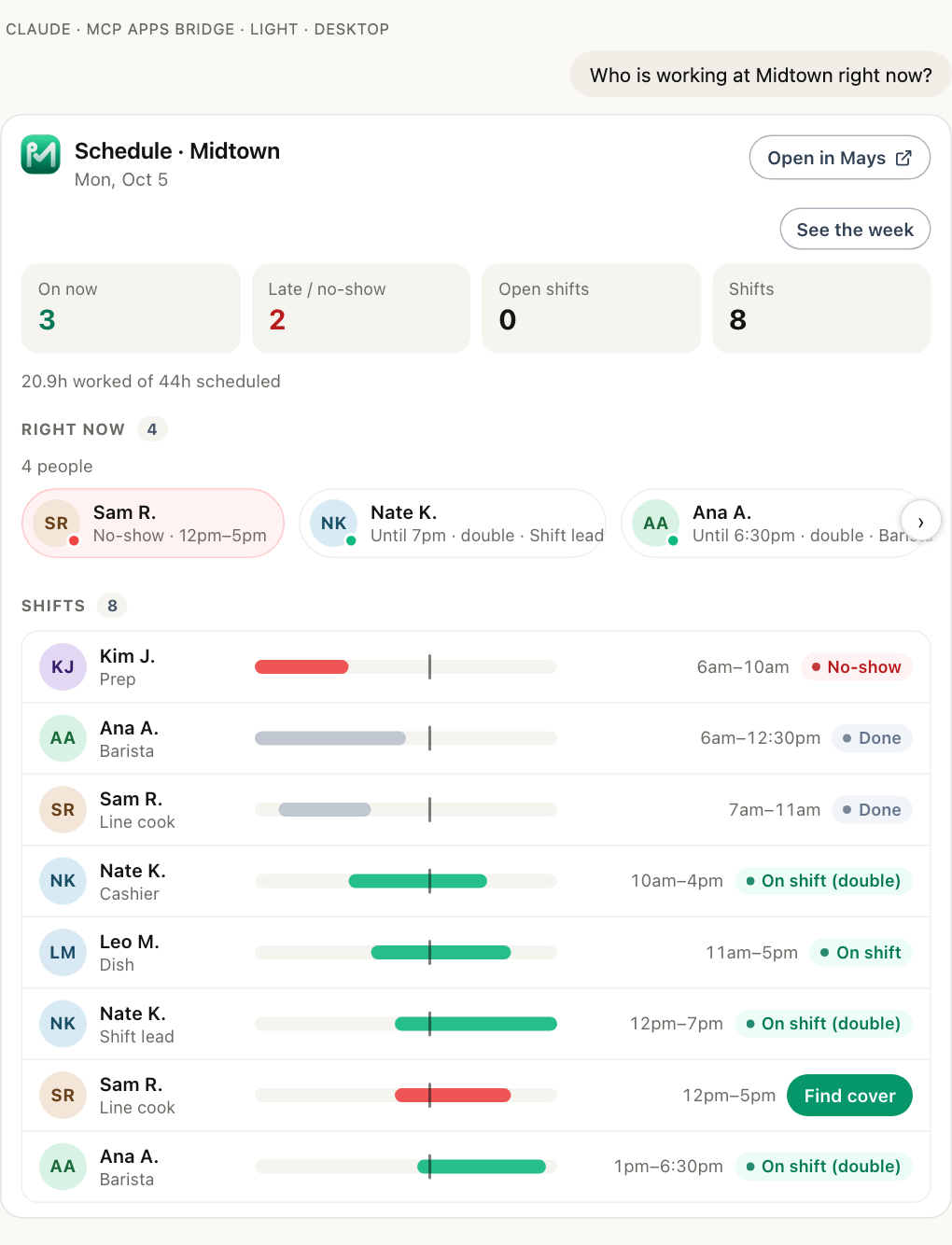
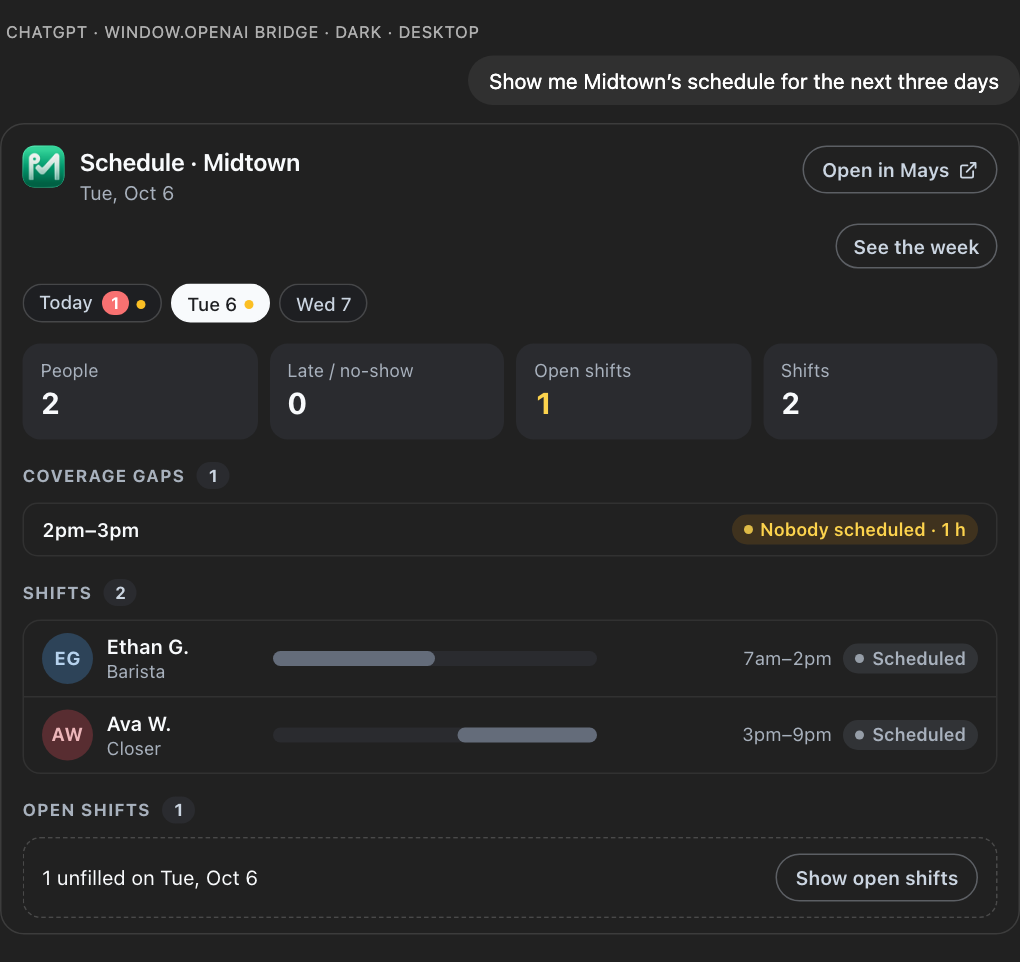
Schedule. Ask "Who's working right now?" The card shows who should be in and isn't (no-shows in red, late in amber) first, then who's on shift or on a break, today's shifts on a timeline with a line for now, and how many shifts are still open. Each person appears once under Right now: someone working a double shows with the later end (Until 9:30pm · double), and their second shift reads On shift (double), not No-show. With more than one location, switch between them at the top; the card opens on the location that needs you most, and ChatGPT remembers the one you picked. Find cover asks the AI to find someone for that shift — it's offered only for a late or no-show shift that hasn't ended yet; a finished one just keeps its No-show or Late label. Show open shifts lists the unfilled shifts, with pickup requests and whether a cover request already went out. Ask about another day ("How did yesterday go?") and the card shows that day's shifts and statuses, with People instead of On now and no Right now row. See the week switches the card to the week grid below. Ask about days that run across two schedule weeks ("Midtown from Saturday to Tuesday") and a row of day buttons appears under the location: pick a day to see it. A dot marks a day with a coverage gap, and the card lists that day's gaps (Nobody scheduled in amber, Nobody clocked in in red) and the hours worked against the hours scheduled.
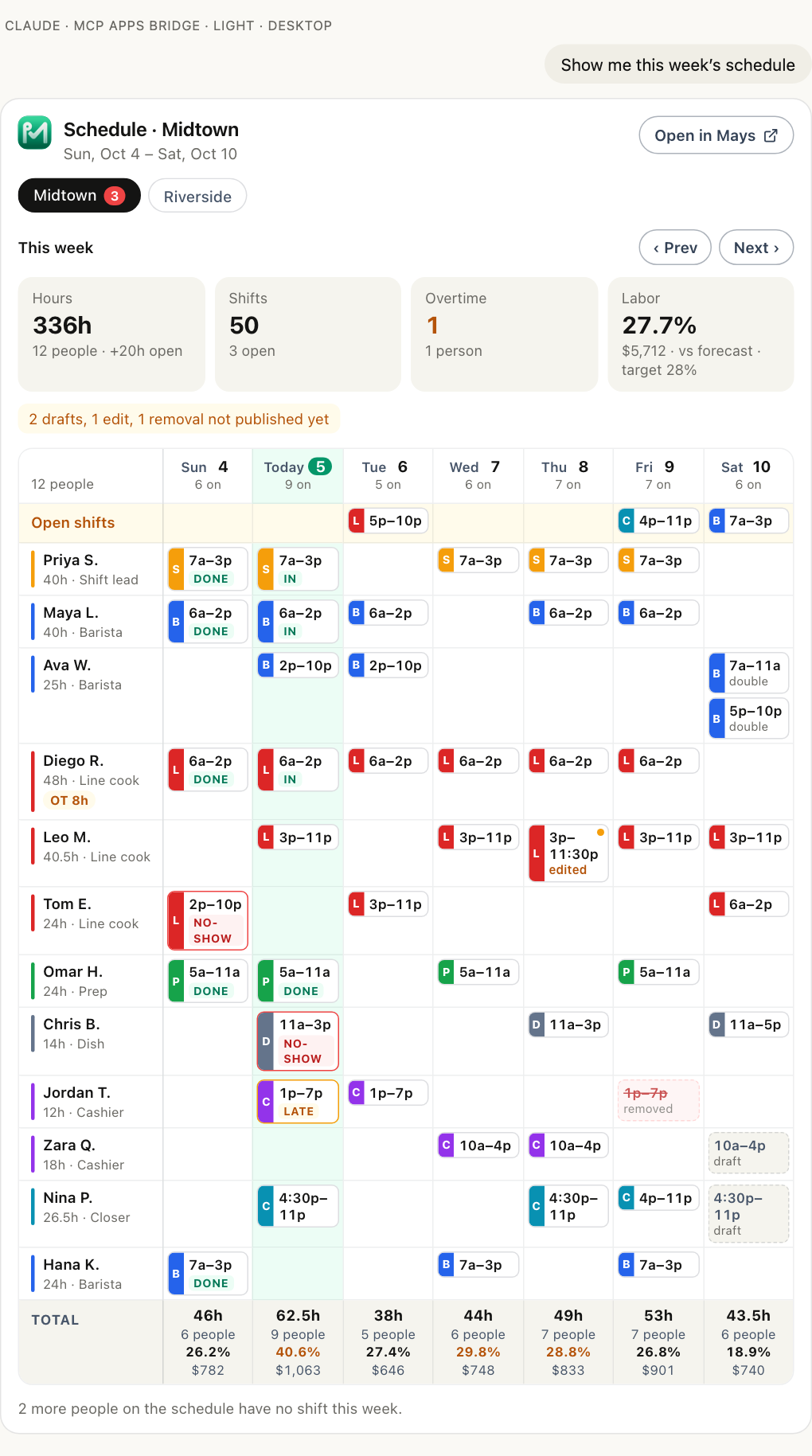
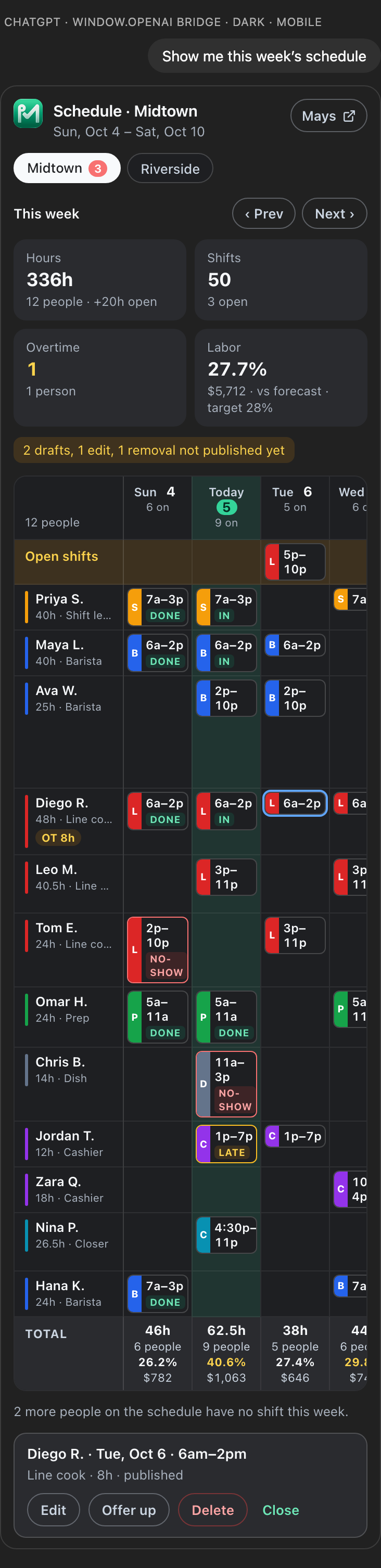
The week. Ask "Show me this week's schedule", "What does next week look like at Riverside?" or just "Show me the schedule" and the card shows the week the way the schedule page in Mays does: a row per person, a column per day, and each shift as a chip in its position's colour with the position's first letter. The week starts on the day the location's schedule starts on (Workweek starts on), and today's column is highlighted. Like on the schedule page:
- Drafts (shifts staff can't see yet) have a dashed border and say draft; a published shift with a change waiting to be published has an amber dot and says edited; a shift that will be removed when you publish is struck through and says removed. A line above the grid counts what isn't published yet.
- On past days and today, each published shift shows how it went: No-show and Late with a red or amber border, Late in, In, Done or Called out. Two shifts on one day for the same person both say double.
- Open shifts have their own row at the top. Under each name are the person's hours for the week and, if the week puts them into overtime under the location's overtime rules, an OT badge with the hours (the same people as the schedule's OT warnings).
- The Total row has each day's hours and number of people; with pay access it also has the day's labor cost and labor % (against the day's sales, or the forecast for days still to come), and the tiles show the week's labor cost and labor % against your target. Without pay access there are no dollar amounts or labor %.
‹ Prev and Next › move a week at a time, and the location buttons switch locations. Tap a day's heading to open that day's card (who's on, the timeline, coverage gaps); Back to week returns to the grid. Tap a shift to see its details. If your connection can make changes, the shift also offers Edit, Offer up and Delete: these don't change anything by themselves — they ask the AI to do it, and the AI shows you Mays' preview and waits for your yes, as with any change. Open in Mays opens that week on the schedule page. On a phone the grid scrolls sideways with the names staying in place, starting at today. The card lists up to 40 people per location and about 300 shifts; if a week has more, it says how many it shows and the totals still count everyone.
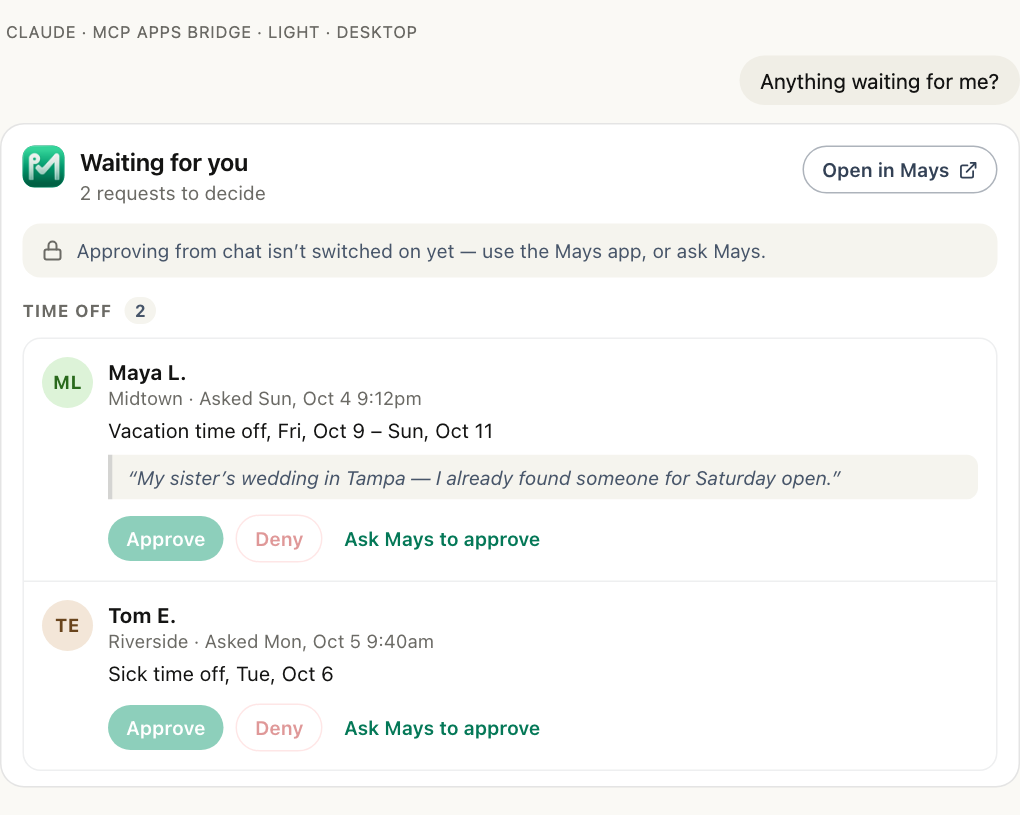
Approvals. Ask "Anything waiting for me?" The card groups time off, swaps and handoffs, shift pickups and checklists to review, with each person's note as a quote and warnings (like an overlapping shift) in amber. When your admin allows actions and you ticked make changes when you connected, Approve and Deny show Mays' preview on the card and Confirm makes the decision (see Let it make changes). Otherwise the buttons are greyed out with the reason underneath — like below, on a connection that can only read — and you can approve in Mays or tap Ask Mays to approve to have the AI walk you through it.
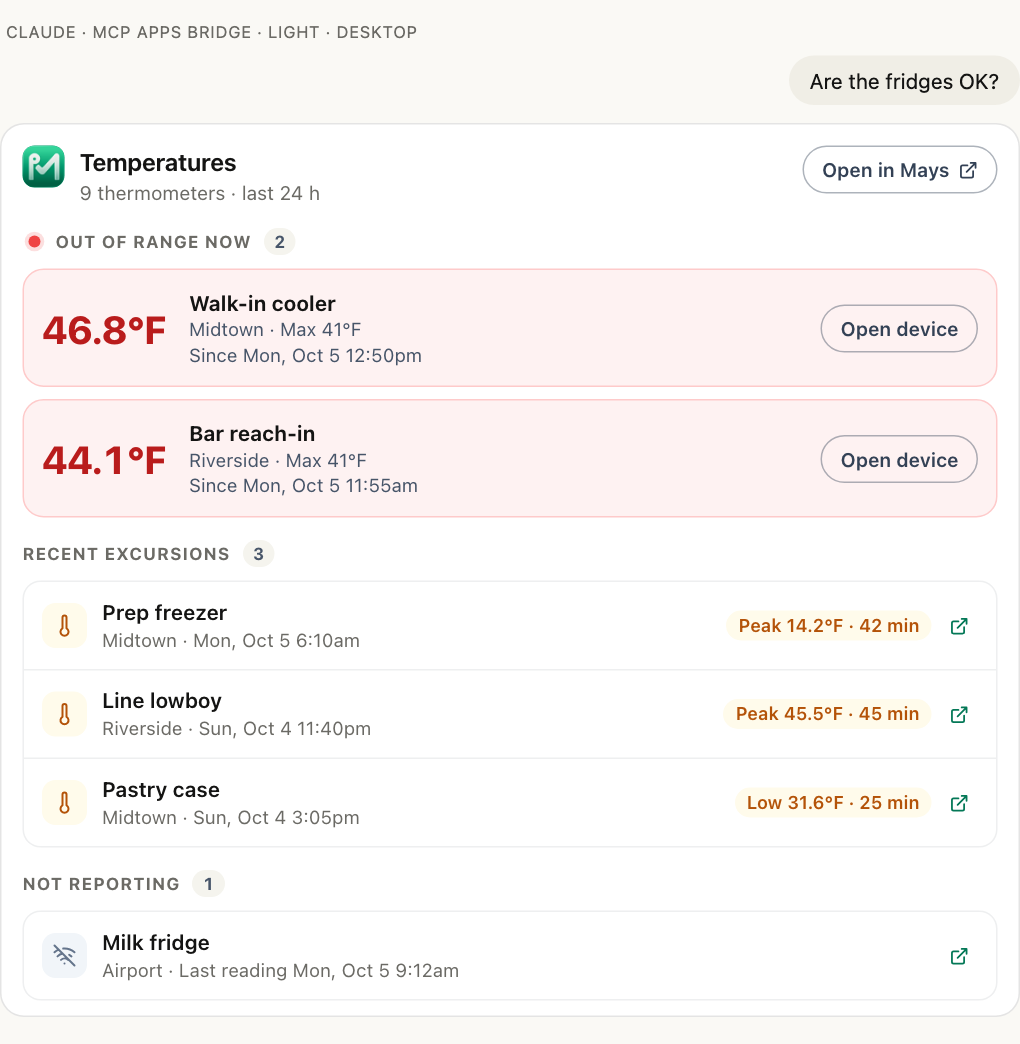
Temperatures. Ask "Are the fridges OK?" Equipment that's out of range right now is at the top in red, with the temperature, the limit and since when; then recent excursions with the peak and how long they lasted; then sensors that stopped reporting. Open device shows that thermometer in Mays.
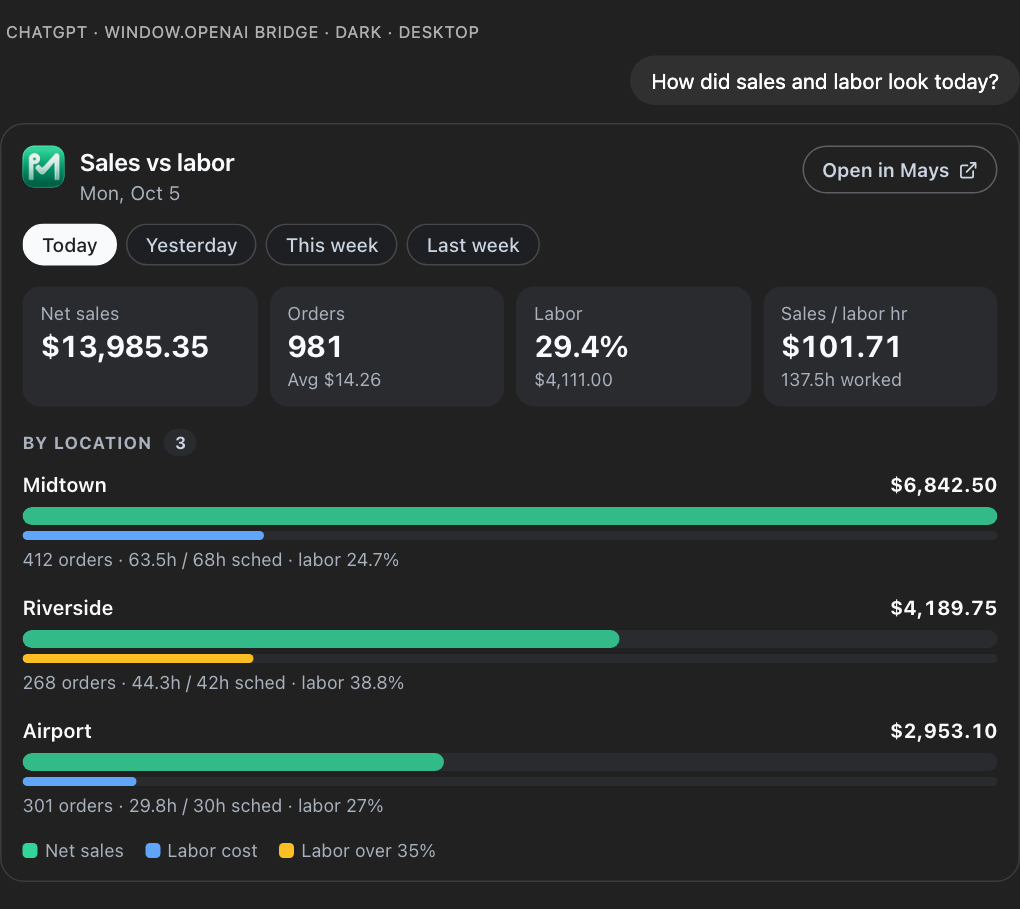
Sales and labor. Ask "How did sales and labor look today?" Tiles for net sales, orders, labor % and sales per labor hour, then a bar per location. (Day-by-day, daypart and per-person breakdowns come back in the AI's answer; the card shows the totals.) Switch between Today, Yesterday, This week and Last week right on the card. Labor cost and labor % appear only if you ticked Include wages, labor cost and tips and can see pay in Mays; otherwise the card says they're hidden.
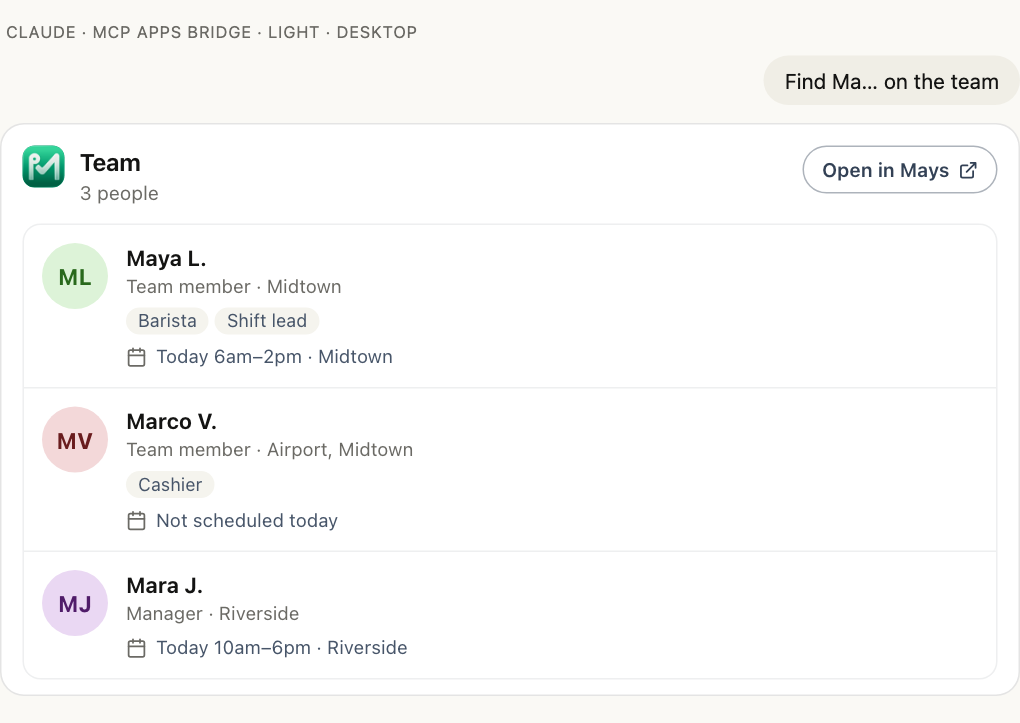
Team. Ask "Find Maya on the team." Each person shows their initials, role, positions, locations and today's shift — no phone numbers or email addresses. When the AI adds, updates or deactivates someone for you, the same card shows the preview and a Confirm button.
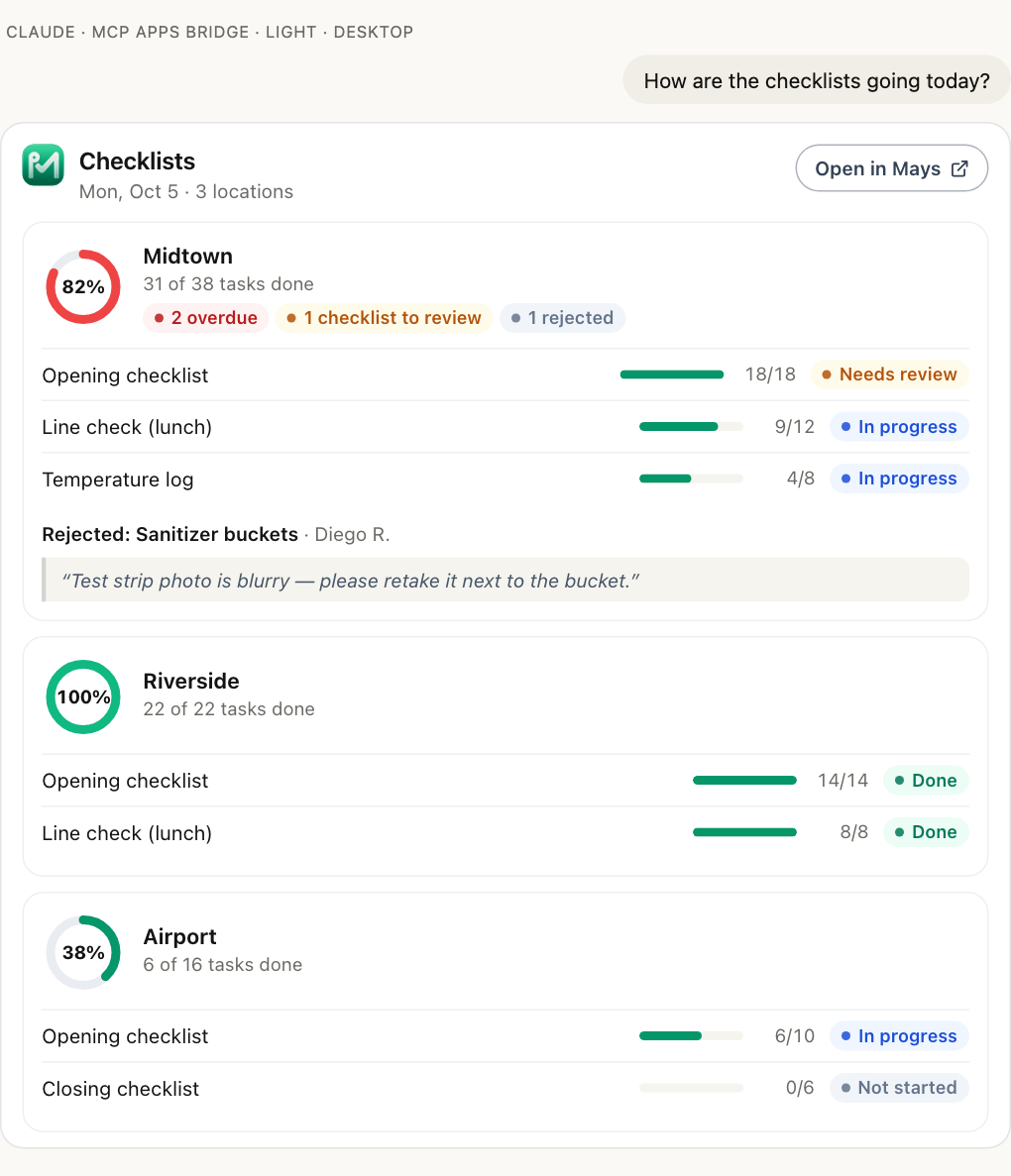
Checklists. Ask "How are the checklists going today?" A progress ring per location, overdue tasks, checklists waiting for your review, and rejected tasks with the reviewer's note. Ask about several days (up to 7) and each day gets its own ring, labelled with the day.
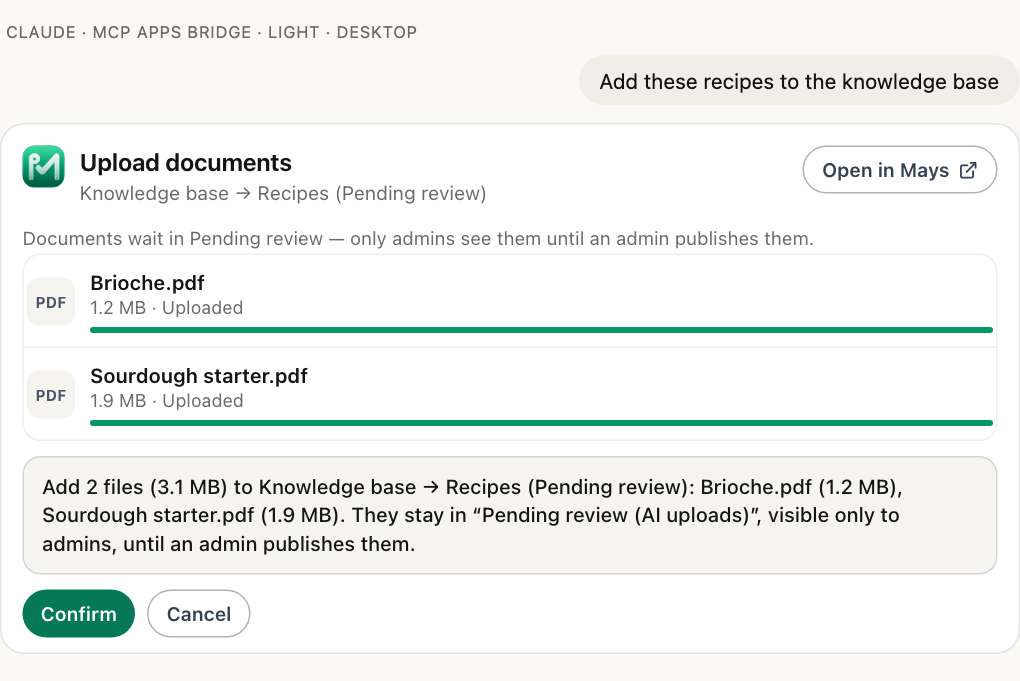
Upload. Ask "I want to upload this week's invoices" or "Add these recipes to the knowledge base" and the AI app opens an upload card for that place — invoices for a location, or a knowledge-base folder. Choose files (or drop them on the card), click Upload, and each file shows its progress. Then the card shows Mays' preview — each file's name, size and where it goes — and Confirm adds them. The card tells the chat what happened, so you can carry on talking about the files. See Upload invoices and documents.
If a card can't show something — a location you don't have, or a problem on Mays' side — it says so in plain words instead of going blank.
Let it make changes
When your admin has turned on Allow AI apps to take actions and you ticked Let app make changes in Mays when you connected, you can ask the AI app to:
- Team: add a team member (name, phone or email, role, locations, positions and — with pay — their hourly wage; Mays sends the usual invite), update someone's role, locations, positions or wage, deactivate someone who left, or reactivate someone who's back.
- Tasks and checklists: create a one-off task at a location (for one person or whoever is working, due today or a later day), create a recurring checklist, change a checklist's items, schedule, locations or who gets it, and archive or restore a checklist.
- Schedule: add a shift or an open shift, move or reassign a shift, remove a shift, offer someone's shift to the team for cover, add a suggested schedule to the week as drafts, and publish a week. Removing works like Delete on the schedule: a draft shift goes right away and nobody is told; a published shift stays on everyone's schedule until you publish the week, and then the person who had it is told it was removed. Adding a suggestion only adds draft shifts — it never removes a shift or publishes the week.
- Labor targets: set or clear a location's labor % target and, with pay access, its weekly labor budget, for one week or several weeks ahead.
- Approvals: approve or deny time off, shift swaps, shift pickups and checklists waiting for review. A manager's own time off is the exception — it waits for another manager or an admin, and its card says so, unless an admin has turned on Managers can approve their own requests in Scheduling settings. An admin can decide their own.
- Inventory items: add items one at a time or up to 50 at once — typed, pasted as a list, or read from a photo of a vendor's price sheet — with their unit, category, the pack they're bought in, a par level and a vendor price; or change an item's name, unit, par or price ("Sysco now charges $31.20 a case for romaine"). Items already in Mays (same name and unit, any letter case) are flagged in the preview and skipped unless you say to add them anyway. See Inventory items.
- Vendor invoices: "Enter this invoice: Sysco, invoice 4521, Oct 6, 10 cases romaine at $28.50, 4 cases oat milk at $18, fuel surcharge $5, total $362" — or share a photo or PDF of the invoice in the chat and ask the AI app to enter it. Mays creates a draft invoice: lines are matched to your items by the vendor's item code and by exact item name, and the preview shows which lines matched, which didn't, and whether the lines add up to the printed total. The invoice says Created by Claude (your name). You can then fix lines, change the vendor or date, or match the leftovers, and when it looks right ask the AI app to post it: the preview lists each item, the quantity going into stock and the new price compared with the last one, and warns if the invoice looks like one already in Mays. A draft never changes stock or prices; only posting does. To keep the photo or PDF with the invoice, or to have Mays read it itself, upload the file (see Upload invoices and documents). If the vendor isn't in Mays yet, the AI app names the closest vendors; an admin can ask it to add the new vendor first. See Vendor invoices.
- Files: upload vendor invoices (Mays reads them into draft invoices) and knowledge-base documents (they wait in Pending review until an admin publishes them). See Upload invoices and documents.
- Knowledge base: list the folders you can see, create a folder, write an article ("Write our closing SOP for the bar and put it in Training") or change one you can edit. A new article waits in Pending review like an uploaded document; changing an article that's already published changes it for everyone who can see it, as in Mays. Folders follow the same rules as in Mays: a manager's new folder is private to them until they share it; only admins choose a folder's location or visibility.
- Purchase orders: create a draft order to one vendor for one location — from the par suggestion or from the items and quantities you give — then send it or cancel it. Sending contacts the vendor, so the preview names the vendor, how it goes out (emailed as a PDF, placed in the vendor's own ordering system, or only marked sent for a vendor you order from by hand), the exact email address and copies, the lines and the total, and the AI app must wait for you to say send it. If the order changes after the preview, it shows a fresh one. Cancelling never tells the vendor; the preview reminds you to call them if the order was already sent. See Placing purchase orders.
- Locations, positions and departments: add a location (name, address, phone and its time zone — Mays doesn't guess the time zone, so the AI app asks), change a location's details, add or rename a position with its colour, department and — with pay — default wage, and add a department. Positions used at every location can only be added or changed by an admin.
- The team in bulk: add up to 100 people at once from a pasted list. The preview lists everyone and flags anyone already in Mays, anyone listed twice and phone numbers that can't be read; confirming adds the rest and sends each the usual invite.
- A weekly pattern: save the shifts a location runs every week ("Mon–Fri 6:30am–2:30pm two baristas, weekends 7–3 Sam on the line"), then put it on next week — or the next few weeks — as draft shifts. Shifts already on the schedule (same times, person and position) are skipped, so doing it twice adds nothing. Publishing is still a separate step.
- Settings: the time clock at a location (the clock-in radius, refusing early clock-in and its window, clocking in without a shift, a nightly automatic clock-out), pay periods and overtime thresholds (fractions kept: 37.5 hours stays 37 h 30 min), and time off (days of notice, whether requests need approval, simple PTO policies). Organization-wide settings are an admin's.
- The team's welcome: send everyone who was invited but hasn't signed in yet the Mays welcome again — the text with the app link for employees, the invite email for managers. The preview shows how many, the exact message and who's skipped (already signed in, invited in the last 15 minutes, or replied STOP to Mays texts).
It follows the same rules as Mays: a manager only changes their own locations and can't change other managers or admins, only admins move people between locations, and wages need pay access. Inventory changes need Manage inventory; items and prices for all locations, and new vendors, are an admin's, while a location manager adds items and sets pars and prices at their own locations. Overlapping shifts, time off (approved or still waiting), availability, minors' work rules and overtime are warnings, never blocks — the AI app tells you about them. People get the same notifications as when you do it in Mays.
Schedule previews show what the change does to the week. Before any schedule change, the preview says how the week's scheduled hours change (and the day's), which coverage gaps it opens or closes, and who it puts into overtime at that location — for example "Week of Mon, Oct 12: 212h → 216h (+4h). Closes the 1pm–2pm gap on Tue, Oct 13. Sam R. goes into overtime (2h)." With pay access it also shows the labor cost before and after and labor as a % of the week's sales forecast, against the location's labor target. Offering a shift for cover changes no hours, so its preview names the teammates who'd go into overtime if they picked it up. Publishing a week compares what staff see now with what they'll see after.
Every change waits for your yes. First the AI app asks Mays for a preview, and nothing changes — for example "Deactivate Jordan P. (employee at Midtown). They are signed out of Mays everywhere… 2 upcoming shifts are still assigned to them." It shows you that preview and waits for your yes. Many AI apps also show their own Allow prompt before each change. Only then does Mays make the change. A preview is good for 5 minutes and for that exact change: if anything changed in Mays meanwhile, Mays sends a fresh preview instead.
Some things it never does: delete people or their history (deactivating keeps everything), change pay without pay access, or act on instructions written inside notes, reviews or messages.
To stop it making changes, disconnect and connect again without ticking the box, or ask your admin to turn actions off.
Upload invoices and documents
With actions allowed (see above), you can put files into Mays from the chat: vendor invoices (if you can manage inventory) and knowledge-base documents — recipes, SOPs, training PDFs, menus (if you can manage the knowledge base).
AI apps can't pass the files you attach in a chat straight to Mays, so there are three ways in. The AI app picks the one that works where you are:
- The upload card (ChatGPT and Claude): the AI app opens a card, you choose the files on your device, and the card uploads them. In ChatGPT the card hands the files to ChatGPT first; in Claude they go straight to Mays' file storage.
- Files you attach in ChatGPT: ChatGPT passes them to Mays, which downloads each one from ChatGPT's file storage and checks it.
- From the AI app's own computer: apps that can run code or read files on your computer (Claude with code execution, Claude desktop, Claude Code) upload the file themselves to a private link Mays gives them, valid for 10 minutes.
Whichever way, Mays checks each file — its type, its size and that its contents really are what its name says — and shows you a preview: each file's name and real size, and where it goes. Nothing is added until you say yes.
- Invoices become draft invoices: Mays reads each file the same way as Capture invoice (vendor, number, date, lines), stores the file with the draft, and notes Uploaded by Claude (your name). Nothing is received into stock until someone posts the draft. A file that isn't an invoice is skipped and the reason is shown. You can also attach a file to a draft you already have, and ask Mays to read it again; the draft's lines don't change.
- Knowledge-base documents go into a folder called Pending review (AI uploads) that only admins can see. Your team doesn't see them, the AI Assistant doesn't answer from them, and even the person who uploaded them can't open them until an admin publishes them — in the chat ("What's waiting for review?", then "Publish them") or in Mays by moving each document to its folder. Publishing puts each one in the folder it was uploaded for, and the person who uploaded it becomes its owner. Articles the AI app writes for you wait in the same folder.
Accepted files: PDF, JPEG, PNG and WebP for invoices (up to 20 MB for a PDF, 10 MB for a picture); PDF, Word (.docx), CSV, text, JPEG, PNG, WebP and HEIC for the knowledge base (up to 25 MB each). Excel files aren't accepted yet — save the sheet as CSV or PDF. Each connection can upload up to 50 files and 250 MB a day.
Every file is listed in Recent activity, like Claude (Ava M.) uploaded 3 files to Knowledge base → Recipes.
Set up your store from ChatGPT or Claude
Just signed up? You can hand the whole setup to your AI app in one go. Connect it as the admin (tick Also allow AI apps to make changes on the Mays page), then tell it about your store — paste your staff list, your opening hours, your supplier price sheet, whatever you have:
Here's my café, Seagrape: two locations in Delray Beach (100 Atlantic Ave and 22 NE 2nd Ave, both on Eastern time). Positions: barista, line cook, cashier. Here's my staff list with phone numbers. Weekdays we open 6:30 to 2:30 with two baristas; weekends Sam does the line 7 to 3. Add an opening checklist, our Gulfstream Dairy order items, a 200-meter clock-in radius, biweekly pay starting Oct 5 and 14 days' notice for time off. Put our dress code and opening SOP in a Team handbook folder and our cold brew recipe in Recipes. Set everything up in Mays so my team can start.
Here's what happens:
- It checks the plan first. The AI app turns what you shared into one plan and asks Mays to check it. Nothing changes yet. Mays answers with one preview: how many locations, positions, people, shifts a week, checklists, items, settings and knowledge-base folders, articles and documents it will add, a table for each, the invites that will go out, and every problem to fix — a location without a time zone, two people with the same phone, a position or person mentioned but never described, an article for a folder that isn't there. The AI app asks you about the problems and checks again.
- One yes sets it all up. When the preview is clean and you say yes, Mays adds everything in order — locations, departments, positions, people (each gets the usual invite), the weekly pattern, checklists, vendors, inventory items, settings, then the knowledge base: folders first, then articles and documents. Anything already in Mays is kept as it is.
- If something fails, ask again. Mays reports exactly what it created and what failed. Fix the cause (or ask the AI app to) and say "try the setup again": what already exists is skipped, so only what's missing is added. Nobody is invited twice.
- Then the first week. Ask it to put the weekly pattern on next week and publish it, and to send the team their welcome. "Is everything set up?" gives you a checklist: who has signed in and installed the app, whether each location's next week is published, checklists, inventory, settings and the knowledge base (how many folders, articles and documents, and how many still wait for review).
Each person's invite, shift and checklist works exactly as if you had added it in Mays, and every step shows up in Recent activity.
Knowledge base in the setup. SOPs, recipes and policies can be part of the same plan: the AI app writes each one as an article in the folder you name, and a file you upload in the chat (a staff handbook PDF, a menu) is added as a document — upload it into a folder that's already in Mays first (see Upload invoices and documents above), then include it in the setup. The usual knowledge-base rules apply: articles and documents wait in Pending review (AI uploads), visible only to admins, until an admin publishes them ("Publish what's waiting for review"), and a manager's new folder is private to them until they share it; only admins choose a folder's visibility.
See and disconnect your connections
Go to Settings → Connected AI apps.
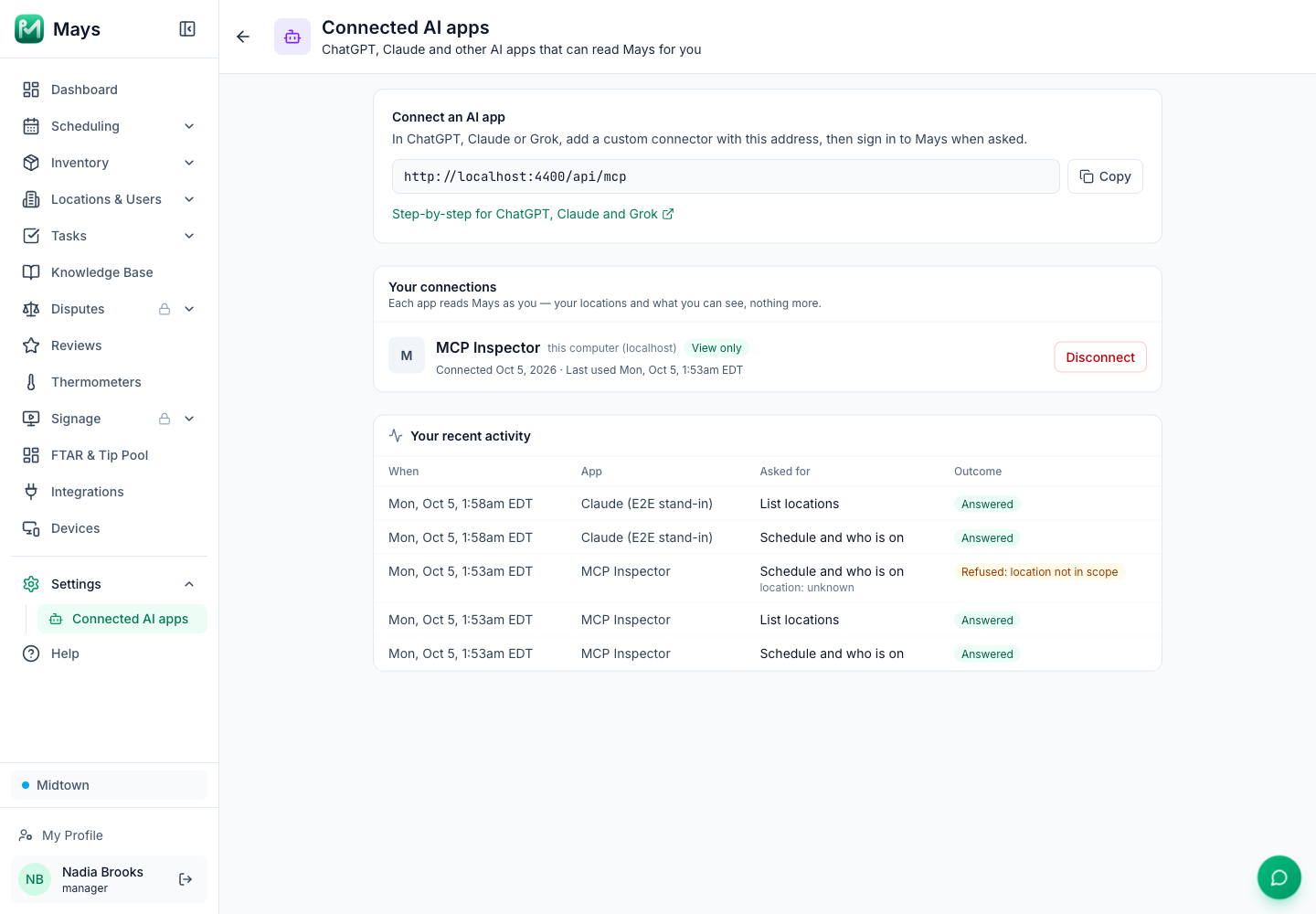
- Your connections lists each app with what it may do (View only, View + actions, View + pay or View + actions + pay), when you connected it and when it last asked Mays something.
- Your recent activity lists the last 50 things your AI apps asked Mays, with the outcome: Answered, Preview — nothing changed, Changed (with what changed, like Claude deactivated Jordan P.), Not confirmed — nothing changed, Refused (for example a location you don't have) or Failed.
- Disconnect ends a connection right away; the app can't read anything more until you connect it again. Removing Mays inside ChatGPT, Claude or Grok doesn't always tell Mays, so disconnect here too.
When someone is deactivated in Mays, their AI app connections end at the same time.
For admins
Admins (anyone who can edit organization settings) also get an Organization tab:
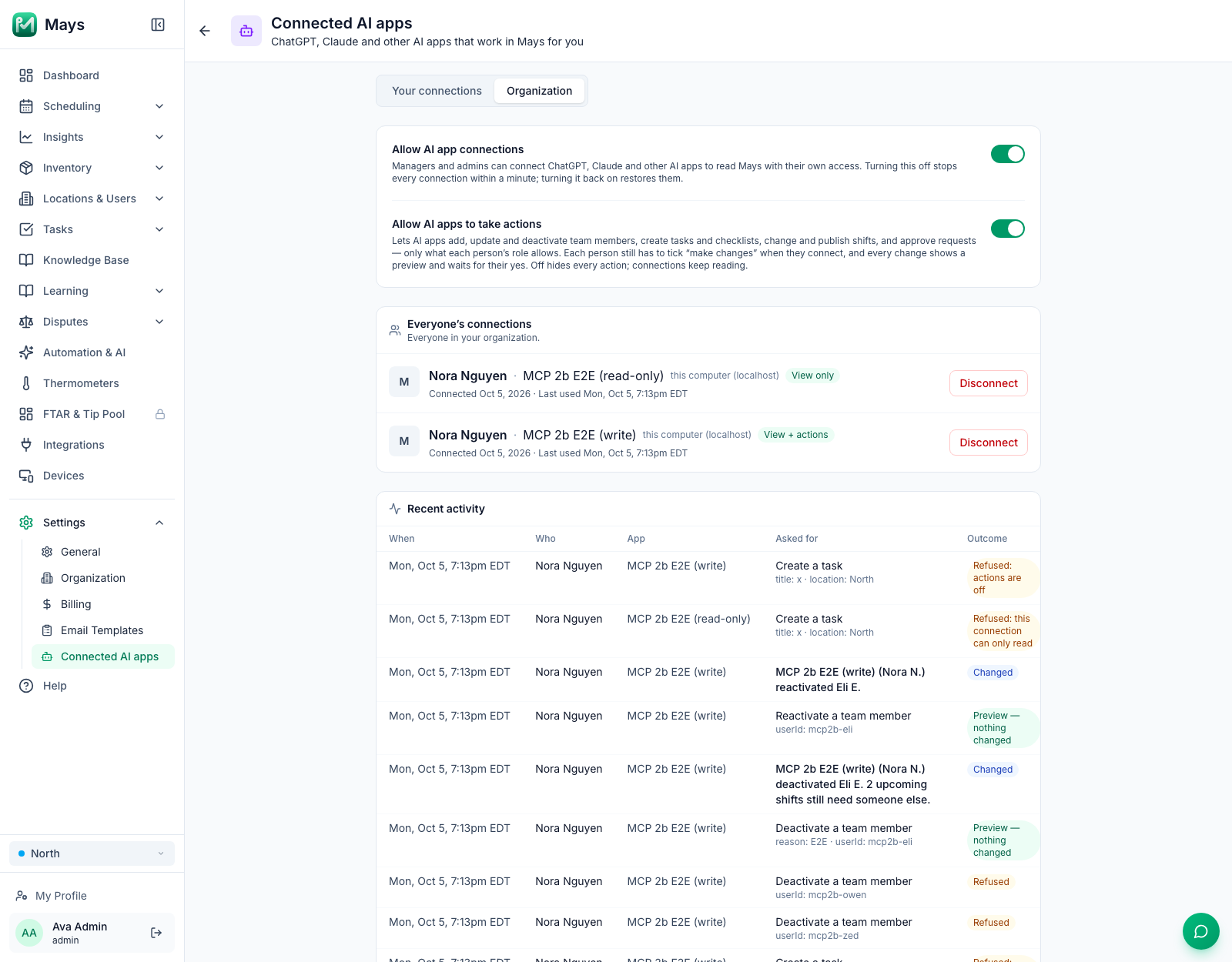
- Allow AI app connections is on for every organization. Turning it off stops every connection within a minute; nobody can connect until it's back on. Turning it back on restores the existing connections.
- Allow AI apps to take actions is off until you turn it on — here, or by ticking Also allow AI apps to make changes when you connect an AI app yourself. When it's on, each person can tick make changes when they connect, and every change still needs their yes. Turning it off hides every action at once; connections keep reading.
- Everyone's connections lists every connection in your organization, by person, with Disconnect.
- Recent activity shows who asked what, through which app, and when. Changes read as sentences, like Claude (Ava M.) deactivated Jordan P.
Privacy
What an AI app reads from Mays is sent to that AI provider (OpenAI, Anthropic or xAI) under your own account and their terms, the same as anything else you share with them. Mays keeps a record of each question and each change an AI app asks for — who, which app, what it asked for and the outcome — for 180 days, and shows it in Recent activity. Phone numbers and emails given to add a team member are kept masked there. Mays never sends pay unless you tick the box, and never sends contact details.
Troubleshooting
- "Ask your manager" — only managers and admins can connect.
- "AI app connections are turned off" — an admin can turn them on under Settings → Connected AI apps → Organization.
- "This connection request has expired" — go back to the AI app and connect again; each request lasts 10 minutes.
- The app says it can't see a location or a number — it only sees your locations, and pay only if you ticked Include wages, labor cost and tips. Disconnect and connect again to change that.
- It stopped working — check Settings → Connected AI apps. If the connection isn't listed, connect again from the AI app.
- "This connection can only read" — you didn't tick make changes when you connected. Disconnect, connect again and tick it (your admin has to allow actions first). Not sure which it is? Ask the AI app "What can this Mays connection do?" — it checks and tells you what's switched off.
- "Your organization has not turned on actions from AI apps" — an admin can turn on Allow AI apps to take actions under Settings → Connected AI apps → Organization.
- "That confirmation expired" or "Something changed in Mays since that preview" — nothing was changed. Look at the new preview the app shows you and say yes again if it's still right.
- "Remote tools can't read chat attachments" — ask the AI app to open the upload card, or (in ChatGPT) attach the file again in the same message.
- The upload card says your chat app blocked the upload — ask the AI app to upload the file another way, or upload it in Mays.
- "The Pending review (AI uploads) folder has been made visible to others" — an admin shared or opened that folder. Make it private again (remove its shares) and uploads work again.
- No card under the answer — cards show in ChatGPT and Claude only. In Claude Team or Enterprise, an owner can turn interactive connector cards off for the organization; the answer itself is the same either way.