A few settings apply to every location: Labor law compliance, the language of automated calls, 12- or 24-hour times, AI photo checks and the app's task list. Admins set them under Settings → Organization.
Find your settings
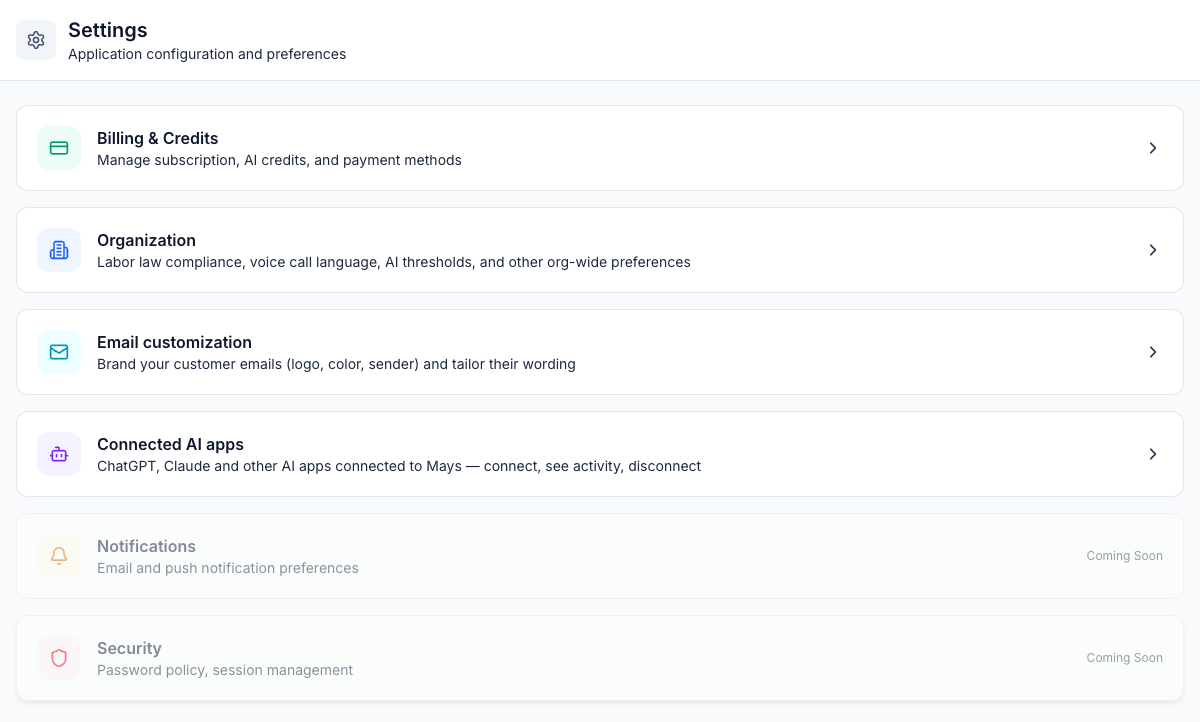
Click Settings in the sidebar (admins only). The General page links to each group:
Card | What's there |
|---|---|
Billing & Credits | Your plan, AI credits and payments. See Plans, the free trial and locked modules. |
Organization | The settings on this page. |
Email customization | Your logo, color and sender name on customer emails. See Branding customer emails. |
Connected AI apps | ChatGPT, Claude and other AI apps connected to Mays, and the switches that allow them and let them take actions you confirm. Managers see this card too, for their own connections. See Connect Mays to ChatGPT, Claude or Grok. |
Notifications, Security | Marked Coming Soon. They can't be opened yet. |
Each location's own settings, like its address, time zone and scheduling rules, are on the location itself. See Add and manage locations.
Change an organization setting
- Go to Settings → Organization.
- Change what you need (each setting is described below).
- Click Save changes at the bottom. You'll see Organization settings saved.
Nothing changes until you save. If you leave the page first, your changes are lost. Labor law compliance, at the top of the page, is the exception: it saves on its own once you confirm.
The settings
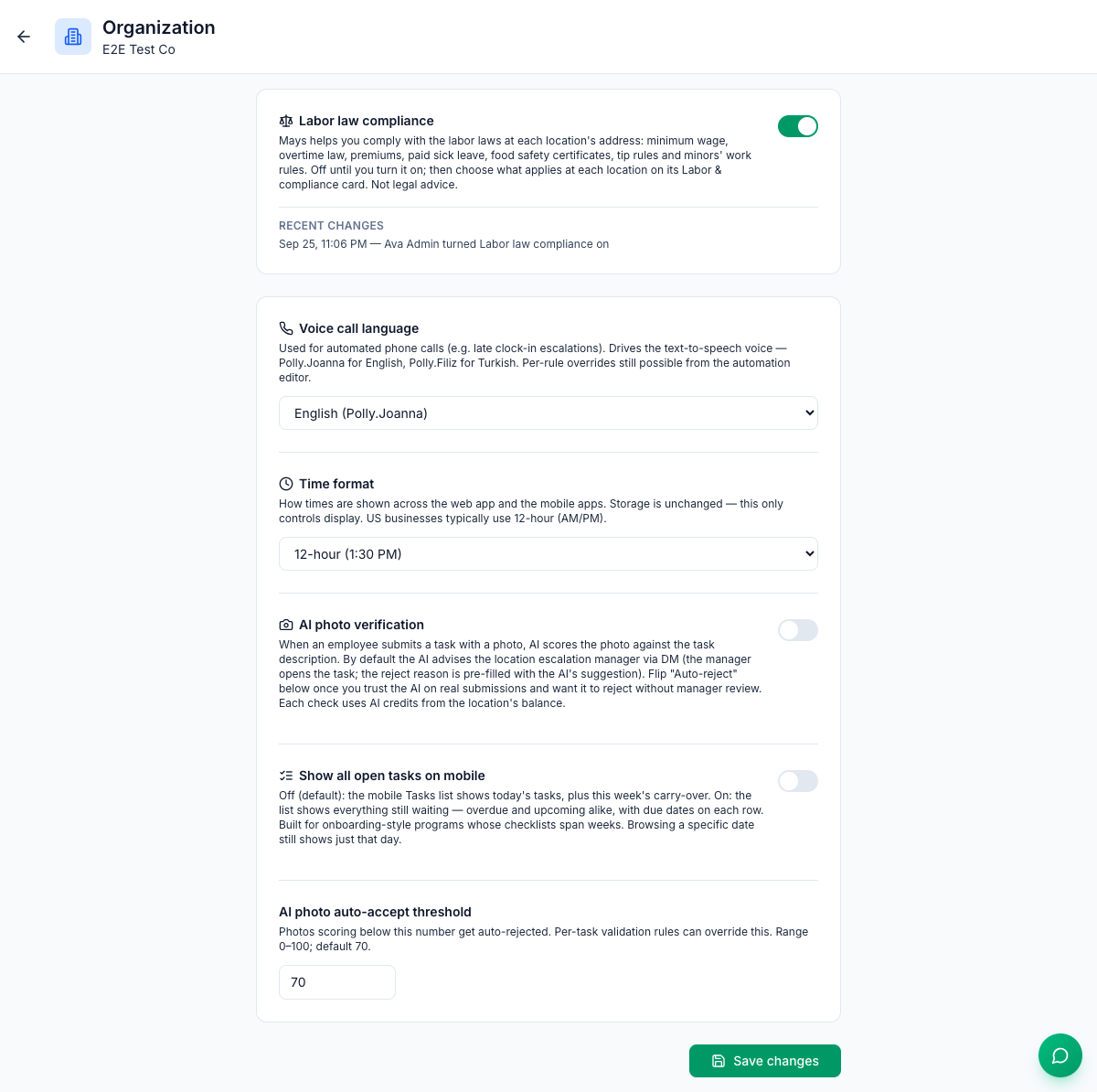
Labor law compliance: turns on the part of Mays that follows the labor laws at each location's address: minimum wage, overtime law, premiums, paid sick leave, food safety certificates, tip rules and minors' work rules. It's off until an admin turns it on. Turning it on shows what will change at each location first, and Recent changes lists the latest changes to it and its location switches, with who made them. When your plan doesn't include it, the card shows Upgrade plan. See Labor & compliance.
Voice call language: the language of Mays's automated phone calls, for example the call to someone who's late for an opening shift. Choose English or Türkçe (Turkish). The list also shows the name of each voice. An automation rule can use a different language for its own calls. See Late clock-in phone calls.
Time format: 12-hour (1:30 PM) or 24-hour (13:30).
- The Mays apps use it for the times they show. Staff see a change the next time they sign in to the app.
- On the web, the schedule, the approvals inbox and the manager logbook follow it. Some other web pages, like the Time Clock, always use 12-hour times.
- It only changes how times look, never the times themselves.
AI photo verification: when this is on, AI scores the photo on each completed photo task against the task's description. It has two more settings:
- Auto-reject below threshold appears once verification is on. It decides whether AI rejects a low-scoring photo or only flags it for a manager.
- AI photo auto-accept threshold is the score from 0 to 100 that a photo needs to pass. It starts at 70.
Each check uses AI credits. AI photo verification explains both modes and how to set them per person.
Show all open tasks on mobile:
- Off (the default): the app's Tasks list shows today's tasks, plus anything left over from earlier this week.
- On: the list shows every task still waiting, overdue and upcoming, with a due date on each row. Use it for programs whose checklists run over several weeks, like onboarding.
Either way, picking a specific date in the app still shows just that day.
Good to know
- Only people with the built-in Admin role can save these settings. A custom role with the Edit organization settings permission can open the page, but saving shows Only admins can update organization settings.
- An empty threshold box saves as 0, and at 0 every photo passes. Put a number back in before you save.
- Settings apply to every location. They can't be set differently for each store. Mays takes each location's time zone from the location itself.