Build orders from your par levels, send each vendor a PDF purchase order by email, and check what arrived against what you ordered.
You can also build, create and send orders from ChatGPT, Claude or Grok; it always shows the vendor, email address and total and waits for your yes before anything is sent. See Connect Mays to ChatGPT, Claude or Grok.
Before you start: your items need vendor prices and par levels, and your vendors need their delivery days and minimums. See Inventory items and Vendors and vendor catalogs.
Where: Inventory → Orders on the web. Orders are grouped in tabs: Draft, Placed, Received and Cancelled.
Build orders with the order form
- Click New order.
- Narrow the list with Search items, All vendors, All categories or Below par. The On hand / par column turns orange for items below par.
- Click Order to par. For every item below par, Mays fills in the packs you need: par minus on hand, divided by the pack size and rounded up.
- Check the Vendor for each item. Each item starts on the vendor with the lowest price per pack, which isn't always the cheapest per unit when pack sizes differ.
- Change any Qty (in packs). The Total updates.
- Check the summary for each vendor at the bottom (see below), then click Create orders. Mays makes one draft order per vendor.
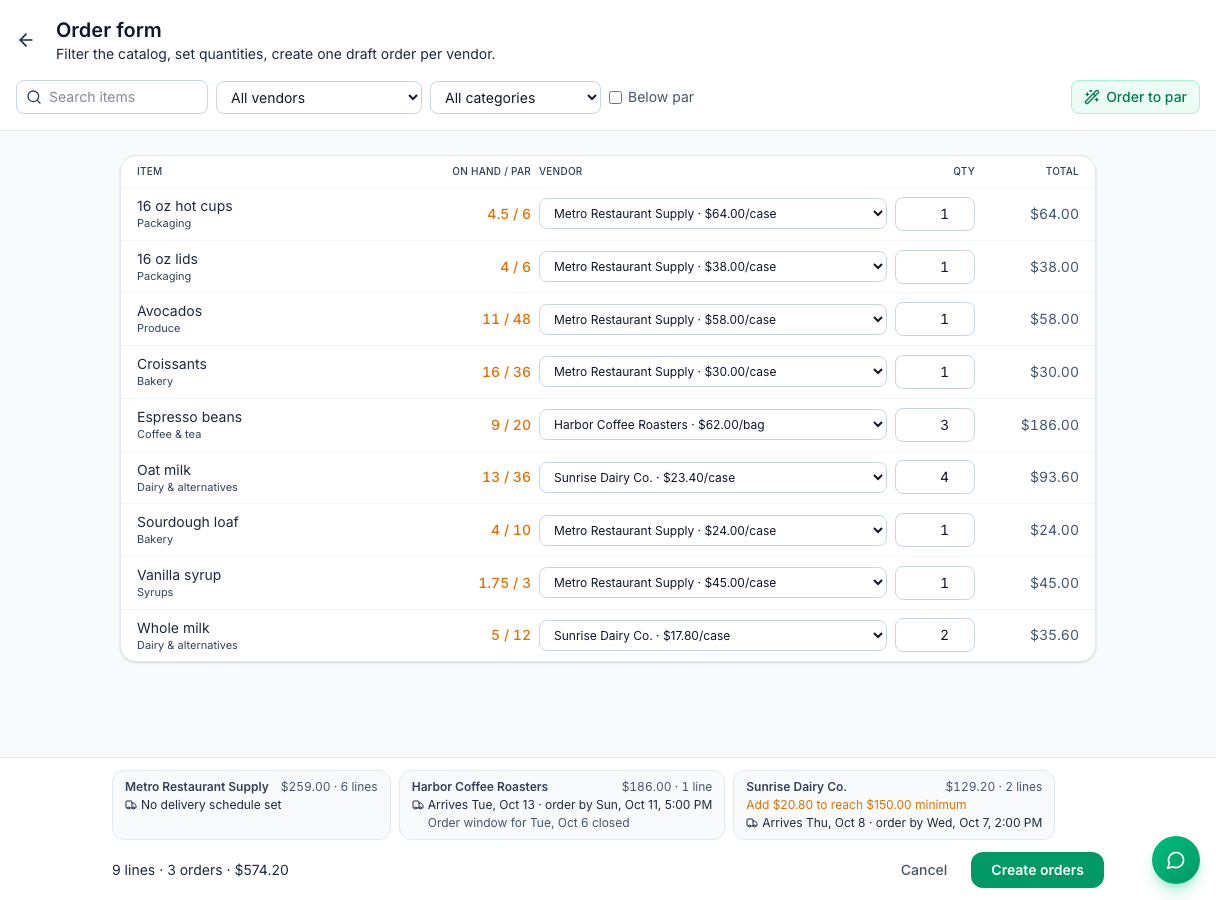
Each vendor's summary shows its total and lines, how far you are from its minimum (Add $20.80 to reach $150.00 minimum), and when the order would arrive and by when to send it (Arrives Thu, Oct 8 · order by Wed, Oct 7, 2:00 PM). That's always the next delivery you can still make. If a nearer delivery's order window has already closed, a note under it says so (Order window for Tue, Oct 6 closed), so you know the order will come on the later truck.
Which items are listed: every item that has a price from a vendor this location orders from. A price set for all locations shows at every location. If a vendor is ticked for your location but only has a price saved for another location, the order form still lists the item at that price and marks it Vendor's price at Mizner Park (the other location's name). Ask an admin to set a price for all locations, or add one for your location, to replace it.
On a phone: each item takes two lines: the name, category and On hand / par first, then the vendor, Qty and total.
Suggested orders: the Orders page also has Suggested orders, one per vendor, built from your par levels using the cheapest price per unit. Click Create order on one to make it a draft.
Review and send a draft
- Open the order from the Draft tab.
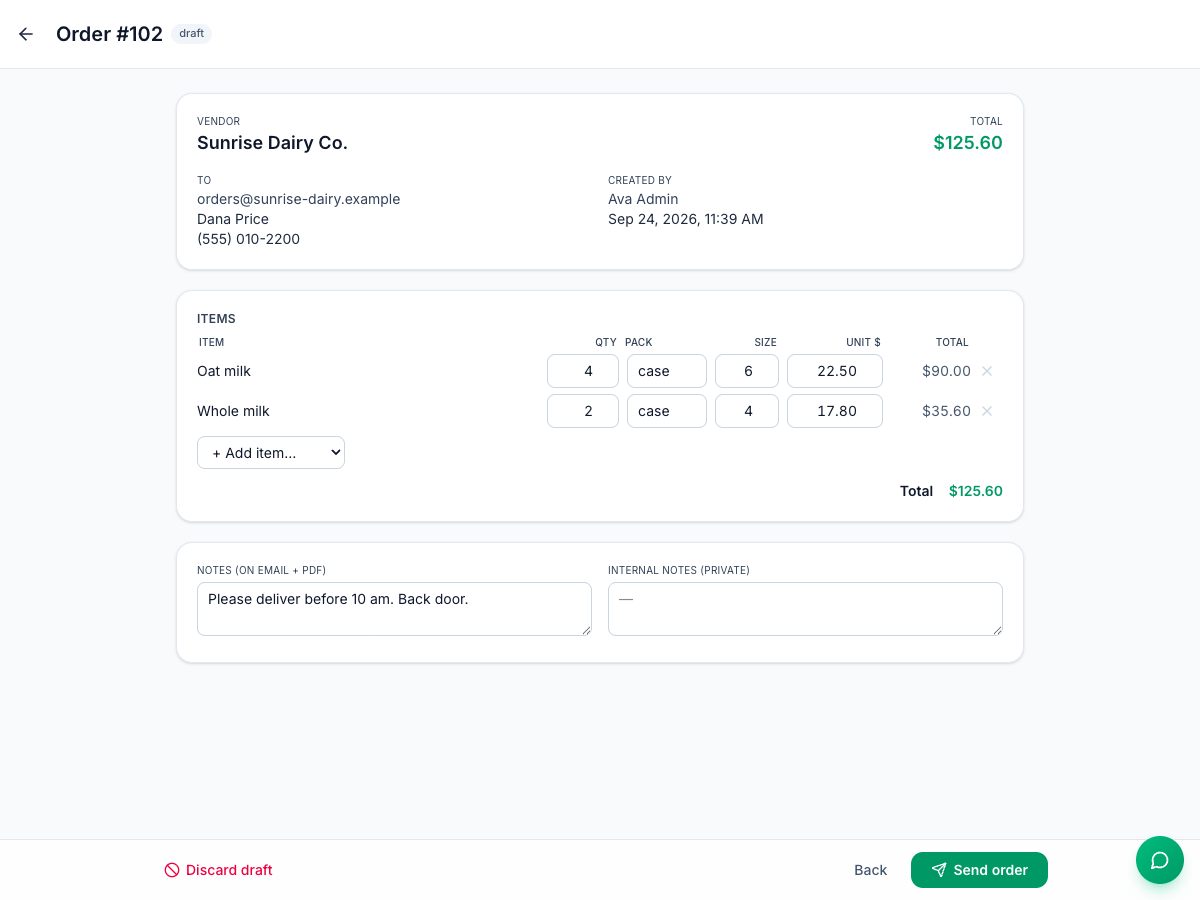
- Change Qty, Pack, Size or Unit $, remove a line with ×, or add one with + Add item….
- Add Notes (on email + PDF) for the vendor, and Internal notes (private) for your team.
- Leave Cc location ticked to send the location a copy, if the location has an email address.
- Click Send order.
What Send order does depends on the vendor's order method:
- email: Mays emails the vendor a PDF purchase order and moves the order to Placed. The subject reads like Sunrise Dairy Co. Order # 102 was placed by Ava Admin at…. When the vendor replies to that email, the reply shows under Vendor email on the order.
- manual: the order moves to Placed so you can phone or text it in. If the location or vendor has an email address on file, Mays emails it anyway.
- Online ordering set up by the Mays team places the order on the vendor's website.
If the email can't be sent, the order stays a draft and the failure is noted under Vendor email on the order.
After you send
- Resend emails the PDF again.
- Cancel order cancels it; Discard draft does the same for a draft. Orders can't be deleted.
- Orders are numbered per location, starting at 100.
Check a delivery against the order
When the vendor's invoice is posted (see Vendor invoices):
- Open the order.
- Under Receive · 3-way match, pick the invoice in Pick posted invoice… and click Match.
- Mays shows ✓ Invoice matches the order exactly. or a table of Ordered, Invoiced, Qty Δ and Price Δ for each item.
The order's Received column fills in, and the order moves to Received, or stays Placed as partial if something is short. To see the week's expected and received deliveries day by day, see Receiving deliveries.
Good to know
- Orders don't change stock. Stock goes up when you post the vendor's invoice.
- Quantities are in packs. A line of 4 at 6 / case is 24 count units.
- Who: admins, and managers at their own locations.
- Prices imported from Craftable apply to every location when the item is shared by all locations. Only a location-only item gets a location-only price.
- Evening orders: the date on the PDF and in the email is the date in UTC, so an order sent in the evening can show the next day's date.