Every new folder starts private. Share it with everyone, a location, a role or one person, and choose whether they can view it or edit it. Here's what each role sees.
Sharing is done on the web, under Knowledge Base. The apps show each person what's been shared with them.
Share a folder
- Go to Knowledge Base.
- Right-click the folder, or hover over it and click ⋮, then Share…. When you create a new top-level folder, the Share window opens by itself.
- In the first list, choose who:
- Everyone in org: the whole company (admins only).
- A location: everyone assigned to that location.
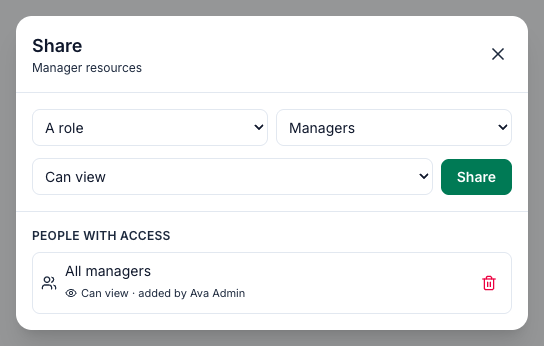
- A role: everyone with that role (admins only). Admins, Managers and Employees are the built-in roles; your own roles are listed after them.
- A specific person.
- Choose Can view or Can edit.
- Click Share. You'll see Shared., and the share appears under People with access.
Share with more people by repeating steps 3 to 5. A folder can have as many shares as you like.
Articles and documents can be shared on their own in the same way (⋮ → Share… on the article or document), for example to show one recipe to a new cook. They can't be hidden from someone who can see their folder.
What sharing a folder covers
- Everything inside the folder: its articles, its documents and the folders inside it, now and later.
- A folder you create inside a shared folder is shared the same way. The new-folder box says Inherits this folder's access.
- A new top-level folder is private until you share it. The box says Starts private — share it next.
Take access away
Open Share… again and click the bin next to the share under People with access. It's removed straight away (Access removed.). An Everyone in org or role share can only be removed by an admin or by the person who added it. To change Can view to Can edit, share again with the same person, location or role and pick the new permission.
Who sees what
Who | What they see | What they can do |
|---|---|---|
Admins | Everything in the knowledge base. | Create, edit, move and delete anything. Share with anyone, including Everyone in org and a role. |
Managers | Folders they created, and whatever is shared with them, their location or their role. | Create folders, articles and documents. Share what they can edit with A location (one of theirs) or A specific person (from their locations). |
Employees | Whatever is shared with them, their location or their role, in the app. | Read only. |
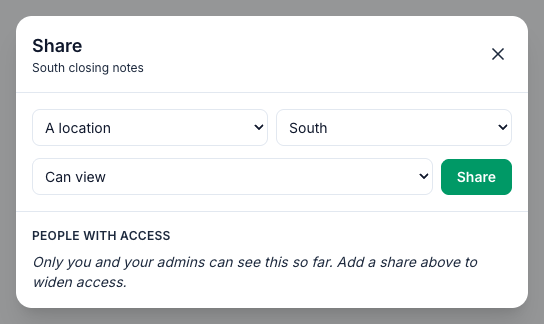
A location share reaches everyone assigned to that location, whatever their role. Someone who works at two locations sees what's shared with either of them.
Can edit lets a manager rename, move, share and delete that item, and add articles, documents and folders inside a shared folder. It applies to the item you shared: an edit share on a folder doesn't let them change articles someone else wrote inside it. Employees can't edit anything, because the knowledge base is read-only in the apps.
In the app
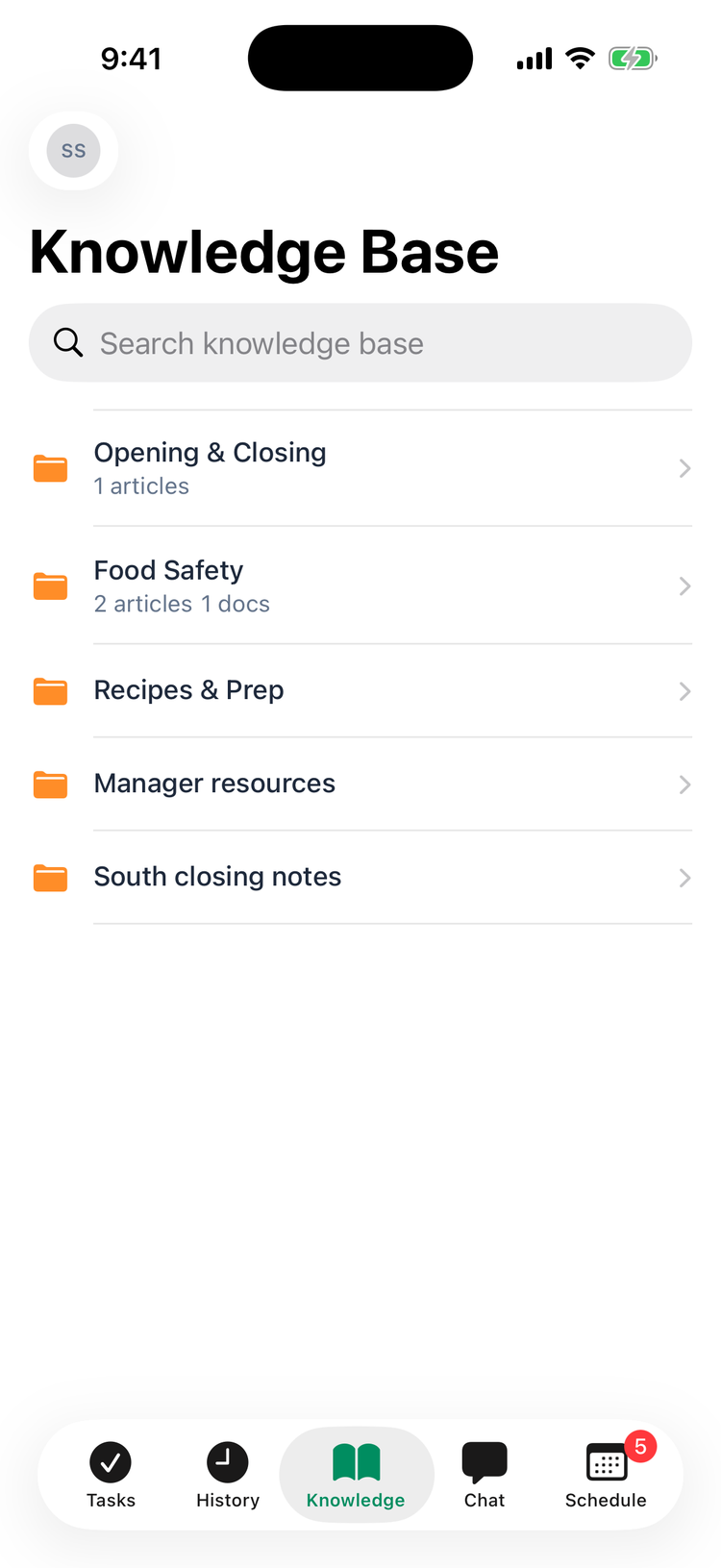
The Knowledge tab (KB on Android) lists the folders the person can see. Search in the app only finds what they can see, too.
Good to know
- Pending review (AI uploads) holds what ChatGPT or Claude added to the knowledge base until an admin publishes it. Only admins see it. Keep it unshared: while it has a share or isn't private, AI apps can't add anything. See Adding from ChatGPT or Claude.
- The Private label stays on. On the web, every folder made since sharing arrived shows Private, even after you share it. Check People with access in the Share window to see who really has it.
- An empty People with access list doesn't always mean nobody else can see it: a folder inside a shared folder is covered by the outer folder's share, which is only listed there.
- Managers only on older folders. Folders from before sharing arrived may have Managers only and Make visible to all in the admin's ⋮ menu. The switch applies straight away, in the app and in the AI Assistant's answers. An older folder tied to a location only reaches people at that location. New folders don't have the switch: share them with A role → Managers.
- Deleting a folder deletes everything in it: the folders inside it and all their articles and documents, including ones other people added. The AI Assistant stops answering from them. There's no trash.
- The AI Assistant follows sharing. It answers each person from what's shared with them, and it follows the Managers only switch and moves to another folder straight away. See AI answers from your knowledge base.
- Who manages the knowledge base is set by the Knowledge Base permissions on each role. See Roles and permissions.