Tap your picture in the top-left corner of the Mays app to open Profile. Change your photo, switch organization, see your kiosk PIN, choose your notifications, sign out or delete your account.
What's on your profile
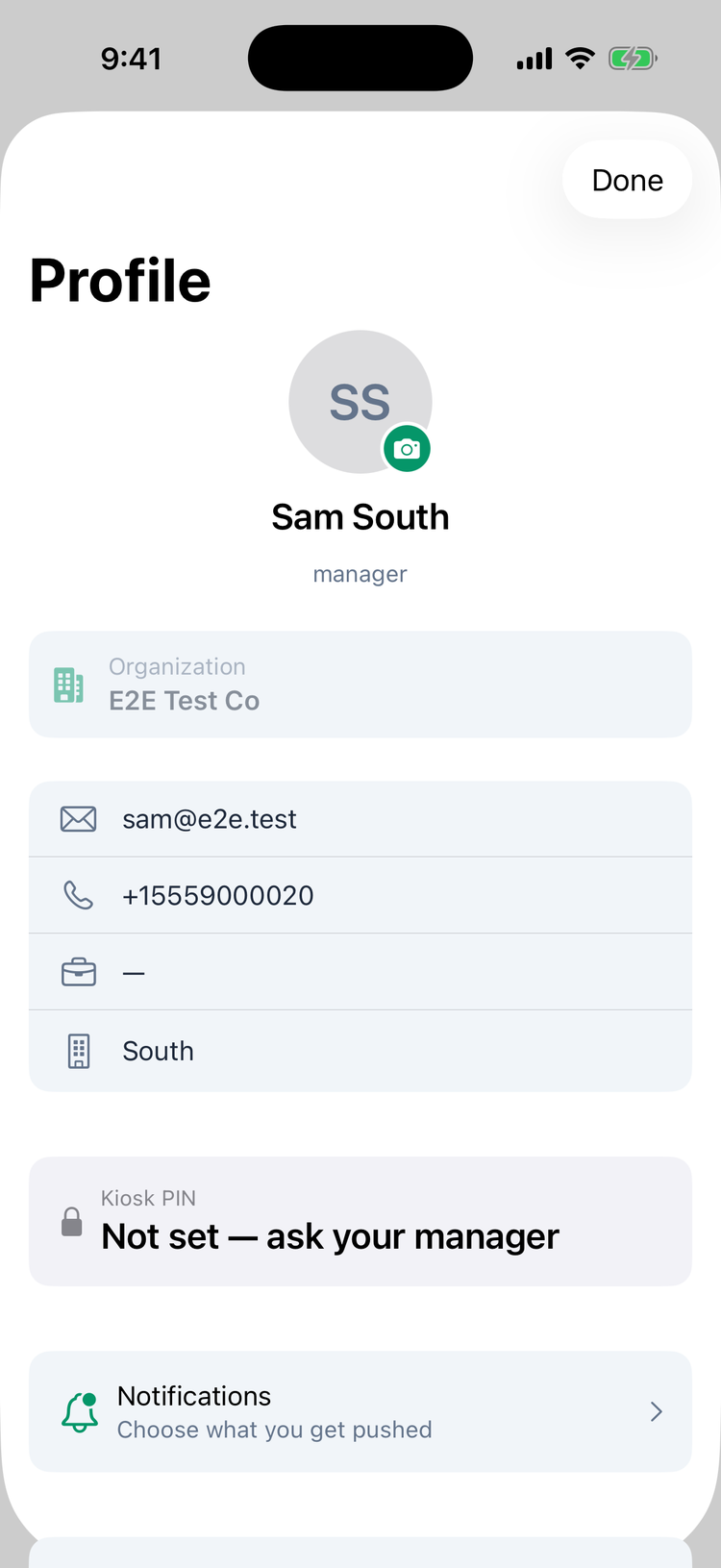
- Your picture: tap the camera button to choose a photo from your library.
- Your name and your access level: admin, manager or employee.
- Organization: the business you're signed in to. See below.
- Your details: email, phone number, department and location. If you work at several locations, only the first one is shown. On Android, empty details are left out; on iPhone they show as —.
- Kiosk PIN: the 4-digit code you type on a shared kiosk tablet at your store. Tap Show to see it and Hide to hide it again. If you don't have one, it says Not set — ask your manager.
- Your points, only if your company uses points and badges: your points, level, streak and badges, just under Organization. See Points, badges and leaderboards.
Further down:
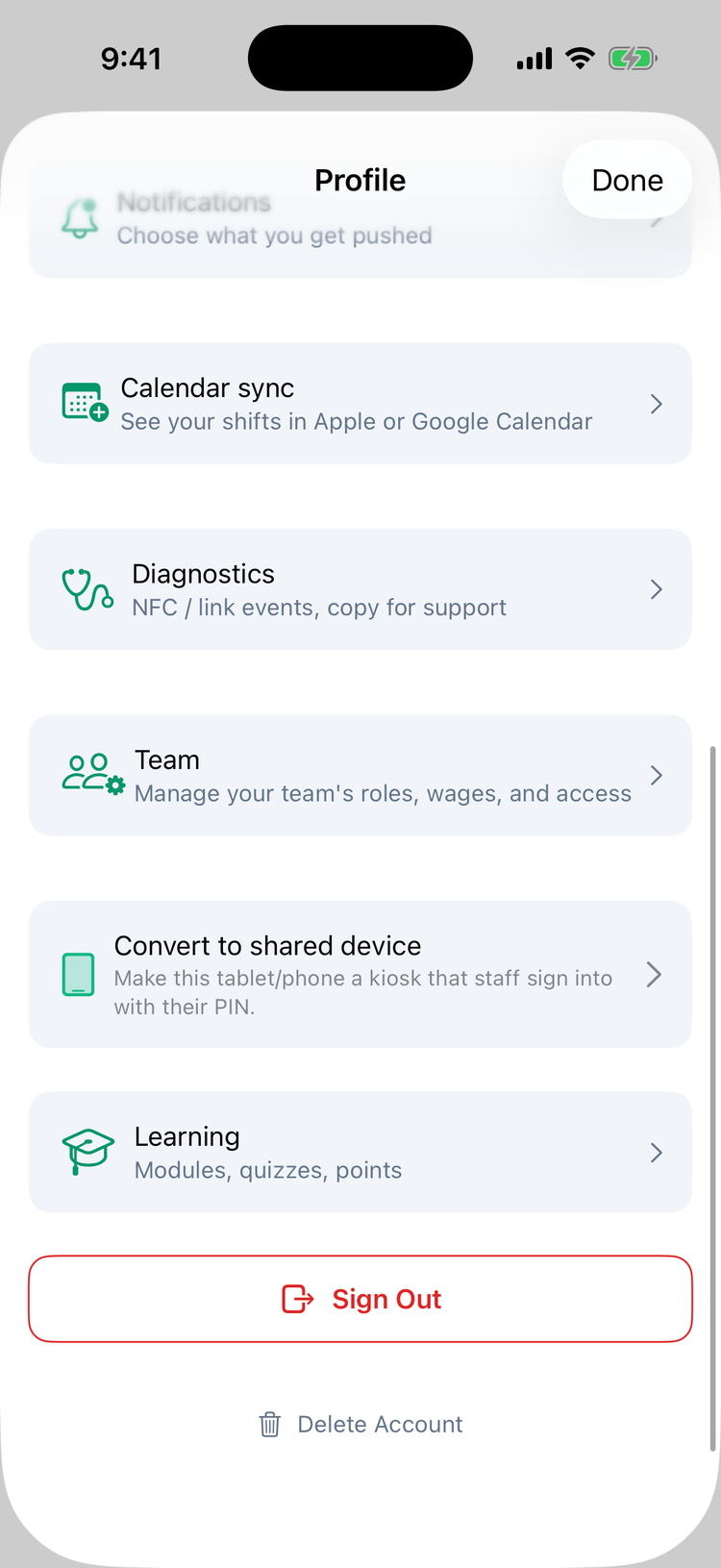
Row | What it's for |
|---|---|
Notifications | Which notifications reach your phone. See Notifications. |
Calendar sync | Your shifts in Apple or Google Calendar. See Calendar sync. |
My certificates | Shown while your organization has Labor law compliance on: your food handler card and other certificates on file, with when each one expires. Read-only. See Food safety certificates. |
Diagnostics (iPhone) | Details to copy for Mays support, for example when an NFC tag doesn't work. See Troubleshooting the Mays app. |
Team (managers and admins) | Add and manage your team. See Managing your team from the app. |
Convert to shared device (managers and admins) | Turns this phone or tablet into a kiosk. See Shared kiosk devices and PINs. |
Learning | Your training modules and quizzes, if your company uses them. See Taking training in the app. |
Sign Out and Delete Account | See below. |
On Android the order is a little different: Kiosk PIN comes after Calendar sync (and My certificates, when it's shown), and Convert to shared device comes before Team.
Change your name, email or phone number
You can't change these in the app. Ask your manager to change them. Managers and admins can change their own on the web, under My Profile at the bottom of the sidebar.
If your phone number changes, have it updated before you sign in on the new number. You sign in to the app with the number Mays has on file.
Switch organization
If you work for more than one business on Mays, the Organization card lets you switch:
- Tap the Organization card.
- Tap the business you want. Each one shows your role there.
The app switches straight away, without signing in again. If you work for one business only, the card just shows its name.
A business you haven't signed in to yet doesn't show up here. Sign out and sign in with your phone number. If it belongs to several businesses, you're asked to Choose account. See Signing in on web and mobile.
Sign out
- Scroll to the bottom of Profile and tap Sign Out.
- Confirm with Sign Out.
This phone stops getting your notifications. You stay signed in on any other phone.
Delete your account
Delete Account at the very bottom closes your account for this business. You're asked twice: tap Continue, then Delete My Account. For 30 days, only an admin at your company can restore it. After 30 days your contact and sign-in details (email, phone, photo, password and PIN) are permanently removed. Your employer keeps your name and your work and pay records (shifts, hours and pay), as the law requires. See Deactivating team members and deleting accounts.
Good to know
- Your photo can only come from your library. To take a new one, take it with the camera app first.
- Your PIN can't be changed here. Ask your manager.
- The app version isn't on Profile. Find it in the App Store or Google Play listing, or in your phone's settings for the Mays app. On iPhone it's also in the text Diagnostics copies.
- Shared kiosk tablets have no profile. People sign in there with their PIN.
- Tapping a coworker's picture in History shows their profile, which is different. See The Activity feed.