Managers and admins can run their team from the Mays app. Add people, change their role, positions, pay and kiosk PIN, resend invitations and deactivate people under Profile → Team.
Team is there for people with the built-in Manager or Admin role. People with a custom role don't see it, even with the permissions, so they manage people on the web.
Open your team
- Tap your picture in the top-left corner to open Profile.
- Tap Team.
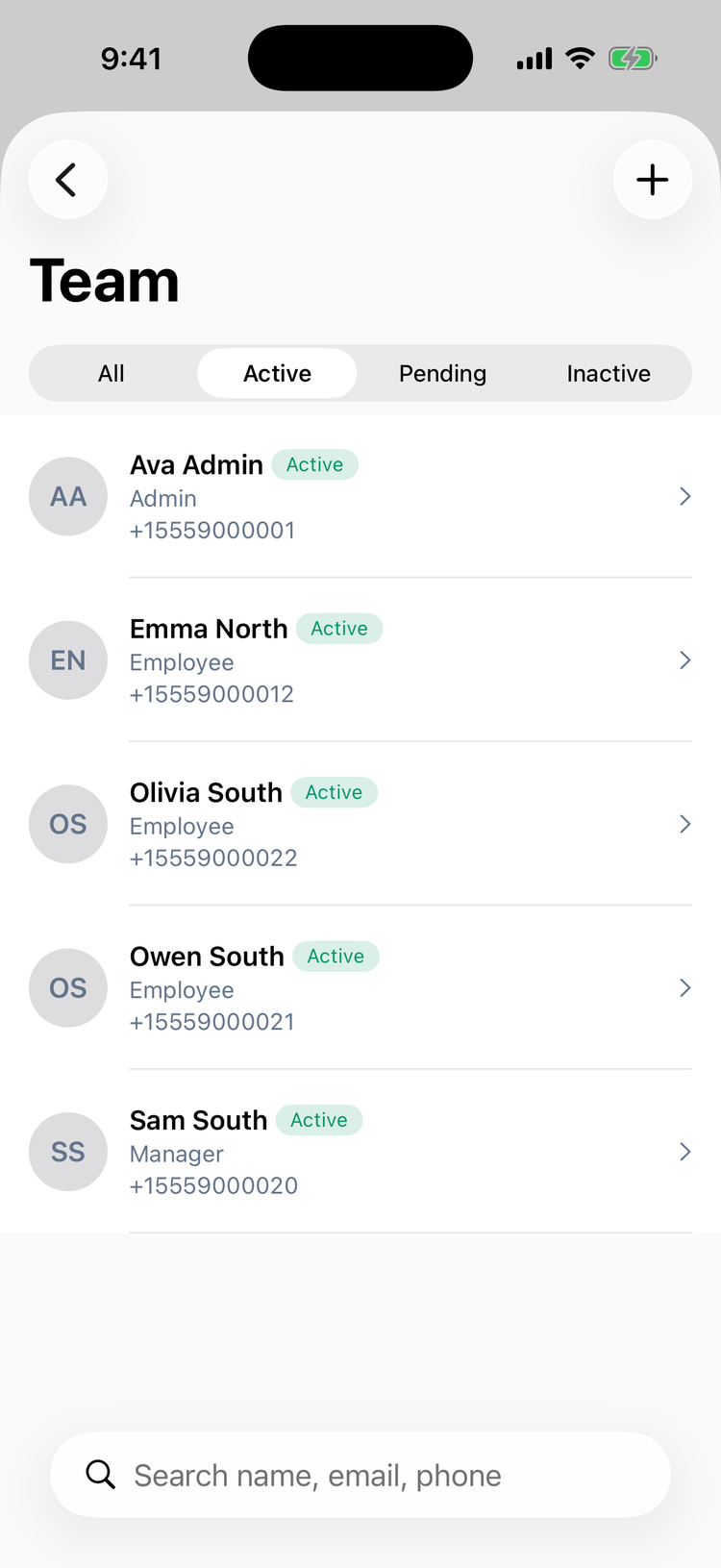
- Filter: All, Active, Pending or Inactive. The list opens on Active.
- Search by name, email or phone (Search name, email, phone on iPhone, Search team on Android).
- Locations: with more than one, chips at the top (All branches and one per location) narrow the list.
- Who's listed: managers see the people who share one of their locations. Admins see everyone.
Add someone
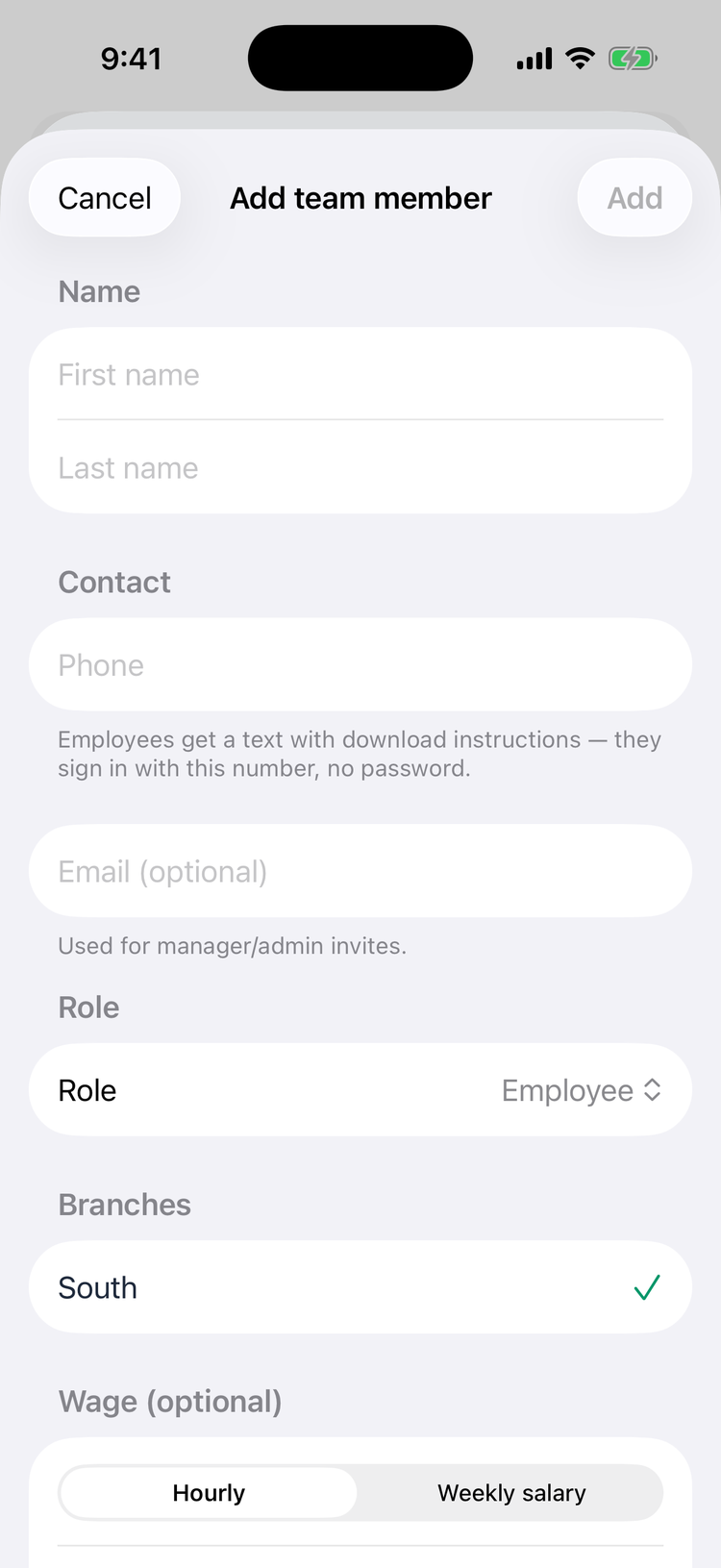
- Tap + (top right on iPhone, bottom right on Android).
- Enter First name, Last name and Phone. Employees sign in with this number and get a text with a link to the app.
- Add an Email for managers and admins. Their invitation goes by email, so without an email they get nothing.
- Pick the Role. It starts on Employee.
- Pick the location: tick one or more under Branches on iPhone, or choose one Branch on Android.
- Optionally set a wage: Hourly or Weekly salary on iPhone. On Android, tick Set a wage now (optional), then pick Hourly or Weekly.
- Tap Add (iPhone) or Add team member (Android).
On iPhone you go back to the list. On Android the new person's page opens. For what they receive, see Add and invite team members.
Managers can add people to their own locations only. They can give a role only if it has no permissions they don't have themselves. If you pick one you can't give, Mays says so and names the permissions.
Change someone's details
Tap a person to open their page. Change what you need, then tap Save (top right on iPhone) or Save changes (bottom on Android). The page stays open after saving.
- Name and Contact: first and last name, phone and email.
- Role: managers can't move someone into Manager, Admin or a role with permissions they don't have themselves. Mays says You cannot assign an elevated role.
- Branches: only admins can change the locations of someone who already exists. On Android, managers see them read-only. On iPhone, saving a change fails with Only admins can change a user's location assignments.
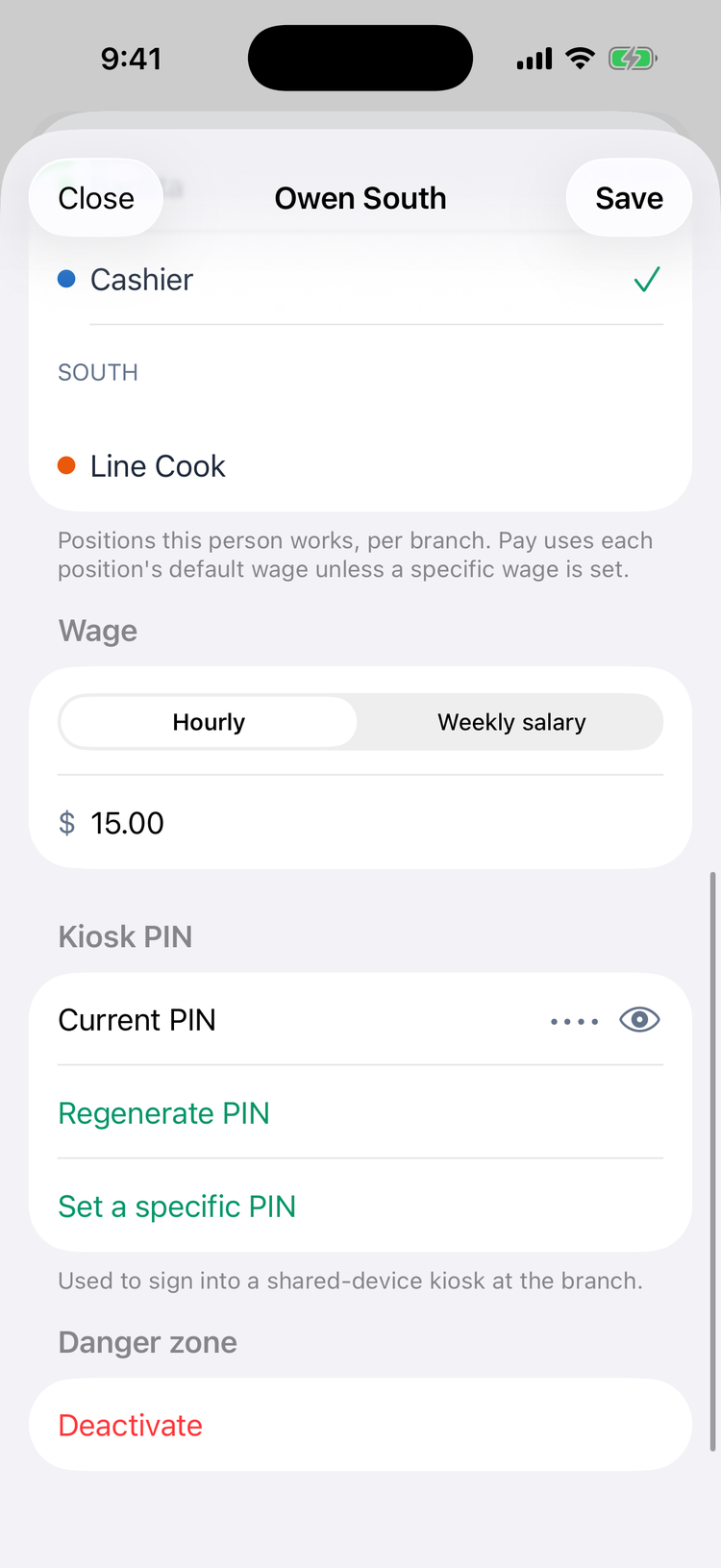
- Scheduling positions: tick the positions they work, grouped under ALL LOCATIONS and each location. Pay uses each position's default wage unless you set a wage for the person. Positions at a location they're no longer assigned to are listed under NOT IN ASSIGNED BRANCHES. Untick them. See Positions and wages.
- Wage: Hourly or Weekly salary (Weekly on Android) and the amount.
- Kiosk PIN: the 4-digit code for shared kiosk tablets.
- To see it, tap the Current PIN row on iPhone, or Show on Android.
- Regenerate PIN (Android: Regenerate) gives them a new random PIN straight away, without asking.
- Set a specific PIN (Android: Set PIN…) lets you type one. It must be 4 digits that no coworker at the same location already uses.
- Resend invite: for people still Pending. Tap it and confirm with Send. Employees get the text again, managers and admins the email. You don't get a confirmation afterwards.
- Deactivate or Activate: only shows on people you're allowed to switch off or on. Managers see it for staff at their own locations, never on another manager, an admin or themselves. See Deactivating team members and deleting accounts.
What managers can change
- Staff at your locations: everything above, apart from their locations.
- Other managers and admins: you can open their page, but you can't change it or deactivate them, so it has no Deactivate button. Saving fails with You cannot edit a user with elevated access. Their kiosk PIN shows as Not set.
- Yourself: your name, contact details, pay and PIN. Only an admin can change your role, status or locations.
Admins can change everything for everyone, except their own status: nobody can deactivate themselves.
Good to know
- Some details are web-only: department, birthday, notes, meal-break waivers and the Gusto fields. See Add and invite team members.
- Clearing a field doesn't remove it. If you empty the email (or, on iPhone, the phone number) and save, the old one stays.
- Android wage: switching between Hourly and Weekly keeps the amount you typed. Check it before you save.
- There's no delete. To take someone's access away, deactivate them.