Mays has two ways in: the web app at go.mays.app uses your email and password, and the iPhone and Android apps use your phone number and a 6-digit code we text you.
Where | How you sign in | Who uses it |
|---|---|---|
Web — go.mays.app | Email and password | Admins and managers (and anyone whose role includes web access) |
iPhone / Android app | Mobile phone number + a 6-digit code by text | Everyone |
Sign in on the web
- Go to go.mays.app.
- Enter your Email and Password and click Sign In.
- If your email belongs to more than one organization, Choose account lists them — click the one you want.
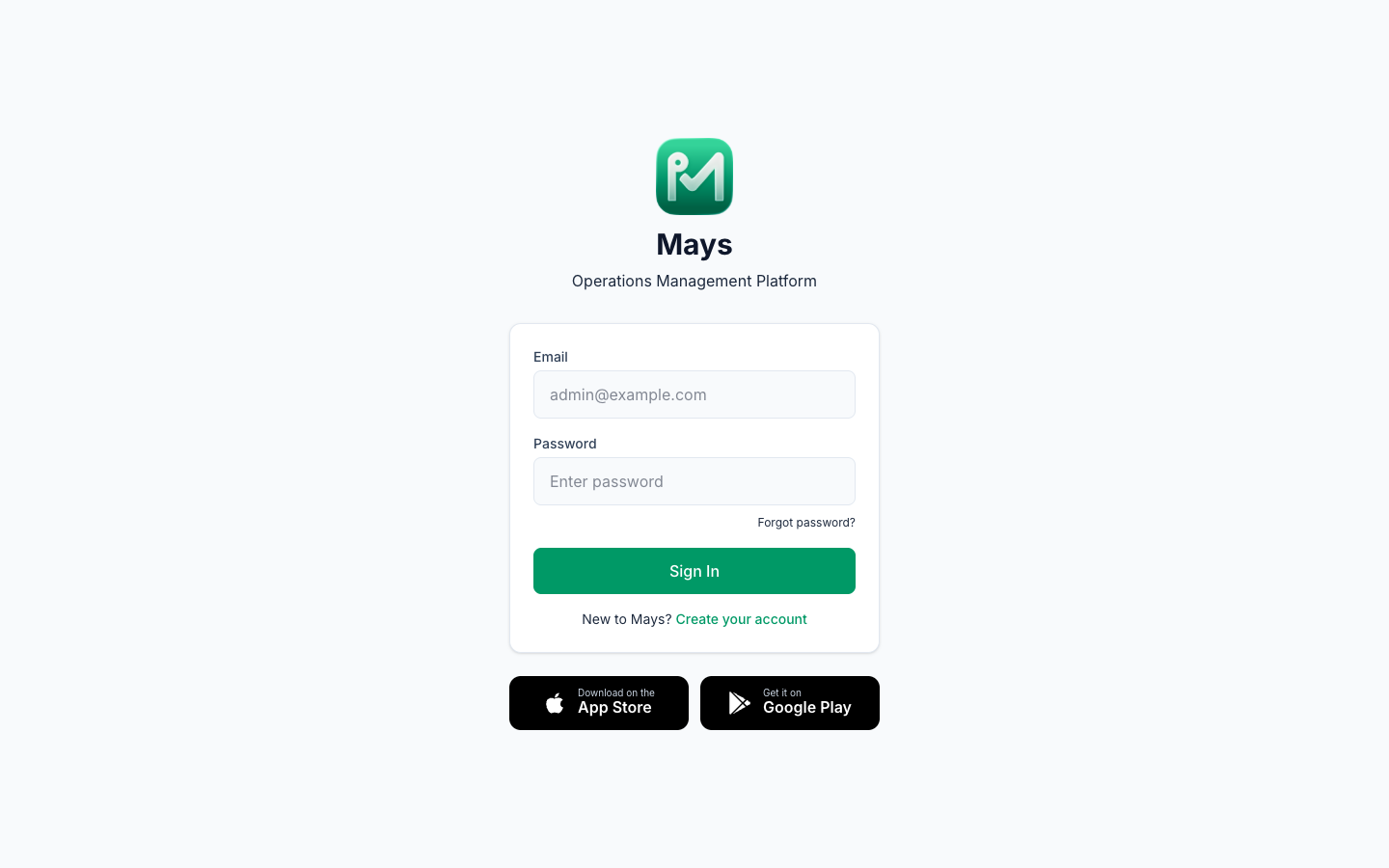
If you see This account is for the Mays mobile app, your role doesn't include the web app — use the phone app instead. Invalid email or password means the email or password is wrong, or the account isn't active yet or has been deactivated; ask your manager if you're sure the password is right.
Create your account under the form is for signing up a new business, not for joining your team's — see Create your Mays account.
Accepting an invitation
Admins and managers get an email invitation with the subject "(your company) invited you to Mays".
- Click Accept invitation in the email.
- Choose a New password (at least 8 characters), type it again under Confirm password, and click Activate account.
- You're signed in. Next time, sign in with your email and that password.
The invitation link works for 7 days. If it has expired or was already used, ask whoever added you to send it again.
Forgot your password?
- On the sign-in page, click Forgot password?
- Enter your email and click Send reset link.
- Open the email Reset your Mays password and click Reset password. Use the link within an hour — after that, request a new one.
- Enter a New password (at least 8 characters) twice and click Set new password, then sign in with it.
No email? Check your spam folder and make sure you typed the address you were invited with. Each new request replaces the previous link. If you belong to more than one organization, you get one email for each — each link resets the password for that organization only.
Signing out and switching organizations
- Sign out: at the bottom of the sidebar, click the exit icon next to your name (Logout).
- Switch organization: if you work for more than one business on Mays, a switcher with the current organization's name appears at the bottom of the sidebar, above the location switcher. Click it and pick another organization.
Sign in on your phone
- Open the Mays app. (Not installed yet? See Installing the Mays apps.)
- Tap the flag to pick your country if it isn't the United States, enter your mobile phone number and tap Login.
- We text you a 6-digit code. On iPhone it fills in from the text and signs you in on its own; on Android type it into Verification Code and tap Verify & Sign In.
- If your number belongs to more than one organization, Choose account lists them — tap the one you want.
The first time you sign in, the app asks whether it may send you notifications. Say Allow so you hear about new shifts, tasks and messages.
The code didn't arrive
- Tap Didn't get the text? Email me the code to get the same kind of code at the email address on your account. You can ask for an email code 3 times in 10 minutes.
- To get a new text, tap Change Number, check the number and tap Login again.
- Codes expire after 5 minutes.
- No account found for this phone number means nobody has added this number to Mays yet, or your account was deactivated. Ask your manager to check the phone number on your profile.
- No email on file for this number means your profile has no email address — ask your manager to add one.
Signing out and switching organizations in the app
Tap your picture in the top-left corner to open Profile.
- Switch organization: if you belong to more than one, tap the Organization card and pick another.
- Sign out: tap Sign Out near the bottom and confirm.
Good to know
- There's no password in the apps and no phone sign-in on the web. A manager who uses both needs a phone number and an email on their profile.
- If you were added as an employee, you don't need to do anything with the invitation text except install the app — your first sign-in with your phone number activates your account.
- Shared kiosk tablets in the store don't use this screen: staff type their 4-digit PIN instead. Your PIN is shown under Kiosk PIN in your app's Profile.
- Mays keeps you signed in on each browser and phone until you sign out, as long as you use it regularly.