When someone leaves, deactivate them. They can't sign in any more, but their hours, tasks and history stay. Staff can also delete their own account in the app, and an admin can restore it.
Deactivate someone on the web
- Go to Locations & Users → Users.
- On the person's row, click ⋮ → Deactivate.
- Confirm Deactivate (name)? They will lose access.
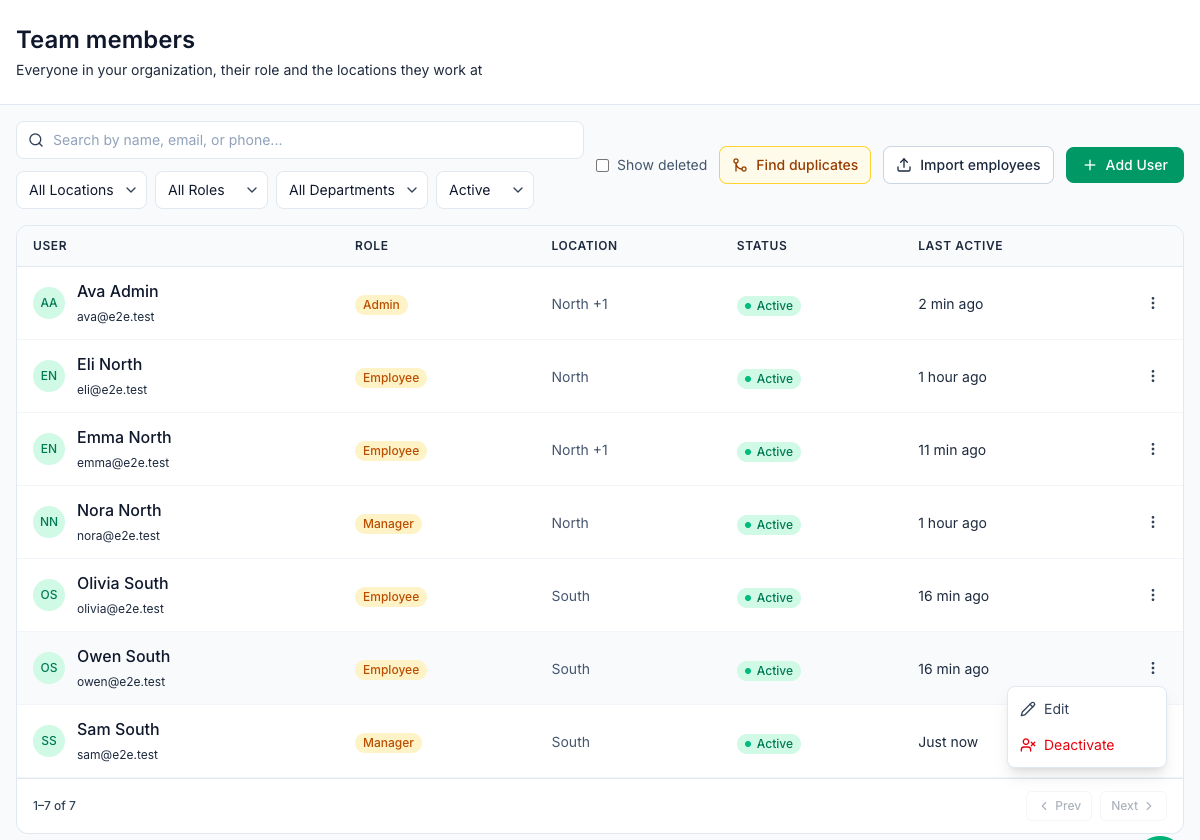
You can also open the person and click Deactivate User on the Access & security tab of their page. That button works straight away, without asking first.
They now show as Inactive. The list shows active people by default. Pick Inactive in the status filter to find them.
Deactivate someone in the app
- Tap your picture (top left) to open Profile, then tap Team.
- Tap the person and scroll to the bottom.
- Tap Deactivate (under Danger zone on iPhone) and confirm.
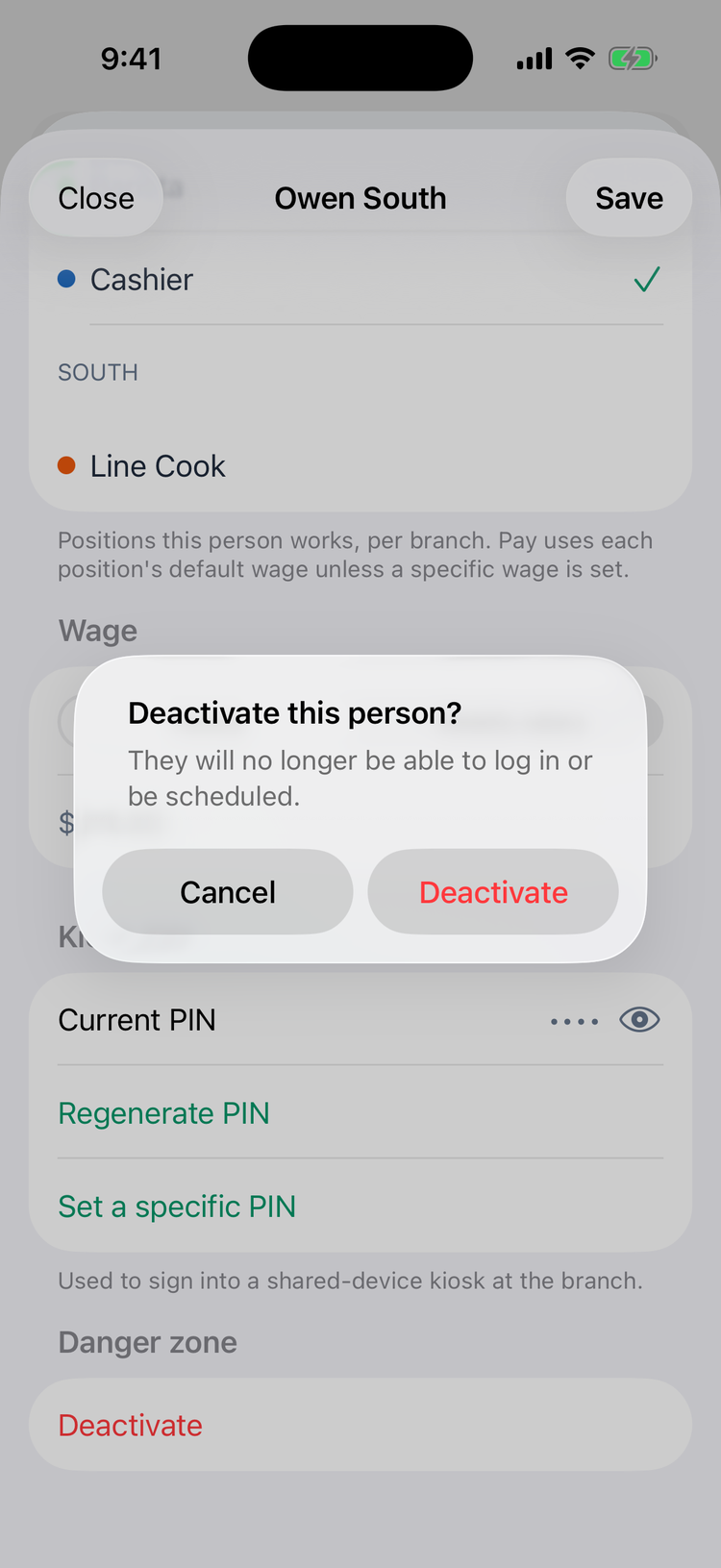
On Android the confirmation names the person, for example Deactivate Owen South?
What deactivating does
After deactivating | |
|---|---|
Signing in | They're signed out everywhere. They can't sign in on the web, in the app or on a shared kiosk. The app tells them No account found for this phone number. |
Schedule | They're no longer offered when you build the schedule. Shifts already assigned to them stay assigned, and in those weeks they're shown with an Inactive badge. Reassign their future shifts. |
Time clock and payroll | Their past punches, timesheets and pay-period exports stay as they were. |
Checklists | Recurring checklists stop giving them tasks, and you can't assign them a new one. |
Chat | They're no longer in the list of people to message, and they stop getting messages and notifications from their chats straight away. They're still listed as a member of their group chats until you remove them. See Group chats. |
Notifications | Their phones stop getting notifications from your business straight away. If you reactivate them, notifications start again once they sign in to the app. |
Their information | Nothing is deleted. You can reactivate them at any time. |
Reactivate someone
- Web: open the person and click Activate User on the Access & security tab. Or set Status to Active on the Profile tab and click Save Changes. Neither works for someone marked Deleted: restore them instead (see below).
- App: in Team, choose the Inactive filter, tap the person and tap Activate.
They can sign in again straight away. To send them the app link or invitation again, reactivate them first. Resend Invite doesn't work for inactive people.
Who can deactivate people
- Admins can deactivate and reactivate anyone except themselves.
- Managers can deactivate and reactivate people who work at one of their locations, apart from other managers and admins.
- Nobody can deactivate or reactivate their own account.
- On the web, ⋮ → Deactivate, Deactivate User and Activate User only show for people you're allowed to deactivate or reactivate. A manager looking at an admin's page doesn't see them.
- For a custom role, the permission is Invite, deactivate & reactivate users. On its own, it works as it does for managers. With Create / edit users in every location + assign roles as well, it works as it does for admins. Someone whose role has admin-level permissions counts as an admin here, so managers can't deactivate them.
There's no way to delete someone else's account. Deactivate them instead.
Delete your own account (app)
Anyone can delete their own account from the app, including managers and admins.
- Tap your picture (top left) to open Profile.
- Scroll down and tap Delete Account.
- Read the message and tap Continue. Then tap Delete My Account to confirm.
Your account is closed straight away. You're signed out on every phone and stop getting notifications. It only affects the business you're signed in to. If you work for other businesses on Mays, those accounts stay.
What happens next:
When | What happens |
|---|---|
The first 30 days | Nothing else is removed. An admin at your company can restore your account. Signing in again doesn't reopen it, and you can't be added again with the same email address. |
After 30 days | Your contact and sign-in details are permanently removed: email, phone, photo, password and PIN, plus your date of birth, notes on your profile and notification settings. The account can't be restored any more. |
Kept | Your name and your work and pay records stay with your employer, as the law requires: shifts, punches and hours, breaks, time off, pay and tips, completed tasks and photos, chat messages, certificates and waivers. Managers still see your name on past schedules and timesheets, marked (deleted account). |
To come back within the 30 days, ask an admin at your company to restore your account. After that, you can be added again as a new team member with the same email address or phone number.
Admins: make sure someone else in your company is an admin before you delete your own account.
Restore a deleted account (admins)
- Go to Locations & Users → Users.
- Tick Show deleted and set the status filter to All. Deleted accounts only appear with both.
- Find the person. They're marked Deleted.
- Click ⋮ → Restore and confirm Restore (name)?
They're active again and can sign in. Only admins can restore an account. Managers see Restore too, but nothing happens when they click it.
You can restore an account for 30 days after it was deleted. After that, its contact and sign-in details are removed for good: the row shows the person's name with Contact details removed under it, and Restore is gone. Their past shifts, punches and pay stay, and the timesheet shows their name followed by (deleted account). To have them back, add them again as a new team member.
Good to know
- Integrations: if you connect 7shifts or Square, people who are no longer active there are deactivated in Mays at the next sync.
- Merging duplicates: when you merge duplicate people, the extra accounts are marked Deleted. You can restore one the same way within 30 days, but what the merge moved stays with the account you kept. After 30 days their contact and sign-in details are removed like any other deleted account's. See Merging duplicate users.
- Kiosk PINs of deactivated and deleted people stop working. See Shared kiosk devices and PINs.
- Deactivating isn't the same as taking someone off a location. To move someone to another store, change their Assigned Locations on the Locations & pay tab. See Location access for managers and multi-location staff.