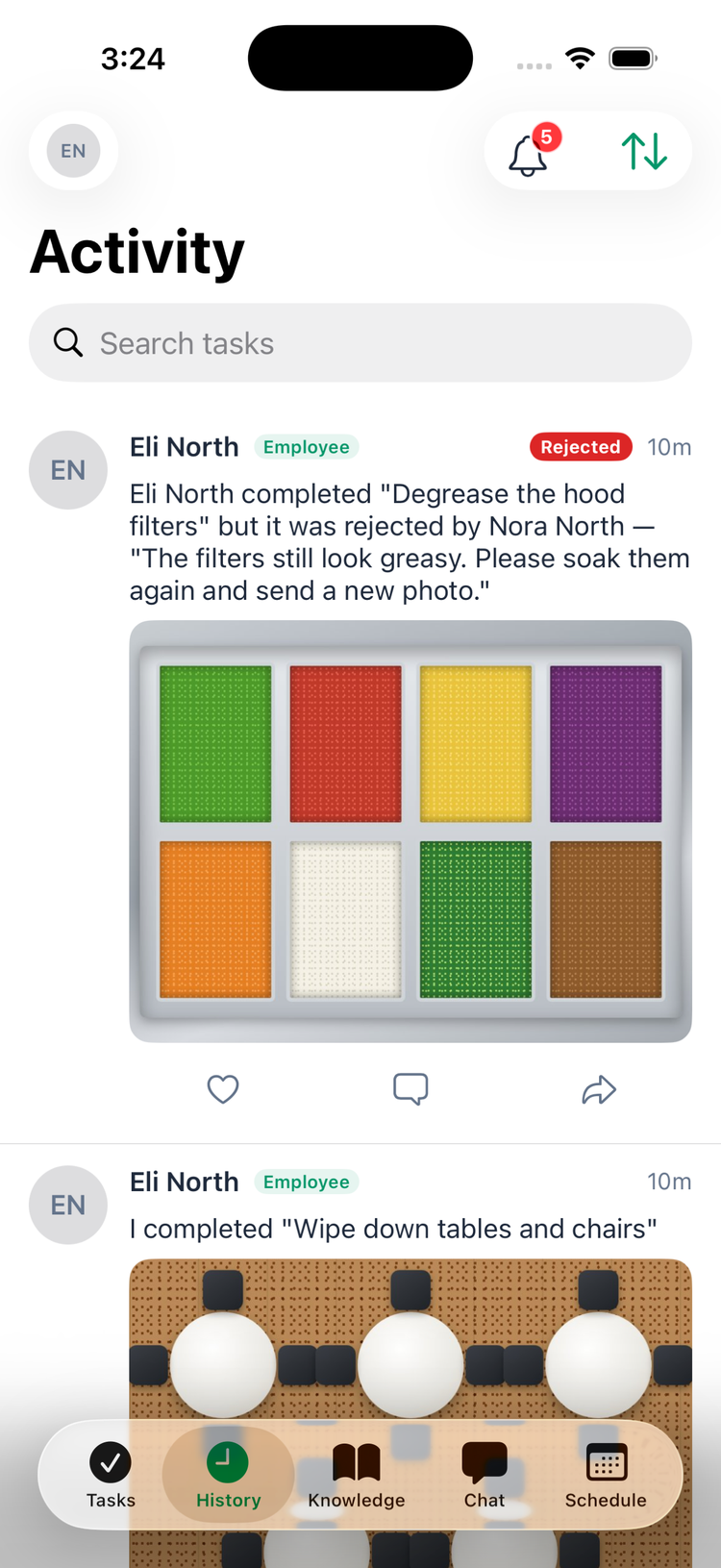
The History tab in the Mays app is your team's Activity feed: every task completed at your locations, newest first, with the photo or answer. Give a colleague a like, leave a comment, or share the task to a chat.
What's in the feed
- Completed tasks — and tasks that were rejected — from your whole team at the locations you work at. Admins see every location.
- Each card shows who did it, their role, how long ago, what they did (for example completed "Record walk-in cooler temperature" with 36, with any note), and the photo for photo tasks.
- A rejected task says who rejected it and why. On iPhone it also has a red Rejected label.
- Scroll down to load more. On iPhone, pull down to refresh.
- Search tasks finds items by task name, the person the task was assigned to, or the location.
- The sort button at the top switches between Newest First and Oldest First.
Like and comment
- Tap the heart to like a task (tap again to take it back). The person who did it gets a notification.
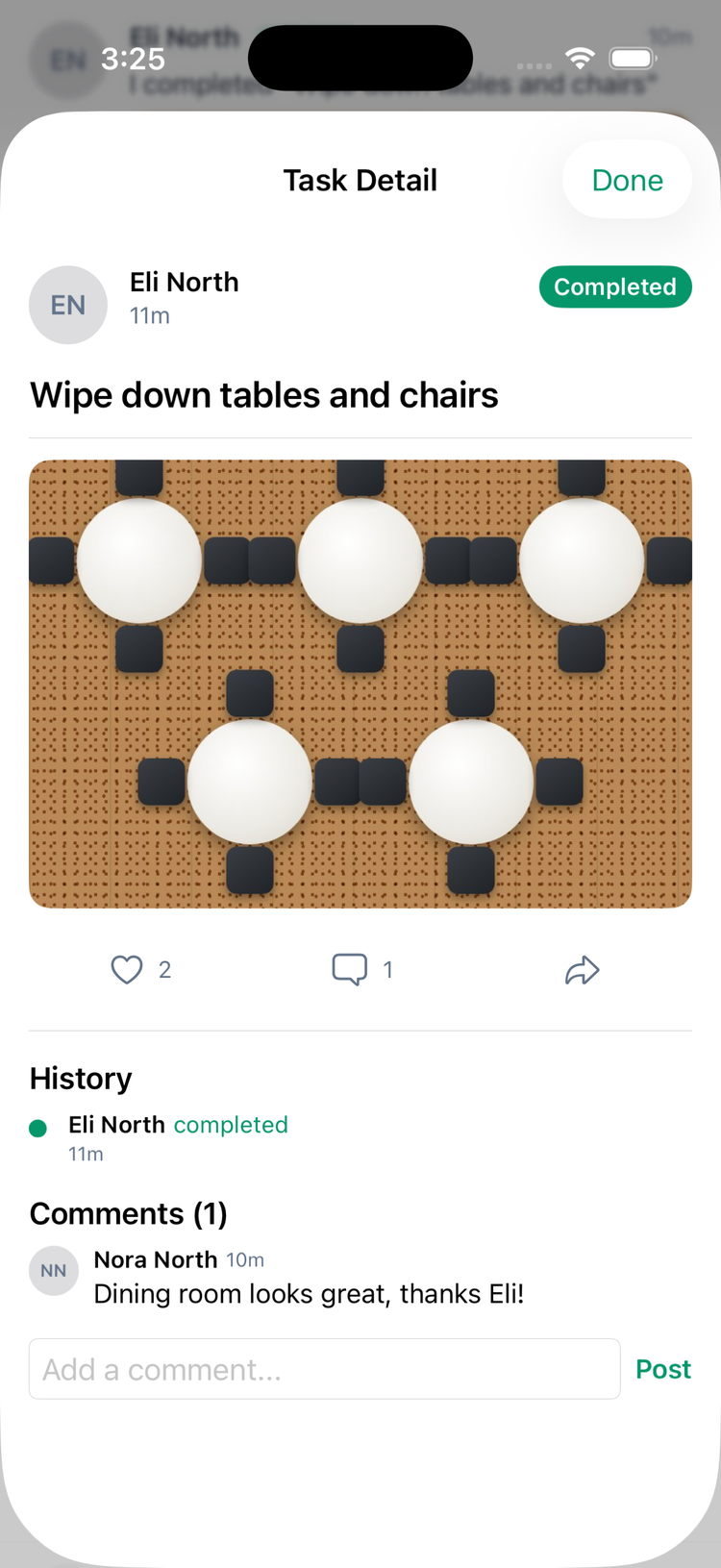
- Tap the speech bubble — or the card itself — to open the task. It shows the full answer, the task's History (completed, rejected, reopened, with reasons) and Comments.
- Type in Add a comment... and tap Post. The person who did the task gets a notification.
- To change or remove your comment, tap … next to it and choose Edit or Delete. Managers can delete anyone's comment on tasks at their own locations; admins at any location.
Share a task to a chat
Tap the share button on a card (on iPhone you can also share from the opened task). Pick one or more conversations and tap Send. The chat gets a card with the task, who did it and the result; tapping it opens the task.
See someone's profile
Tap a person's picture to see their profile: name, role, department, locations and their Recent Tasks. Recent Tasks only lists tasks you could see in your own feed — tasks at your locations and, unless you're a manager or admin, none of the tasks meant only for managers. The profile doesn't show anyone's email or phone number.
For managers
Managers and admins can send work back from the feed (managers for their own locations): open a completed task and tap Reject Task, add a reason and tap Reject. If the AI photo check flagged the photo, you'll see AI flagged this for review above the button. See Reviewing and rejecting completed tasks.
Good to know
- Android: the opened task is a panel that slides up from the bottom, with comments but without the like and share buttons — like and share from the card in the feed.
- Likes and comments also appear on the web, in Live Activity on the Operations Dashboard and in Task Details on the Tasks page.
- Notifications for likes and comments can't be turned off. See Notifications.
- The feed shows tasks from every day, not just today. To see what's still to do, use the Tasks tab.