A kiosk is a tablet or phone that stays at the store. Staff sign in with their 4-digit PIN to clock in and out, take breaks and work through their tasks — no personal phone needed.
Plans: kiosks are part of Devices (Basic plan). The Clock tab on a kiosk also needs Scheduling (Pro plan); without it, a kiosk is for tasks only.
Set up a kiosk (managers and admins)
Setting up and managing kiosks needs the Manage shared devices permission, which managers and admins have by default. Use a tablet or phone with the Mays app installed — see Installing the apps.
- Sign in to the app on that device with your own account.
- Tap your picture to open Profile, then Convert to shared device. It's only there when your plan includes Devices.
- If you work at several locations, pick the one the device is at.
- Give it a name everyone recognises, for example Front counter iPad, and tap Next.
- Read the confirmation and tap Convert (on Android, Convert to shared device).
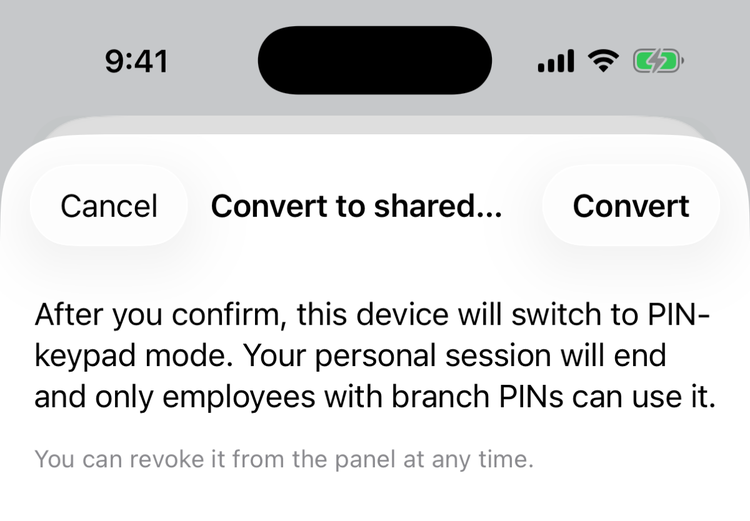
You're signed out and the device shows the PIN keypad with the location's name. It stays a kiosk until it's revoked from the web (see below).
Sign in with your PIN (everyone)
- On the kiosk, type your 4-digit PIN under Enter your PIN. It signs you in as soon as you type the fourth digit.
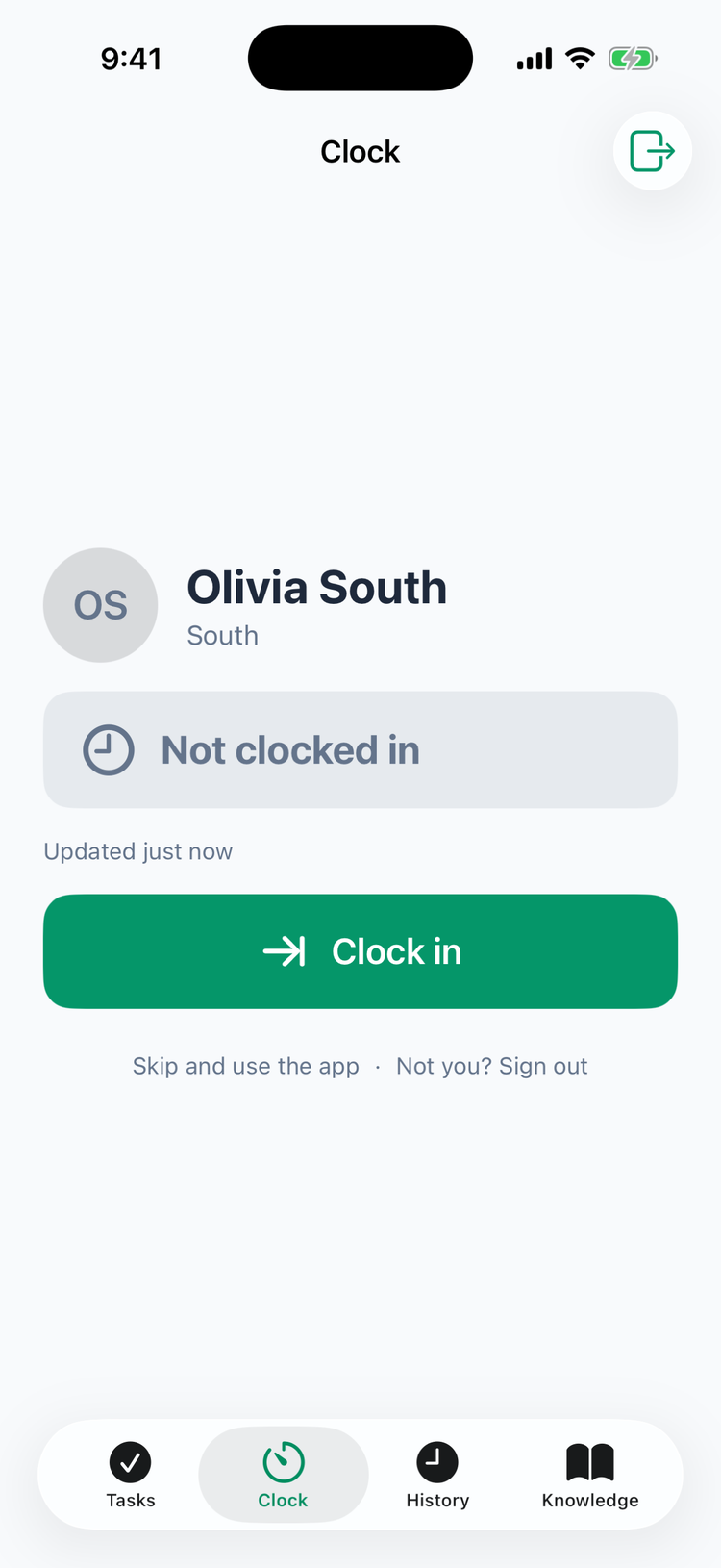
- You land on the Clock tab with your name and the store.
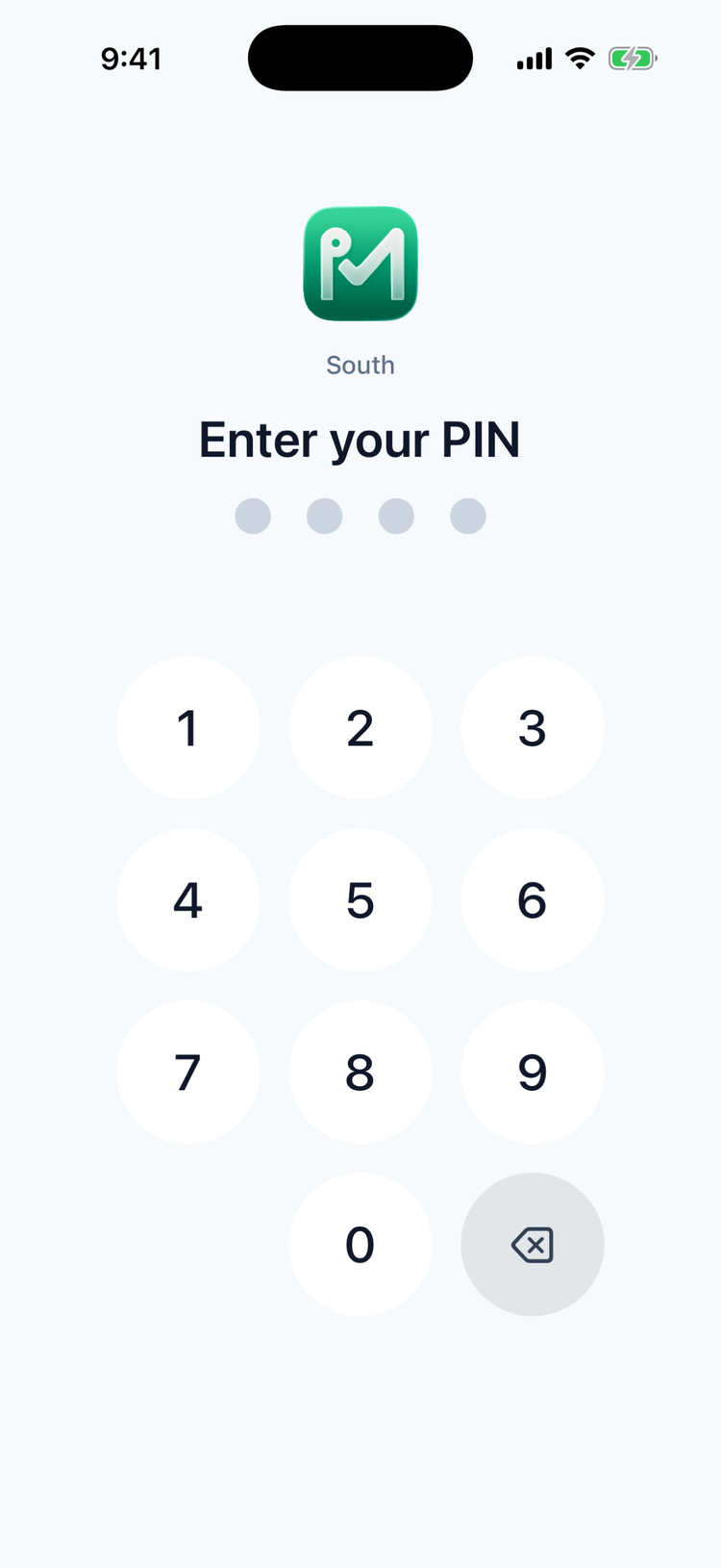
Anyone assigned to that location with a PIN can sign in — staff, managers and admins.
Clock in and out on the kiosk
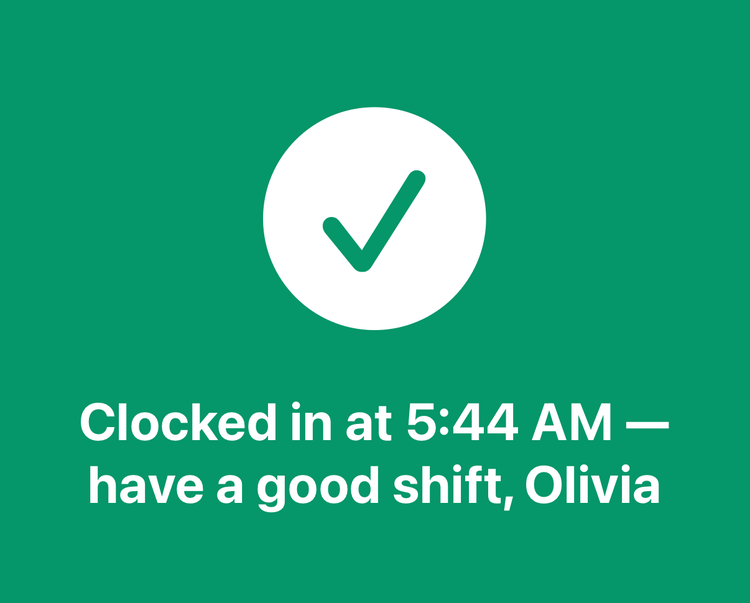
- Clock in — you see Clocked in at 5:44 AM — have a good shift with your name, and the kiosk signs you out.
- Start break / End break — breaks work like in the app; see Taking breaks. After End break you stay signed in, so sign out when you're done.
- Clock out — confirm Clock out at 1:30 PM? with Yes, clock out. If your store asks about your breaks, answer the question first. You're signed out afterwards.
The kiosk also has Tasks, History and Knowledge tabs (KB on Android) — tap Skip and use the app to go to your tasks. There's no chat, schedule or profile on a kiosk.
Signing out: tap the sign-out button at the top, or Not you? Sign out. The kiosk also signs you out after 30 seconds without a tap. On every kiosk screen a banner counts down the last 10 seconds — Signing out in 5 s — tap to stay. A kiosk session also ends after 10 minutes, even if you're using it; just type your PIN again.
If your PIN doesn't work
Message | What it means |
|---|---|
PIN not recognised. | Wrong PIN, or you aren't assigned to this location. |
Too many wrong PINs — device locked. | Five wrong PINs in a row. Wait 30 seconds — the kiosk says Device is locked for …s after too many failed attempts. |
PIN matches multiple users — ask a manager to fix. | Two people at this location have the same PIN. A manager needs to change one. Mays avoids this where it can: when someone is added to another location where their PIN is already taken, they get a new PIN, which they'll find under Kiosk PIN in their app. |
Where to find your PIN
Everyone you add on the web or in the app gets a random 4-digit PIN. People imported from a spreadsheet only get one if the file had a PIN column — until a manager sets one, their profile says Not set — ask your manager.
- Staff: open the Mays app on your own phone, tap your picture, and look under Kiosk PIN — tap Show. Your PIN is yours alone; don't share it or use anyone else's.
- Admins and managers can see, set or regenerate a team member's PIN — on the web under Locations & Users → Users → the person → Kiosk PIN (Reveal, Change, Regenerate), or in the app under Profile → Team → the person. Admins can do this for anyone; managers only for the staff at their own locations, not for other managers or admins — the web page then has no Kiosk PIN section, and the app shows Not set. Two people at the same location can't share a PIN.
Only admins — and managers, for the staff at their own locations — can see or change other people's PINs. A manager can't see another manager's or an admin's PIN.
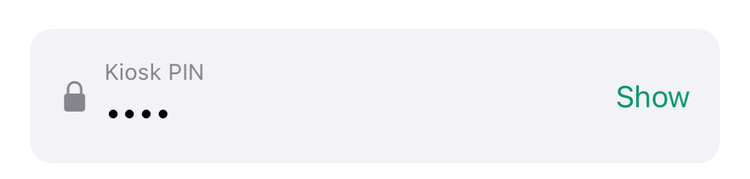
With 7shifts connected, each sync copies a person's 7shifts PIN into Mays when it's 4 digits, so a PIN changed in Mays may be replaced.
Manage kiosks on the web (managers and admins)
Where: Devices in the web sidebar. It shows for anyone with Manage shared devices — managers see their own locations' kiosks, admins every location's.
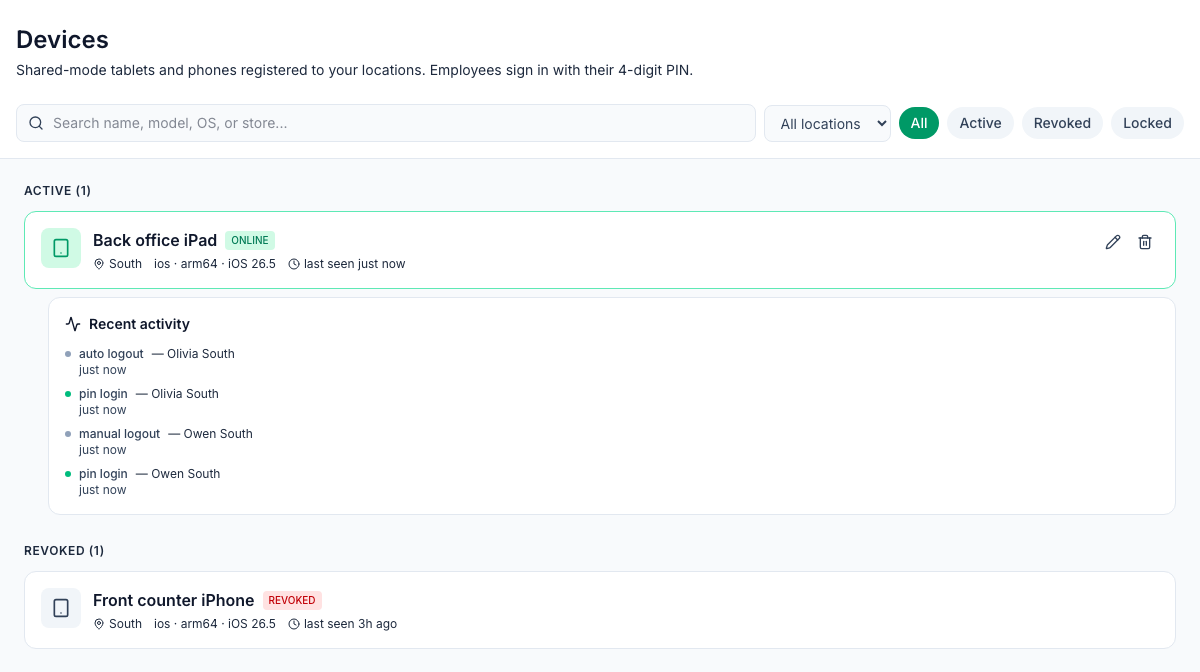
- Each kiosk shows its name, location, device type and when it was last used. ONLINE means someone used it in the last two minutes; LOCKED means it's in the 30-second lock after wrong PINs.
- Click a kiosk to see its Recent activity — PIN sign-ins, wrong PINs, lockouts and sign-outs, with who and when. auto logout is the kiosk signing someone out by itself (after a punch, or when nobody taps); manual logout is someone tapping sign out.
- Rename: click the pencil, type the new name and press Enter.
- Revoke: click the bin and confirm. The kiosk returns to the normal Mays sign-in screen — straight away, or the next time someone types a PIN. Someone already signed in can finish, until their session ends.
- Search by name, model, system or store, or filter by location and status.
A revoked kiosk stays in the list under Revoked. To use that device as a kiosk again, run Convert to shared device on it again — it appears as a new entry.
Good to know
- Punches from a kiosk are recorded at the kiosk's location and show Kiosk as the source on the timesheet — see Timesheets and pay periods.
- Store rules still apply: early clock-in limits and "no shift today" rules work on kiosks too. Setting Mobile punching to Kiosk only or NFC tap required never blocks the kiosk. iPads and iPhones used as kiosks send their location at clock-in, so a location's Block geofence can apply to them; Android kiosks don't — see Punch verification and geofencing.
- There's no way to leave kiosk mode on the device itself — revoke it from the Devices page.
- Renaming the location doesn't update the name on an existing kiosk's keypad. Convert the device again if you need it to change.