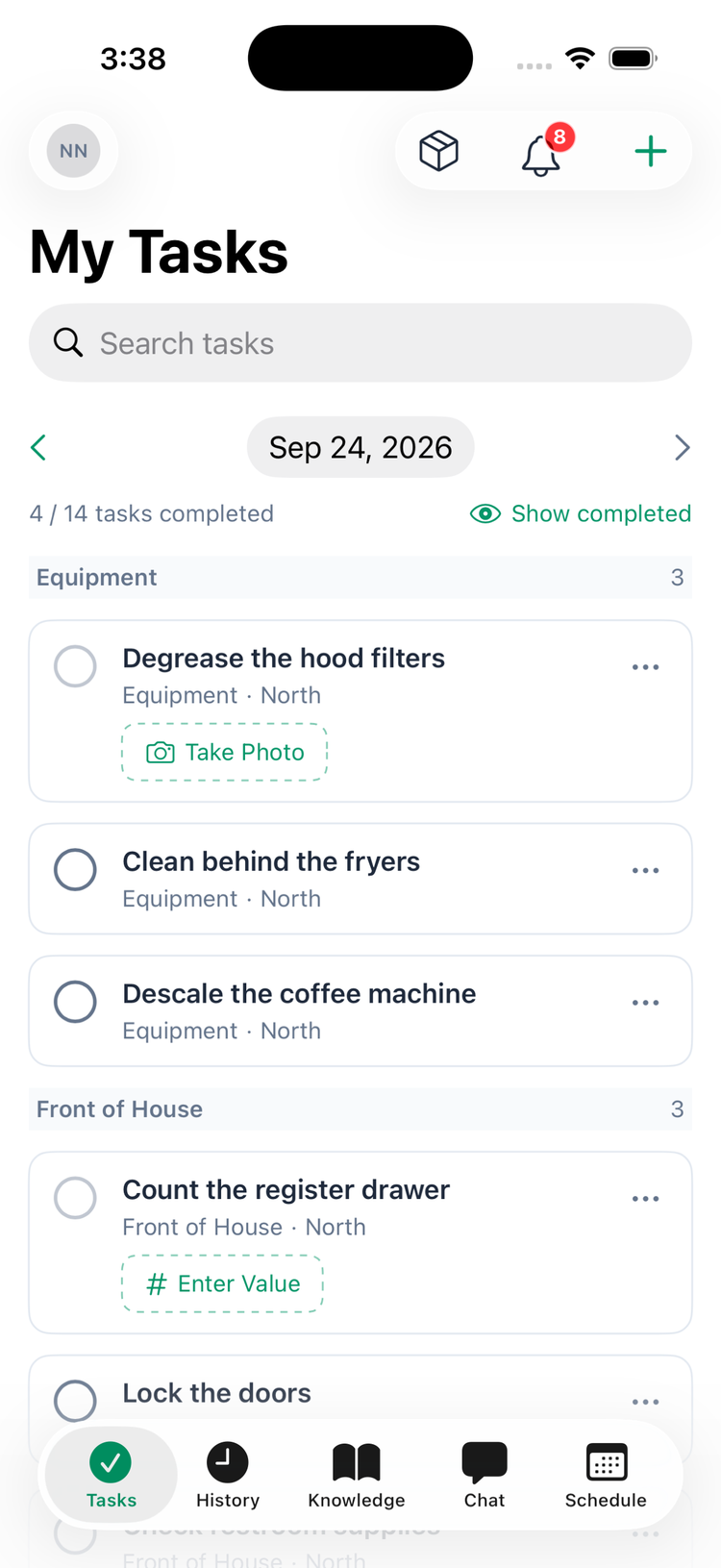
The Mays app has five tabs along the bottom — Tasks, History, Knowledge, Chat and Schedule — with your profile in the top-left corner and your notifications in the top-right. Employees, managers and admins all use the same app; managers get a few extras.
The tabs
Tab | What's in it |
|---|---|
Tasks | My Tasks: your checklist for today, grouped by section, with a progress count and Show completed. See Completing your tasks in the app. |
History | Activity: what your team has completed (and what was rejected), with photos, likes and comments. See The Activity feed. |
Knowledge (KB on Android) | Knowledge Base: your company's folders, articles and documents, to read and search. See Your knowledge base. |
Chat | Messages: direct and group chats with your team, and the AI Assistant. |
Schedule | Clock in and out, take breaks, see your upcoming shifts, and open Open shifts, Shift offers, Time off, Availability, My Hours and Team schedule. |
The Schedule tab only appears if your company's plan includes scheduling. A red number on Chat counts unread messages.
The top of the screen
- Your picture (top left) opens Profile — on every tab.
- The bell (top right) opens your notifications; the red number is how many you haven't read. It's on every tab except Knowledge. See Notifications.
- Each tab can have its own buttons, like the sort button on History or + to start a chat on Chat.
Your profile
Tap your picture to open Profile:
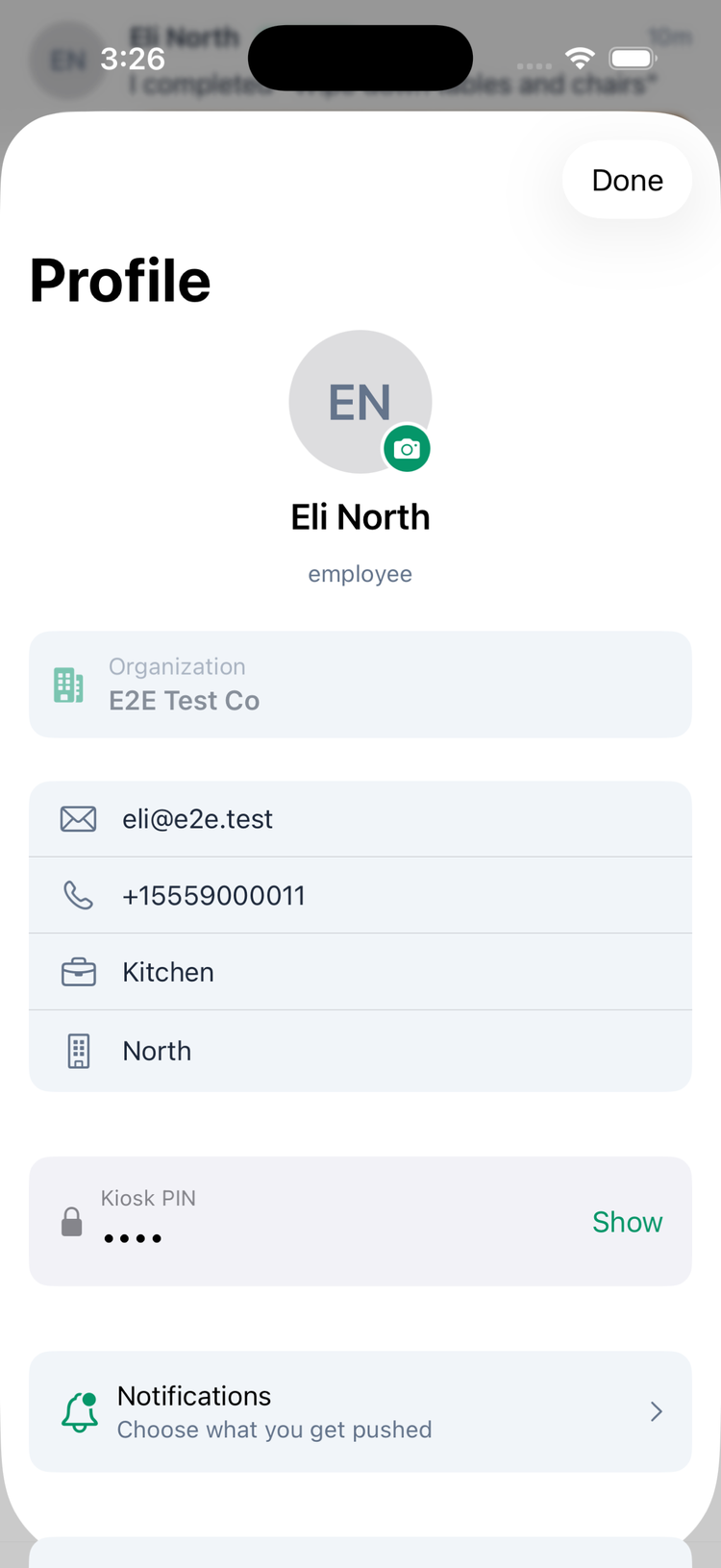
- Your picture — tap the camera to change it.
- Organization — if you work for more than one business on Mays, switch between them here.
- Your email, phone number, department and location.
- Kiosk PIN — your 4-digit code for a shared tablet at your store (Show reveals it).
- Notifications — choose which notifications you get.
- Calendar sync — see your shifts in Apple or Google Calendar. See Calendar sync.
- Learning — your training modules and quizzes, if your company uses them.
- Diagnostics (iPhone only) — details to copy for the Mays support team.
- Sign Out and Delete Account.
Extras for managers and admins
- Tasks: a date bar to look back at earlier days, location chips if you run more than one, and a + button to create a task.
- Inventory: a box icon at the top (on every tab on iPhone, on the Tasks tab on Android) opens inventory counts, if your plan includes inventory.
- Schedule: Approvals (with a count of requests waiting), the manager schedule and the Logbook. A red number on the Schedule tab counts pending approvals.
- Profile: Team, to add and manage your team, and Convert to shared device, to turn a store tablet into a kiosk (if your plan includes Devices).
No connection
When your phone is offline, a red No internet connection bar appears at the top. You need a connection to complete tasks, send messages and clock in.
Shared kiosk tablets
A tablet turned into a shared device works a little differently. Staff sign in with their 4-digit Kiosk PIN and land on a Clock tab to clock in or out (or Skip and use the app). The tabs are Tasks, Clock, History and Knowledge — no Chat, no Schedule and no profile — and the bell is replaced by a sign-out button. The kiosk signs the person out after 30 seconds without a tap.
Good to know
- iPhone and Android have the same tabs in the same order; Android calls the Knowledge tab KB.
- iPad: the iPhone app runs on iPad too and turns with the screen; on iPhone it stays upright.
- If a tab you expect isn't there (say Schedule), your company's plan doesn't include it — ask your admin.