You can fix most app problems yourself: no connection, missing notifications, the wrong account or organization, or an NFC tag that doesn't open Mays. Otherwise, here's what to send support.
"No internet connection"
A red No internet connection bar at the top means your phone is offline. The app needs a connection to complete tasks, send messages and clock in. There's no offline mode.
- Check that Wi-Fi or mobile data is on, and that airplane mode is off.
- Open a website in your browser to check the connection works.
- Go back to Mays and pull down to refresh.
No red bar, but things fail with Unable to reach the server. Check your connection.? You're probably on a Wi-Fi network that needs a sign-in page, such as guest Wi-Fi, or has no internet. Sign in to the network in your browser, or turn Wi-Fi off and use mobile data.
Notifications don't arrive
- Allow notifications for Mays in your phone's settings: Settings → Notifications → Mays on iPhone, or Settings → Apps → Mays → Notifications on Android.
- Check the category is on under Profile → Notifications.
- Check the chat isn't muted, for chat messages.
- Check Focus or Do Not Disturb on your phone.
- Close Mays completely and open it again. On Android this is needed after you first allow notifications. On iPhone, opening the app again is enough.
- Signed out? Signing out stops notifications on that phone. Sign in again.
The app doesn't warn you when notifications are switched off in your phone's settings, so check step 1 first. See Notifications.
Wrong account or organization
- Wrong business? Tap your picture, then the Organization card, and pick the right one. See Your profile in the app.
- A business is missing from the list? It only shows businesses you've signed in to before. Sign out, then sign in with your phone number. If it belongs to several businesses, you're asked to Choose account.
- Different phone number? Sign out, then sign in with the other number. On the code screen, Change Number takes you back.
- No account found? If the app says No account found for this phone number, Mays doesn't have this number for you, or your account was deactivated. Ask your manager to check the number on your profile.
- The code doesn't come by text? Tap Didn't get the text? Email me the code. See Signing in on web and mobile.
- Signed out on your own? You stay signed in as long as you open the app at least every 30 days. After longer, or if your account was deactivated, sign in again.
An NFC tag doesn't open Mays
iPhone
- Unlock your phone and hold its top edge close to the tag. Tap the notification that appears.
- If a web page opens instead (Open the Mays app to punch in), tap Open in Mays.
- If you're signed out, the sign-in screen says NFC tag detected — log in to punch. Sign in and the punch screen opens.
Still nothing? Tap the tag once more, then open Profile → Diagnostics.
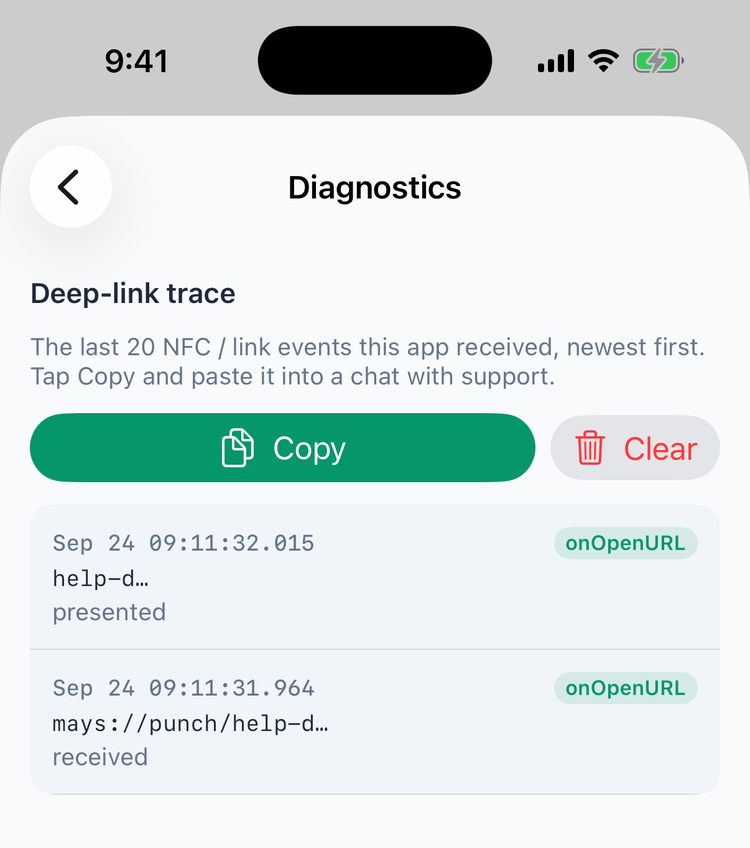
Diagnostics lists the last 20 NFC and link events the app received, newest first.
- The label on each event shows which of the three ways the link reached the app: onOpenURL, userActivity or appDelegate. iPhone can hand a tag's link to an app through any of them.
- The words under it show what the app did: received, holding until login, presented or gave up.
- No new event after tapping the tag means the link never reached Mays. Check you're holding the phone close enough, and that the tag belongs to your store.
Tap Copy and paste the result into your message to support. It includes the app's version.
Android
- Turn NFC on in your phone's settings. It's usually under Connected devices or Connections.
- Unlock the phone, open Mays if you can, and hold the back of the phone to the tag.
- If your phone asks which app to use, choose Mays and Always.
- If a web page opens instead, tap Open in Mays.
If you're signed out, the punch screen opens after you sign in. Android has no Diagnostics screen, so tell support your phone model and exactly what happened. See Clocking in with NFC tags.
Something's missing or looks out of date
- Update the app in the App Store or Google Play. Mays doesn't force updates, so turn on automatic updates.
- A tab is missing, such as Schedule. Your company's plan doesn't include it. See A tour of the app.
- No Team row in Profile. It's only there for the built-in Manager and Admin roles.
What to send support
- Your name, your company and your phone number.
- Your phone model and its iOS or Android version.
- The app version. Find it in the App Store or Google Play listing, or in your phone's settings for the Mays app. On iPhone, the Diagnostics text includes it.
- What you did, what you expected, what happened, and roughly when.
- A screenshot of the message you saw.
- For NFC problems on iPhone, the text from Diagnostics → Copy.
Staff: send it to your manager. Managers and admins: open a ticket under Help in the web app, or send a support request from our contact page. See Getting help and support tickets.
Good to know
- Shared kiosk tablets work differently. See Shared kiosk devices and PINs.
- Your work is saved in Mays, not on the phone. Tasks you completed, messages and punches are all there when you sign in on another phone.