Insights → Alerts & Reports notifies you when a number crosses a line you set, and emails a weekly or monthly summary of labor, prime cost or vendor spend.
Who: admins. To let someone else see this page, give them a custom role with View insights. To let them create and change alerts and reports too, add Manage alert rules & scheduled reports. Insights is part of every plan. You set alerts up on the web; team members get them on their phone.
Create an alert
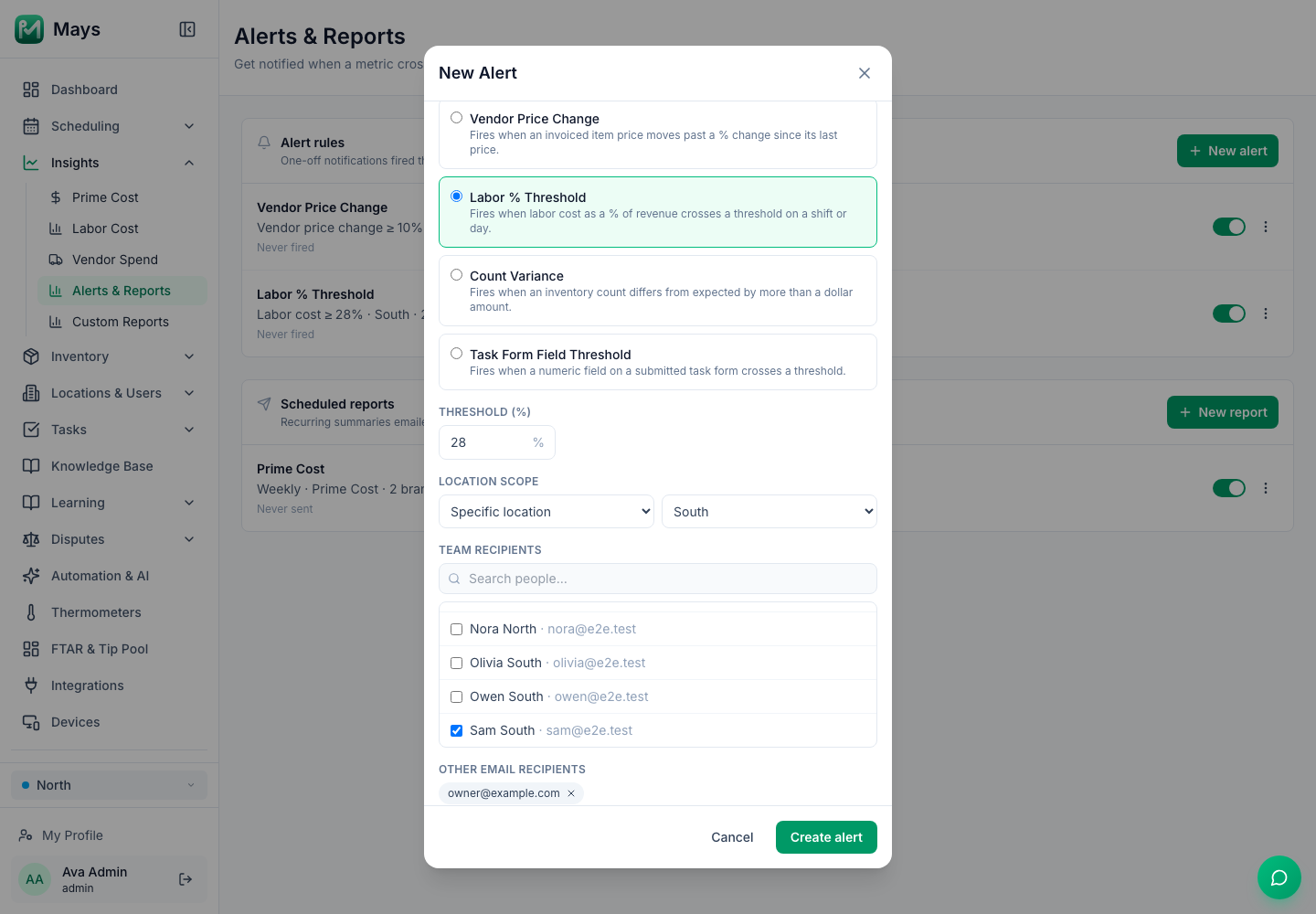
- Go to Insights → Alerts & Reports and click New alert. Set Alert on the Labor Cost and Vendor Spend pages opens the same window.
- Pick the Alert type (see the table below).
- Enter the threshold.
- Under Location scope, choose All locations, or Specific location and pick one.
- Choose who gets it:
- Team recipients: tick people in your organization. They get a notification in the Mays app on their phone.
- Other email recipients: type an email address and press Enter. They get an email.
- Leave Enabled on and click Create alert.
Alert type | When Mays checks | It fires when… |
|---|---|---|
Vendor Price Change | Each time an invoice is posted with Post & receive | An item's price is up or down by at least your Threshold (%) since the last price from that vendor for the same pack. Items with no earlier price are skipped. You get one message per invoice, for example 3 price changes on Sunrise Dairy Co. invoice: Oat milk +11.4%, … |
Labor % Threshold | Once a morning, around 6 a.m. at each location, for the day before | Yesterday's labor cost was at or above your Threshold (%) of sales. It needs POS sales, so it never fires for a location without them. It fires at most once a day per location. |
Count Variance | When a stock count is approved | The count differs from what was expected by more than your Threshold ($). Each item's difference is priced like in recipes: at its imported cost if it has one, otherwise at its cheapest vendor price for that location. Counts can't be approved yet, so this alert doesn't fire for now. See Running stock counts. |
Task Form Field Threshold | Each time someone submits a custom form in the app | A number on the form is At or above or At or below your threshold. Pick the Task type and the Field; only number fields are listed. It fires on every submission that crosses the line. See Building custom forms. |
Labor % tip: the threshold starts at 10%, which most restaurants go over every day. Set it to the labor % you'd act on, such as 30%.
Schedule a report
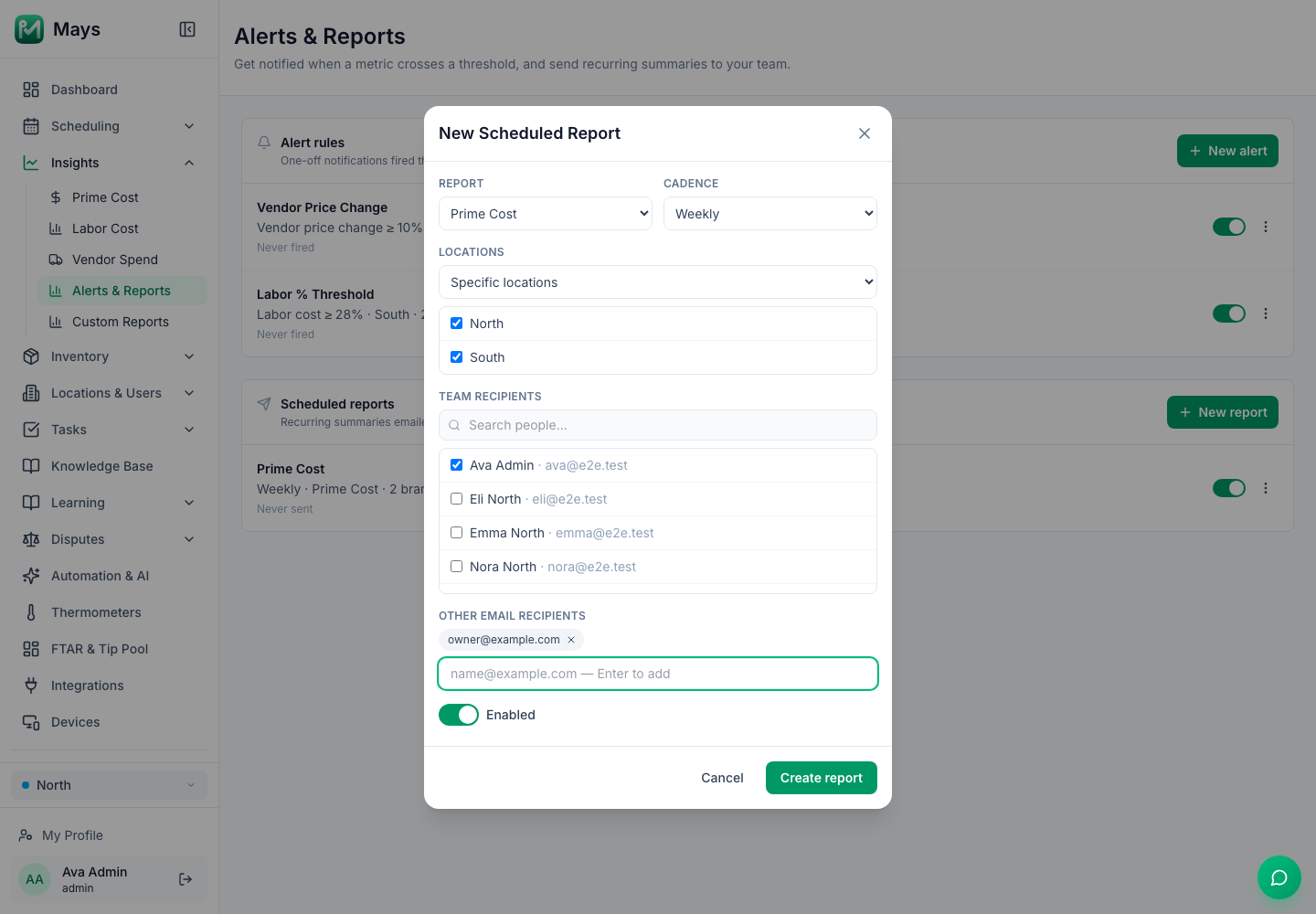
- Click New report.
- Pick the Report: Labor Summary, Prime Cost or Vendor Spend.
- Pick the Cadence: Weekly or Monthly.
- Under Locations, leave All locations to add up every location, or choose Specific locations and tick each location you want.
- Choose Team recipients and Other email recipients, the same way as for an alert.
- Click Create report.
When it arrives:
- Weekly: every Monday, around 7 a.m., covering the previous Monday to Sunday.
- Monthly: on the 1st, around 7 a.m., covering the previous month.
The time is in your organization's time zone: the time zone of the first location you set up when you created your account. Each location's numbers still follow its own days.
What's in it:
Report | Contents |
|---|---|
Labor Summary | Total hours worked, labor cost and labor % of revenue, plus the five department and job title rows most over and most under their scheduled hours. |
Prime Cost | Revenue, labor cost and %, food cost and %, prime cost %, and a day-by-day table. See Prime cost. |
Vendor Spend | Total spend across your vendors and invoices, your top five vendors, and the five biggest price changes. |
Email recipients get the whole report. Team recipients get a one-line summary as a notification, for example Labor summary (…): 312.5h, $5234.00 (28.1% of revenue).
Who gets what
- Team recipients get a push notification and an entry in the app's notification list. They don't get an email. These notifications can't be switched off in the app's notification settings, and there's no list of them on the web.
- Other email recipients get an email with a button into Mays. In scheduled reports and Labor % Threshold alerts, that button goes to a page that doesn't exist yet, so sign in and open Insights from the sidebar instead.
To send a report or alert to a teammate by email, add their address under Other email recipients.
Change, pause or delete
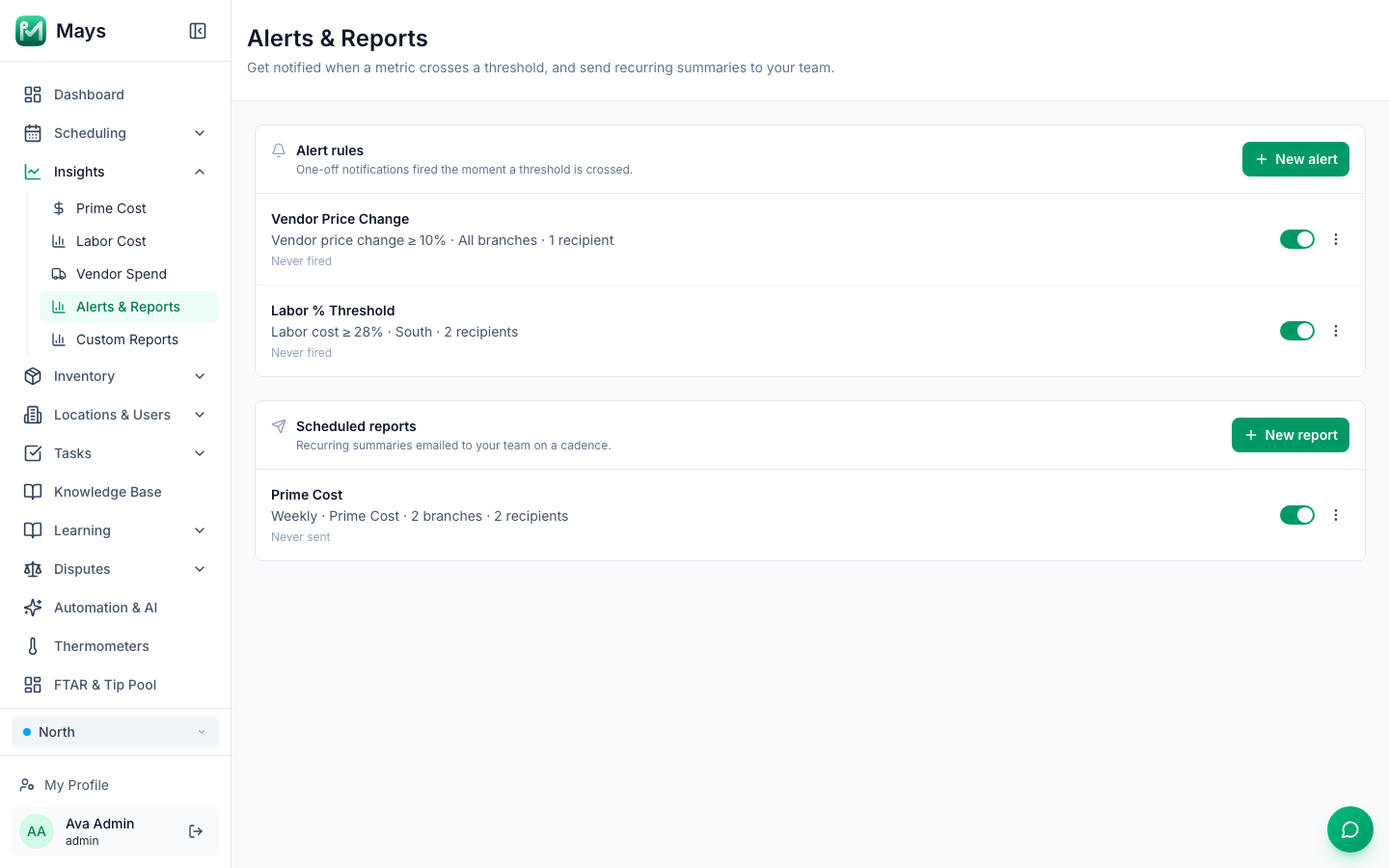
- The switch on each row pauses or restarts it. A paused one shows Paused.
- ⋮ → Edit changes it; ⋮ → Delete removes it after you confirm.
- The grey line shows when it last fired or was sent, or Never fired / Never sent.
There's no button to send a report or test an alert right away.
Good to know
- "All branches" in the list means All locations.
- With a custom role limited to some locations, you have to pick one of your locations for each alert and report. Alerts and reports for all locations can only be changed by an admin.
- A report covers what the person who created it can see. All locations means all of them for an admin. If that person later manages only some locations, the report covers only those, and a location they no longer manage drops out. If their account is deactivated or deleted, the report stops being sent: delete it and create it again from your own account.
- Recipients are checked every time something is sent. A team recipient who has been deactivated or deleted, or has left your organization, gets nothing. An alert about one location only reaches team recipients who can see that location: admins, and the people assigned to it. So an alert for all locations reaches a location's own managers when that location crosses the threshold, and not the managers of other locations. The same goes for an email address that belongs to one of your team's Mays accounts. Addresses that don't belong to a Mays account always get it.
- Labor % alerts use the same numbers as Prime cost: hours worked times wage, against net sales.
- Custom form alerts fire on every submission, including one sent again after a rejection. To see all the answers, use Task Data.