Insights → Vendor Spend totals what you spent with each vendor from your posted invoices, shows it over time, and flags items whose price moved.
Who: admins. Anyone else needs a custom role with the View insights permission, and then sees only the locations they work at. Insights is part of every plan, on the web app only.
The numbers come from vendor invoices you've posted under Inventory → Invoices, which is part of the Pro plan. See Vendor invoices.
Open Vendor Spend
- Go to Insights → Vendor Spend.
- Click the date button to change the dates. The page starts on the last 30 days, today included.
- Choose Week, Month or Quarter for the columns.
- Under Filter data, pick the Branches (locations) and Vendors to include. The page opens on the location picked at the bottom of the sidebar.
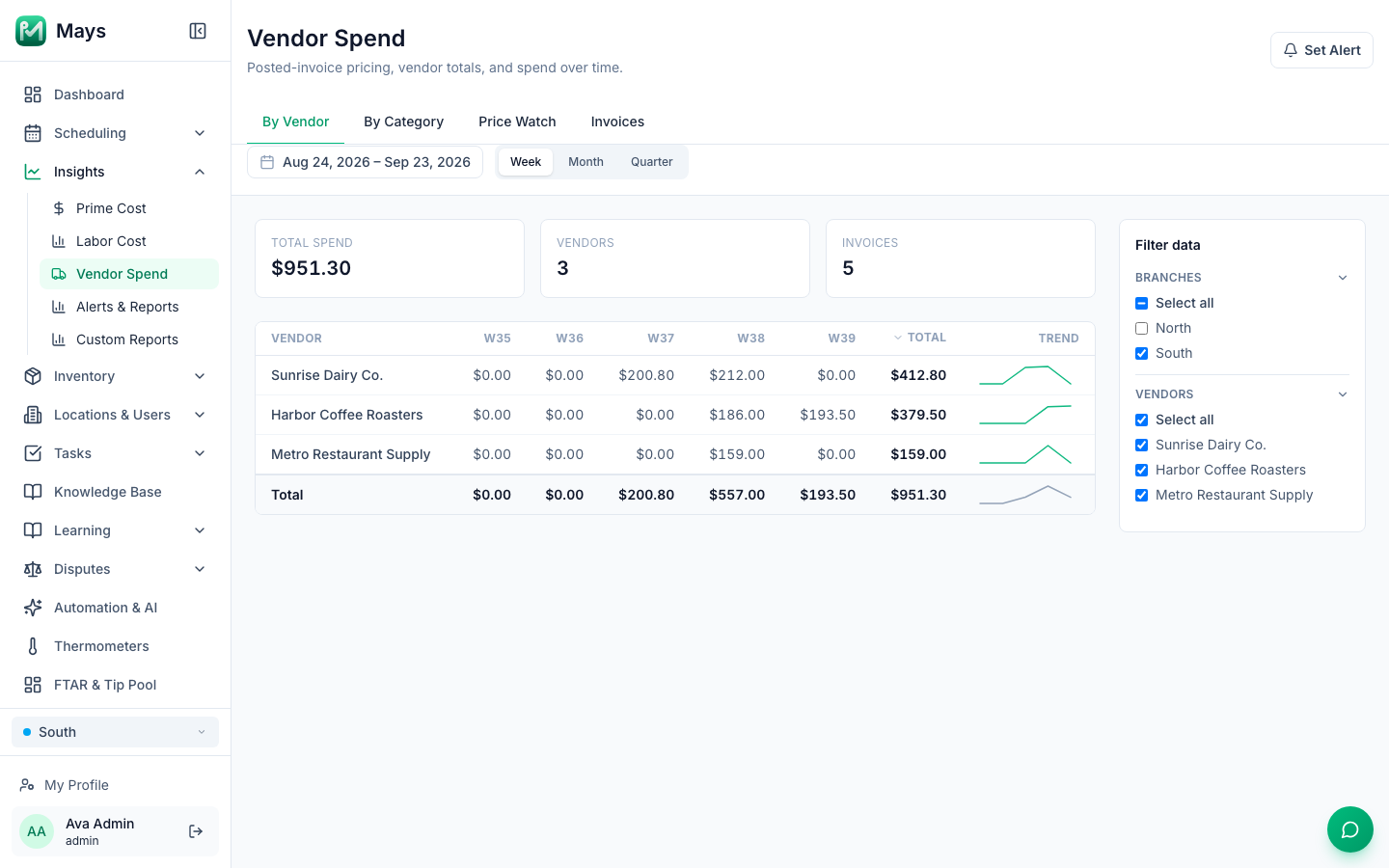
Three tiles at the top show Total Spend, the number of Vendors and the number of Invoices.
The four tabs
Tab | What it shows |
|---|---|
By Vendor | A row per vendor and a column per week, month or quarter, with Total and a small Trend line. Weeks are numbered, for example W38. Click Total to sort. |
By Category | The same, by the category of each inventory item. Lines not matched to an item are Uncategorized. |
Price Watch | A card per vendor, and an Items table of what each item cost (see below). |
Invoices | Spend Timeline, a bar per day split by your five biggest vendors (the rest are Other), and Timeline Detail, every invoice line with its Date, Vendor, Item, Qty, Unit Price and Spend. |
Watch prices
On Price Watch, a vendor's card shows Price changes when any of its items changed by 10% or more between its last two invoices.
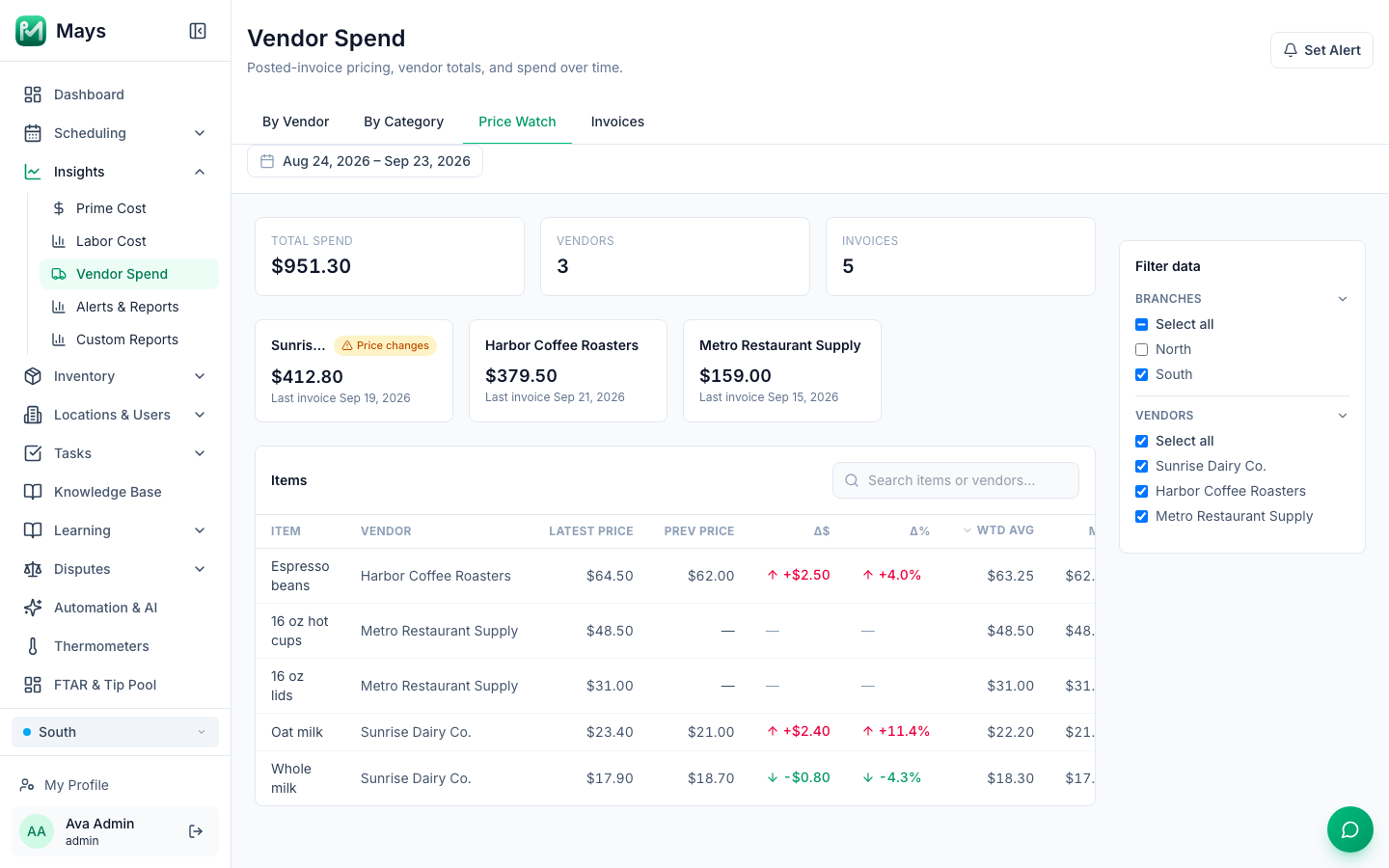
The Items table lists each item with:
- Latest Price and Prev Price: the price on its last two invoices, per pack as invoiced (a case, a bag).
- Δ$ and Δ%: the change between them. Red with ↑ is a price rise; green with ↓ is a drop.
- Wtd Avg: what you paid per pack on average, weighted by how many you bought. Also Min, Max and Qty.
Type in Search items or vendors… to find one. To be told as soon as a price jumps, click Set Alert at the top right. See Alerts and scheduled reports.
Good to know
- Only posted invoices count. Drafts and invoices waiting for review don't. Tax on the invoice isn't included.
- Invoices are dated by when they were posted, not by the date printed on them. An invoice posted a week late lands in the week you posted it.
- Unknown vendor: when you pick the vendor yourself on an invoice, instead of Mays reading it from the photo, it shows here as Unknown vendor for now.
- Invoices without a vendor are left out here, but they're in Invoice Spend on Prime cost, so the two totals can differ.
- Prices compare within your dates. Prev Price is the previous invoice in the range you picked, and pack sizes are compared as invoiced.
- The Vendors filter changes By Vendor, Price Watch and Invoices, but not the tiles at the top or By Category. When you change the dates and a new vendor appears in the list, it starts unticked; tick it to include it.
- Days are each location's own days, in its time zone.
- There's no export. For a weekly or monthly email, schedule a Vendor Spend report.
- The filters hide on narrow screens. If you don't see Filter data, make the window wider.