Vendors are the suppliers you buy from. For each one, set how it takes orders, which of your locations use it, and each location's delivery days, cutoff and minimum order.
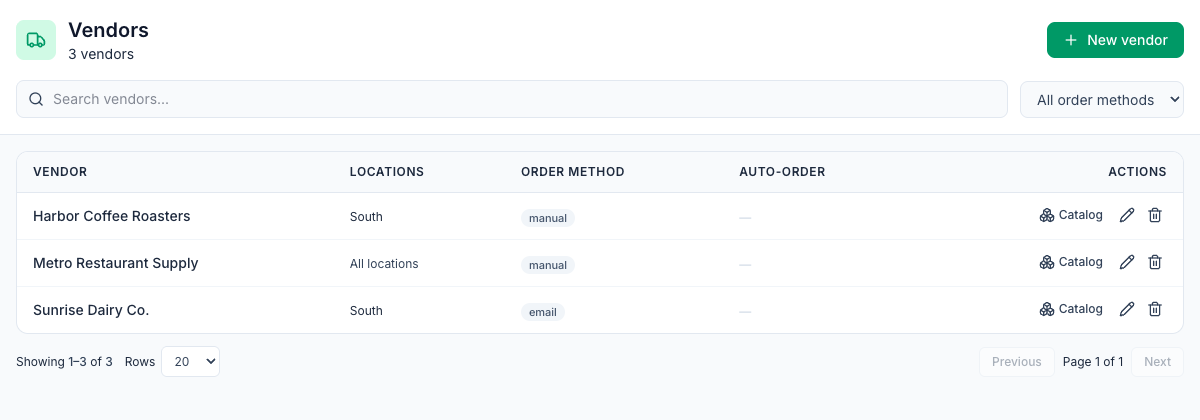
Where: Inventory → Vendors on the web. The list shows each vendor's Locations, Order method and Actions (Catalog, edit and delete).
Add a vendor (admins)
- Click New vendor.
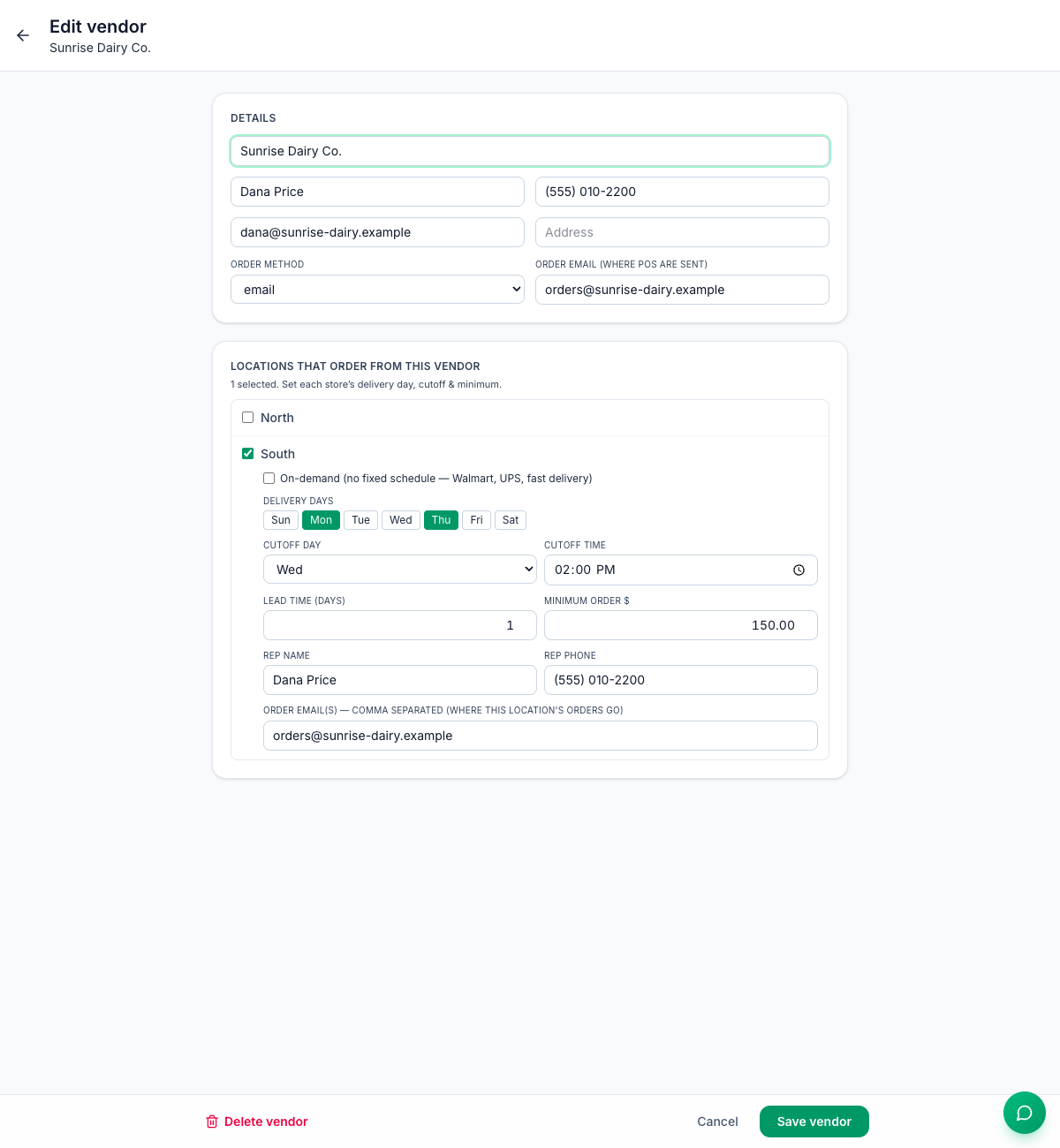
- Under Details, enter the vendor's name, contact name, phone, contact email and address.
- Pick the Order method (see below). For email, enter the Order email (where POs are sent).
- Under Locations that order from this vendor, tick each location that buys from it. Leave them all unticked to make it available to every location.
- For each ticked location, set:
- On-demand for a vendor with no fixed schedule, or the Delivery days, Cutoff day and Cutoff time;
- Lead time (days) and Minimum order $;
- this location's Rep name, Rep phone and Order email(s), separated by commas.
- Click Save vendor.
Order methods
Method | What Send order does |
|---|---|
Emails the order as a PDF purchase order to the vendor. | |
manual | Marks the order as placed so you can phone or text it in. If the location or the vendor has any email address on file, including the vendor's contact email, Mays emails the order to it anyway. |
punchout, edi, playwright, shopify | Place orders on the vendor's own ordering website. These are set up with the Mays team; contact support to get a vendor connected. |
Supplier logins stay hidden. For the website order methods, each store's login to the supplier's site is saved encrypted. Once it's saved, Mays never shows it again, and the password box reads •••• saved — leave blank to keep. To change the login, type the new value. A field you leave blank keeps what's already saved.
Which address gets the email: the location's first Order email(s), then the vendor's Order email, then its contact email. See Placing purchase orders.
Delivery days, cutoffs and minimums
The order form uses each location's settings to show, per vendor:
- Arrives Thu, Oct 1 · order by Wed, Sep 30, 2:00 PM: the next delivery you can still make, and its deadline;
- Order window for Mon, Sep 28 closed: a nearer delivery's deadline has already passed, so the order goes on the delivery shown above it;
- Add $24.40 to reach $150.00 minimum, or ✓ $150.00 minimum met;
- No delivery schedule set when the location has none.
Times are in the location's time zone. There's one cutoff day and time per vendor and location: for each delivery day, the deadline is the last cutoff day before it. A delivery day with no cutoff day has no order by.
Lead time (days) sets the expected delivery for an On-demand vendor, and for a location with no delivery days. When a location has delivery days, its delivery days and cutoff decide the delivery instead.
What managers can do
- Can: set their own location's delivery days, cutoff, lead time, minimum, rep and order emails, then click Save vendor. The vendor's details are greyed out and marked shared vendor — admin only.
- Can't: add, rename or delete vendors, change the order method or set prices for all locations.
- Careful with vendors for all locations. When a manager ticks their location on a vendor that no location was ticked for, the vendor becomes available to that location only, and other locations stop seeing it. Ask an admin to tick every location that uses it.
- If a vendor is also set up for a location the manager doesn't run, their save changes only their own locations and leaves the others as they are.
- If a save doesn't go through, the form stays open and says why, instead of closing as if it had saved.
Vendor catalogs
For a vendor connected to its ordering website, the Catalog button opens its product list. Admins map each product to one of your items once, and every location ordering from that vendor uses the mapping.
- Click Catalog next to the vendor.
- Click Sync catalog to bring in the vendor's products.
- For each product, pick your item in Search items…, or click New item to create one from it.
- Or click Suggest with AI, check the suggestions and click Accept on each, or Accept all on this page.
Mapping copies the product's price and pack size to the item. Each later Sync catalog copies them again when the vendor changes them, so recipe costs, on-hand value and the order form use the new price. The message under the buttons says how many mapped items changed, for example Synced 120 products. 3 mapped items got a new price or pack size; recipe costs use it now. A product the vendor lists with no price leaves your price as it is, and a price you set for one location still wins at that location.
The Past orders tab shows the vendor's order history from its website. For email and manual vendors the catalog stays empty: enter their prices on each item instead. See Inventory items.
Good to know
- Deleting a vendor (admins) removes it from lists and the order form. The trash icon shows for managers too, but only an admin's delete goes through; a manager sees a message saying so.
- Prices live on items, not on the vendor. The order form offers every vendor that has a price for the item.
- AI suggestions don't use AI credits.