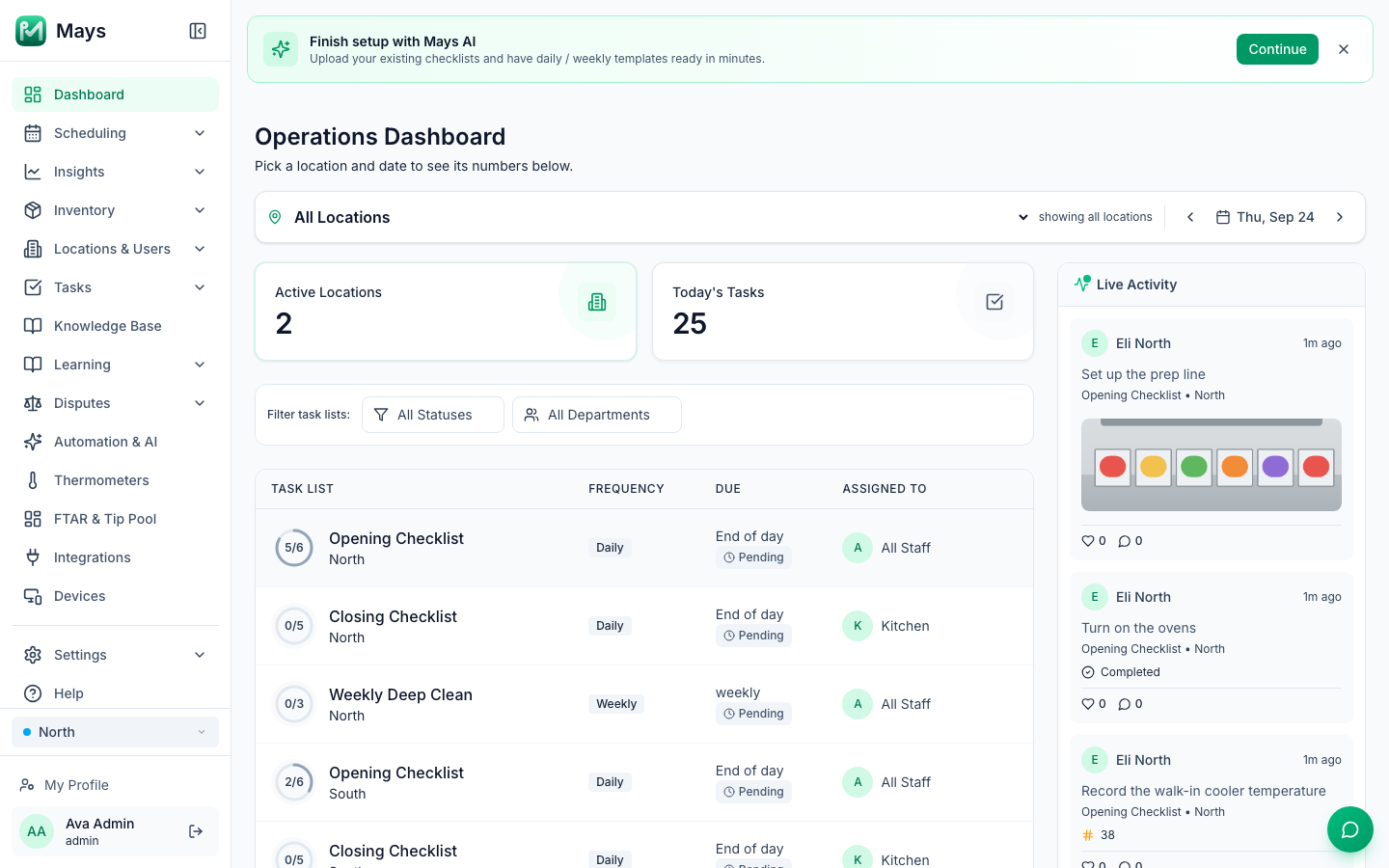
Everything in the Mays web app hangs off the sidebar on the left. At its bottom are the location switcher, your profile and sign-out; the Mays AI button sits in the bottom-right corner of every page.
The sidebar
Sections with an arrow open into sub-pages; the section you're in opens by itself. Here's what each one holds, top to bottom:
Section | What's there |
|---|---|
Dashboard | The Operations Dashboard: today's checklists by location, date, department and status, a live activity feed and, if Square is connected, today's sales. |
Scheduling | Schedule, Forecast, Approvals, Availability, Time Off, Time Clock, Logbook, Reports, Positions and Settings. |
Insights | Prime Cost, Labor Cost, Vendor Spend, Alerts & Reports and Custom Reports. |
Inventory | Grouped into Setup (items, recipes, menu lists, modifiers, vendors, shelves), Daily (counts, orders, receiving, invoices, prep, waste, transfers) and Analysis (stock, theoretical usage, POS mapping, reports, import). |
Locations & Users | Locations, Roles, Departments and Users — where you set up your stores and your team. |
Tasks | Tasks (checklists as they're completed), Templates (the checklists themselves), Types (custom task forms) and Data (answers submitted on those forms). |
Knowledge Base, Learning | Your SOPs and documents; training modules, the leaderboard and learning settings. |
Catering, Disputes, Agents, Automation & AI, Reviews, Thermometers, Signage, FTAR & Tip Pool | One entry per module. |
Integrations | Connect Square, 7shifts and your other services. |
Devices | Shared kiosk tablets and phones. |
Settings | General, Organization, Billing and Email Templates. |
Help | Open a support ticket with the Mays team (Help & Support). |
Why you don't see everything
The sidebar only shows what you can use:
- Your role. Items your role has no permission for aren't shown at all. With the built-in roles, for example, managers don't see Insights, Settings, Learning, Automation & AI or Task Types — admins see everything. See Roles and permissions.
- Your plan. A module that isn't in your plan stays in the sidebar with a small lock next to its name. Opening it shows "… isn't included in your plan" with an Upgrade plan button that takes you to billing. During the 30-day free trial nothing is locked except the paid add-ons.
- Modules turned off for your organization don't appear at all. If you open one from an old link you'll see "… isn't available — … is turned off for your organization." Write to Mays support if you think it should be on.
- Digital signage is a separate add-on: until a location subscribes, Signage shows a page to subscribe that location.
If you open a page by link that your role can't use, Mays shows No access with a Back to dashboard button — ask an admin to change your role under Locations & Users → Roles.
The location switcher
Most pages work on one location at a time. The pill with a blue dot at the bottom of the sidebar shows which one.
- Click the location name at the bottom of the sidebar.
- Under Switch location, click the location you want. The check mark shows the current one.
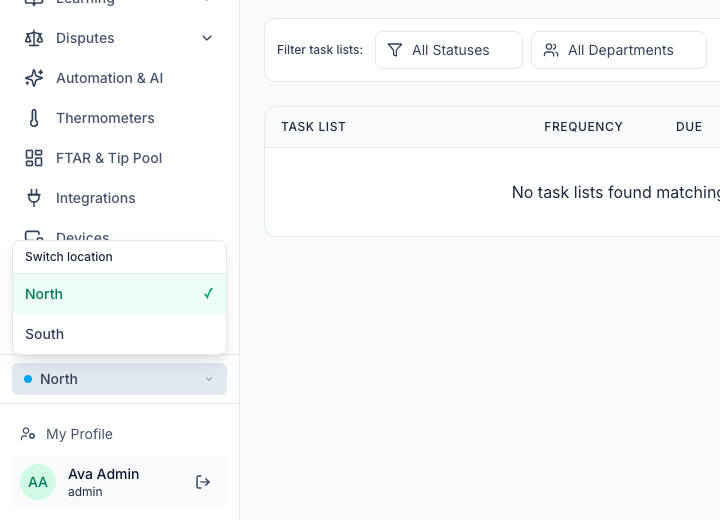
- Admins see every active location; managers see the locations they're assigned to.
- With only one location, the pill is just a label.
- Mays remembers your choice on this browser, separately for each organization you belong to.
- Scheduling, Inventory, Tasks and Templates, Signage and the FTAR & Tip Pool report follow the switcher. The Dashboard has its own location picker at the top of the page (it starts on All Locations), and Insights let you pick several locations at once.
If you work for more than one business on Mays, an organization switcher appears just above the location switcher — click it and choose under Switch organization.
Your profile and signing out
At the very bottom of the sidebar:
- My Profile — your Personal details (name, email, phone), Change password, and your personal calendar links (see Calendar sync).
- Your name and role, with the exit icon (Logout) to sign out.
Mays AI
The round green button in the bottom-right corner opens Mays AI, the assistant for your operations. Ask it things like "How many tasks were completed today?" or "Who's on shift right now?", or ask it to build a report. Earlier conversations are in the list at the top of the panel. Each answer uses AI credits.
On a small screen
When the browser window is narrow (a tablet in portrait, or a phone), the sidebar hides behind the menu button (three lines) at the top left. Tap it to open the sidebar; it closes when you pick a page.
On a large screen, the button next to the Mays logo (Collapse menu) shrinks the sidebar to icons. The location and organization switchers are hidden while it's collapsed — click Expand menu to get them back.
Good to know
- There's no notification bell in the web app — notifications go to the phone app.
- Dark mode follows your computer's setting; there's no switch in Mays.
- There's no search box for the whole app; each list (users, locations, templates…) has its own search.